Table of Content
Is PowerPoint the easiest way to show content on digital signage? Yes. Most people already have PowerPoint and know how to use it, so you avoid the steep learning curve of advanced design tools. Its simple, drag-and-drop interface lets anyone-from a school administrator to a corporate manager-turn plain information into bright, screen-ready slides in minutes. With built-in templates, transitions, and export tools, you can turn a regular slideshow into a professional display without any graphic design training.
PowerPoint is also very useful because it connects what you create on your computer with what appears on public screens. Whether you run one TV in a café or hundreds of screens across a campus, PowerPoint offers flexible tools to build messages that stand out. This guide explains how to get the most from this common tool to create, manage, and improve your digital signage content.
What Is Digital Signage and How Does It Work?
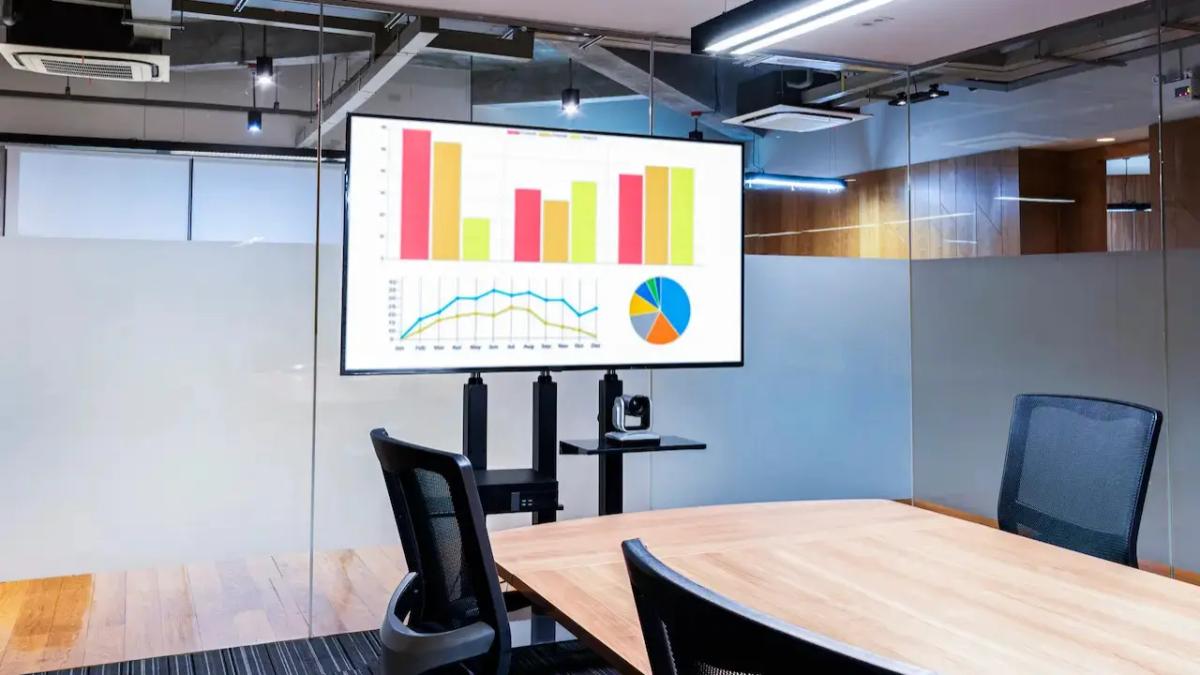
Digital signage means using electronic screens-such as LCD monitors, LED panels, TVs, or projectors-to show moving or changing content like images, videos, live streams, and information. Unlike printed posters, digital signage lets you update content in real time and add motion, making it a key communication tool today. It depends on a mix of hardware (screen plus media player) and software (a content management system, or CMS) that controls what appears on the screen and at what time.
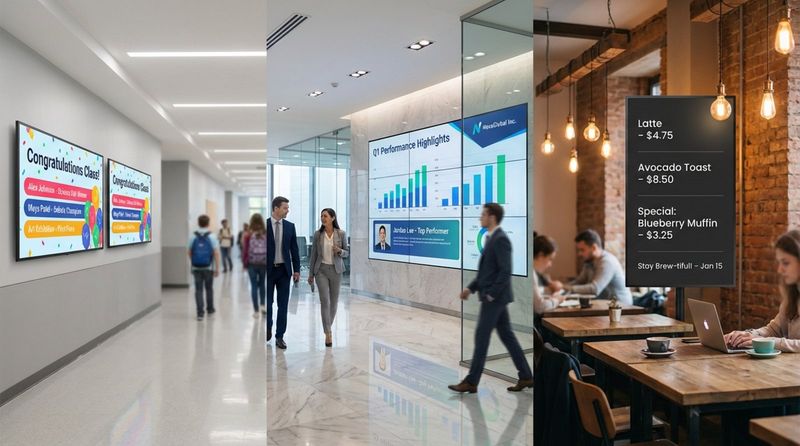
In daily use, digital signage appears in many industries to handle specific communication needs. A school might show safety rules in the morning, student achievements at lunch, and schedule reminders later in the day. On a production floor, screens might rotate between safety stats, shift details, and staff recognition. The main benefit is that you update content once in a central place and send it to all connected screens instantly, removing the need to print and post new materials by hand.
Why Choose PowerPoint for Screen-Based Displays?
PowerPoint is a common choice for digital signage because it offers an easy way to make eye-catching presentations. Its wide use is its biggest advantage; many people already know how it works, so teams can create content quickly instead of learning new design software. It works well whether you design content for a huge outdoor display or a small screen in a lobby.
PowerPoint’s built-in design tools-shapes, stock images, animations, and transitions-help you build polished, multimedia slides. You can add videos, sound, and even web pages to keep viewers interested. Many experts suggest PowerPoint because it offers strong design options while staying very easy to use, making it a good starting point for anyone new to digital display content.
Benefits and Limitations of Using PowerPoint for Digital Signage
Cost-Effectiveness and Accessibility
A big reason to use PowerPoint is its low cost. If your organization already uses Microsoft 365, you already have a capable signage design tool with no extra fee. Even without a subscription, a one-time purchase of Office Home 2024 is much cheaper than most pro design tools. This makes PowerPoint a good pick for small businesses, churches, and schools with limited budgets.
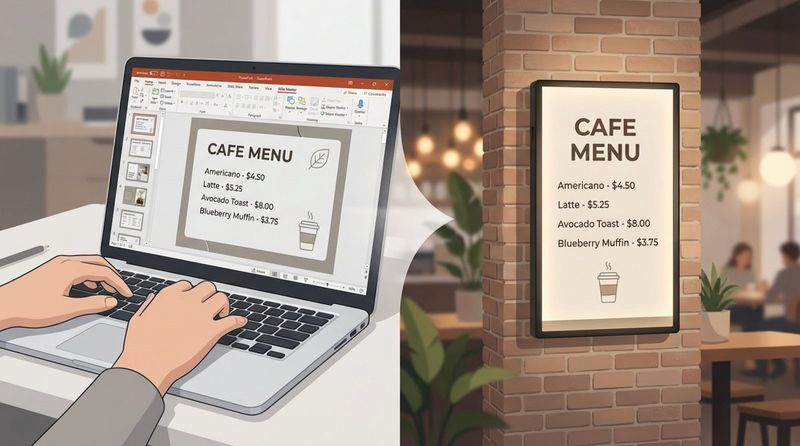
Accessibility is also about how easy it is to run. PowerPoint files are usually small and work on normal computers, so you do not need a high-end machine to design signs. PowerPoint runs on both Windows and Mac and can export to JPEG, PNG, or MP4 formats that work with nearly all signage systems. This broad compatibility means your work can show on almost any screen, regardless of brand or hardware type.
Ease of Use for All Skill Levels
Using PowerPoint for digital signage is quick to learn-often just 15 minutes for someone who knows basic office software. The drag-and-drop layout makes it simple to add text, pictures, and videos to slides. Non-designers can create good-looking content that might otherwise need a graphic pro. Beginners can start with built-in templates for a fast, professional look, while advanced users can use interactive elements and more complex animations.
This simple workflow also helps teams work together. Since PowerPoint is standard in many workplaces, several people can edit the same file. A marketing lead can set branding, while a manager updates metrics or notices. This shared approach keeps content current and relevant, without relying on one “PowerPoint expert” to make every change.
Customizable Templates and Design Features
PowerPoint offers many templates suited to signage: café menus, schedules, dashboards, announcements, and more. These templates handle layout and color choices for you, so you can focus on what you want to say. You can easily adjust them by adding your logo, brand colors, and fonts to keep a steady brand look across all screens.
The design tools are surprisingly strong. With "Slide Master," you can set up branding and layouts that apply to every slide automatically. This is especially helpful for digital signage where visual consistency builds trust. Features like "SmartArt" and shape tools help you show data and structure in simple, clear visuals that passersby can understand in seconds.
Support for Animations and Transitions
Movement helps grab attention, and PowerPoint supports both animations and transitions to add motion to your screens. Simple transitions like "Fade" or "Wipe" let slides change smoothly instead of jumping. Animations can make key items appear one at a time, guiding the viewer’s eyes in a clear order.
When you export your slideshow as an MP4 video, all animations and transitions carry over. This is very helpful for digital signage because the timing and look you set on your computer will match what plays on the screen. If you use these effects lightly-without flashy, confusing tricks-you can create a polished animated sign that looks expensive, even if it was quick and cheap to make.
Flexible Content Updates and Quick Editing
Digital signs work only if the content is current, and PowerPoint makes changes simple. If you need to adjust a date, price, or image, you just open the file, edit, and export again. This flexibility matters a lot for places like restaurants with daily specials or stores running short-term promos.
Cloud storage makes this even smoother. If your PowerPoint file lives in OneDrive and is connected to your signage software, changes can sync without extra steps. Save the file on your laptop, and the update can appear on screens across your building-or country-soon after. This removes the need to visit each screen with a USB stick and saves a lot of time.
Drawbacks and When to Consider Alternatives
PowerPoint is a strong starter tool, but it does have some limits, especially for live content and large networks. PowerPoint mainly handles fixed slides; it does not show live data like weather, social media posts, or news tickers easily without extra plugins. And if you run hundreds of screens, even cloud-based PowerPoint updates can become hard to manage by hand.
Another limit is that PowerPoint by itself does not offer advanced scheduling or tracking. You cannot natively set specific slides to appear only at certain times, or see how often a slide played. If you need remote control, automated schedules, and detailed reporting, you will eventually need digital signage software such as Look DS or Rise Vision. These tools can usually accept PowerPoint content but add strong management features that PowerPoint alone does not provide.
Creating Effective Digital Signage Content in PowerPoint
Setting Slide Dimensions and Screen Resolution
The first and most important step is matching your slide size to your screen. Most modern TVs and digital signs use a 16:9 widescreen ratio. In PowerPoint, go to the Design tab, click Slide Size, and choose Widescreen (16:9). For full HD screens, use 1920x1080. For 4K, use 3840x2160 to keep images sharp.
If your screen is vertical (portrait), such as a directory or menu board, change the orientation manually: Design > Slide Size > Custom Slide Size, then swap width and height. Setting this correctly at the start keeps your content from looking stretched, blurry, or boxed with black bars.
Designing Readable and Eye-Catching Slides
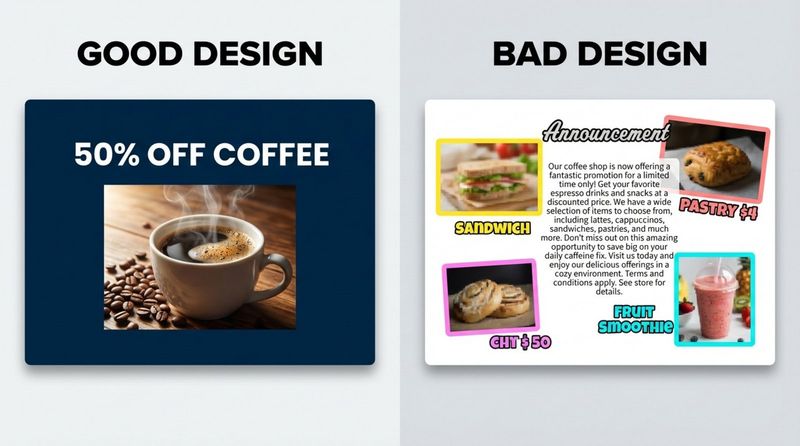
People usually see digital signage from a distance and only for a moment, so clarity matters most. Keep text short: aim for no more than five lines per slide and 3-4 words per line. Use large, bold headlines that can be read from across a hallway or large room. High-quality images help grab attention; people remember visuals far better than plain text.
Stick to one clear idea per slide. If you have several points, spread them over multiple slides instead of cramming everything into one. Use bullet points or short phrases, not long paragraphs. Before you finish, step back from your monitor and check if the main message is obvious without squinting. If it is hard to read, increase font size or simplify the layout.
Best Font and Color Choices
Readability should beat style every time. Sans-serif fonts like Helvetica, Arial, and Verdana are usually easiest to read from a distance. For bold headlines, fonts like Impact or Bodoni Moda can work, but use them mainly for titles, not body text. To guarantee fonts show correctly on any device, stick to common system fonts or export slides as images so the font appearance is locked in.
Strong color contrast is also key. Your text needs to stand out from the background. Good pairs include dark text (black or navy) on a white background, or white or yellow text on a dark blue or black background. Avoid low-contrast combinations like light gray on white, which can vanish under bright light or odd viewing angles. High contrast makes your content easier to read in many environments.
Using Images, Videos, and Branding Elements
Visuals should support your message. Use high-resolution photos and clean logos so your sign looks professional. Your logo should appear in a consistent spot (like a corner) on each slide to build brand recognition. Use your brand colors and fonts so your signage matches your other materials.
You can also embed videos directly into slides. Short product clips, background motion, or simple animations work well to catch attention. Make sure the video quality is high and the file is not so large that playback slows down. When you export the PowerPoint as an MP4, the videos will play as part of the loop without extra setup.
Adding Transitions and Timing Slides for Continuous Display
Timing affects how well people take in your message. Adjust each slide’s duration to match its content. Simple image-plus-headline slides might need only 5-6 seconds. Slides with more text or data might need 10-12 seconds. Set timing in the Transitions tab by checking After in the "Advance Slide" area and entering the number of seconds.
For transitions, "Fade" is usually the best choice; it looks clean and does not distract. To make your slideshow run nonstop, go to the Slide Show tab, click Set Up Slide Show, then choose Browsed at a kiosk (full screen) and check Loop continuously until 'Esc'. This makes the presentation restart automatically after the last slide.
How to Display PowerPoint Content on Digital Signage Screens
Saving Slides as Videos, Images, or Looping Presentations
The way you save your PowerPoint file depends on how you will play it. If you use animations, transitions, or embedded videos, export the file as an MP4 video to keep all motion effects. Go to File > Export > Create a Video and select a resolution like 1080p or 4K. This creates one video file that can play on most media players and smart TVs.
If you only need static screens, save your slides as images (JPEG or PNG). Go to File > Save As and pick your image format. PowerPoint will ask if you want to export "Just This One" or "All Slides." Choosing all slides creates a folder of images you can upload into a signage CMS or show directly on a TV as a slideshow from a USB drive.
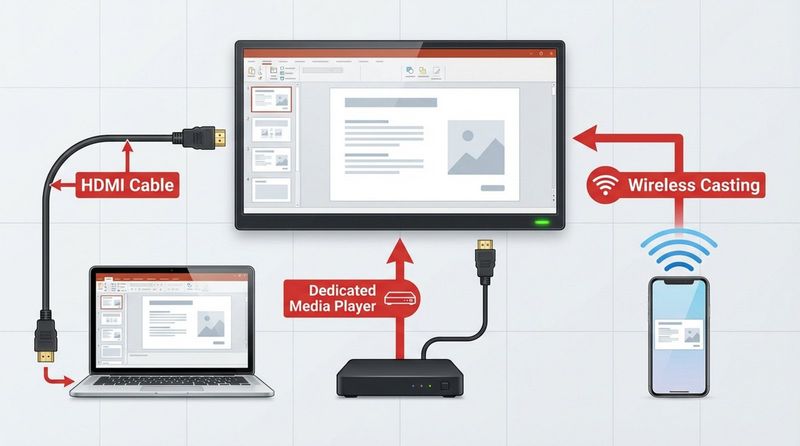
Connecting Devices: HDMI, Wireless Casting, and Media Players
The next step is getting the content from your device to the screen. The simplest method is connecting a laptop with an HDMI cable. Plug it in, press Windows + P to mirror or extend your display, and run your slideshow in kiosk mode. This is best for short-term setups because it ties up a laptop and needs a cable connection.
For longer-term setups, wireless casting or dedicated media players are better options. Devices like Chromecast, Amazon Fire Stick, or Apple TV can cast from a computer or phone. For 24/7 use, a dedicated media player or PC stick is safer. These small devices plug into the HDMI port and are built to run continuously without the sleep or overheating issues common with standard laptops.
Uploading Presentations: USB, Cloud, and Network Options
You can move files to the display in several ways. One simple method is to copy MP4 or image files to a USB drive and plug it into the TV’s USB port. Most smart TVs can loop these files from the drive. But this method needs physical access each time you update content, which is hard when you manage many screens.
Cloud and network methods are much more practical for ongoing use. With a cloud-based CMS, you upload files to a web dashboard and send them over the internet to each screen. Some systems can link directly to PowerPoint files stored on OneDrive or Google Drive. When you save changes to the source file, the CMS picks them up and refreshes the content on your displays without manual uploads.
Using Digital Signage Software with PowerPoint Files
Professional signage tools like Look Digital Signage, can work directly with PowerPoint content. Many have built-in apps for PowerPoint or Google Slides. Look DS can show Google Slides presentations and accept PowerPoint links, making playback more stable and easier to manage across many screens.
Using a CMS also lets you mix PowerPoint slides with other content types. You can design a layout with your PowerPoint in the main area and show live weather or a news ticker in a sidebar. This turns a basic slideshow into an information hub. The CMS handles the schedule, so the right presentation plays at the right time of day automatically.
Keeping Animation and Interactivity Working
Problems can appear if you send a raw .pptx file to a signage player that does not have full PowerPoint installed. In that case, the player may flatten your slides into still images and remove animations. To avoid this, always test your file on the actual player and screen. If animations matter, exporting as MP4 is usually the safest option because all motion is built into the video.
If you want interactive signage-where users tap the screen-make sure your media player and software support touch input. PowerPoint can handle basic interactivity with "Hyperlinks" and "Action Buttons." On a touch-enabled screen connected to a Windows-based player, people can tap these buttons to move through slides, creating a self-serve kiosk without writing any code.
Optimizing and Managing PowerPoint Digital Signage Displays
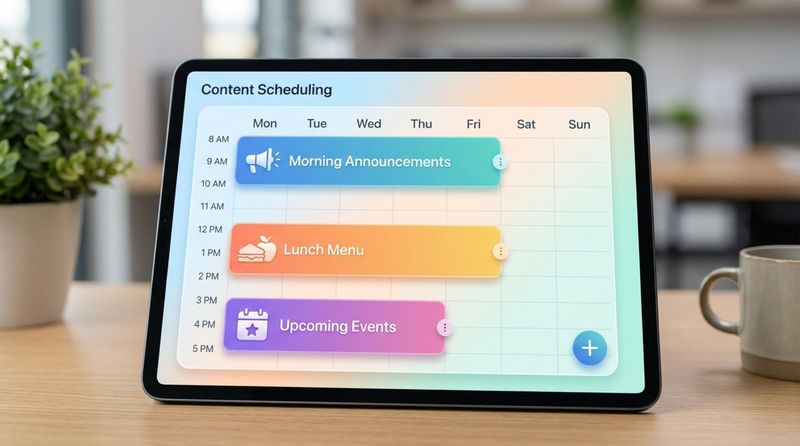
Scheduling and Automating Content Updates
Screens that never change quickly get ignored. Plan your content so it changes by time of day or day of week. PowerPoint alone has limited options here, but most CMS platforms let you build playlists. For example, you might schedule a "Morning Greeting" from 8-10 AM, a "Lunch Specials" menu at midday, and travel or commute updates in the late afternoon.
You can also automate updates with linked calendars. Some signage platforms read events from Outlook or Google Calendar and show them in a PowerPoint-style template. Add an event to your calendar, and it appears on screens shortly after. This reduces daily effort while keeping your screens helpful and current.
Best Practices for Slide Duration and Looping
Try to keep your entire slide loop between 15 and 30 seconds. In busy areas, people often only see the screen for a few seconds. If the loop is too long, many viewers will miss key slides. Put your most important messages early in the loop, or repeat them more often so they are more likely to be seen.
For individual slides, text-heavy screens may need a bit more time, but avoid going over 15 seconds. Long pauses can make the screen feel dull and can increase the risk of image “burn-in” on some displays. A steady rhythm of slide changes with light transitions helps the screen feel active and professional.
Monitoring Performance and Troubleshooting Common Issues
Most digital signage issues fall into three groups: power, network, or input. If a screen is black, first check if the media player is powered on. If it shows "No Signal," check the HDMI cable. For cloud-based systems, an internet issue might stop updates from arriving, but many pro players (like those from PiSignage or Rise Vision) cache content locally and keep looping it even if Wi-Fi fails.
To catch problems early, use a CMS with display monitoring. These systems can email you if a screen has been offline for a set time, such as 15 minutes. That way, you can fix issues before many people notice. A simple “power cycle”-unplugging the player or TV for about 10 seconds and plugging it back in-often solves minor glitches.
Accessibility and Security Considerations
Accessibility should be part of your digital signage design. Viewers cannot adjust your font size or contrast, so you need to make content easy to see from the start. Use strong contrast, large fonts, and clear layouts to help people with visual or cognitive challenges. Following key ideas from WCAG guidelines will help you reach more viewers.
Security also matters, especially for public-facing screens. If you use a laptop, lock it and turn off notifications so emails and system pop-ups never appear on the sign. For larger setups, choose a CMS with SOC 2 Type 2 certification and Single Sign-On (SSO) support. This protects your system from unauthorized changes and keeps data connections encrypted.
Comparing PowerPoint to Other Digital Signage Tools
PowerPoint vs. Google Slides and Web-Based Presentations
Google Slides is PowerPoint’s main rival for signage and has one big advantage: the "Publish to Web" option. This creates a link you can feed straight into most signage platforms. Edits you make in Google Slides then show up on your screens without re-uploading. PowerPoint, on the other hand, usually offers stronger animation tools, better offline use, and more advanced design options for complex slides.
Web-based tools shine in teams where many people edit content from different places. PowerPoint is often chosen for displays where tight timing and high-quality video are important. In many cases, the choice simply follows what your organization already uses-Microsoft or Google-since both systems can work very well for signage when set up correctly.
Using PowerPoint with Popular Digital Signage Platforms
Many organizations get the best results by using PowerPoint for design and a signage platform like Look DS, for delivery. These platforms handle the hard parts of sending and managing content. You keep the comfort of PowerPoint while gaining professional control over your screens.
When to Use Dedicated Digital Signage Software
PowerPoint is an excellent starting point, but at some stage you might outgrow it. If you spend a lot of time every week updating USB sticks or need to show live dashboards (such as a real-time Power BI sales board), it is time to move to full signage software. This is also true when you manage many screens across several locations.
Dedicated signage software is built for scalability and reliability. A standard laptop running PowerPoint could freeze or restart for updates during business hours. A dedicated player running signage software is built to run all day, every day. If your screens are key to your business-like digital menus that customers rely on-investing in pro software and hardware can prevent costly downtime.
Frequently Asked Questions About PowerPoint for Digital Signage
What Is the Best Way to Keep PowerPoint Content Up to Date?
The fastest method is to use cloud-syncing. Store your PowerPoint file on OneDrive and connect it to a CMS like Look DS. Any edits you save on your computer will roll out to all linked screens based on the CMS refresh settings . This lets staff update menus, schedules, and notices from any location without touching the physical screens.
If you are not using a CMS, keep a "Master Template" file. Use it as your base, then only change text and images for each new version. Export your slides as MP4 and replace the old video on your player or USB drive. Updating old slides on a regular schedule-such as weekly or monthly-helps maintain interest and accuracy.
Can I Display Live Data or Feeds in PowerPoint Presentations?
Standard PowerPoint has limited built-in support for live data, but you can work around this. Some add-ins let you connect Excel cells or RSS feeds to your slides, though these may not be stable for non-stop use. A more stable method is to let your signage CMS handle live content (like Power BI dashboards, weather, or social feeds) while PowerPoint provides the static visuals.
You can also use Google Slides with its "Publish to Web" function as a kind of live feed, especially if data comes from a linked Google Sheet. Updates to the sheet can show up on the screen fairly quickly. For fast-changing or critical data like stock prices or emergency alerts, full signage software is a safer choice than relying only on PowerPoint.
What Are the Recommended Hardware Requirements?
For screens, any current Smart TV or commercial display with an HDMI port will work. Commercial displays tend to be better suited for business because they can run nonstop and are often brighter. For media players, a Windows-based PC stick or a dedicated signage player is a strong choice. These units are small, easy to mount behind the screen, and can play 1080p or 4K video smoothly.
If you choose to use a laptop as the player, aim for at least 8GB of RAM and a modern processor for smooth video playback. Set the laptop’s power mode to "Never Sleep" while plugged in and turn off all notifications. For a budget-friendly plug-and-play option, the Amazon Signage Stick is a low-cost, purpose-built player that works directly with several CMS tools and handles PowerPoint-based videos well.
Key Takeaways for Effortless Digital Signage with PowerPoint
To succeed with PowerPoint digital signage, remember that simple designs work best. People are flooded with information, so a clean slide with strong contrast and one clear message will beat a busy design every time. Follow the "Rule of 5" for text, pick easy-to-read sans-serif fonts, and use high-quality visuals to carry the message. Treat your screens as something people glance at, not something they read in depth.
New AI tools inside PowerPoint are also speeding up design. Features like "Designer" can suggest layouts and images based on your text, making it easier to create professional signs quickly. As your needs grow, think about moving away from USB updates to a cloud-based CMS to gain scheduling, automation, and monitoring. Whether you are advertising a sale, sharing company updates, or celebrating student success, PowerPoint remains one of the most flexible and approachable ways to get started with digital signage.