Table of Content
PowerPoint is a classic tool in offices and classrooms, used for all kinds of presentations. But can it really work well for digital signage on TVs and displays? The honest answer is: it depends. PowerPoint can be an easy way to start showing rotating content on screens, but it also has clear limits. Before you decide to use it for your displays, you should know what it does well, where it falls short, and how to get the best results if you choose to use it.
Digital signage is now everywhere: in malls, airports, cafes, offices, and schools, sharing information and ads with strong visuals. Using familiar software like PowerPoint for this can be very appealing, especially if you want a low-cost and simple setup. But there are details that matter a lot. A slideshow that works great in a meeting may not run smoothly or reliably when it’s supposed to play all day, every day on a public screen.
What is PowerPoint digital signage?
PowerPoint digital signage means using Microsoft PowerPoint presentations as content for digital screens, such as TVs or monitors, usually as a looping slideshow. You create a normal presentation, set it to repeat without stopping, and show it on a display. In this way, a tool originally made for live presentations becomes a system for ongoing, unattended screen content.
The main appeal is how simple this is and how many people already know PowerPoint. Most companies already have PowerPoint installed and many staff members know how to build at least basic slides. That makes it easy and cheap to get started with digital signage, especially for people who don’t have the money or skills for more advanced systems.
How does PowerPoint function as digital signage?
Used as digital signage, PowerPoint runs a slideshow on repeat, usually in what’s called “kiosk mode.” Slides move forward automatically based on a timer. When the last slide is done, the show starts again from the beginning. Each slide normally fills the entire screen and changes every few seconds, showing text, pictures, animations, and sometimes embedded videos.
To set this up, you need to change a few settings in PowerPoint. You must turn on automatic slide timing and set the show to loop continuously. This keeps the screen from going blank and makes the content repeat over and over. You then show the slideshow on a TV or monitor, usually by connecting a Windows PC, a small mini-PC stick, or a digital signage player that can handle PowerPoint files.
Where is PowerPoint digital signage commonly used?
PowerPoint digital signage works best where people want something simple, cheap, and easy to update, and where advanced features are not very important. It’s often used by small businesses, community groups, and for basic internal communication.
Examples include a small clinic showing waiting times and health tips, a school hallway listing events, or a small shop promoting daily offers. A corporate lobby might display a welcome message or company news on a screen. It can also show arrival times at smaller airports, menus in small cafes, or promotions in local supermarkets, especially when live data and constant real-time updates are not required, but a clear and visually appealing display is still needed.
What are the advantages of using PowerPoint for digital signage?
For many people starting with screen content, PowerPoint is very tempting. It has several strong points that make it a good option in some cases, mainly because it is widely available and easy to use. Let’s look at the main benefits.
Many organizations already pay for Microsoft Office, so PowerPoint is there at no extra cost. It’s built for visual communication, which makes it a simple way to begin using digital displays without new software, training, or a big budget.
Simple and accessible for most users
PowerPoint’s biggest strength is its simplicity. Most people have used it at school or at work. That means there is very little training needed. In contrast, specialist digital signage tools can be harder to use and often require dedicated training or an experienced operator.
Even beginners can quickly learn the core features needed to create decent-looking slides. Because it’s so familiar, many different people in a company can help build or update content. The quick editing tools in PowerPoint make it fast to change slides and publish new messages.
Wide variety of design templates and themes
PowerPoint includes many built-in templates and themes. This is helpful for users who have limited design skills. These templates give you a ready-made layout, so you don’t have to design from a blank slide. You choose a template that fits your brand or purpose and then change the text, images, and colors.
Some templates are free and others are low-cost. There are options for many industries and use cases. Small businesses, in particular, can get professional-looking slides without hiring a designer. However, bigger organizations that need many different layouts or more advanced designs may find standard templates too basic in the long run.
Flexible content options: text, images, animations, and videos
PowerPoint supports many types of content on a slide. You can mix text, photos, charts, icons, shapes, audio, and video in one presentation. It works with many file formats, which makes it easy to combine various elements.
Beyond static slides, PowerPoint offers animations and slide transitions. These can add motion and interest, such as fading in text or sliding images onto the screen. Used carefully, they can help draw attention and guide viewers’ eyes to key information. This variety makes it possible to build lively and engaging screens using a tool you already know.
Cost-effective for small businesses and organizations
For small companies, local shops, or non-profits with tight budgets, PowerPoint-based digital signage can be very affordable. If you already own Office, there is no extra software to buy. If not, a single PowerPoint license is relatively inexpensive, around $160.
You also don’t need special playback hardware. A standard Windows PC or a low-cost mini-PC stick plugged into a normal TV is usually enough. Compared to many professional digital signage systems, which can include license fees, dedicated players, and subscriptions, this keeps costs down both at the start and over time.
Easy content updating and editing
Editing PowerPoint content is quick and simple. You can open the file at any time, change text, replace images, or adjust layouts. This makes it easy to keep information up to date.
Frequent changes like daily menus, special offers, or event time updates can be done with basic PowerPoint skills. You don’t need to learn a new system or go through a complex publishing process. However, pushing those updated files out to screens can be manual and time-consuming once you have more than a few displays, as we’ll cover later.
No need for specialized hardware or software
PowerPoint signage doesn’t normally require special media players or complex networks. A standard Windows PC connected to a TV over HDMI can handle playback. Mini-PC sticks are also a popular option: they are small devices that plug straight into the TV’s HDMI port and act as a tiny computer that runs PowerPoint.
This avoids spending money on proprietary digital signage players or complex server setups. Because PowerPoint is widely known, most people can set up and run the system with little help. This off-the-shelf approach lowers technical barriers and makes digital signage available to many smaller organizations.
What are the disadvantages of PowerPoint digital signage?
While PowerPoint has clear benefits, it also has serious limits when used for digital signage. What works for an in-person presentation does not always work for ongoing, unattended screens in public areas. Many issues become clear as soon as you need more than a simple, single-screen setup.
Traditional presentations are controlled by a person standing nearby. Digital signage content needs to run on its own, change on a schedule, and often be managed centrally. PowerPoint was not originally built for that, and this leads to several weaknesses.
Limited remote management and control features
The biggest drawback of PowerPoint for digital signage is the lack of central control. In most professional signage systems, you can manage content for many screens from one place: upload new media, change playlists, and check that everything is running, even if screens are in other buildings or cities.
With a basic PowerPoint setup, a file usually lives on each PC or USB stick connected to a screen. To update it, someone often needs to go to that screen, replace the file, and restart the slideshow. As soon as you have more than a few displays, or screens in other locations, this becomes slow, costly, and error-prone. There is no built-in way to update many screens at once or to check remotely that they are all working.
No built-in content scheduling or automated updates
PowerPoint can loop slides, but it does not include real scheduling features. You cannot easily set one presentation to run in the morning, another at lunch, and another in the evening, all on a timetable.
You also can’t easily pull in live data such as news, weather, or social media updates. Some advanced users may try to use VBA scripts or other workarounds, but this is complex and does not scale well if you have many screens. The lack of built-in scheduling and dynamic content makes PowerPoint much less flexible than dedicated signage tools.
Potential compatibility issues with media players and screens
PowerPoint files are generally portable, but problems can appear when they run on different machines. A common issue is fonts: if the font you used when designing the slides is not installed on the playback PC, PowerPoint will replace it with another font. This can change the look, text size, and layout. You can embed fonts in the file to reduce this risk, but that is an extra step and not everyone remembers to do it.
There can also be performance issues. Videos or detailed animations may lag or play poorly on weaker hardware, such as low-end mini-PC sticks. Extra-large images or complex slide designs can cause slow transitions or choppy playback. Also, if the slide size does not match the screen’s aspect ratio, you may see black bars or stretched images. PowerPoint defaults to 16:9, which fits most modern TVs, but you still need to check this setting.
Difficulties in content recovery or backup
PowerPoint-based signage usually has weak backup and recovery options. If power goes out or a PC crashes, the system may not start the slideshow again on its own. Someone might need to visit the device, restart it, open the file, and re-enable kiosk mode.
Professional digital signage products often include cloud backup, remote monitoring, and automatic restart after failures. With PowerPoint, there is much less built-in protection. This makes it risky in situations where displays must stay on all day with minimal downtime, especially if the screens are far away or hard to reach.
Not ideal for large-scale or multi-location networks
PowerPoint is a poor choice for large or spread-out screen networks. Without centralized control, every display becomes its own separate little project. Updating, monitoring, and maintaining many devices quickly turns into a major task.
If you run dozens or hundreds of screens across offices, campuses, or branches, manually copying files and checking each device is simply not realistic. Professional signage systems are built to handle large networks with tools for mass updates, remote monitoring, and organized workflows. PowerPoint does not offer these features.
How to create effective digital signage with PowerPoint
Even with its limits, you can still create good digital signage using PowerPoint if you plan carefully. The key is to design slides for quick viewing by people on the move, not for long, detailed presentations. Think of each slide more like a poster or billboard than a lecture slide.
Your main goal is to grab attention fast and communicate your message in a few seconds. Most viewers will only glance at the screen, so your design choices must support fast reading and clear messages.
Define your objectives and target audience
Before you open PowerPoint, decide what you want your screen to achieve. Are you promoting a sale, giving directions, sharing news, or building brand awareness? Clear goals will help you decide what to show and how to show it. A screen pointing people to rooms or offices needs a different layout than one pushing a product or event.
Also think about who will see the screen. Are they staff, customers, students, or visitors? Are they standing in line, sitting in a waiting area, or walking past quickly? Knowing this helps you choose the right wording, level of detail, and design style.
Choose the right slide size and orientation
PowerPoint usually starts with a 16:9 slide size, which is fine for most modern TVs and monitors. But some installations use portrait (vertical) screens, for example for menu boards or directory lists. Your slide size and orientation must match the actual screen to avoid borders or distortion.
You can change this in PowerPoint under the “Design” tab, “Slide Size,” and then “Custom Slide Size.” If the screen itself is turned to portrait, you also need to change the Windows display settings to portrait mode. This keeps text and images from looking stretched or sideways.
Keep slides clear, concise, and visually appealing
For signage, less text is usually better. Each slide should communicate one main idea. Avoid clutter and long paragraphs. Use short headlines and a few bullet points instead of dense blocks of text.
A useful guide is the “3x5 rule”: aim for either three lines with about five words per line, or five lines with about three words per line. Use strong visuals to carry the message. People process pictures faster than text, so icons, photos, and simple charts can often say more at a glance than a sentence.
Use large, readable fonts and high-contrast colors
People may view your screens from several meters away, so text must be large and clear. Choose simple, clean fonts like Arial, Calibri, or similar sans-serif fonts. Avoid fancy or very thin typefaces that are hard to read.
Text should clearly stand out from the background. Dark text on a light background or light text on a dark background usually works well. Stay away from color combinations that are too close in brightness, such as light gray text on white, which can be almost unreadable from a distance. Brand colors matter, but legibility should come first.
Add images, graphics, and branding elements
Good images and graphics can make your signage much more attractive. Use high-resolution images so they don’t look blurry or pixelated on large screens. Choose visuals that support your message: photos of products, people, places, or simple graphics that highlight key information.
Include your logo and brand colors consistently across slides. This reinforces your brand and makes your content look more professional and unified. A consistent style helps viewers quickly recognize that the messages belong to your organization.
Enable automatic slide transitions and looping
To use PowerPoint without manual control, set your slides to move forward automatically and loop forever. In the “Transitions” tab, turn off “On Mouse Click” and turn on “After” with a time value (for example, 7 or 10 seconds per slide). Adjust times based on how long it takes to read each slide.
Next, go to the “Slide Show” tab, click “Set Up Slide Show,” and choose “Browsed at a kiosk (full screen).” This setting runs the presentation full-screen, hides the PowerPoint interface, and loops the show so it starts over after the last slide.
Test and preview presentations before displaying
Always test your slideshow before using it on a live screen. First, preview within PowerPoint and check timings, alignment, and spelling. Then test it on the actual display hardware and screen.
Stand where your audience will be and see if text is readable, images are sharp, and animations or transitions are smooth. Make sure viewers have enough time to take in each slide. Ask others to take a look as well, as they may notice problems you miss. Fixing issues before going live leads to a more professional result.
How to display PowerPoint content on digital signage screens
Once you’ve built your slideshow, you need a reliable way to play it on your screen all day. While creating PowerPoint content is straightforward, the playback setup needs some thought to keep the show running smoothly without user input.
Your goal is to turn a normal PowerPoint file into an always-on display, working as close as possible to a dedicated digital signage solution.
Using a dedicated PC or mini-PC stick
The most common approach is to connect a Windows PC to your TV or monitor via HDMI. You install PowerPoint, open your file, and start the slideshow in kiosk mode. This works, but a full desktop or laptop may take up space, cost more, and use more power than necessary.
An alternative is a mini-PC stick such as PowerPlayer. These are small devices that look like a large USB stick but act as a full Windows computer. You plug them into the TV’s HDMI port, copy your PowerPoint files onto them, and configure them to run your slideshow automatically. This makes for a neat, low-profile setup behind the screen.
Looping presentations in kiosk mode
To get true unattended playback, you must configure kiosk mode correctly. By default, PowerPoint expects someone to click through slides, and the show ends after the last slide.
To change this, open the “Slide Show” tab, click “Set Up Slide Show,” and choose “Browsed at a kiosk (full screen).” Then set automatic slide timings under the “Transitions” tab. With both settings in place, the slideshow will advance on its own and restart automatically at the end.
Considerations for portrait vs. landscape displays
Most TVs and monitors run in landscape mode, but digital signage sometimes uses portrait mode for certain layouts. If you are using a vertical screen, you must adjust both your PowerPoint file and the playback device settings.
In PowerPoint, go to “Design” → “Slide Size” → “Custom Slide Size” and choose portrait orientation. On the Windows PC or mini-PC, open “Display settings” and set the screen orientation to “Portrait.” If you skip either step, your content may appear sideways or stretched, which looks unprofessional and can be hard to read.
Which alternatives exist for PowerPoint in digital signage?
PowerPoint is one option for signage, but there are many others. Some companies use other slide tools, while many choose dedicated digital signage platforms. These tools vary in price and feature sets and can handle more complex requirements.
The right choice depends on how many screens you have, how advanced your content needs to be, and how much you can spend. PowerPoint offers simplicity and low cost, while specialist systems offer more features and better scaling for larger setups.
Dedicated digital signage software and content management systems
Professional digital signage software and Content Management Systems (CMS) are built specifically to manage screens. They usually have a central server or control panel and a player app that runs on each display device.
These tools can handle many content types: videos, image slideshows, text tickers, PDFs, web pages, live streams, and more. You can combine items into playlists, schedule them for certain times, and control what appears on each screen from a central dashboard. Many systems also support integration with external data sources like news feeds, weather services, KPIs, or internal databases, something that is very difficult to do well with plain PowerPoint.
Comparison with PowerPoint: features and scalability
Compared to dedicated systems, PowerPoint is simple and good for basic content on a single screen. It’s cheap and easy, but it doesn’t scale well as needs grow.
Dedicated digital signage platforms typically offer:
- Remote Management: Change content and settings on many screens over the internet.
- Advanced Scheduling: Run different content at different times, days, or based on triggers.
- Dynamic Content: Show live news, weather, social media, dashboards, and other real-time feeds.
- User Roles: Give different team members different permissions (e.g., content editor vs. admin).
- Recovery and Stability: Automatically restart after power cuts and report errors.
- Scalability: Manage large networks of screens across sites in a structured way.
- Reports: Track what content played when, and sometimes measure engagement.
- Security: Extra controls for access, updates, and network protection.
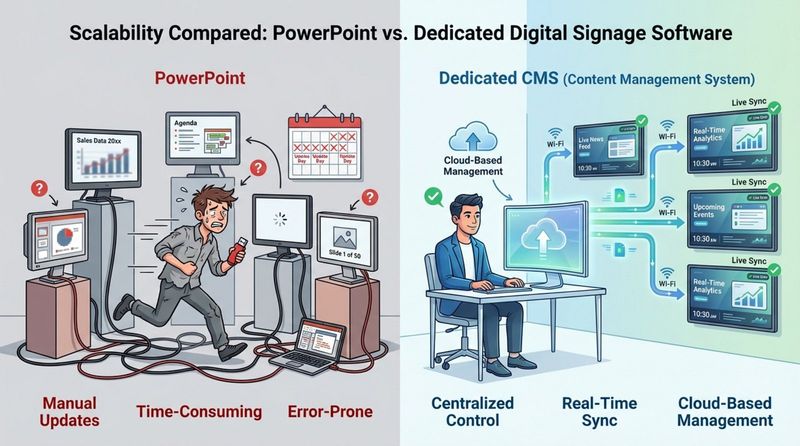
PowerPoint can handle a single looping slideshow quite well. But once you need more screens, more content types, or more control, a specialist digital signage solution becomes much more efficient and capable, and often saves time and effort over the long term.
Final thoughts: Should you use PowerPoint for digital signage?
So, should you choose PowerPoint for your digital signage? The answer depends on your situation, your goals, and how far you plan to go with your screen network.
If you are a small business or organization with one or a few screens, a limited budget, and basic needs (such as daily menus, offers, or simple announcements), PowerPoint can work well. It’s cheap, familiar, and quick to get running. You can make and update content without learning a new system.
But if you plan to run many screens, place them in multiple locations, schedule different content at different times, or use live data feeds, PowerPoint will quickly start to struggle. Pushing it beyond its natural role means more manual work and more room for errors, especially as your network grows.
For larger or more demanding projects, it makes sense to talk to a digital signage expert and look at dedicated software. These systems give you the control, automation, and reliability that PowerPoint cannot provide. PowerPoint is a strong presentation tool and can act as a first step into digital signage, but for long-term, complex, or large-scale use, a specialized solution is usually the better path.