Digital signage for every area of a medical center
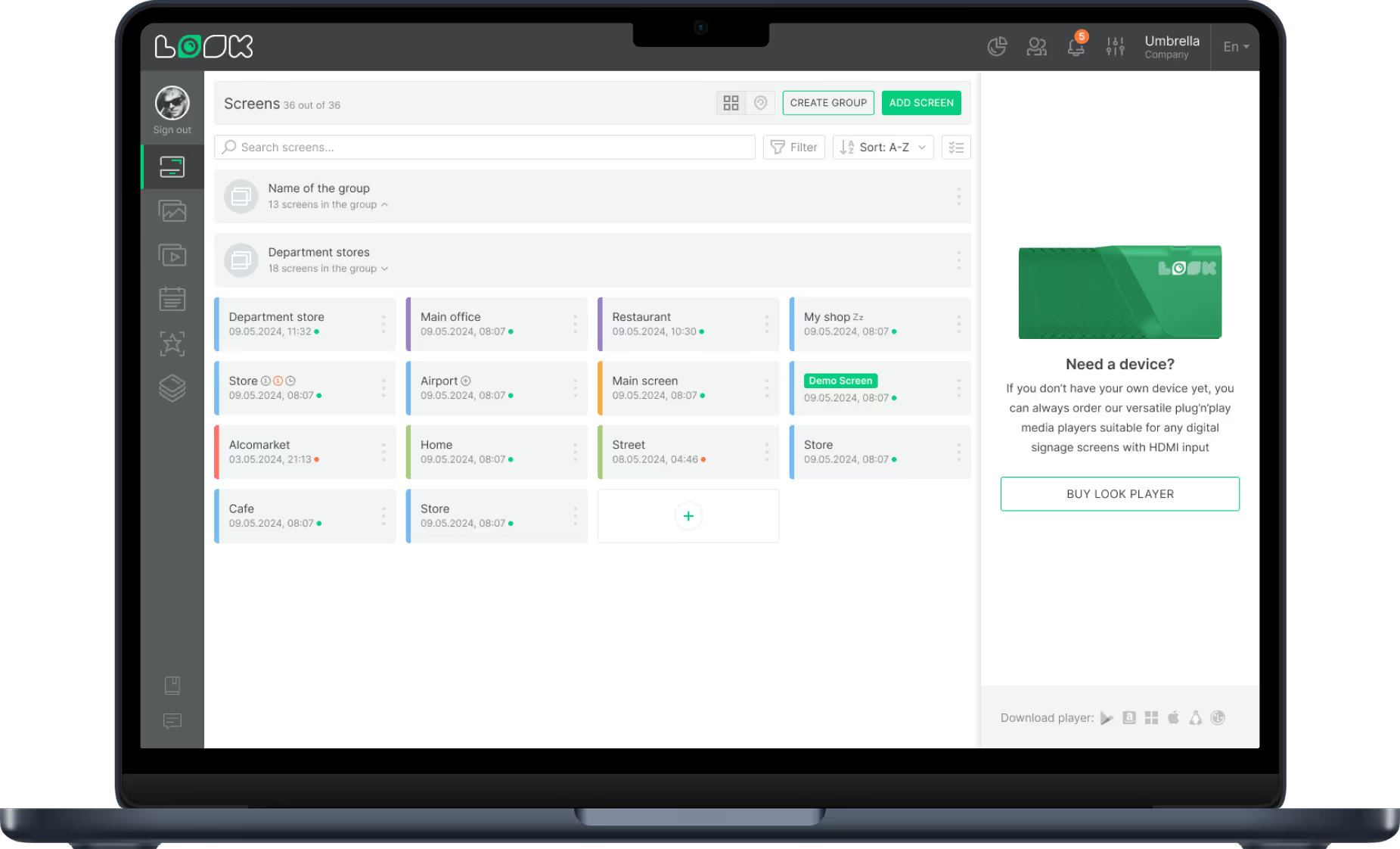
A patient checking in, waiting for cardiology and heading to the lab needs three different answers. Look runs every area from one account, with separate playlists and schedules for patient-facing screens and for staff.
Reception and check-in desk
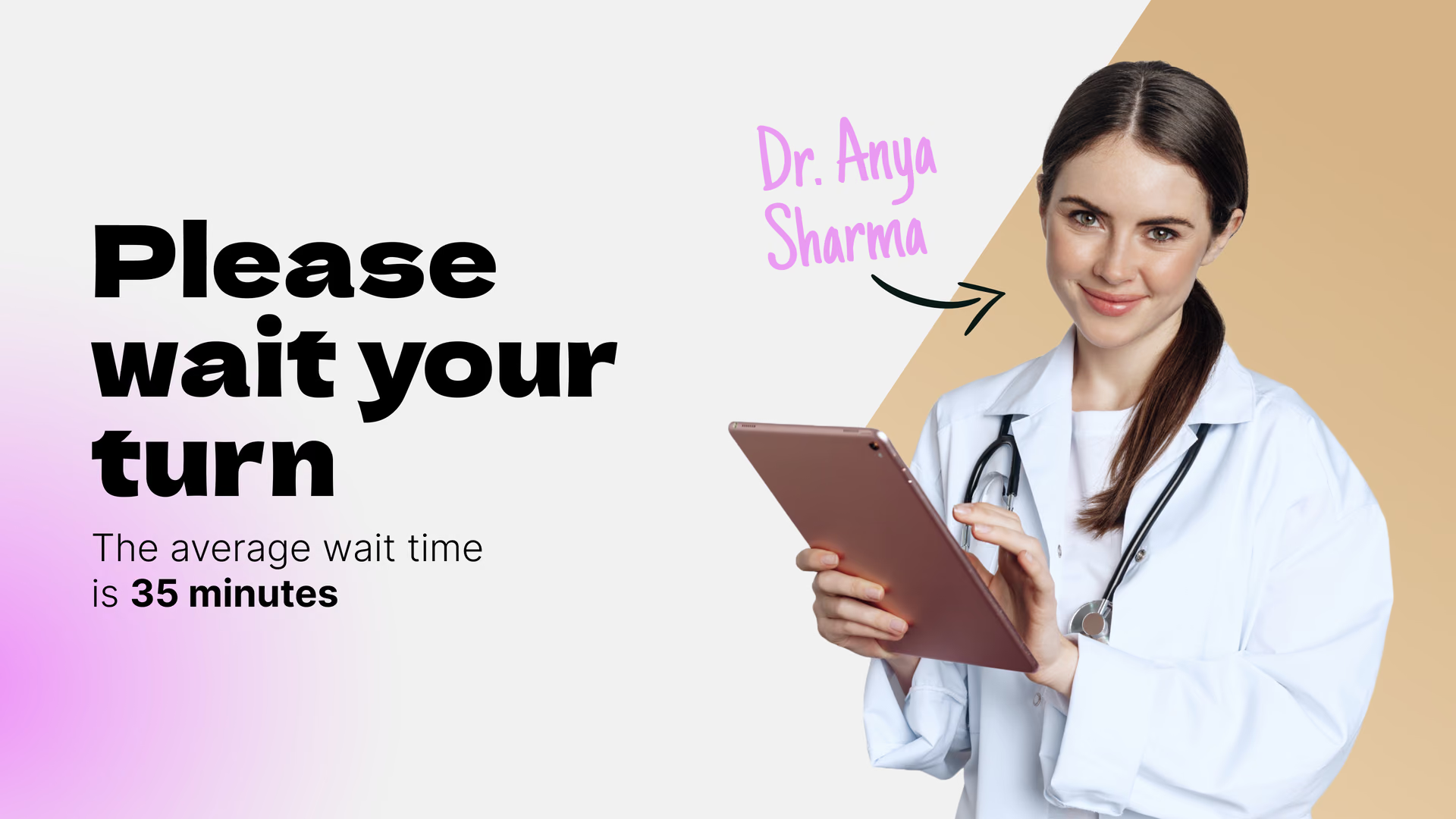
Give patients clear guidance as they arrive.
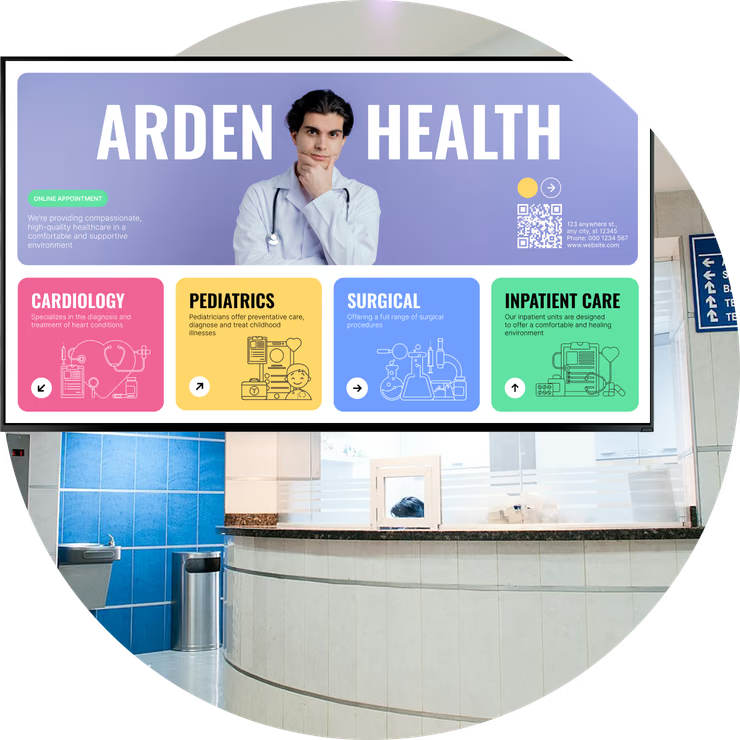
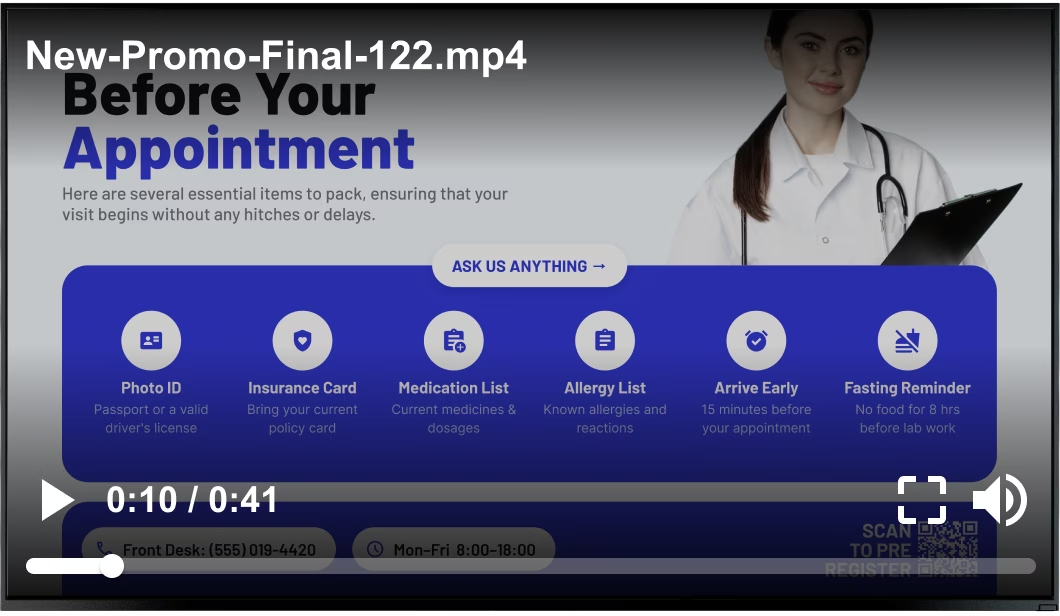
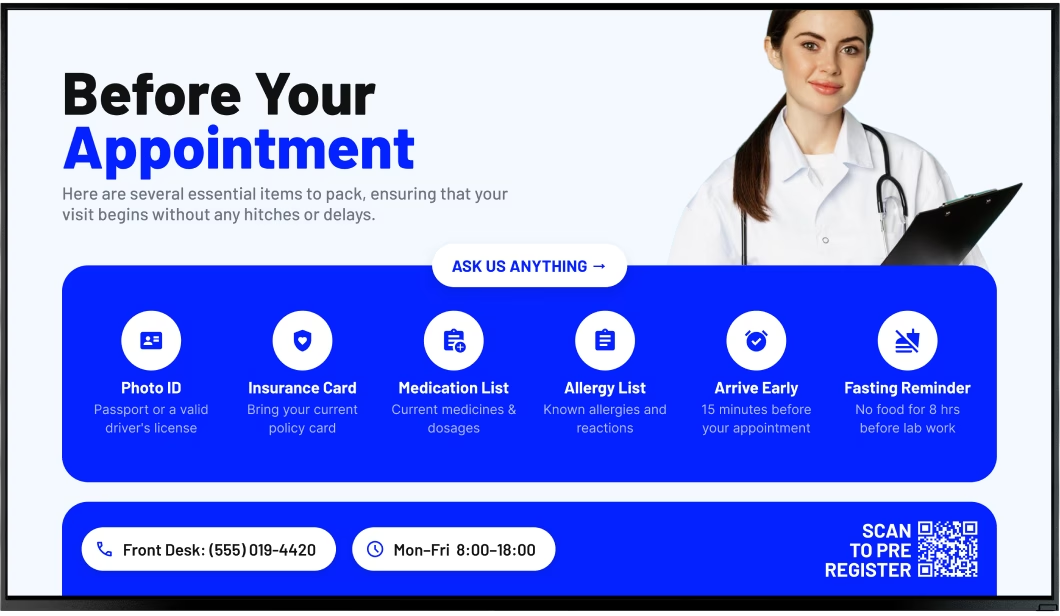
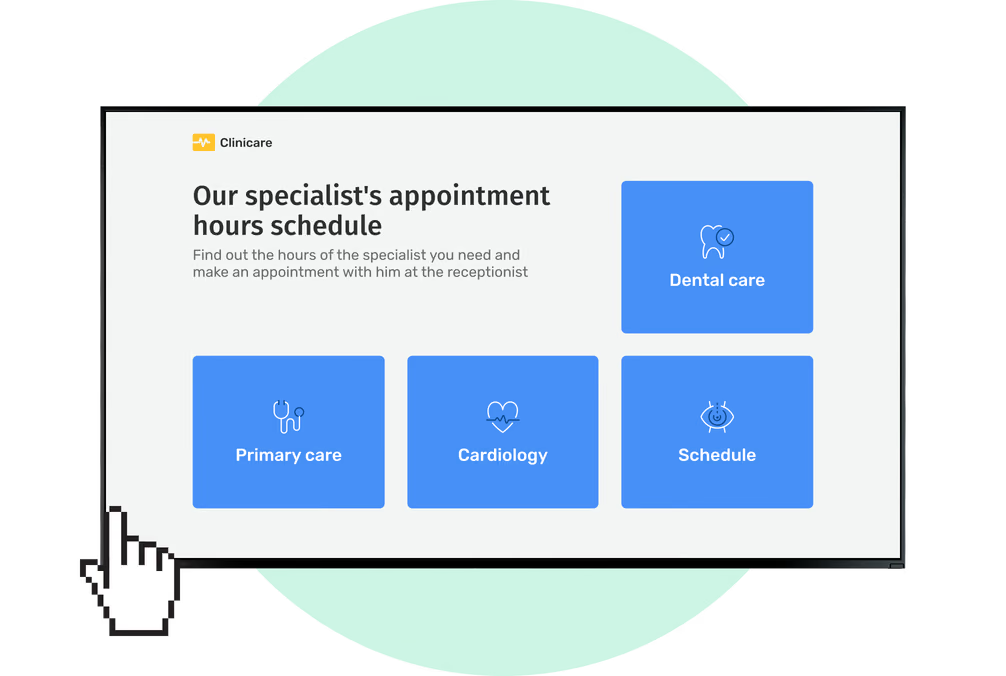
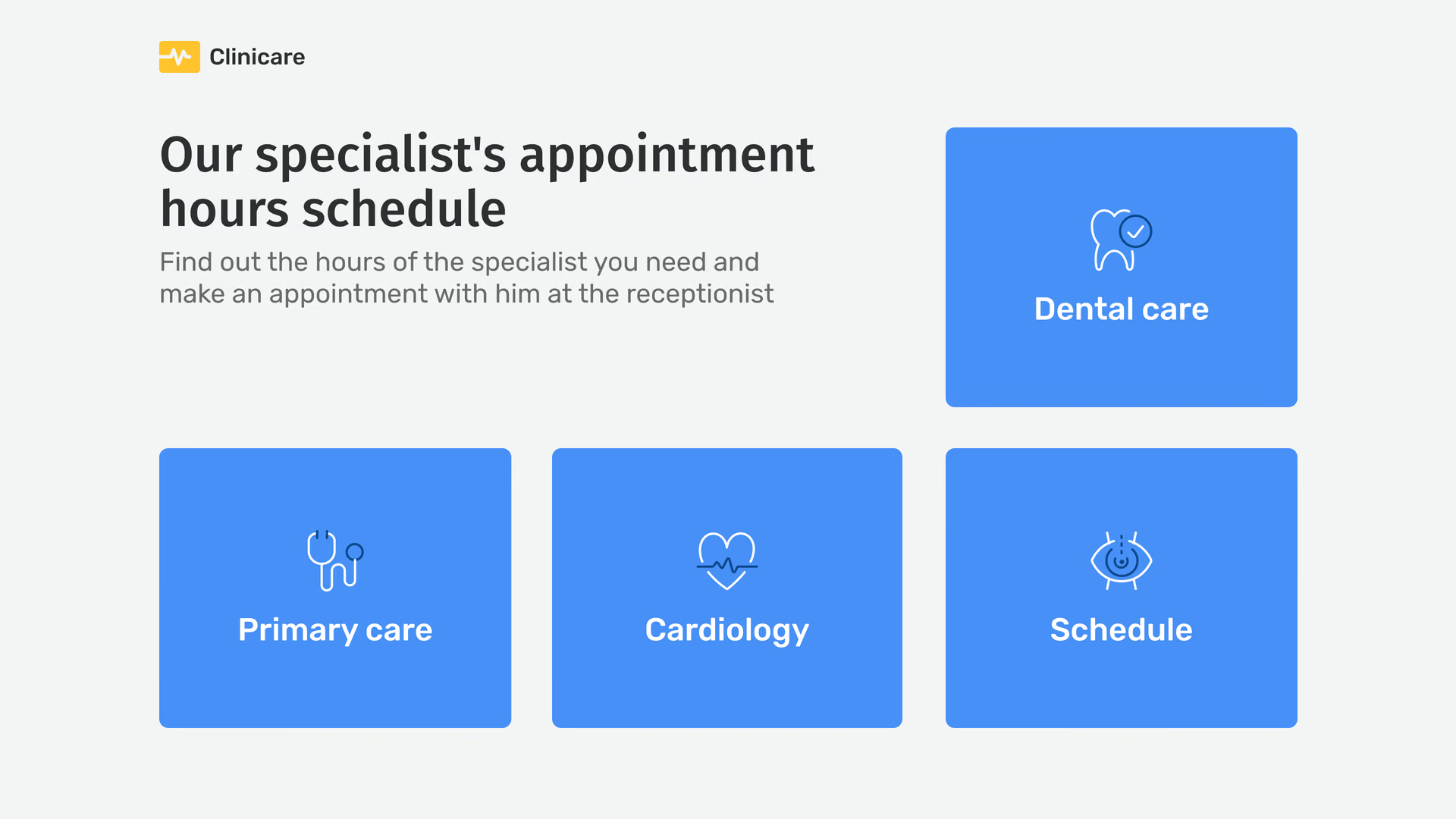
The screen next to the desk answers what every patient asks: today's clinic hours, where to check in, what to bring, how early to come, and which entrance or floor each department is on.
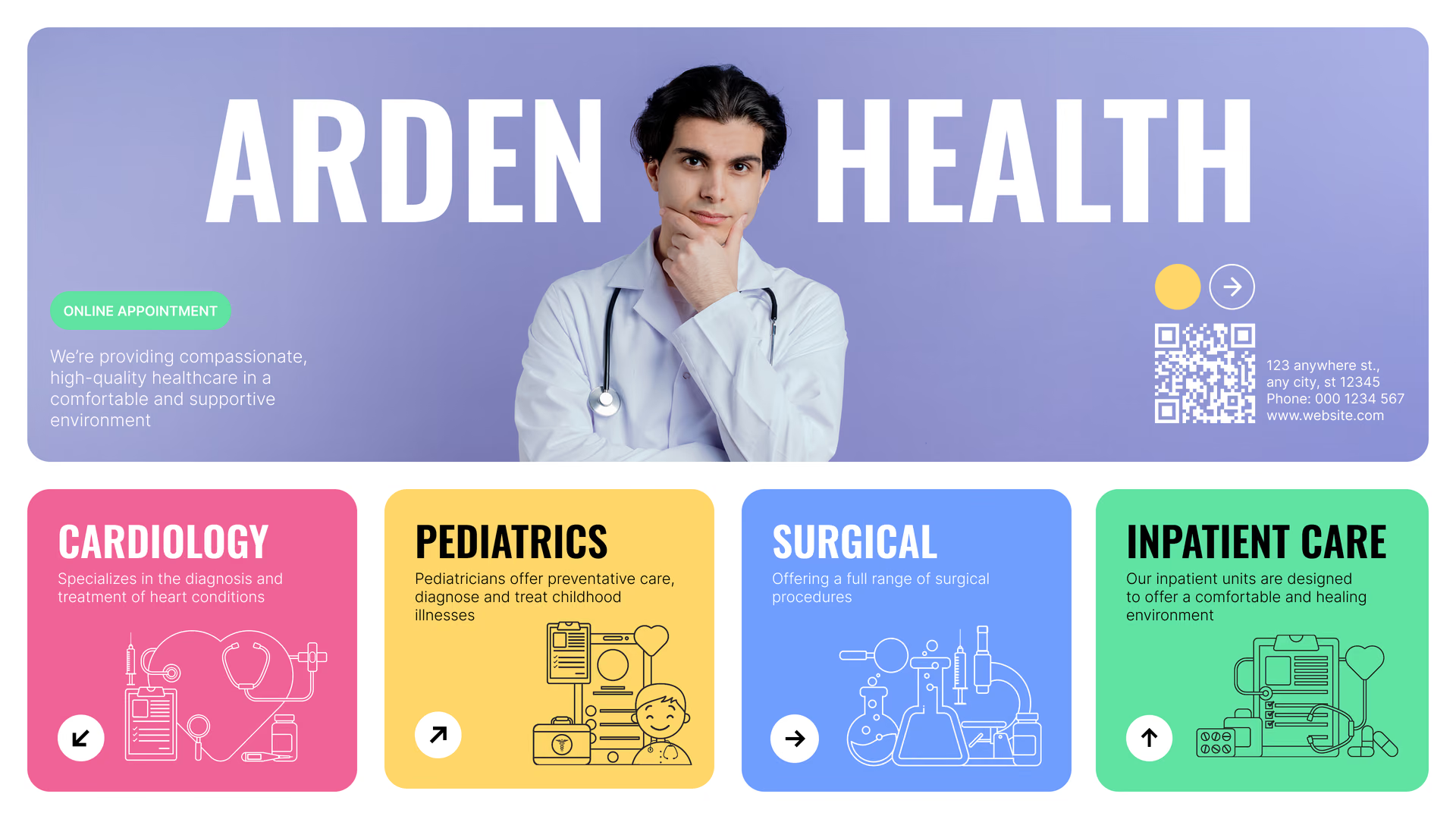
With a multi-zone layout, clinic hours, a notice and a ticker all stay on screen, and a QR code opens a pre-visit form on the patient's phone.
Best for: Clinic hours, check-in steps, what to bring, department floors, QR to forms
Waiting areas
Keep patients informed while they wait.
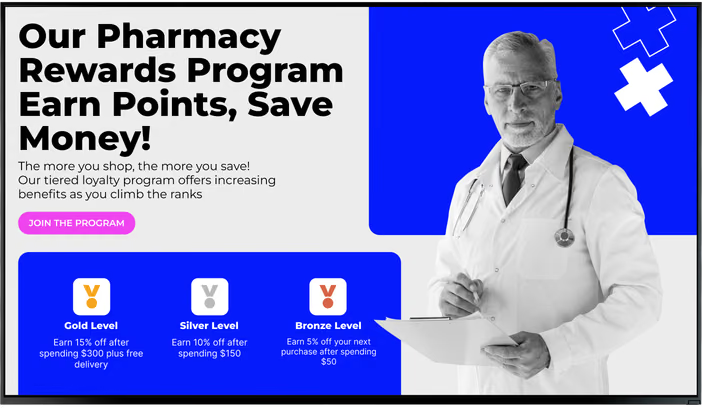
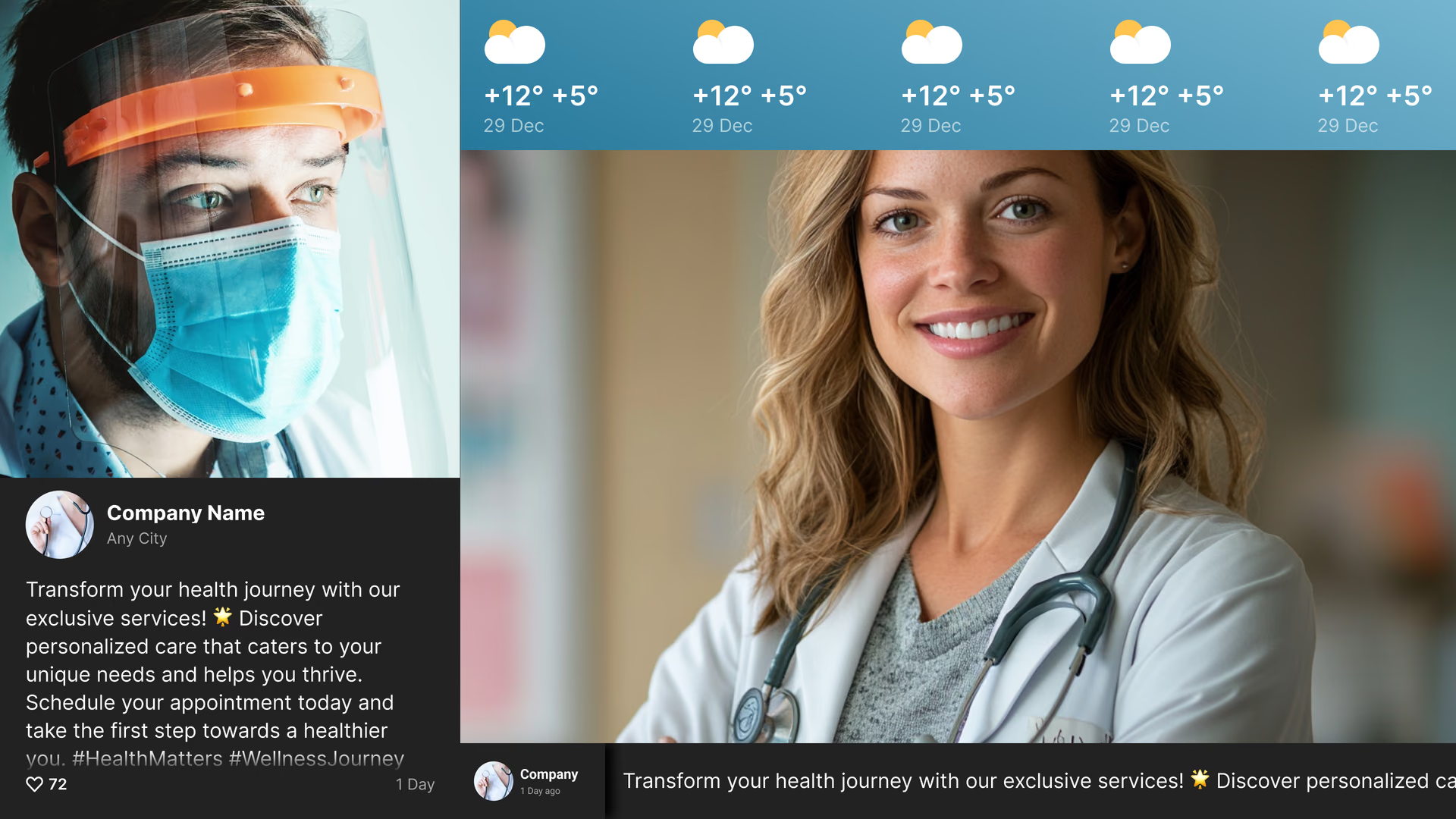
Waiting-area screens present approved health information, service updates and news in a format patients can read easily, while answering common questions before they reach the front desk.
Tag the waiting-area screens as one group and they play the same loop, while the pediatric waiting room gets content picked for parents and kids.
Best for: Health information, service updates, live news, Wi-Fi QR, review score
Specialty clinic doors
Show who is in today, next to the door.
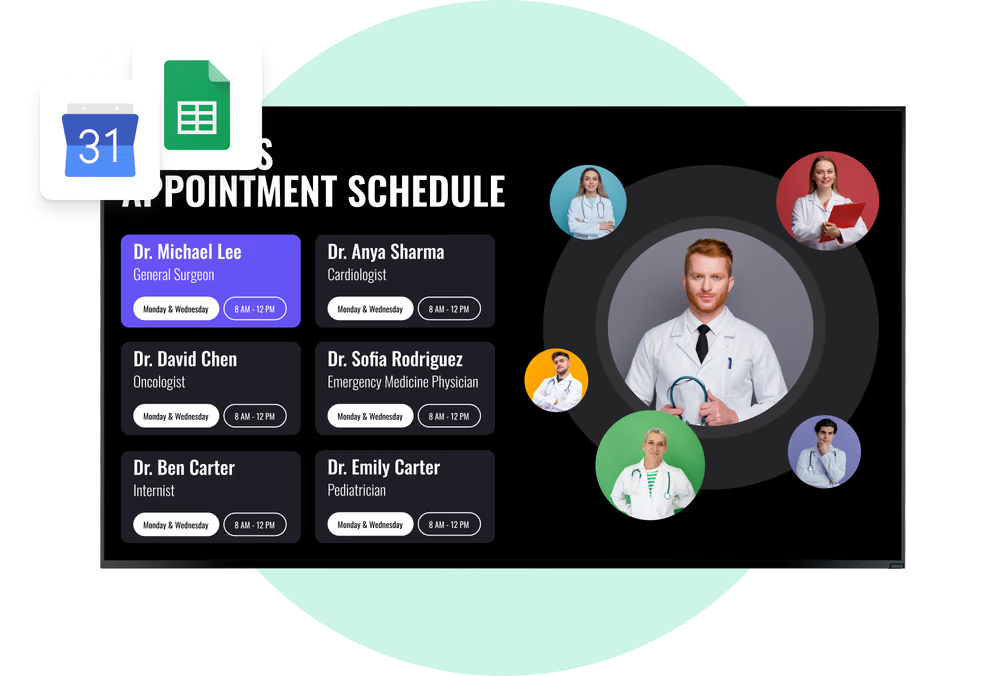
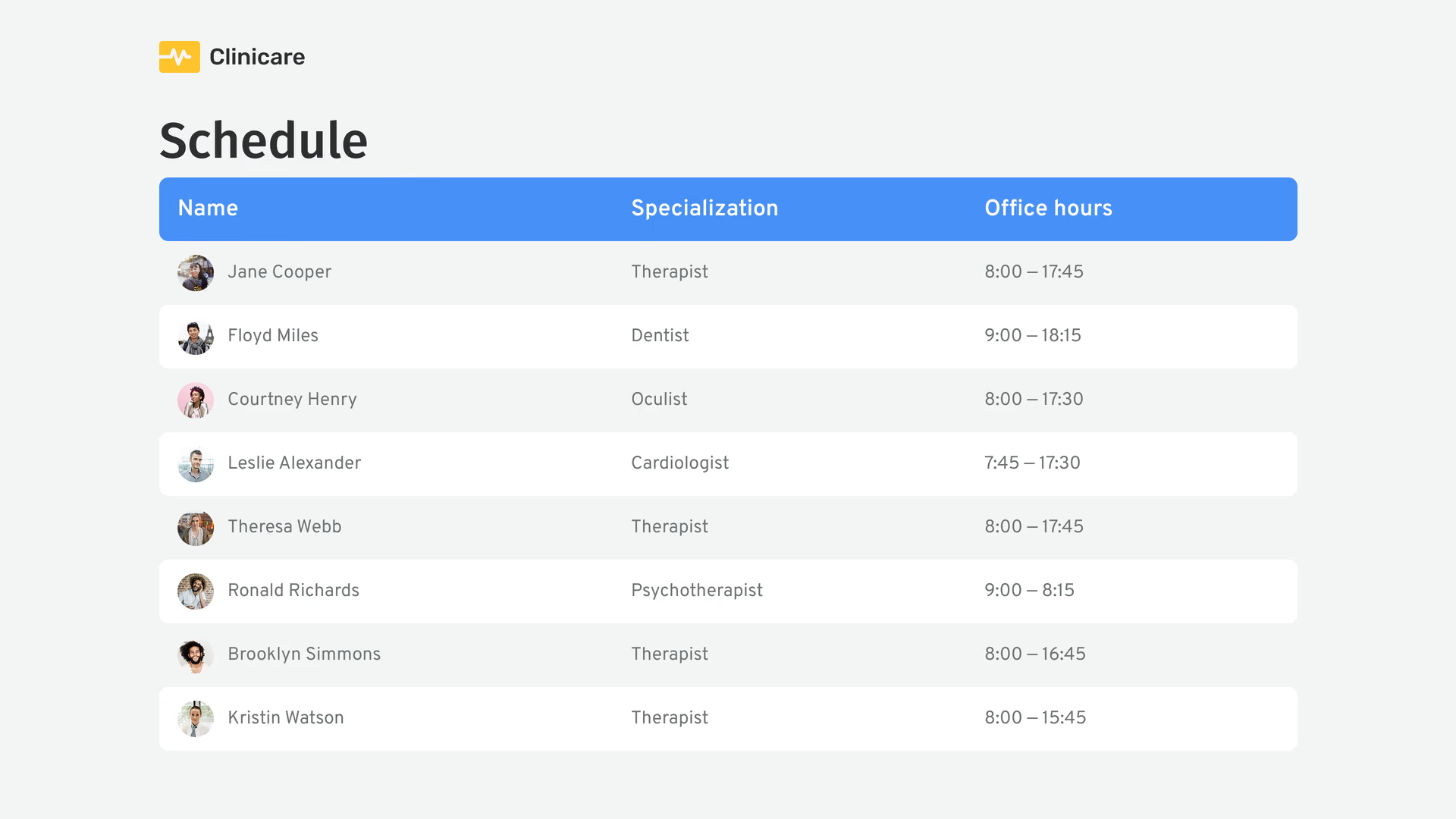
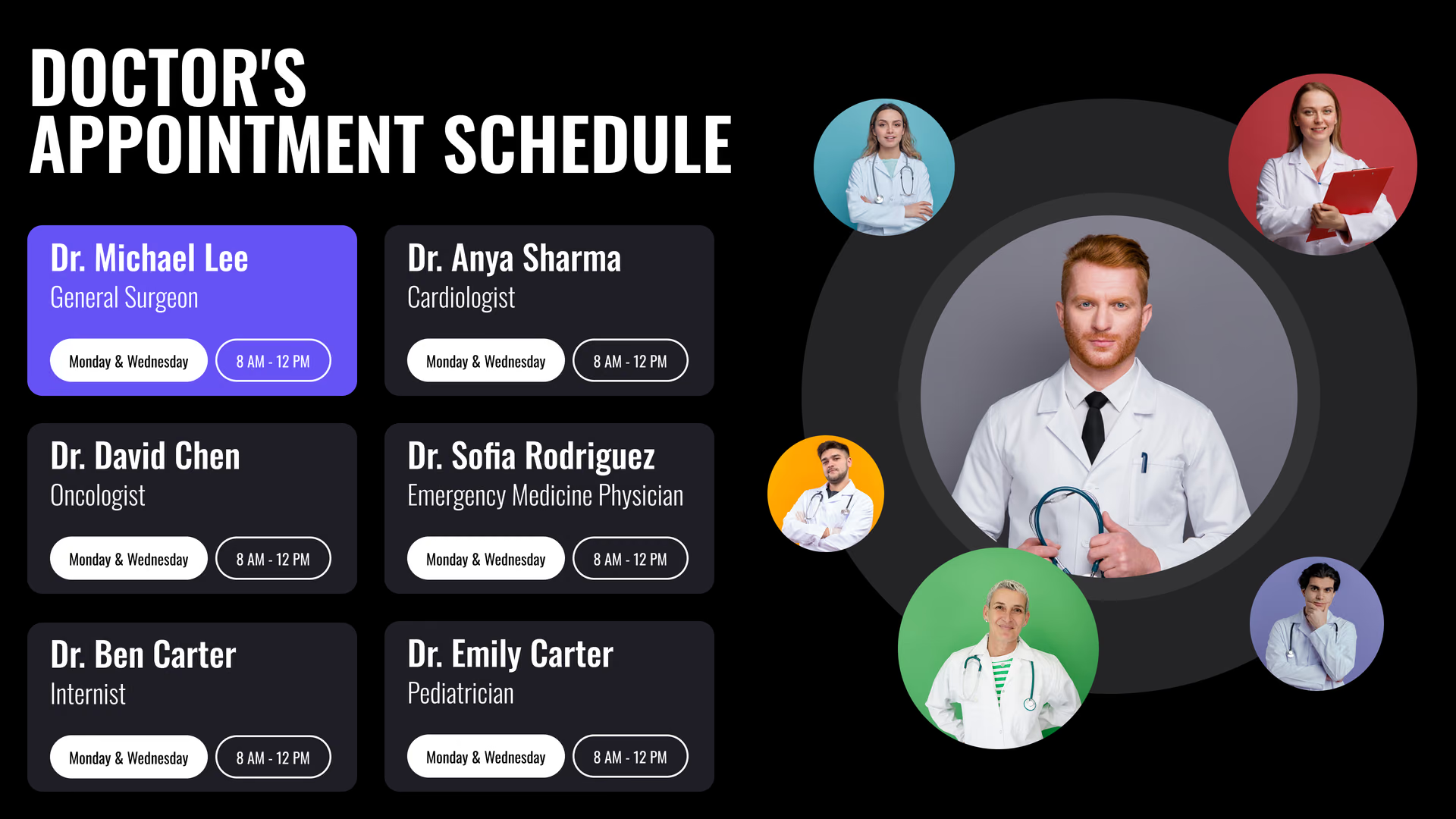
A small screen by cardiology, dermatology or physiotherapy shows the scheduled clinician, session times and changes to today's clinic in one clear, centrally updated view.
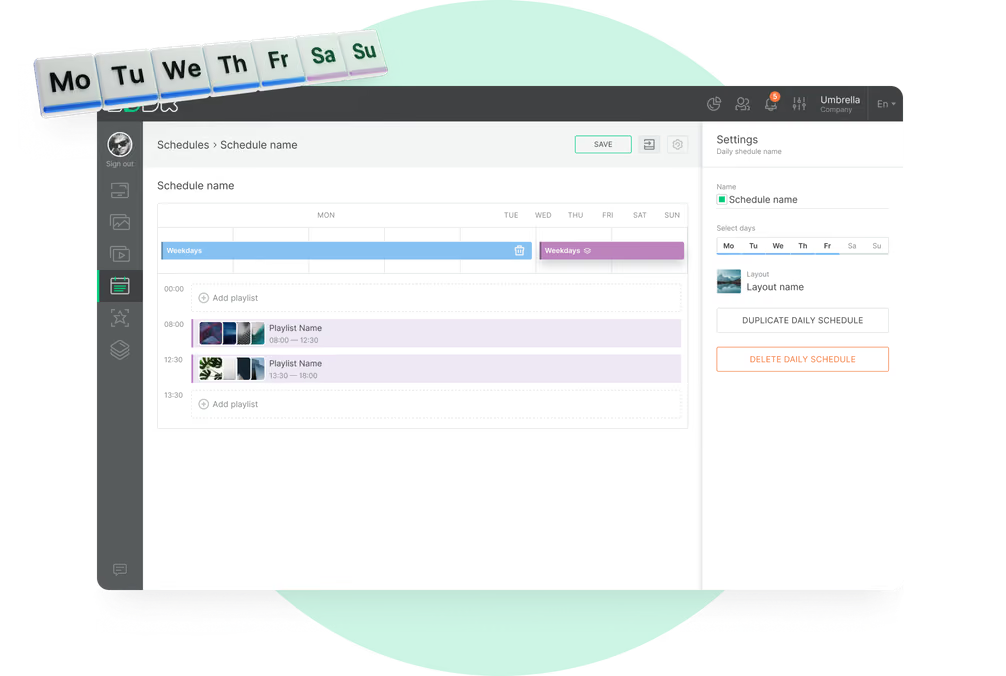
Each screen runs its own schedule, so a clinic held only on Tuesdays shows its content on Tuesdays and something else the rest of the week.
Best for: Doctor rota, session times, clinic changes, department information
Lab, imaging and diagnostics
Prep instructions where people read them.
People waiting for a blood draw or a scan want to know what happens next. Screens can show clinic-approved prep guidance, how results are handled and where to go afterward.
Put each instruction on its own slide in large type, and add a QR code that opens the clinic's full, procedure-specific guidance on the patient's phone.
Best for: Preparation steps, result times, next-step directions, QR to leaflets
Corridors and elevator lobbies
One direction, readable at walking pace.
People looking for a department don't stop to read a paragraph. A corridor or elevator screen should carry one message: a floor directory, a direction to the next department or a hygiene reminder.
A floor directory works well on a portrait screen, and with a multi-zone layout the directory stays fixed while a notice rotates underneath.
Best for: Floor directories, directional signs, hygiene reminders, service changes
Staff rooms and back office
Brief every shift on one screen.
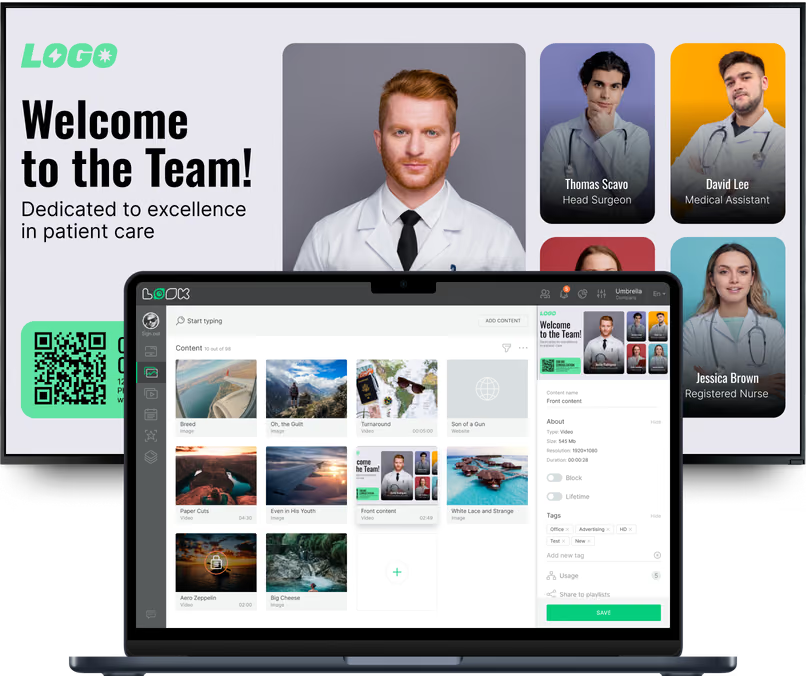
A staff-room screen keeps rota changes, training dates, approved procedure reminders and team recognition visible throughout each shift.
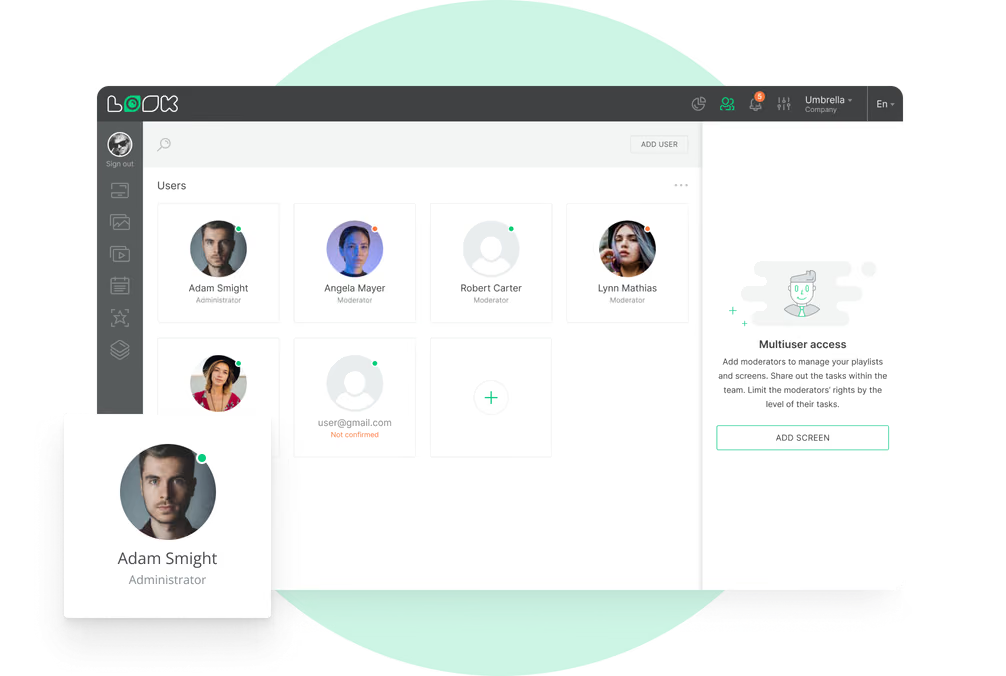
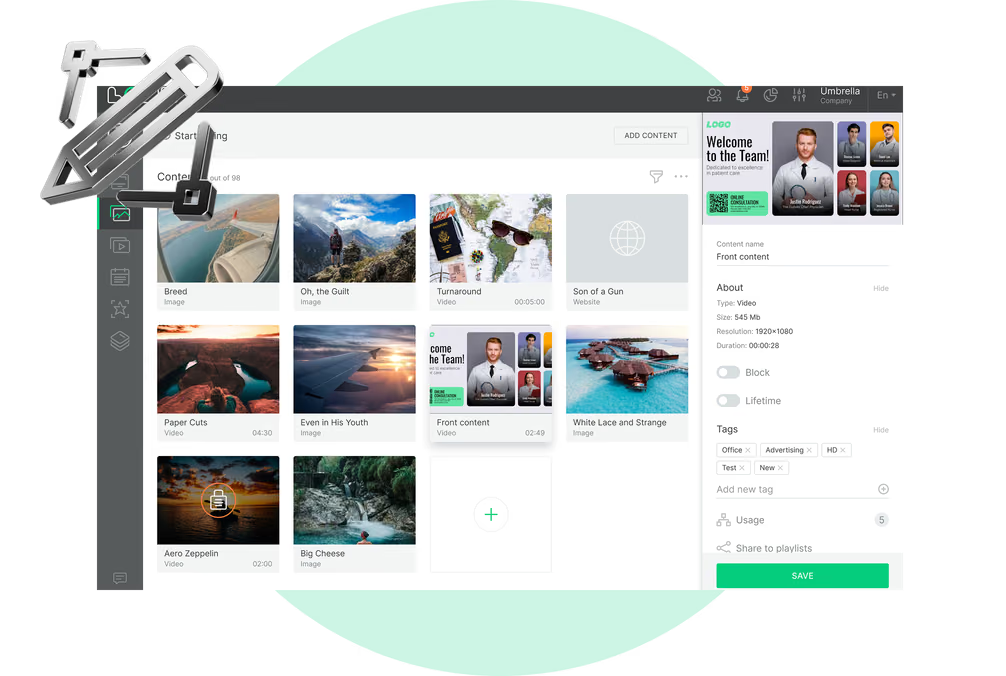
Staff content runs on its own playlist, away from patient screens, and the people who post updates get content access without device or account settings.
Best for: Rota changes, training dates, procedure reminders, internal news, recognition