1 → ∞

screens manageable from a single cloud dashboard — scale from a one-screen pilot to thousands globally

Look DS platform capability

<2 min

to push a policy update, safety alert, or promotional change across every screen in your network

vs. hours with physical distribution

$0

cost per content update — no printing, no ink, no staff time to distribute or replace printed notices

vs. traditional print communication

99.9%

target uptime with local offline caching — screens keep running even when internet connectivity drops

Look DS platform SLA

What is enterprise digital signage?

A communication system built to scale across your entire organization

Enterprise digital signage is a connected network of digital displays managed from a central dashboard. Instead of treating each screen as an isolated device, enterprise systems are built to handle large networks, multiple departments, and widespread locations.

It is not just about hanging a TV on a wall.

It is about building a reliable communication system that adapts to different audiences — sharing KPIs with warehouse teams, guiding guests through a lobby, or updating students across a large campus — all from one platform that scales smoothly from one screen to thousands.

Digital vs. Traditional

Notice board

Static, requires printing

Quickly becomes disorganised

Information gets buried

No engagement tracking

Single message at a time

Manual distribution required

Look DS

Green checkmark inside a black circle.

Dynamic motion and color

Green checkmark inside a black circle.

Updated remotely in seconds

Green checkmark inside a black circle.

Multiple messages loop

Green checkmark inside a black circle.

Playback analytics included

Green checkmark inside a black circle.

Live feeds and video

Green checkmark inside a black circle.

Scheduled automatically

Green shield icon with a white check mark on a black rounded square background representing security or verification.

3 core components

1

Hardware

Your displays and a dedicated media player. Use the Look App on compatible screens you already own, or plug in the Look HDMI Player — which caches content locally to survive internet outages and runs 24/7 without overheating.

2

Cloud CMS

The Look CMS is your control centre. Manage every screen from a web browser anywhere. Software updates happen automatically, and you do not have to maintain your own servers. Scale from 10 screens to 1,000 without rebuilding your infrastructure.

3

Content & Permissions

Role-based access controls who can publish to which screens. Corporate marketing controls global templates; local teams update their own content within those guardrails — keeping every screen on-brand without central bottlenecks.

Why it works

Six ways enterprise digital signage transforms large organizations

Bubble icon

Improves internal communications

In a large company, getting everyone to read an email is nearly impossible. Digital signage gives you an always-on channel for company news, policy changes, and HR campaigns. By putting important updates in the breakroom or hallway, you reduce the chance that key information gets missed — especially for deskless workers on factory floors.
star icon transparent

Enhances branding and corporate messaging

Consistent branding builds trust. By using central templates and screen layouts, you ensure that every location uses the correct colors, fonts, and logos — whether you are running a video wall at headquarters or showing customer success stories in a regional branch. Total visual control across your entire estate.

Streamlines operational efficiency with live data

When teams have the data they need, they work faster. Digital signage displays real-time updates like sales targets, production KPIs, and daily schedules. By connecting screens to live data feeds, teams can check key metrics at a glance and make faster decisions — without waiting for a weekly report or email.
Polar Star Icon

Enables instant emergency alerting across all locations

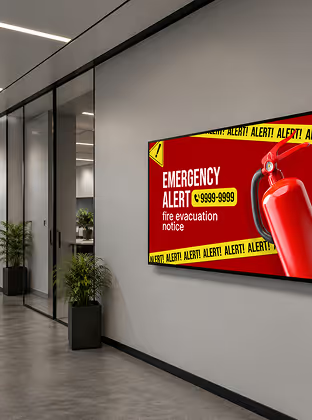
In an emergency, an enterprise system can override scheduled playlists to display urgent evacuation instructions or weather alerts across all screens instantly — helping guide people to safety. These networks act as a silent alarm, flashing bold, unmissable instructions that make them a crucial part of any campus or factory safety plan.
icon navigation

Supports scalable deployment and control

The true power of enterprise signage is remote control. Manage a global network of screens from a single web browser. Centralized control does not mean every screen shows the same video — easily target content to a single department, or a specific region. This practically eliminates the need to send IT staff on-site just to change a slide.
Percent icon

Delivers long-term cost efficiency and proven ROI

Moving away from printed materials saves thousands in printing and labour costs over time. Updates that once required physical delivery can now be done remotely in seconds. Playback analytics and proof-of-play logs give you the data to prove ROI to stakeholders — showing exactly how many times content played and which screens stayed online.
star
confetti
Digital signage for school, paper

Every organization covered

Enterprise digital signage across every industry

Corporate Offices

Connected workplaces that keep teams aligned

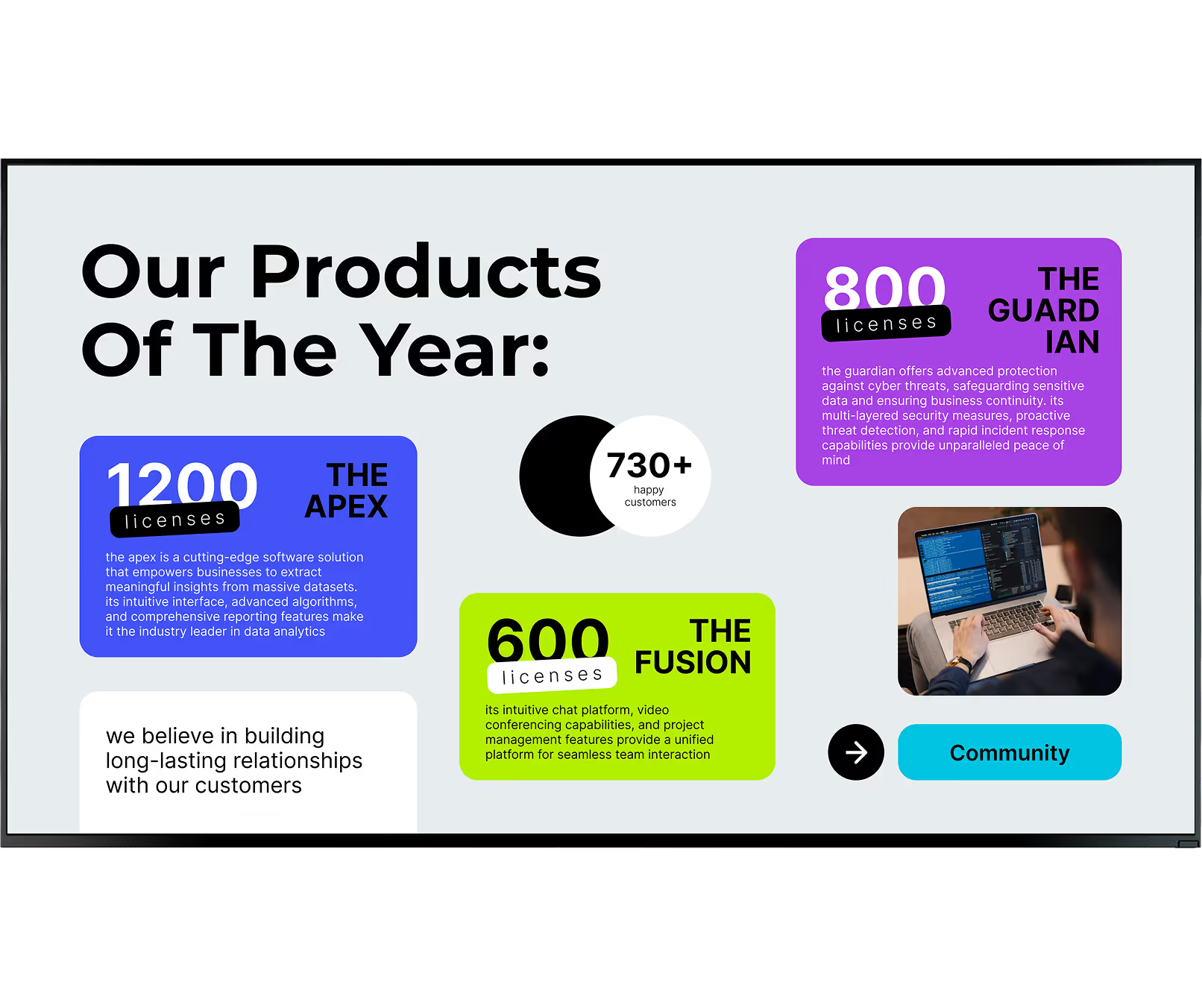
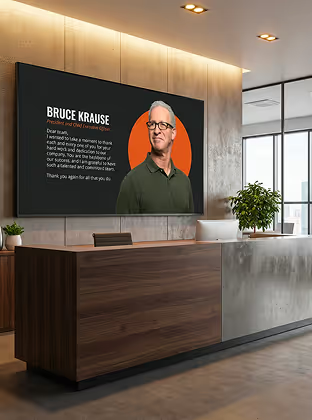
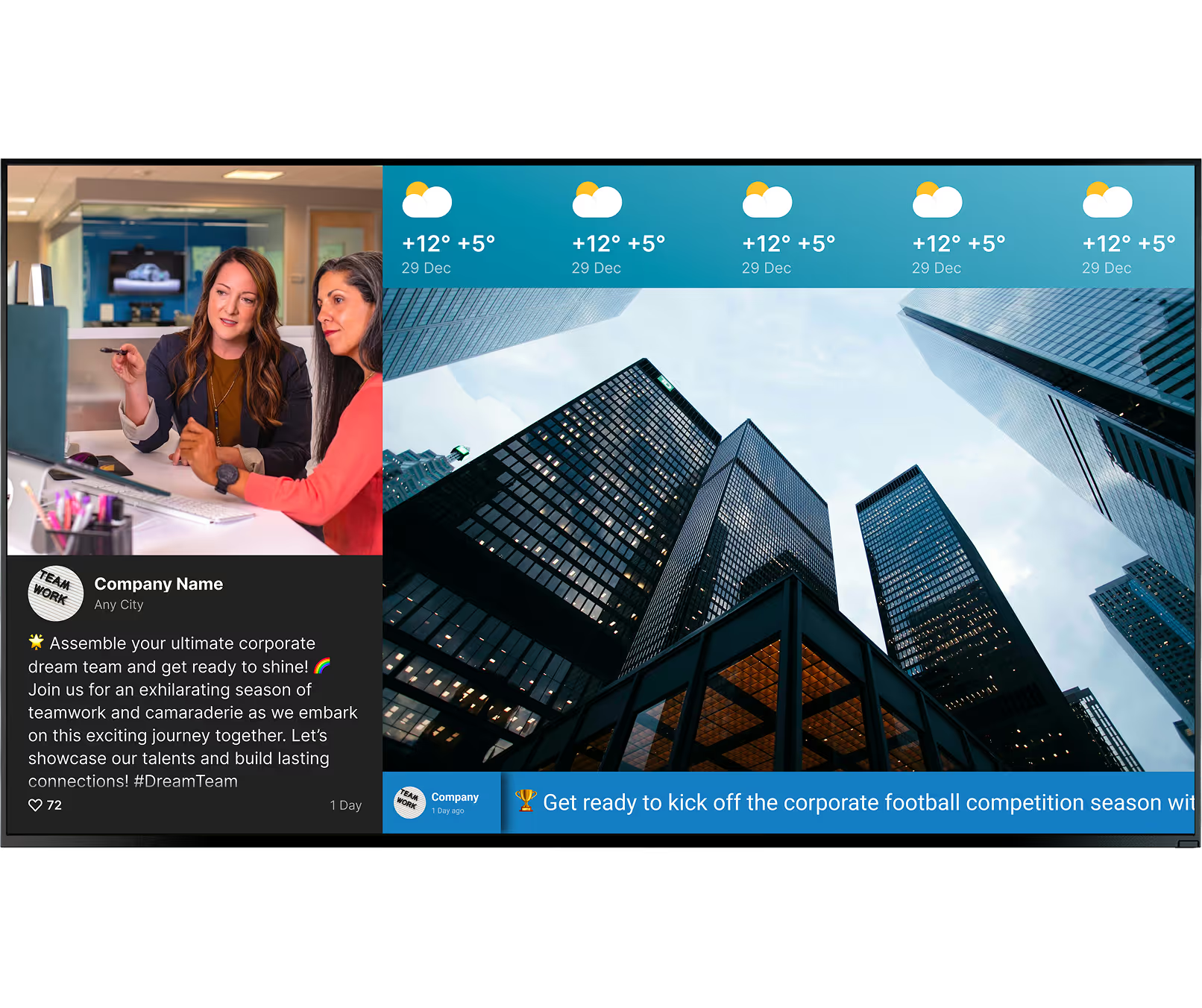
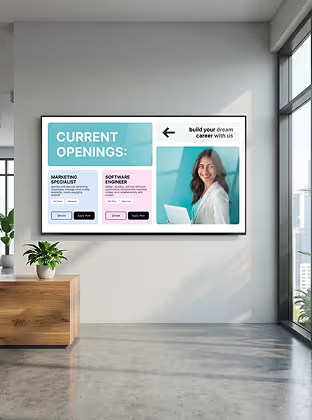
Screens replace cluttered bulletin boards. They welcome staff in the morning, display upcoming town hall schedules, highlight employee achievements, and show live KPI dashboards — fostering a more transparent and connected company culture without email overload.

Manufacturing

Safety, shift data, and urgent alerts on the floor

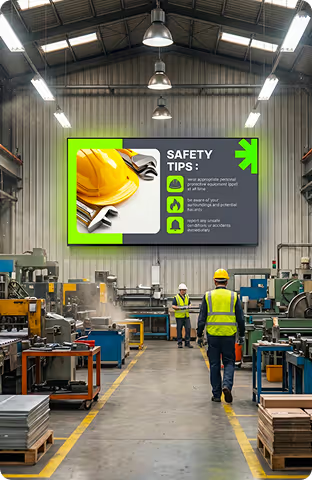
Workers on a busy manufacturing floor do not have time to check a computer. Screens make daily goals, safety reminders, accident-free day counters, and production metrics instantly visible — keeping teams informed and compliant where it matters most.

Healthcare

Patient wayfinding and policy communications

Large healthcare facilities rely on enterprise signage for patient wayfinding, queue management, and policy updates. On-premise deployment options ensure total data control for highly regulated environments where security and compliance are non-negotiable.

Education

Campus navigation and real-time emergency alerts

Universities use enterprise signage to help students navigate campus while maintaining a consistent institutional brand. Screens broadcast timetables, event promotions, and critical emergency alerts instantly across all buildings from one central administrator account.

Retail & Hospitality

Consistent promotions across hundreds of locations

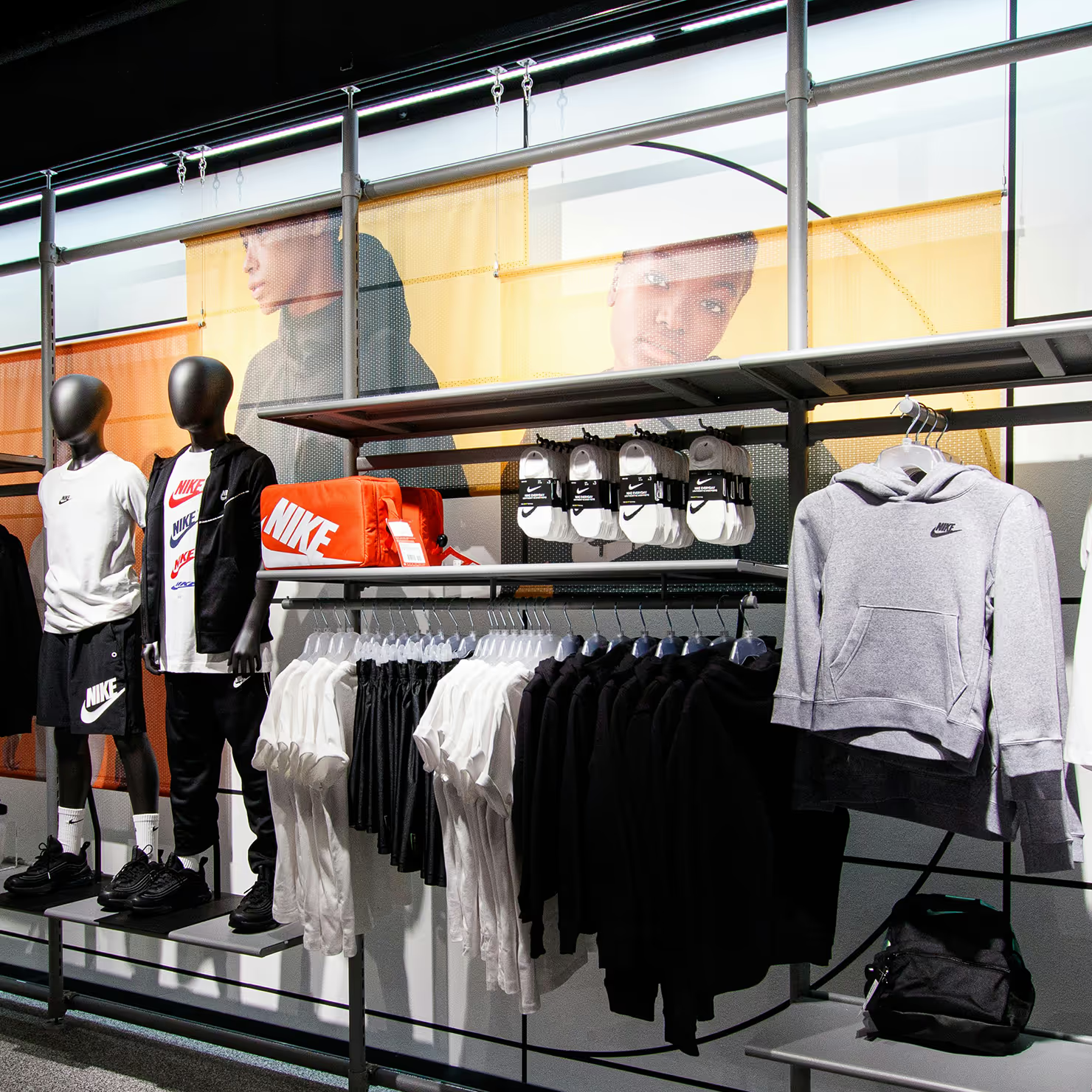
Large retail and hospitality franchises use enterprise signage to keep promotional messaging consistent across hundreds of locations without relying on printed posters. Push a holiday campaign to the "North America Retail" group in one click while leaving other regions untouched.

Corporate Lobbies

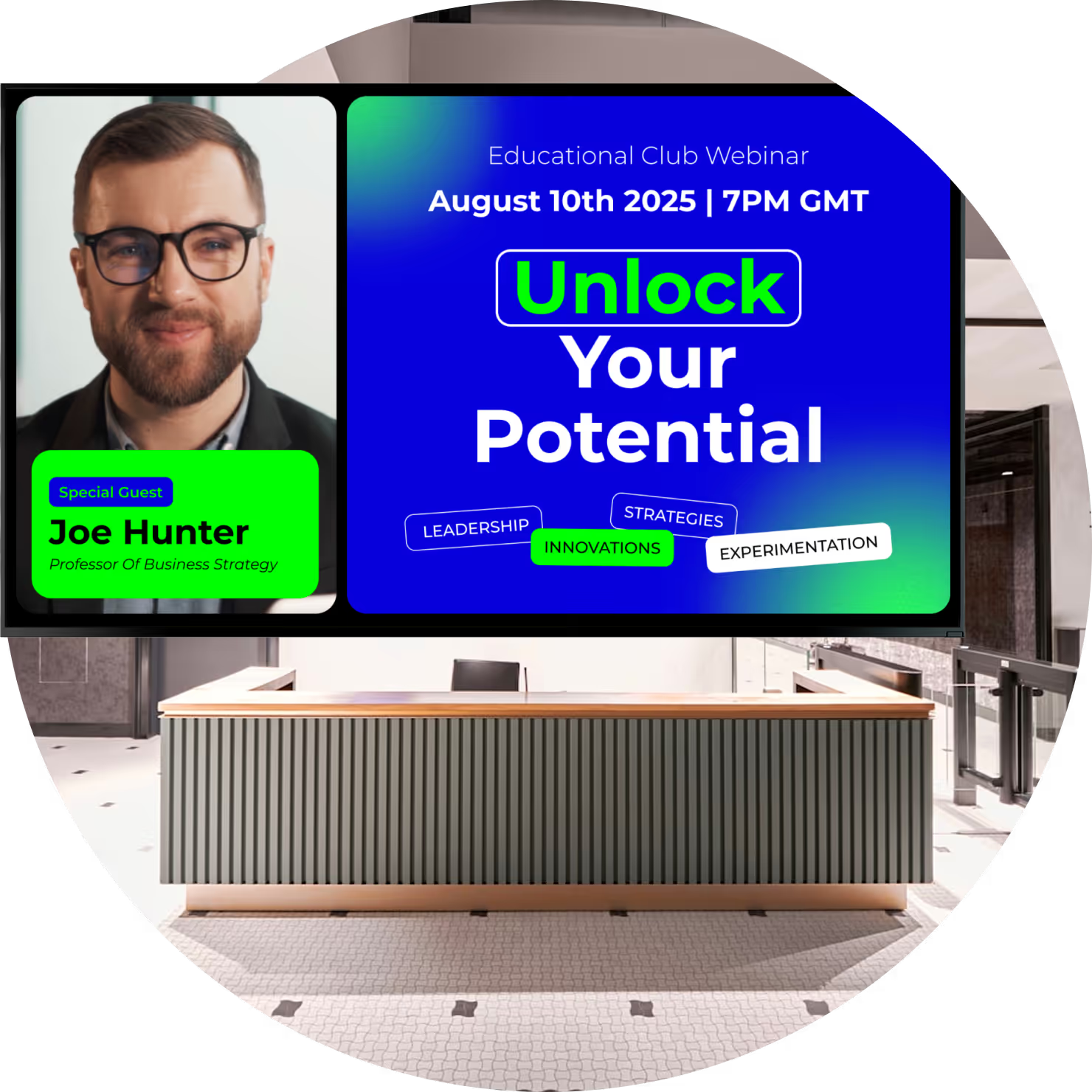
Immersive video walls that tell your brand's story

Your lobby is your handshake with the public. High-impact video walls grab attention and communicate your brand's mission. Alongside the visuals, digital directories guide visitors easily to the right floor or department without requiring staff assistance.

Where you'll deploy it
Six use cases across your enterprise estate

Connected workplace and office environments

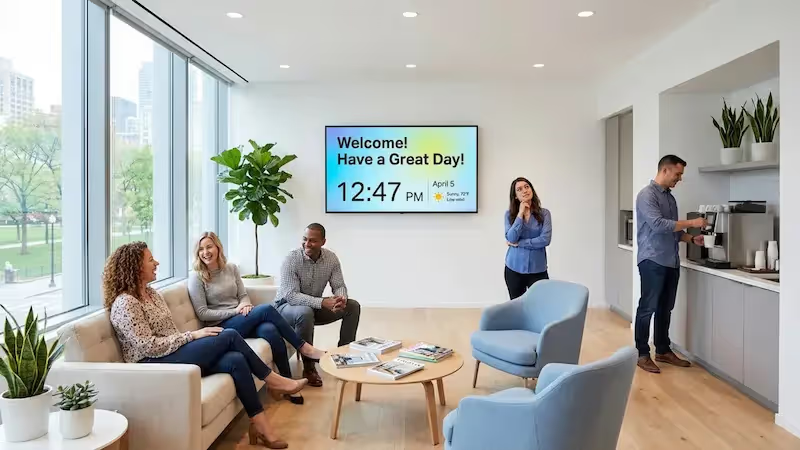
Screens in hallways, breakrooms, and open-plan areas welcome staff, display upcoming town hall schedules, and highlight employee achievements — building a transparent culture and keeping everyone connected to the company's core mission.

Corporate lobbies and immersive video walls

High-impact video walls grab attention and tell your brand's story to visiting clients and new recruits. Digital directories remove the need for staffed reception desks — visitors easily know where to go, leaving a polished, professional first impression.

Meeting room schedules and wayfinding

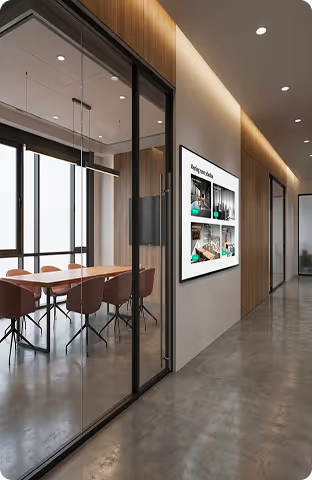
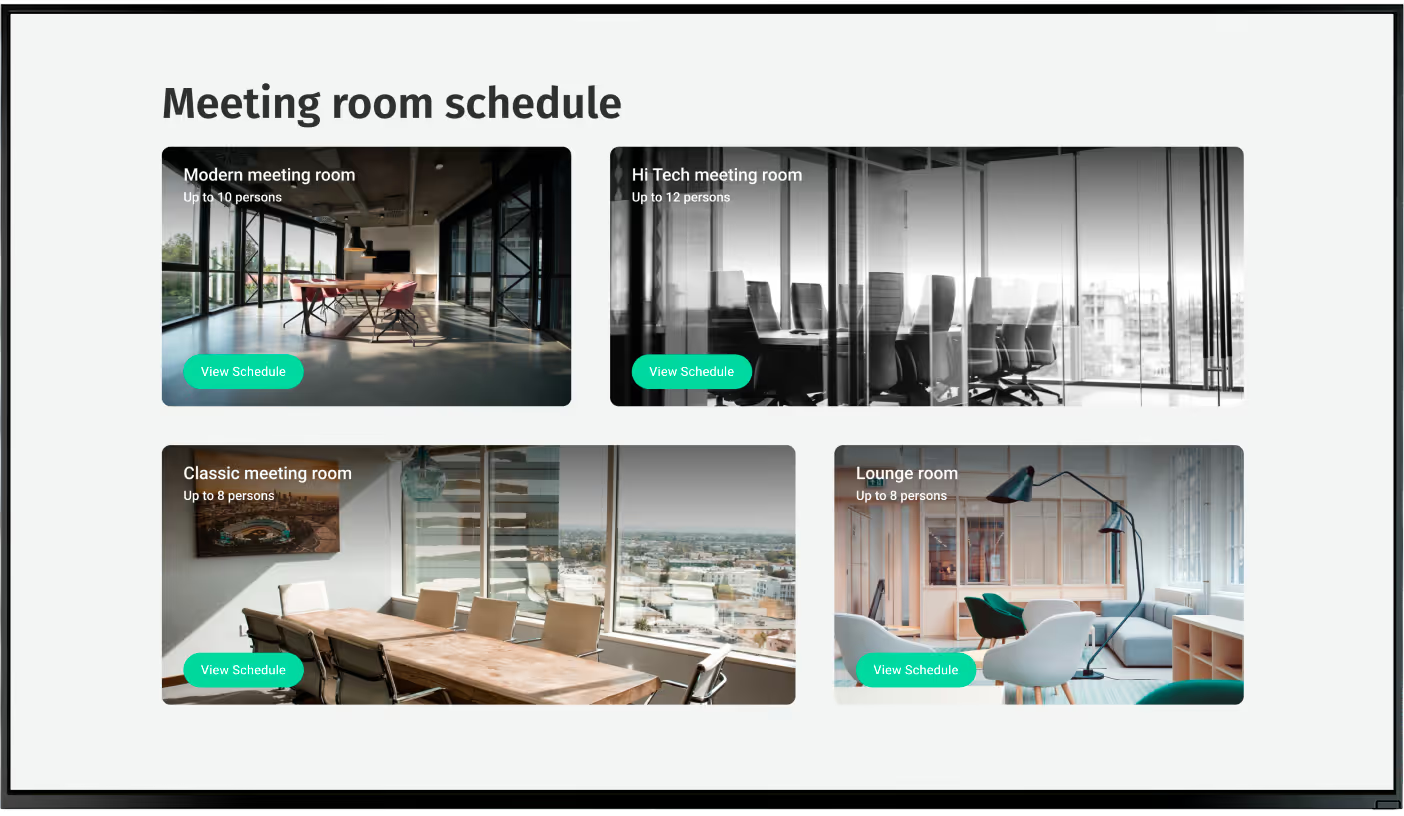
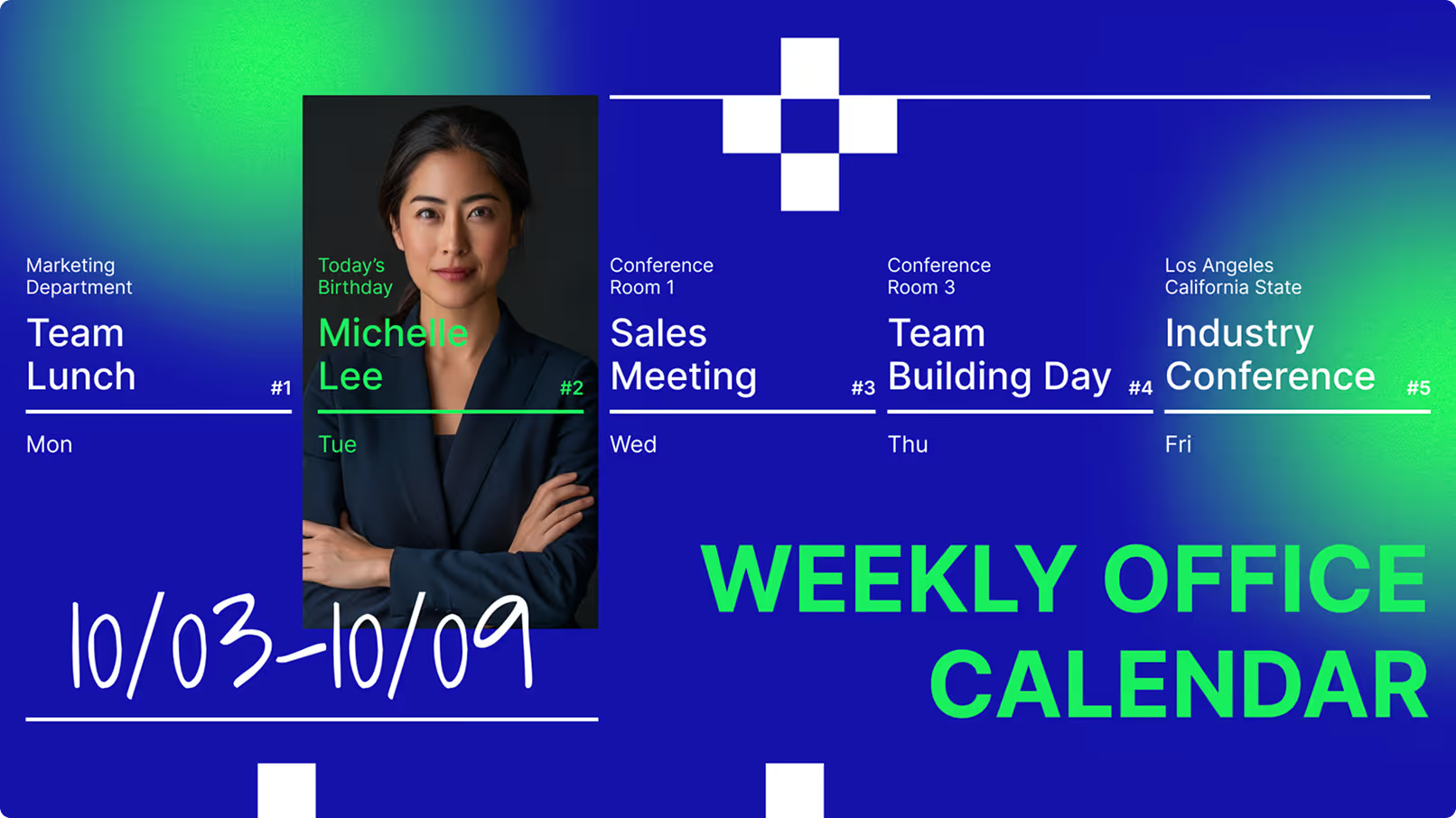
Small screens mounted outside conference rooms eliminate booking confusion. Synced with your corporate calendar, they instantly show if a room is free or occupied — keeping meeting room schedules on time and reducing hallway interruptions across large multi-floor offices.

Real-time dashboards and performance metrics

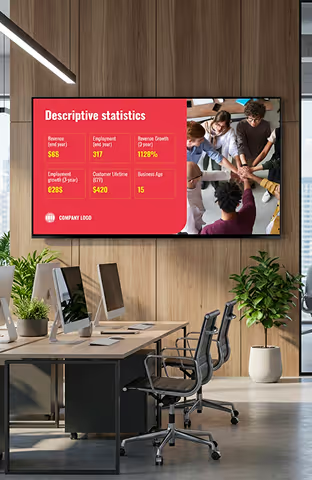
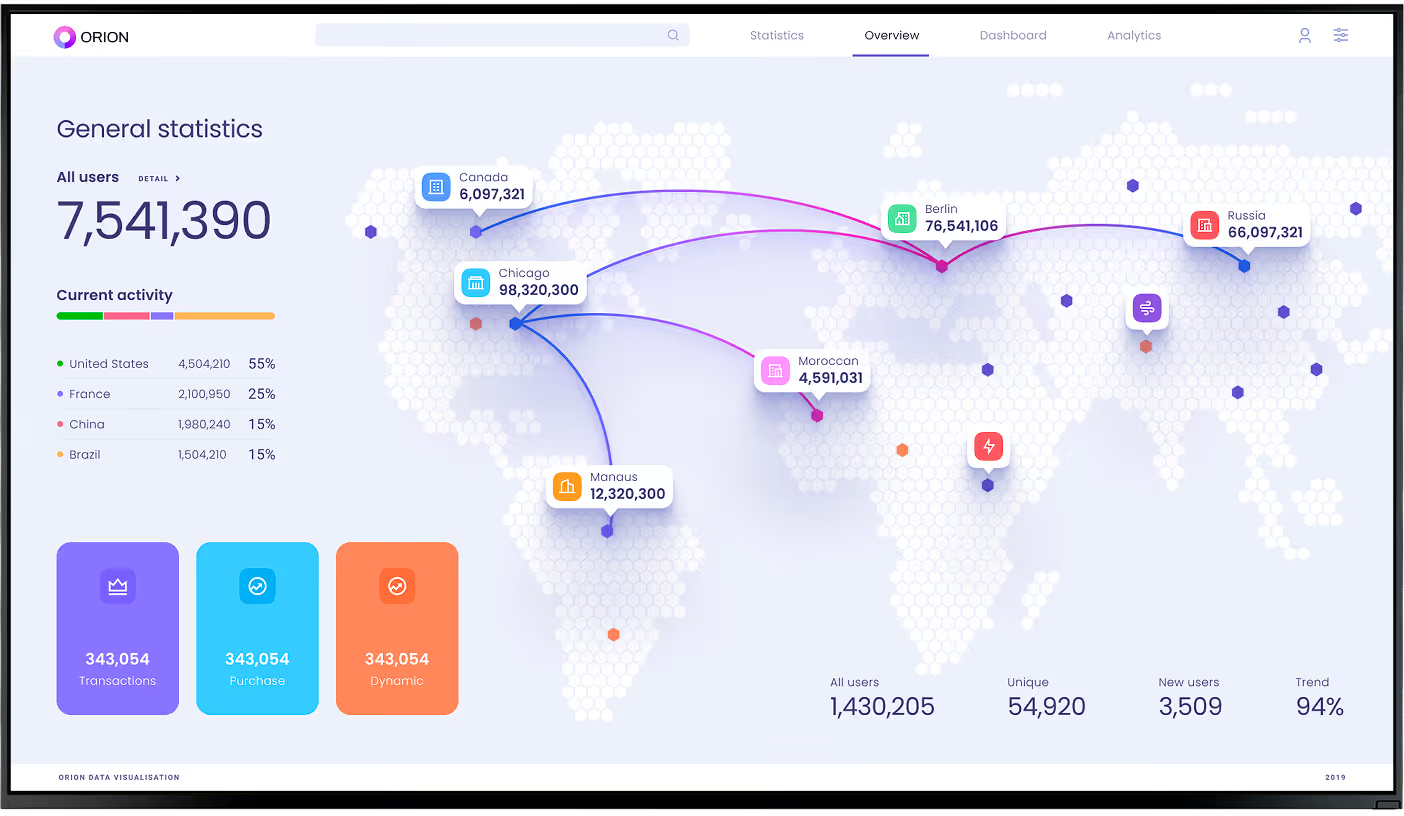
In warehouses and sales floors, visibility drives performance. Real-time dashboards keep teams focused by clearly displaying live targets, accident-free days, and production metrics. When everyone knows the score, productivity improves.

Emergency notifications and critical communications

When severe weather hits or an evacuation is required, screens instantly override normal content with bold, unmissable instructions — helping direct crowds quickly and acting as a crucial part of campus and factory safety infrastructure.

Factory floor and warehouse safety displays

Workers on the factory floor rarely sit at a computer. Digital screens make daily production goals, safety rules, and urgent line-stoppage alerts instantly visible — ensuring frontline teams have the information they need exactly where they work.

Setup

Works with screens you already own

Two ways to get started — both take minutes, not weeks, and require no specialist IT involvement.
Green shield icon with a white check mark on a black rounded square background representing security or verification.

Install the free Look App

Install the free Look App on any compatible display you already own. Ideal for repurposing existing smart TVs and screens across your estate — no new hardware spend required to run a pilot or test in a single region before committing to a full rollout.

Android
Windows
Fire OS
Samsung Tizen
LG webOS
Raspberry Pi
Amazon Signage
Amazon Signage
Icon Linux
Linux
macOS
MacOS
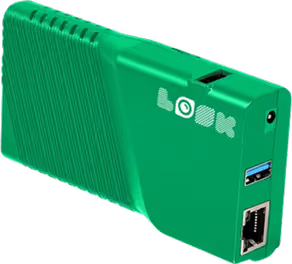
Green rectangular electronic device with ventilation slots, two USB ports, an Ethernet port, and the word 'LOOK' printed on it.

Plug in the Look HDMI Player

The Look HDMI Player connects to any screen via HDMI for reliable, always-on playback. Plug in, connect to Wi-Fi, log in — your screen is live. Caches content locally to survive internet outages and is built to run 24/7 without overheating. Worldwide shipping, no configuration expertise required.

Any displays with HDMI
LED screens 
Video walls
Plug-and-play

Enterprise hardware guidance:

For enterprise environments, choose players built for continuous, reliable playback. It is best to choose hardware-agnostic software that works with the equipment you already have — avoiding costly proprietary lock-in. For strict internal hosting policies, Look DS also supports on-premise deployment, ensuring total control over your data and network security. For video walls and lobbies, commercial-grade displays rated for continuous operation are recommended.

View full hardware guide →

How it works

From first screen to global network — without the complexity

Launching a massive screen network does not have to be stressful. By taking a clear, step-by-step approach, you can go from an empty wall to a live broadcast smoothly.
  • Content

    Plan your content

    Identify your core goal . Choose software and compatible hardware that fits your budget and technical needs. Decide who will create content, how often it updates, and set up your user accounts and role-based permissions.
  • Schedule

    Pilot in one location first

    Begin with a pilot in one building or region. Connect your first screen, publish your first playlist, and use this test to train your staff, tune your content workflow, and verify hardware performance — before committing to a full network rollout across the organization.
  • Playlists

    Roll out and manage at scale

    Once you have proven ROI and ironed out the workflow, scale out to the rest of your locations. Use Smart scheduling to automate repetitive updates, group screens by region or department for bulk changes, and monitor every device's status from your central cloud dashboard.

Key features

Everything an enterprise needs

Layouts Green Icon

Multi-zone layouts and branded templates

Split screens into multiple zones — show a video in one corner, a live news ticker at the bottom, and a schedule on the side. Drag-and-drop tools make this simple. Ready-made templates let local teams pick an approved layout, type in their message, and publish — keeping designs on-brand without needing a graphic designer.

Data integration and live content feeds

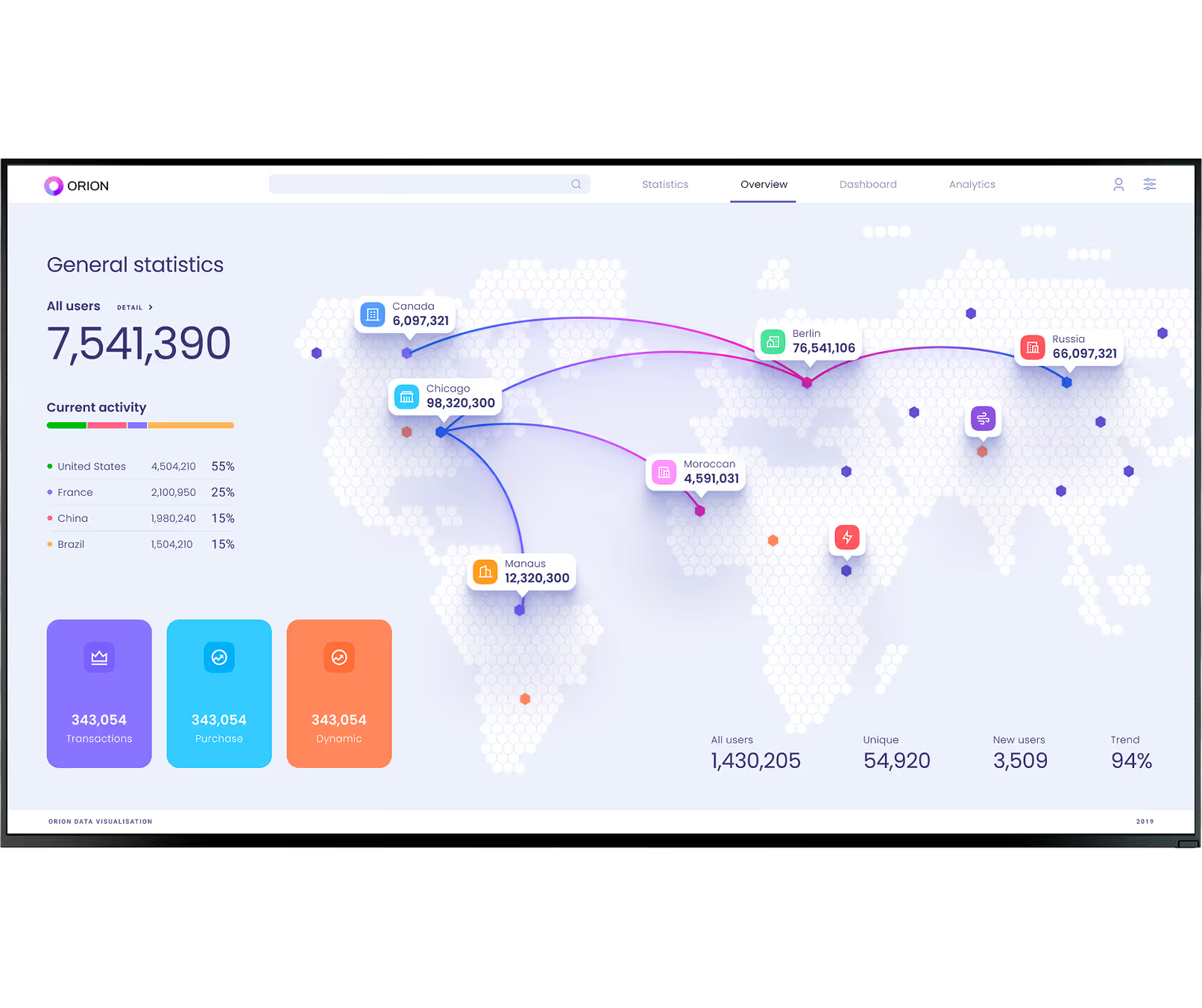
Nobody wants to update numbers manually every day. Enterprise systems pull live data directly to screens using APIs and integrations — connecting Power BI dashboards, weather widgets, social media feeds, or live news. Calendar integrations allow meeting room screens to automatically update to show who has booked the room and when it is free next.
user icon

Role-based access and SSO

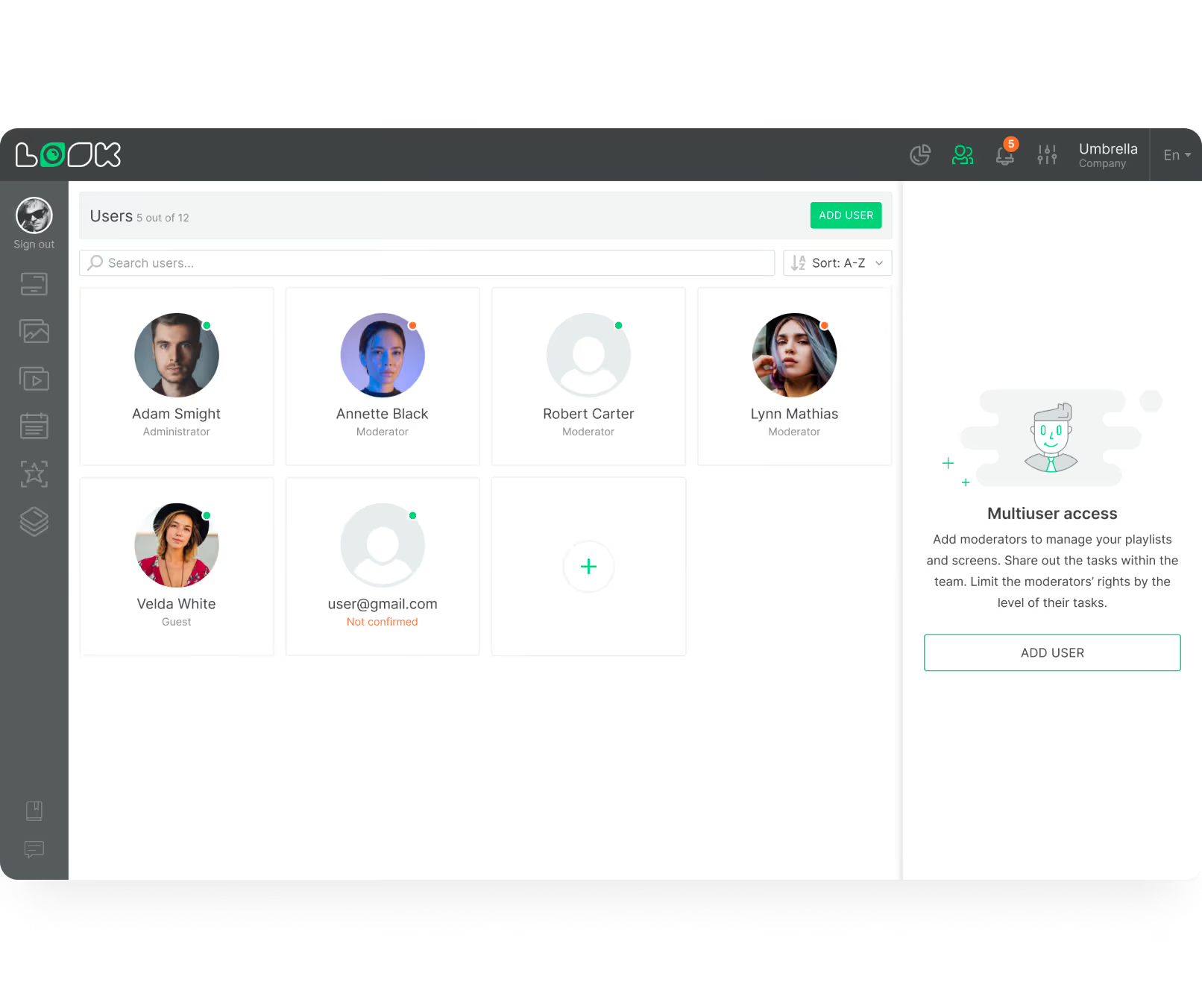
Role-based permissions let you decide exactly who can do what. A local store manager might only change the daily special on their specific screen, while corporate marketing controls the main promotional videos. Integrating with SSO integration means employees log in using company credentials — and access is revoked automatically when someone leaves.
User management interface displaying six user profiles with roles like Administrator, Moderator, and Guest, plus an add user button and multiuser access instructions.
icon navigation

Multi-location screen management

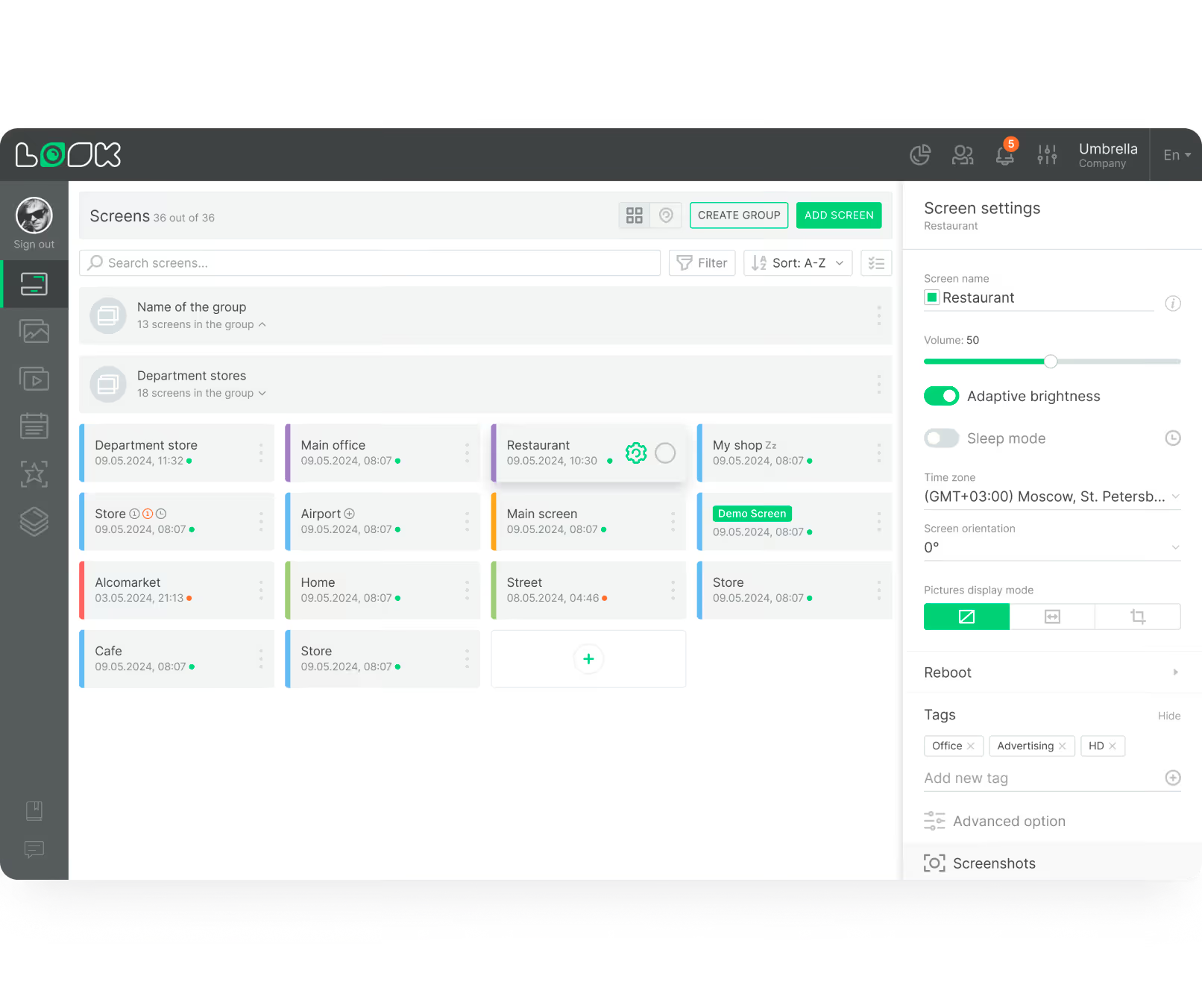
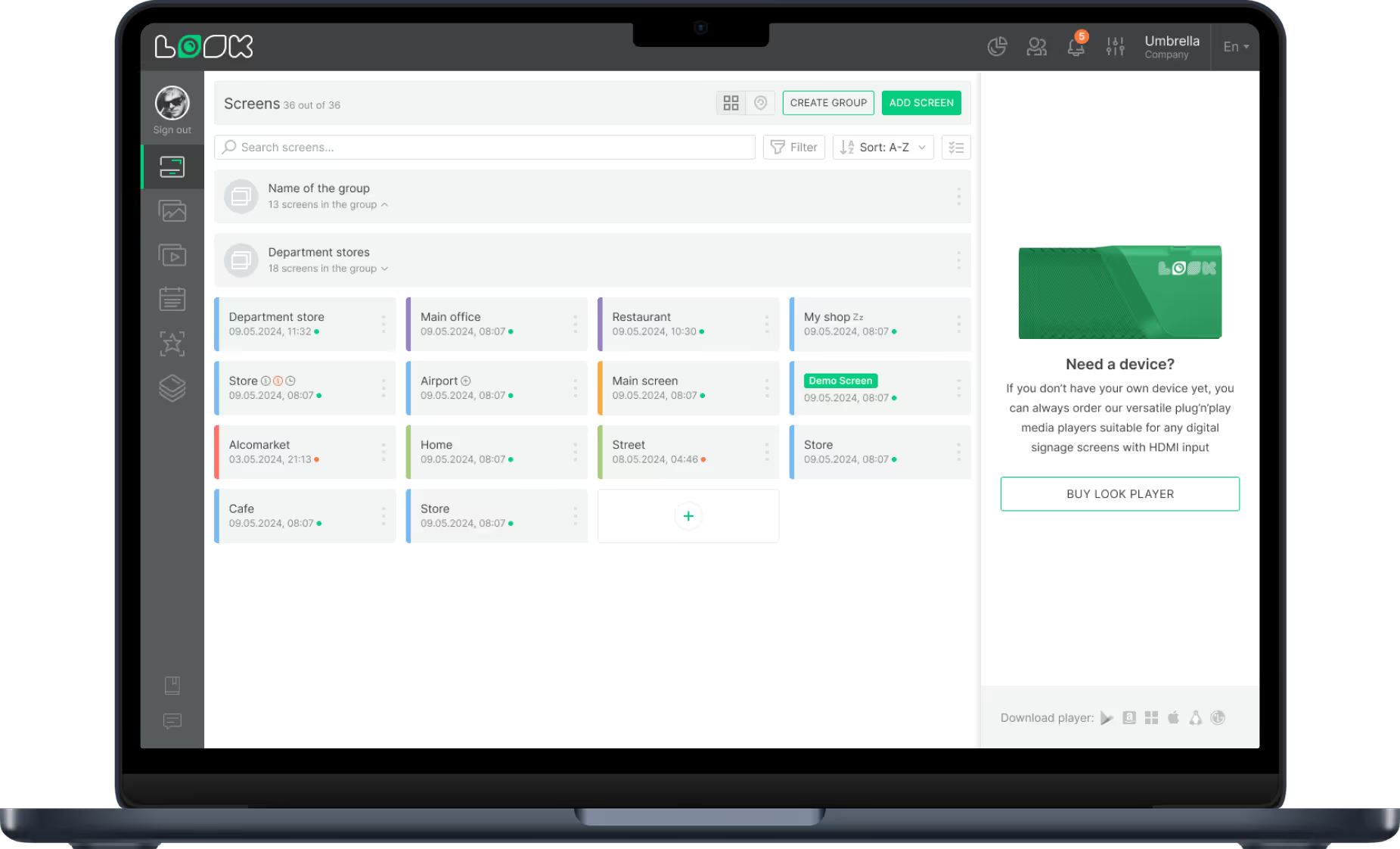
Managing a network is much easier when your software mirrors your real-world structure. Group screens by city, building, or floor and apply bulk updates in one action. Push a holiday promotion to the "North America Retail" group in one click while leaving other regions completely untouched.
Dashboard screen showing a list of 36 grouped screens with details and status indicators for managing display settings including volume and adaptive brightness for a screen named Restaurant.
calendar_icon

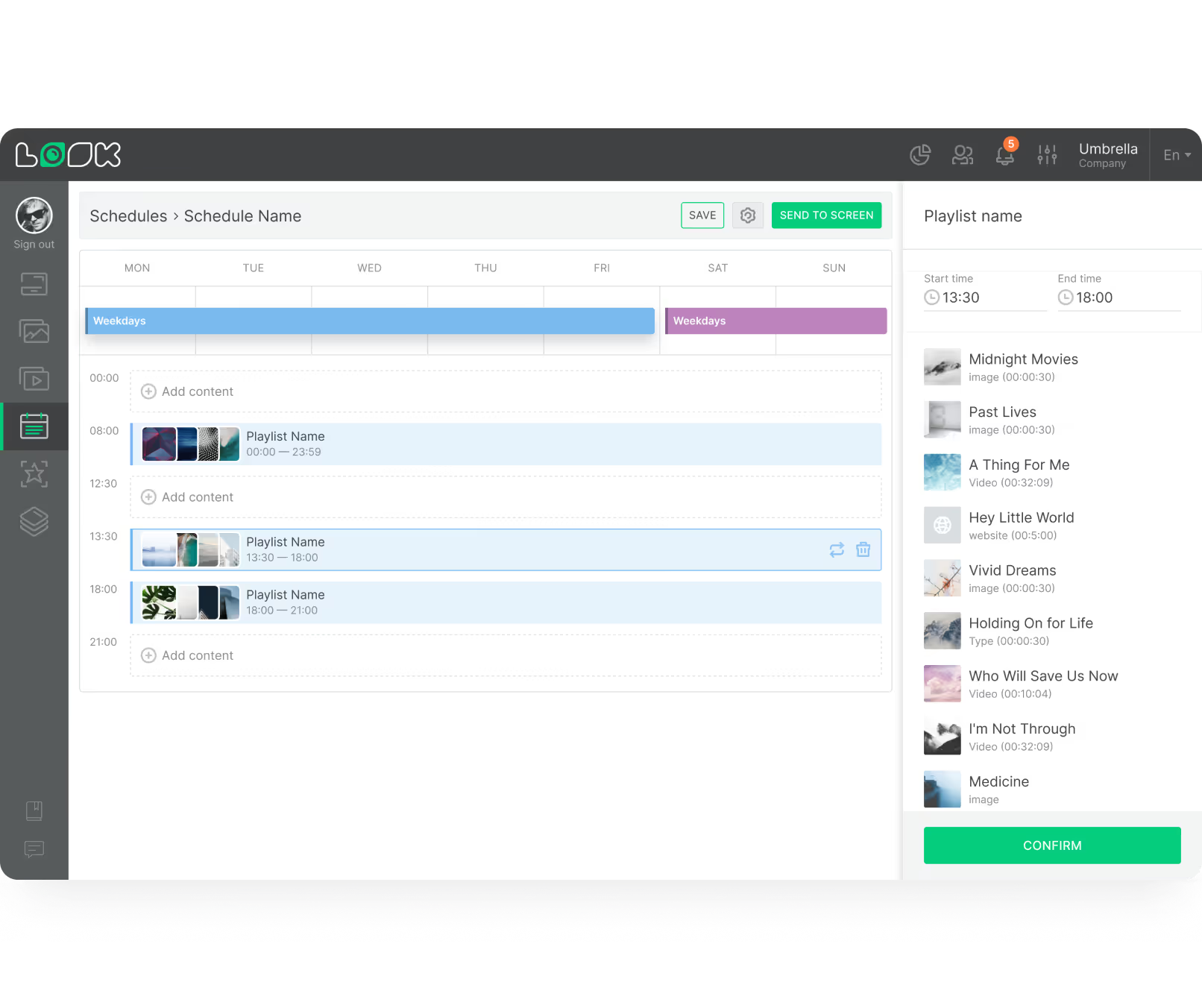
Advanced scheduling and content automation

Smart scheduling is how you set and forget your daily content. Build a playlist and tell the system exactly when it plays. Schedule seasonal campaigns weeks in advance. Once the schedule is set, screens update themselves without daily manual intervention from your staff.
Digital schedule interface displaying daily playlists with times and content thumbnails, alongside a playlist content list and confirm button.
Eye

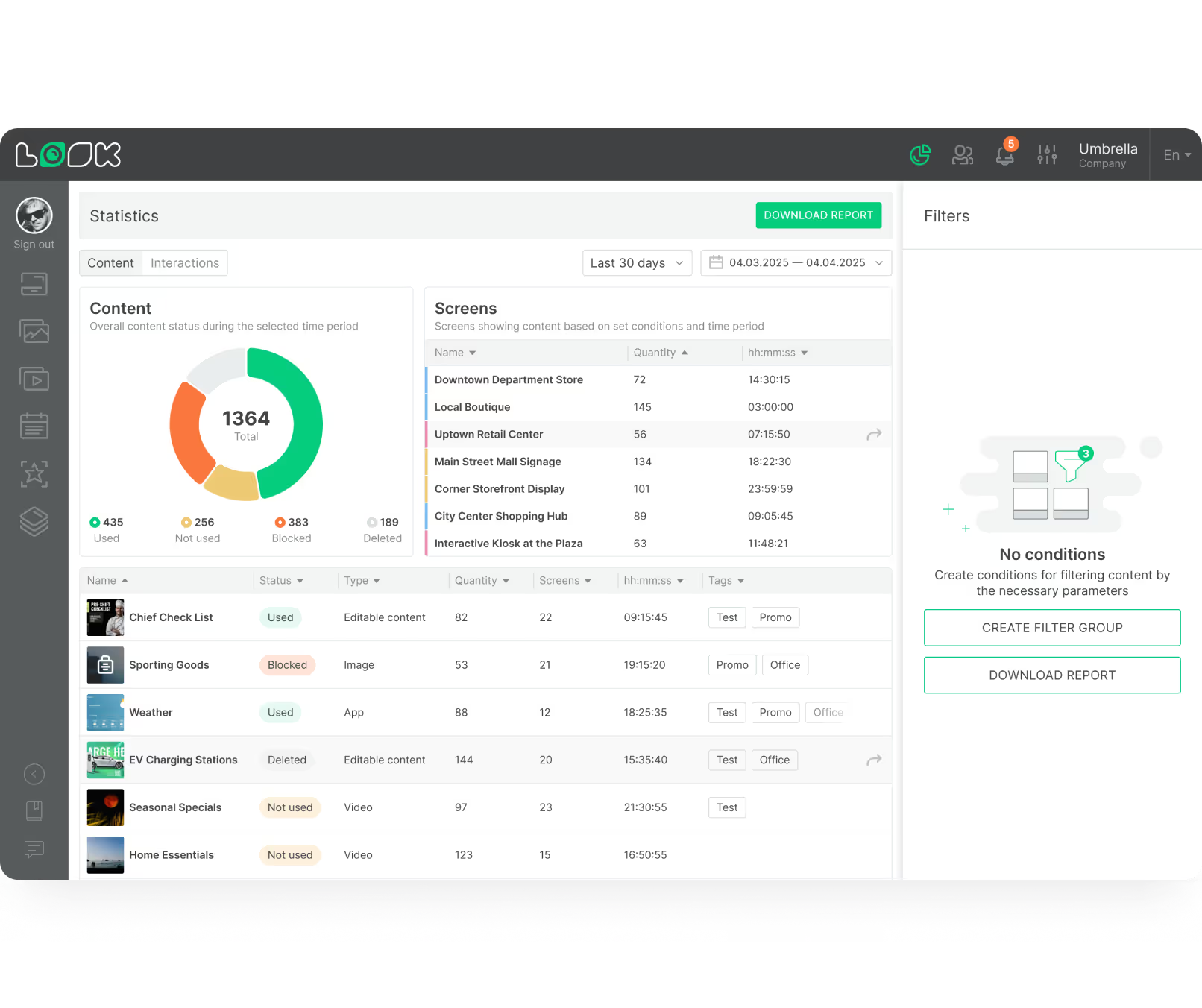
Playback tracking and proof-of-play

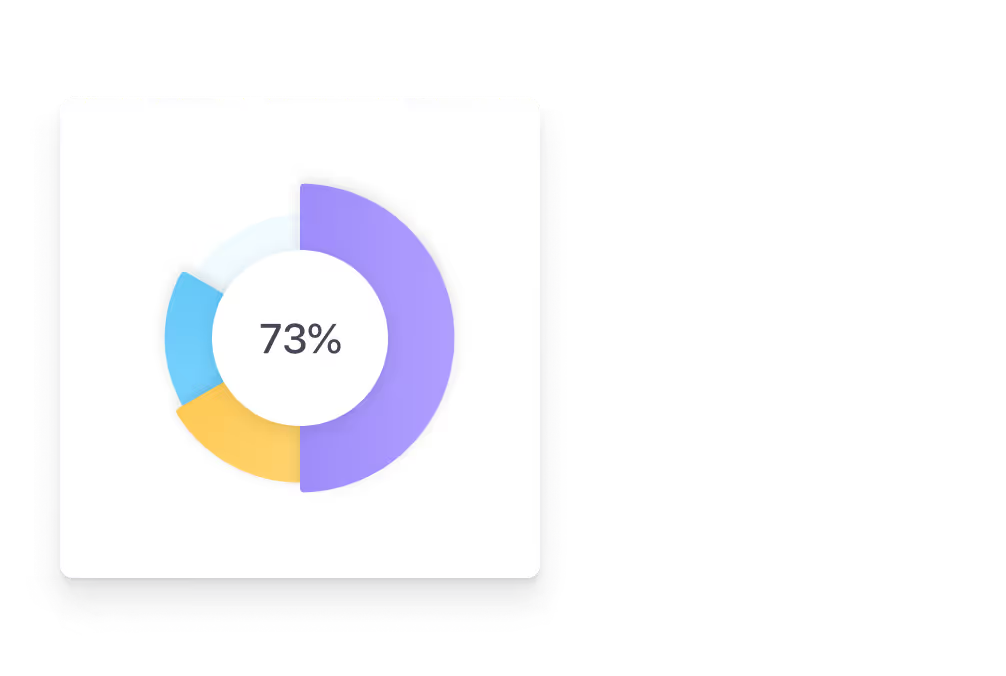
To know if your investment is working, you need data. Enterprise platforms provide proof-of-play logs showing exactly how many times a specific video or promotion played on any given screen. If you share screens with advertisers or partners, this data proves that their content was actually shown.
Dashboard interface showing content statistics with a pie chart of used, not used, blocked, and deleted content, a table listing screen names with quantities and durations, and a content list with status, type, quantity, screens, time, and tags.
Touch Icon

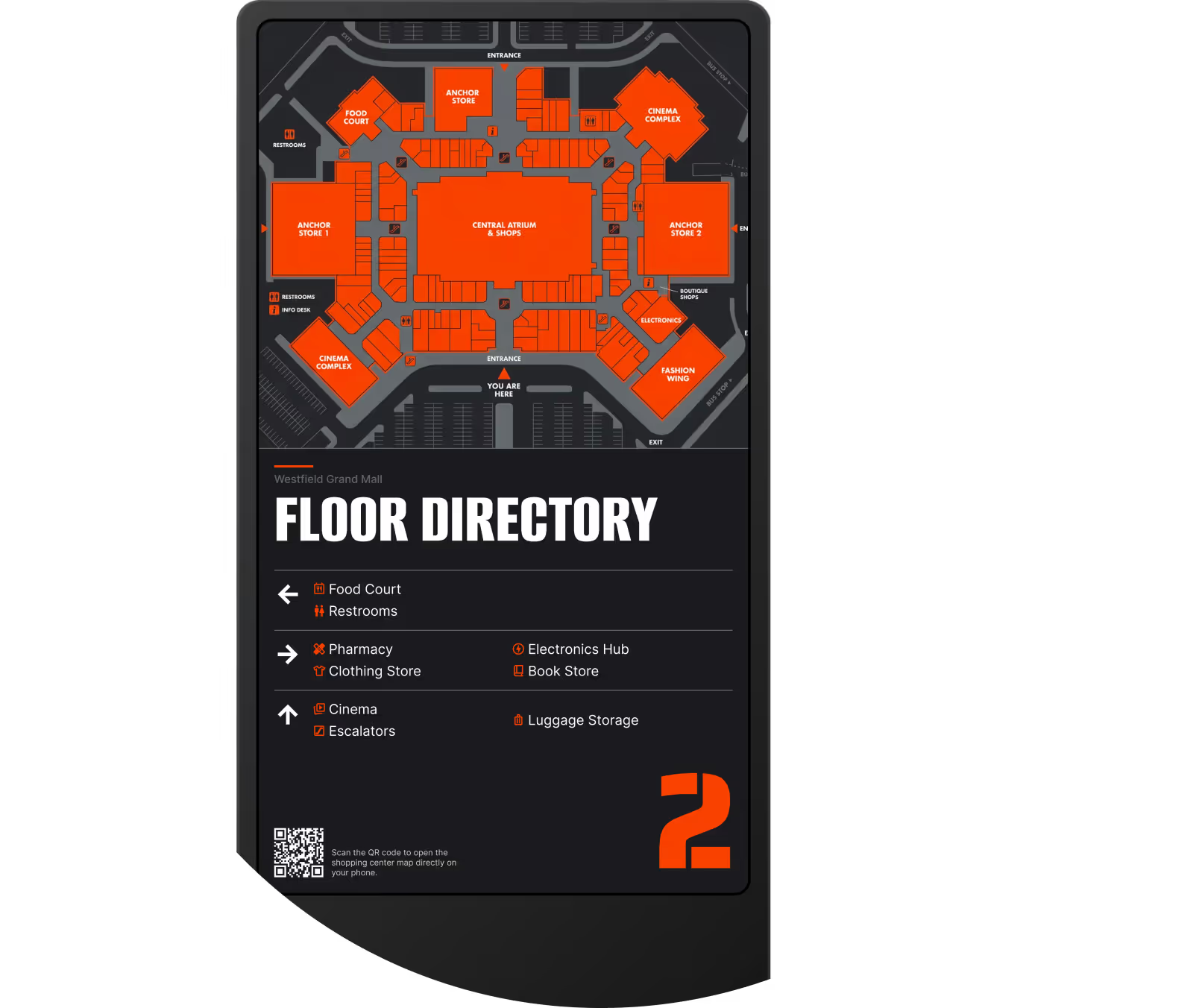
Interactive kiosks and touchscreen support

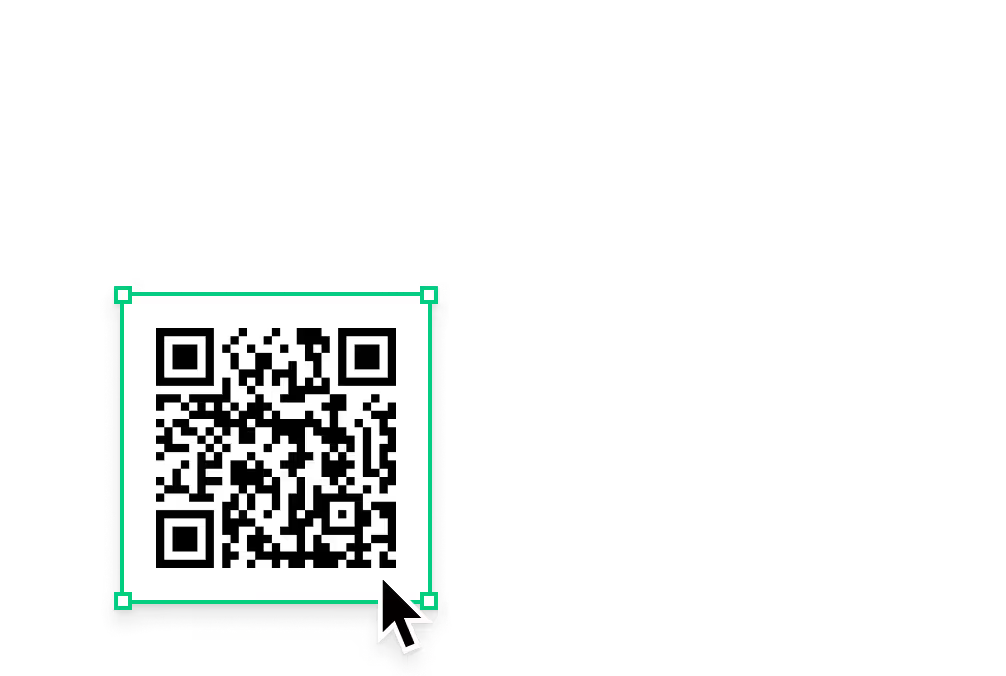
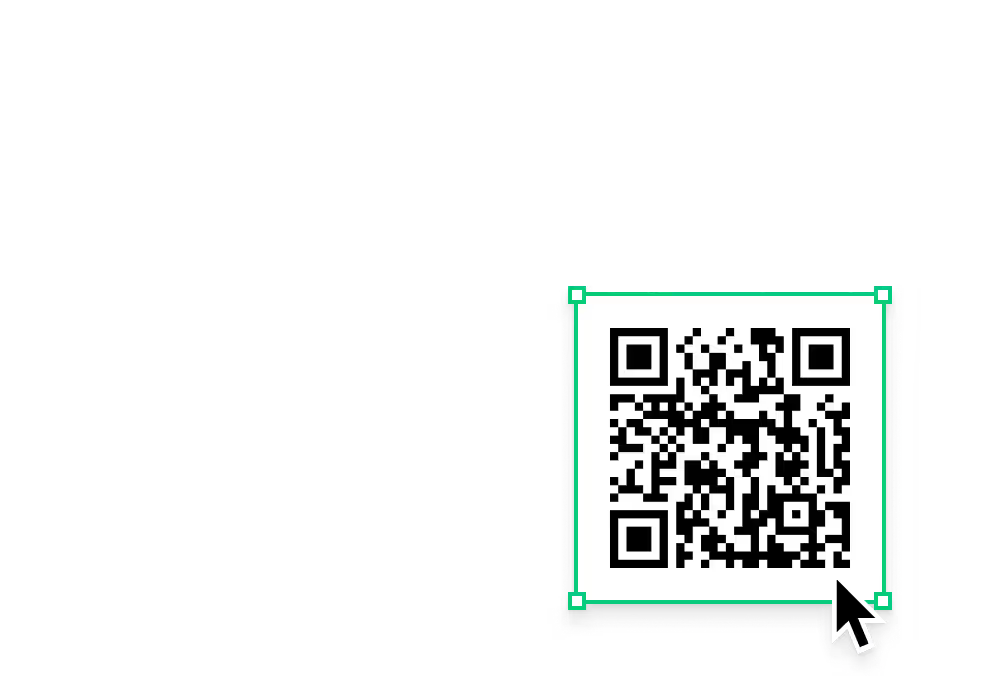
Build touch-enabled experiences like wayfinding maps, product catalogs, or survey forms without writing any code. For touchless options, add QR codes to your screens — a visitor can scan to download a map or save a promotional coupon, bridging the gap between your physical screen and their mobile device.
LB Apps icons
User management interface displaying six user profiles with roles like Administrator, Moderator, and Guest, plus an add user button and multiuser access instructions.
human-card
Dashboard screen showing a list of 36 grouped screens with details and status indicators for managing display settings including volume and adaptive brightness for a screen named Restaurant.
UI Screen cards
Digital schedule interface displaying daily playlists with times and content thumbnails, alongside a playlist content list and confirm button.
weekday
Dashboard interface showing content statistics with a pie chart of used, not used, blocked, and deleted content, a table listing screen names with quantities and durations, and a content list with status, type, quantity, screens, time, and tags.
Black and white QR code with a cursor pointer on the bottom right corner.

Content best practices

Tips for successful enterprise adoption and rollout

01

Involve IT, marketing, and operations early

Involve your IT, marketing, and operations teams early in the planning process. Each team has different needs, access requirements, and content workflows. Aligning them before deployment prevents permission conflicts, inconsistent branding, and adoption bottlenecks once screens go live.

02

Rely heavily on approved templates

Rely heavily on templates so non-designers can update screens quickly. Ready-made templates let local teams create polished announcements in minutes without needing a graphic designer for every minor update — while ensuring every screen automatically stays within brand guidelines.

03

Use smart scheduling to automate repetitive updates

Use smart scheduling to automate repetitive updates. Set a playlist to run only during the morning shift, a holiday greeting to expire automatically, or a rotating weekly theme to refresh without manual intervention — taking the daily content workload off your communications team.

04

Review analytics to learn what content gets noticed

Review your analytics regularly to see what content actually gets noticed. Proof-of-play logs and uptime reports help internal teams demonstrate ROI to leadership and identify which screens are underperforming or running stale content — so you can fix it before it becomes a habit.

05

Always include a clear call to action

Always have a clear next step — like a QR code — on your promotional screens. A QR code bridges the gap between your physical screen and the viewer's mobile device, letting them save a coupon, download a document, or access a form. Passive screens without a call to action miss every conversion they create.

06

Start with a pilot before scaling

When launching a large network, start small. Begin with a pilot in one building or region. Use the pilot to test your hardware, train your staff, and see how people react to the content. Once you prove ROI and iron out the workflow, you can confidently scale out to the rest of the organization.

Common mistakes

Choosing software too complicated for non-technical staff

Choosing software too complicated for non-technical staff

A system that is too complicated will frustrate your team and waste your investment. If your HR or communications team needs to raise an IT ticket every time they want to update a screen, the system will quickly fall out of use — and outdated content is worse than no content.

Fix: Choose a platform built for non-technical teams. The best way to know if it works is to test it — book a demo, connect a test screen, and see how fast you can build a playlist before committing to a rollout.

Not setting up role-based permissions from the start

When hundreds of people have access to a system with no structure, mistakes happen quickly — someone overwrites a brand-approved template, a local team publishes unapproved content, or a departure creates an orphaned account with full admin privileges.

Fix: Configure role-based permissions and SSO integration before launching. A local user might only upload images; a manager approves and schedules them; corporate marketing controls global templates. Set up this structure first.
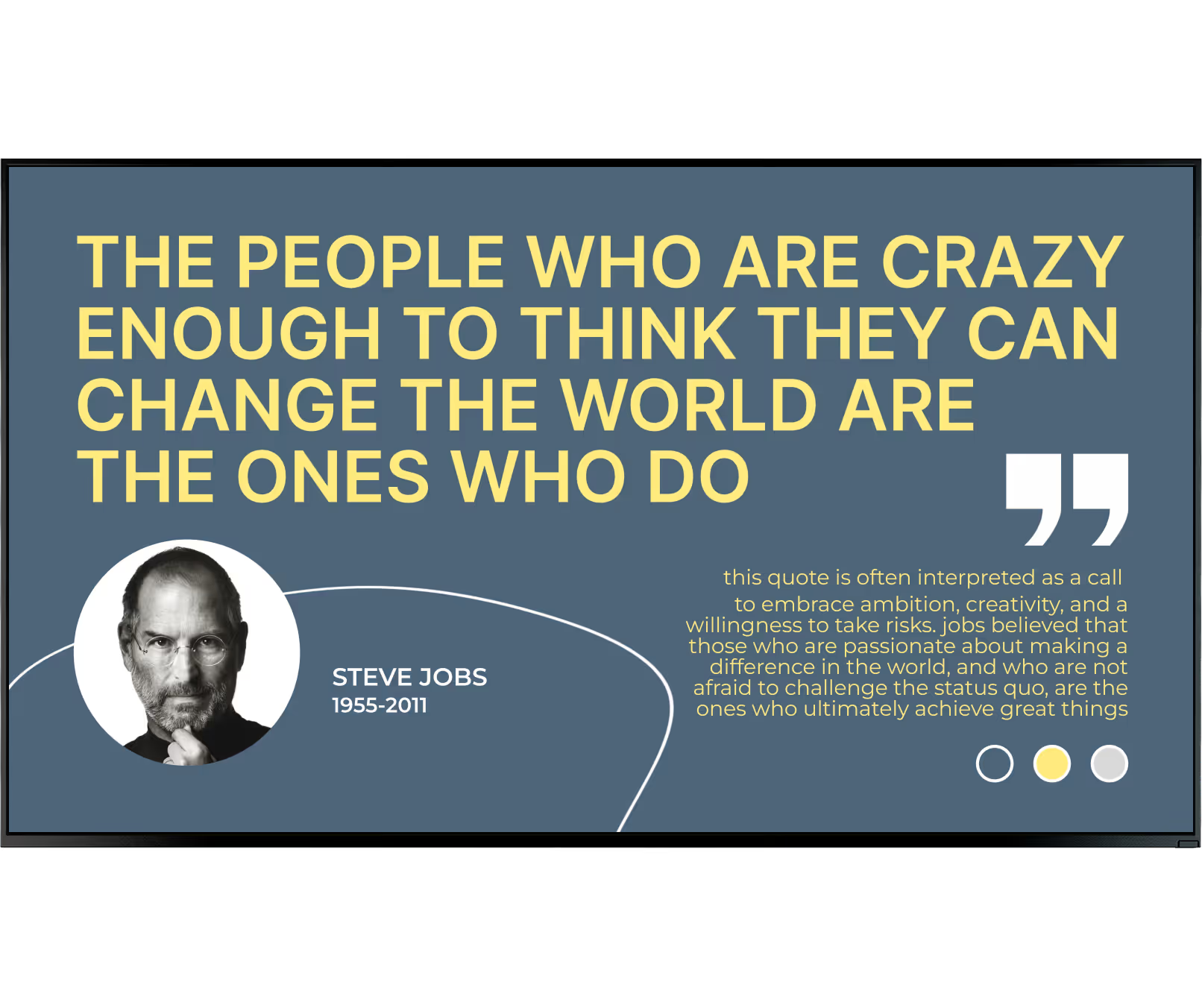
Treating every screen as an isolated device

Managing screens one by one instead of in organized groups is the fastest way to turn a small network into an unmanageable mess. Without grouping, pushing a policy change to 200 screens means 200 individual actions — which nobody will actually do.

Fix: Group your screens by city, building, floor, or department from day one. Bulk updates then become a single action — push a campaign to a region, update a department, or change global content in one click.

Skipping the pilot and going straight to full rollout

Deploying to hundreds of locations before testing hardware, workflows, and content with a small group means discovering problems at the worst possible scale — with hundreds of screens showing the wrong content and no clear process to fix it quickly.

Fix: Always begin with a pilot in one building or region. Use it to train staff, validate hardware, and refine your content plan. Once you have proven ROI, scale confidently to the rest of the organization.
What customers say

Enterprise teams using Look DS

Captera Rating
4.9
G2 Rating
5

In terms of using the system, the other options that I found were a little clunky and Look was not only affordable but really easy for us to deploy and get up and running.

Michael Bowers
Xtreme Express LLC

Look is well-priced, it’s a very user-friendly software cloud-based service, where you can update your screens from wherever you are. We can definitely recommend to others!

Jonathan Florin
Florin Partners

Our experience with Look was simply excellent. We were able to offer our clients a new feature-rich solution that can meet their various requirements in terms of digital signage, with a relatively affordable monthly cost.


Bruno Sabatella
Feedback
60 000+
Screens
11 000+
Users
120+
Countries

FAQ

Frequently asked questions about enterprise digital signage

Is digital signage software secure for enterprise use?

Yes. Enterprise digital signage platforms are designed to protect your network. They use encrypted data transfers, role-based access, and integrations like SSO to ensure that only approved personnel can access the dashboard. Utilizing SSO alongside Two-Factor Authentication (2FA) is the best way to manage employee access securely — and if an employee leaves, their access is revoked automatically along with their main company login.

Can digital signage integrate with existing enterprise apps?

Absolutely. Modern signage acts as an extension of the tools you already use. Through APIs, Zapier, and native widgets, you can automatically display data from Power BI, CRM systems, Google Workspace, Microsoft 365, or live news sources — eliminating manual data entry and ensuring screens always reflect the latest business data.

How is content managed and governed across large organizations?

It is managed through a centralized dashboard with strict user permissions. A central admin controls global settings and brand templates, then grants specific access to local managers who can only update content for their assigned locations or departments. This keeps messaging accurate and on-brand while giving local teams the flexibility to share practical information their specific audience needs.

What are the typical costs and licensing models?

Most enterprise digital signage operates on a SaaS model, charging a flat monthly or annual subscription fee per screen. This is budget-friendly as it scales exactly with your needs and includes ongoing software updates. When budgeting, calculate the cost of your displays, media players, and the per-screen software subscription. Volume pricing means cost per screen typically decreases as you scale.

How does enterprise signage differ from small business solutions?

The biggest differences are scale, security, and remote management features. Enterprise platforms handle massive screen counts while letting you assign specific permissions to local teams. They include advanced security features like SSO and integrate with the data tools your business already uses. They also prioritize maximum uptime and offer features like offline playback — ensuring screens keep running even if a location loses internet access.

What hardware do I need for an enterprise deployment?

Your setup generally includes a display (the TV or commercial monitor) and a media player. For enterprise environments, choose players built for continuous, reliable playback. Hardware-agnostic software that works with equipment you already own is ideal. For fresh setups, dedicated plug-and-play devices like the Look HDMI Player connect via HDMI, cache content locally to survive internet outages, and run 24/7 without overheating.

How do I manage a network rollout across departments or regions?

Start small. Begin with a pilot in one building or region to test hardware, train staff, and refine your content plan. Once you prove ROI and iron out the workflow, scale to the rest of the organization. Group screens by department, region, or building from day one so bulk updates and targeted campaigns can be executed in a single action across your entire network.

Still have questions?

Our team can walk you through a full demo tailored to your setup — from single-screen pilots to multi-location rollouts.

Talk to Our Team

Or browse the knowledge base for technical documentation and setup guides.

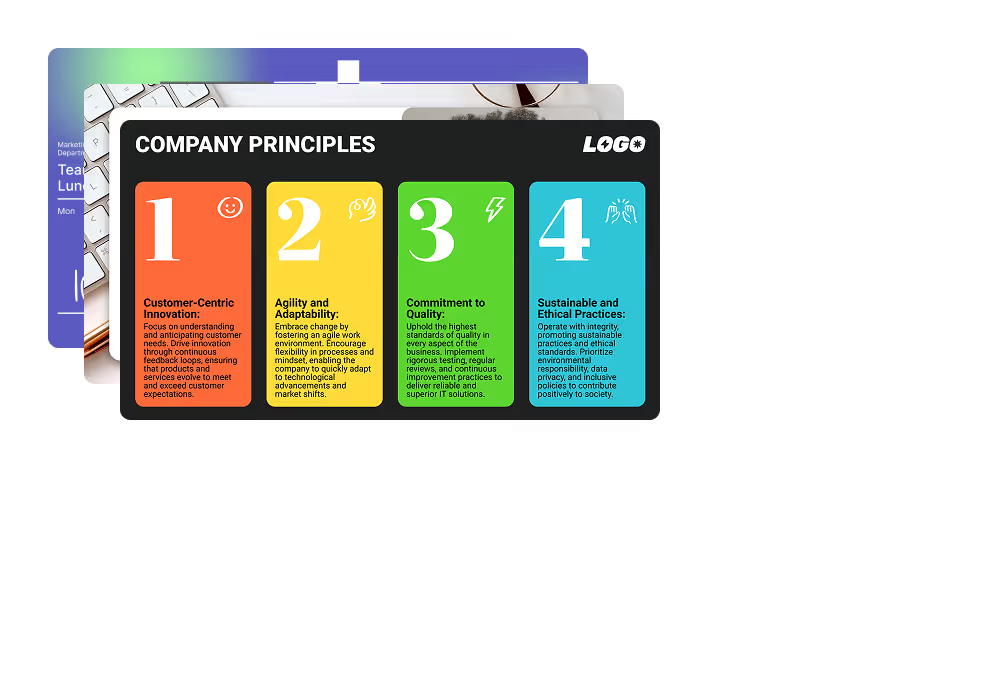
Templates

Enterprise-ready templates for every use case

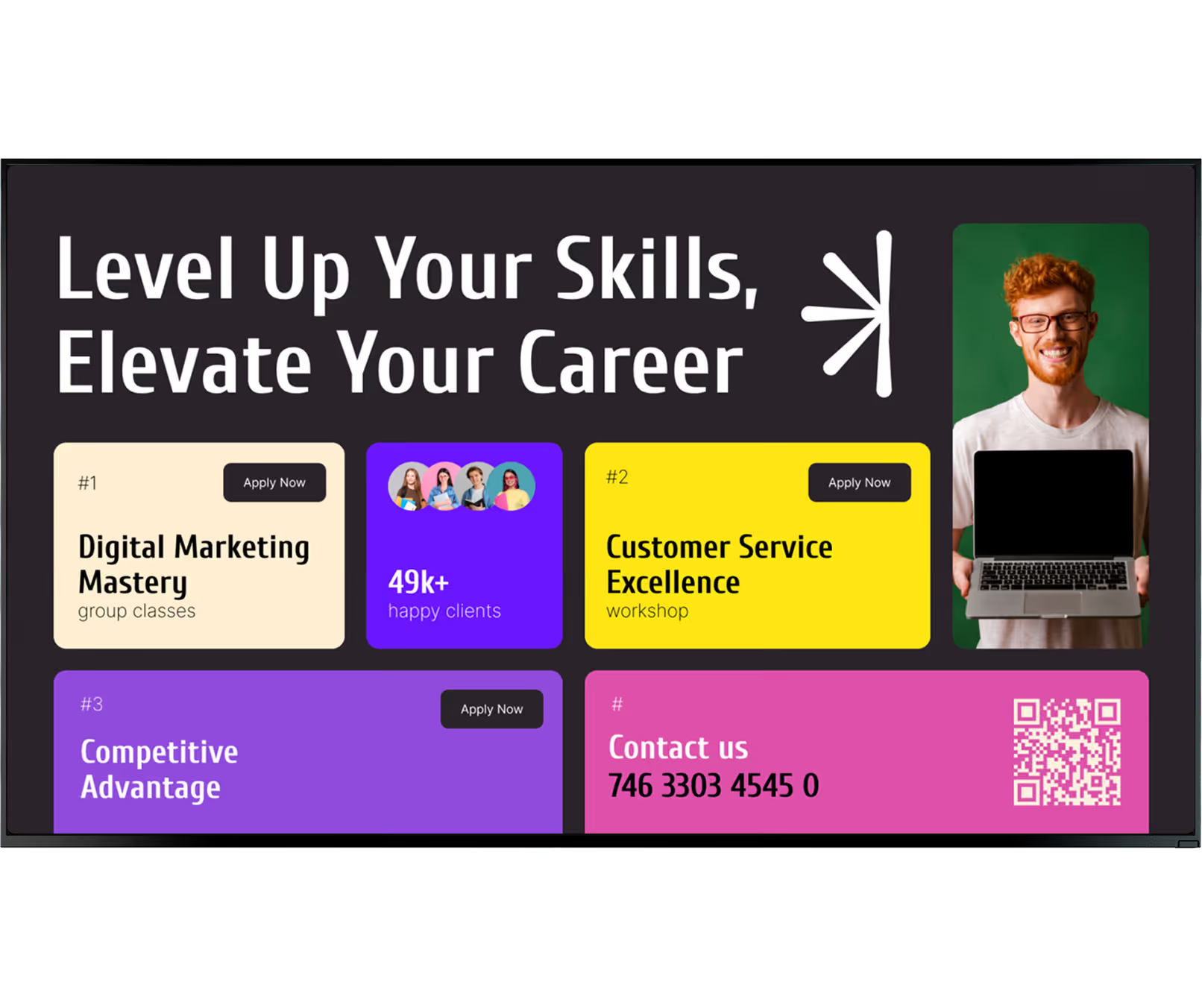
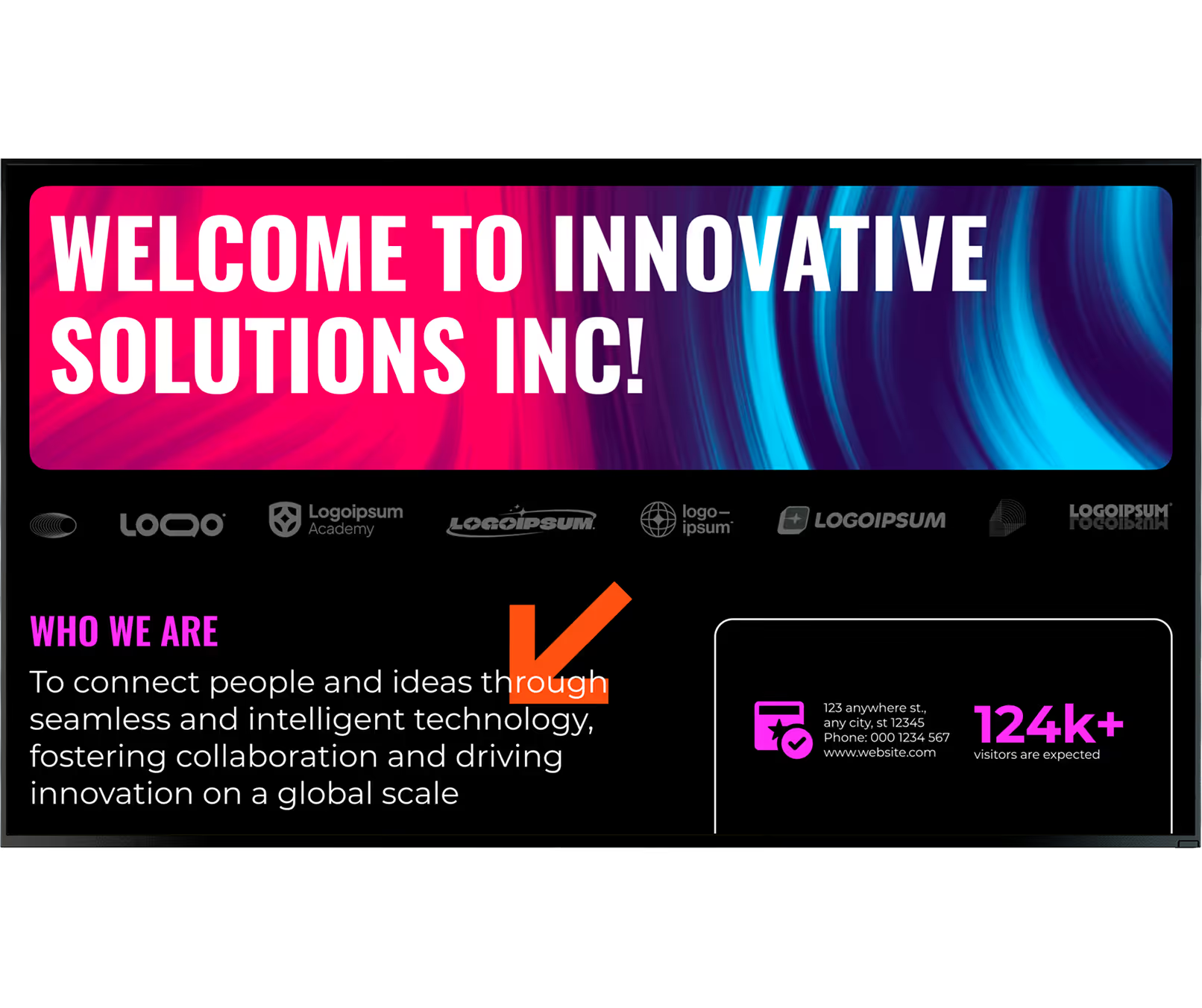
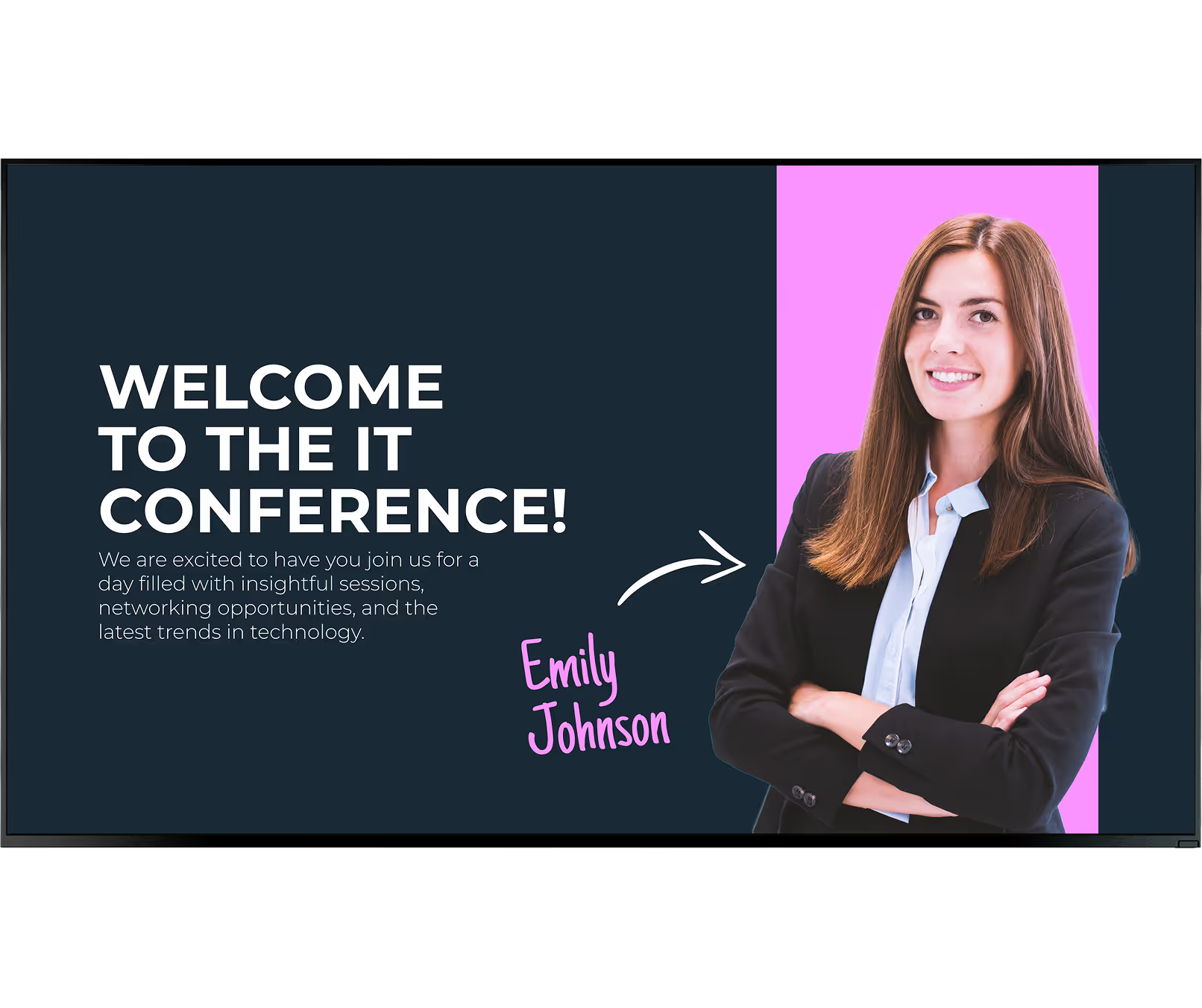
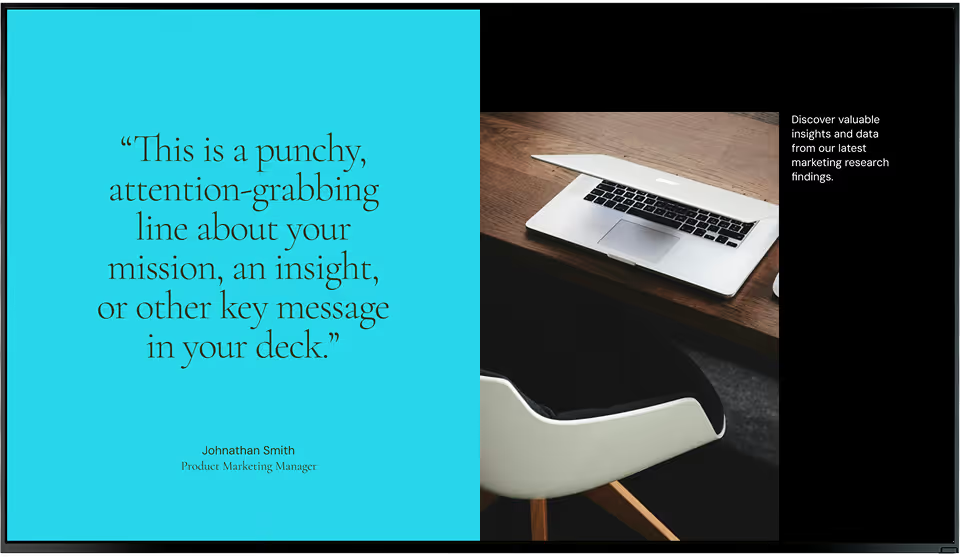
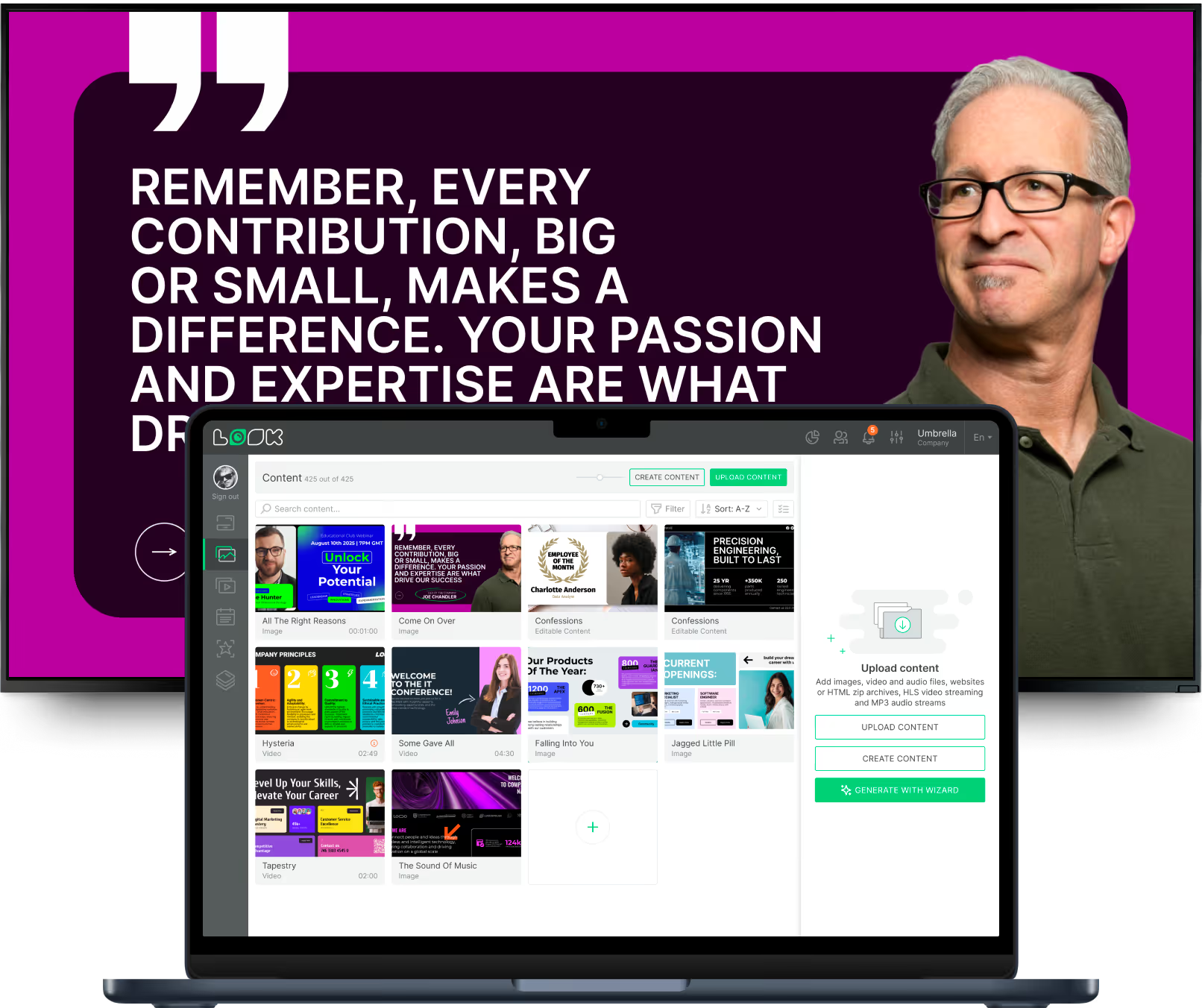
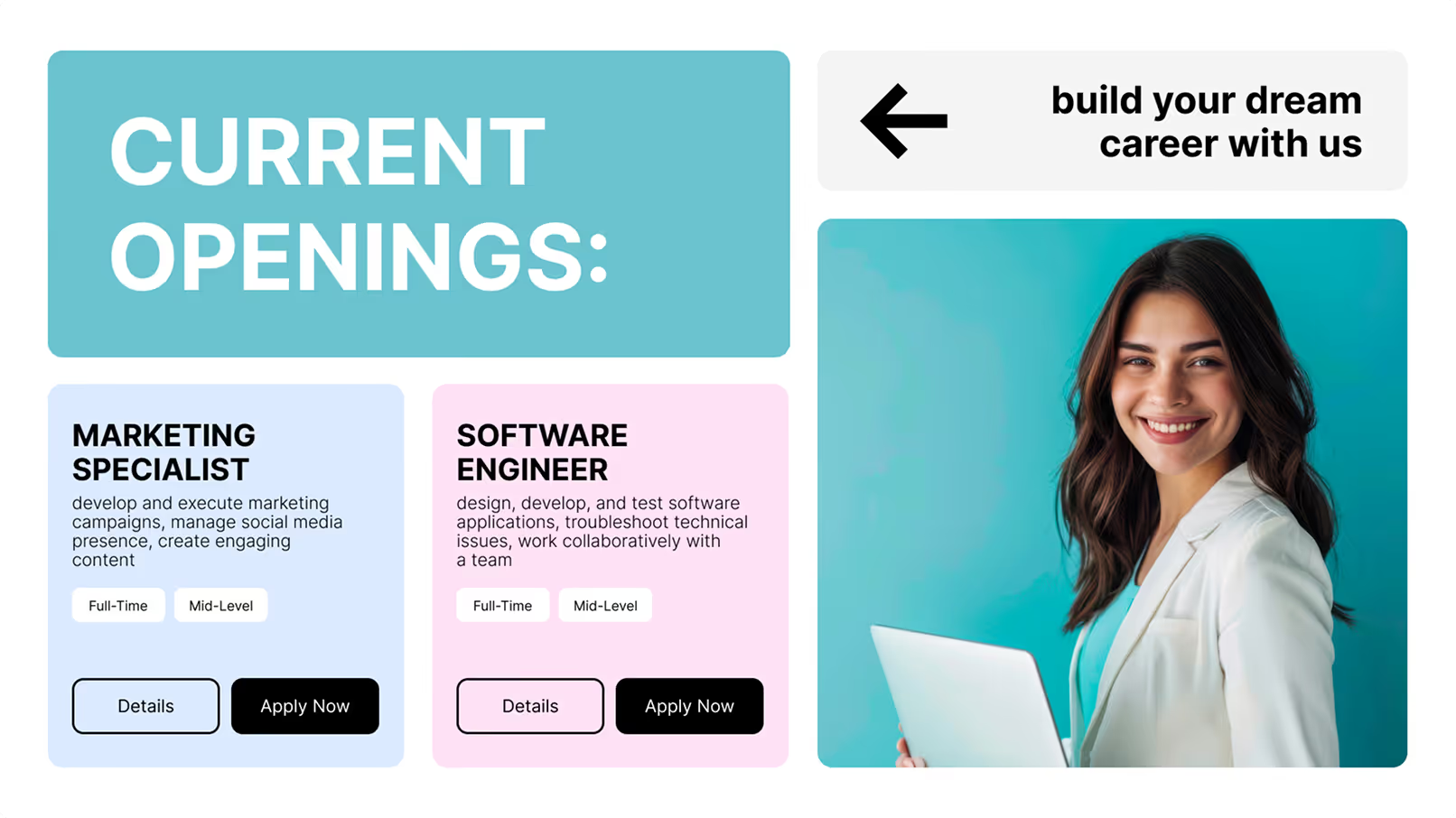
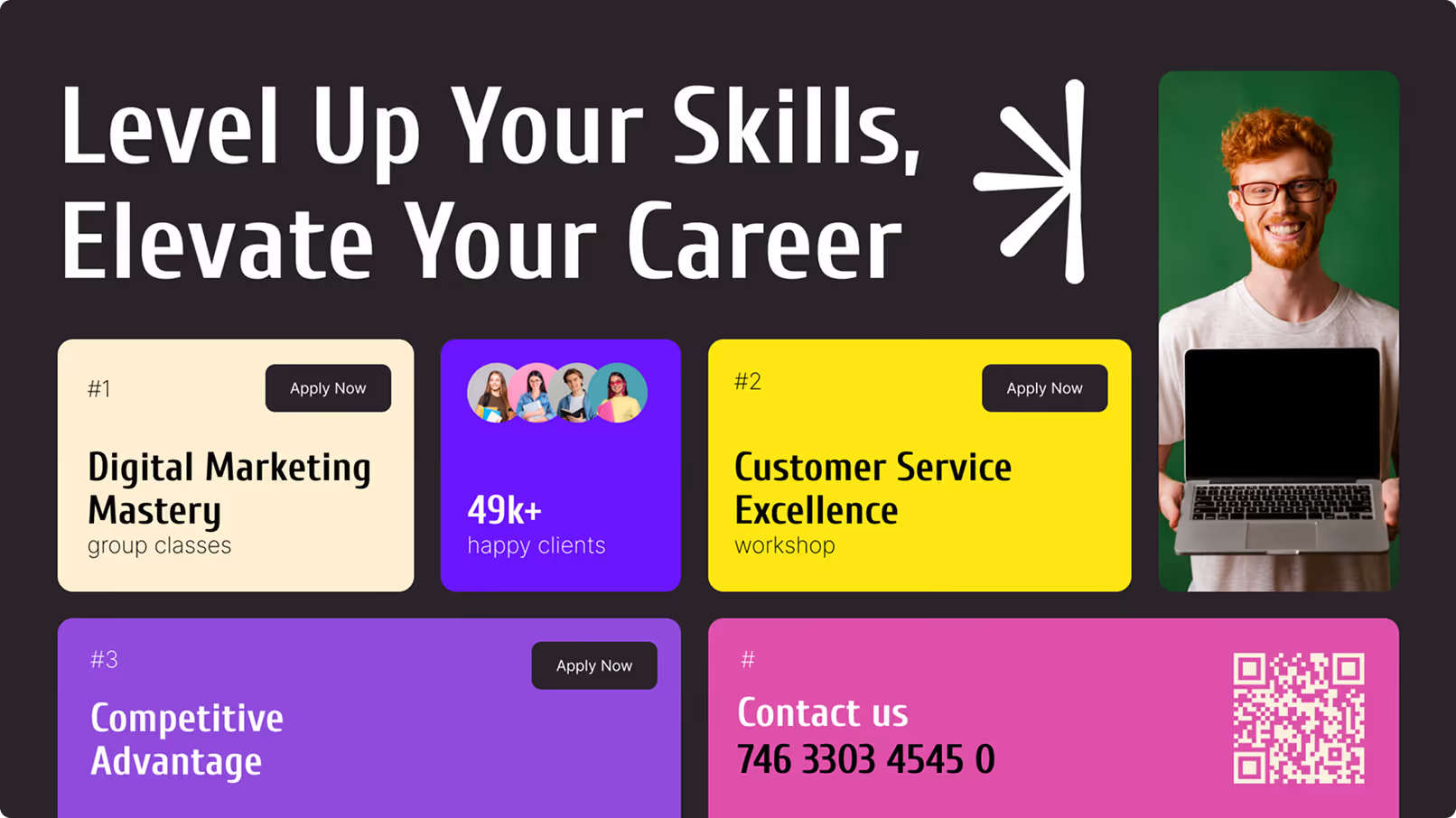
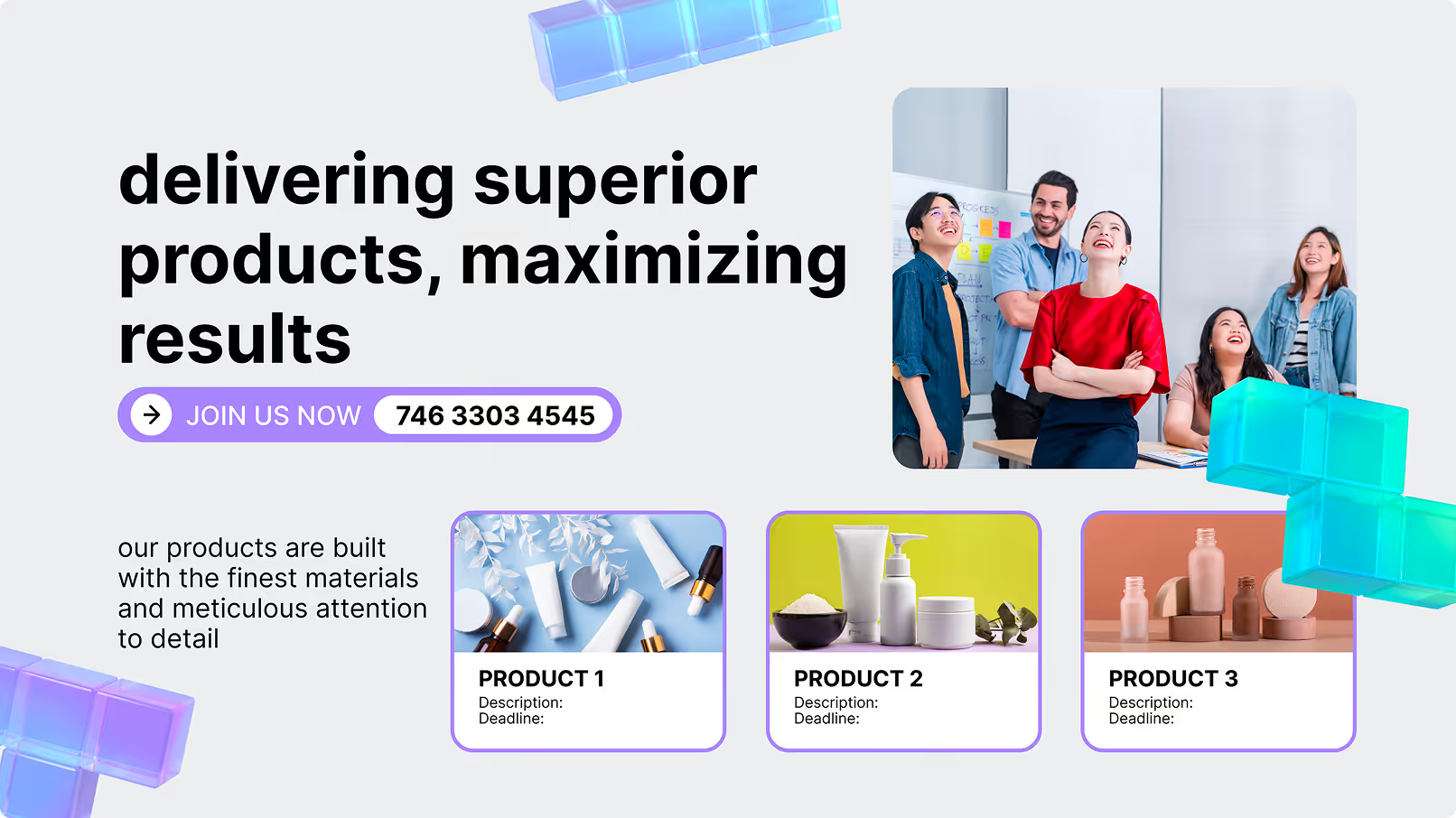
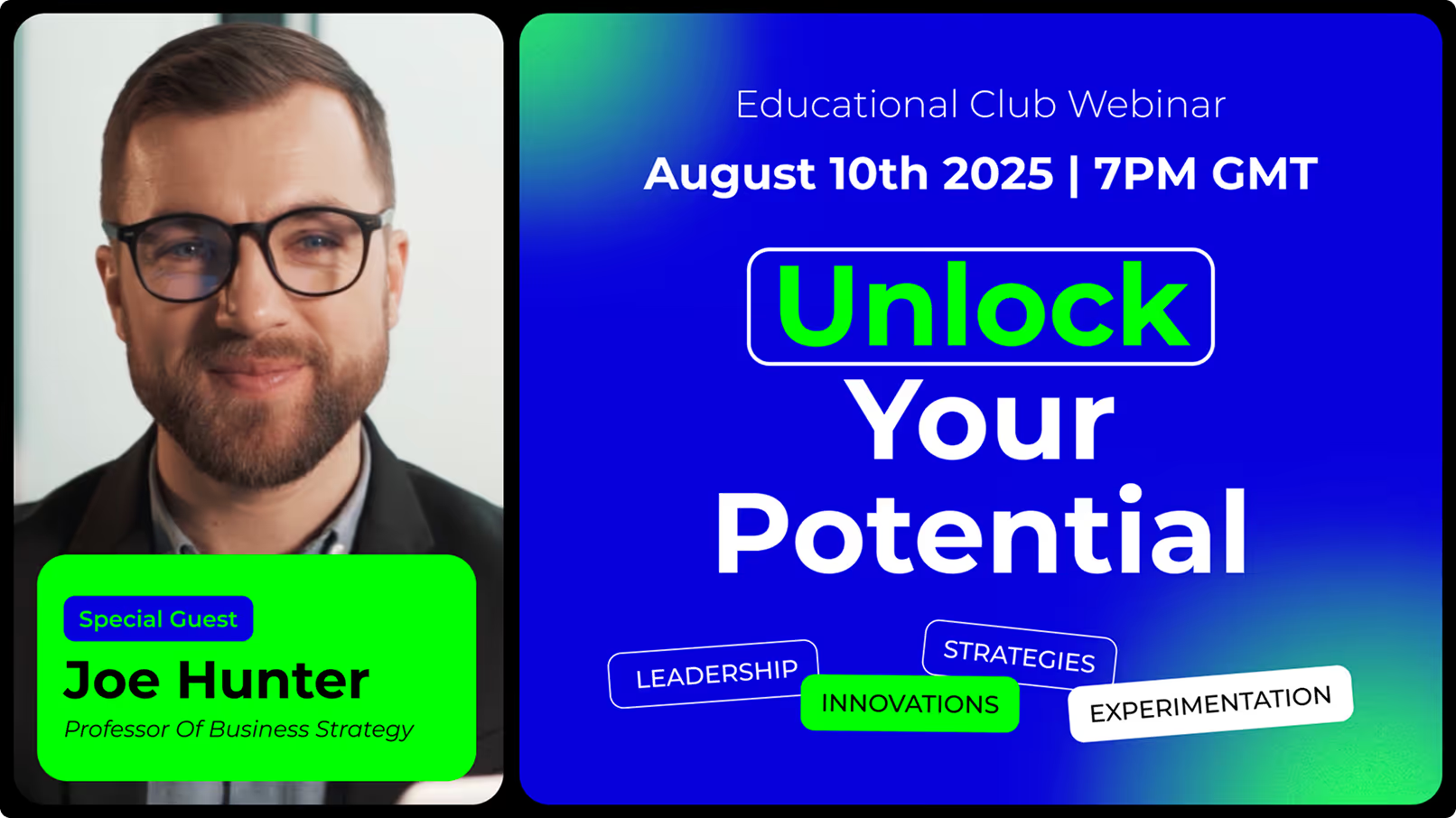
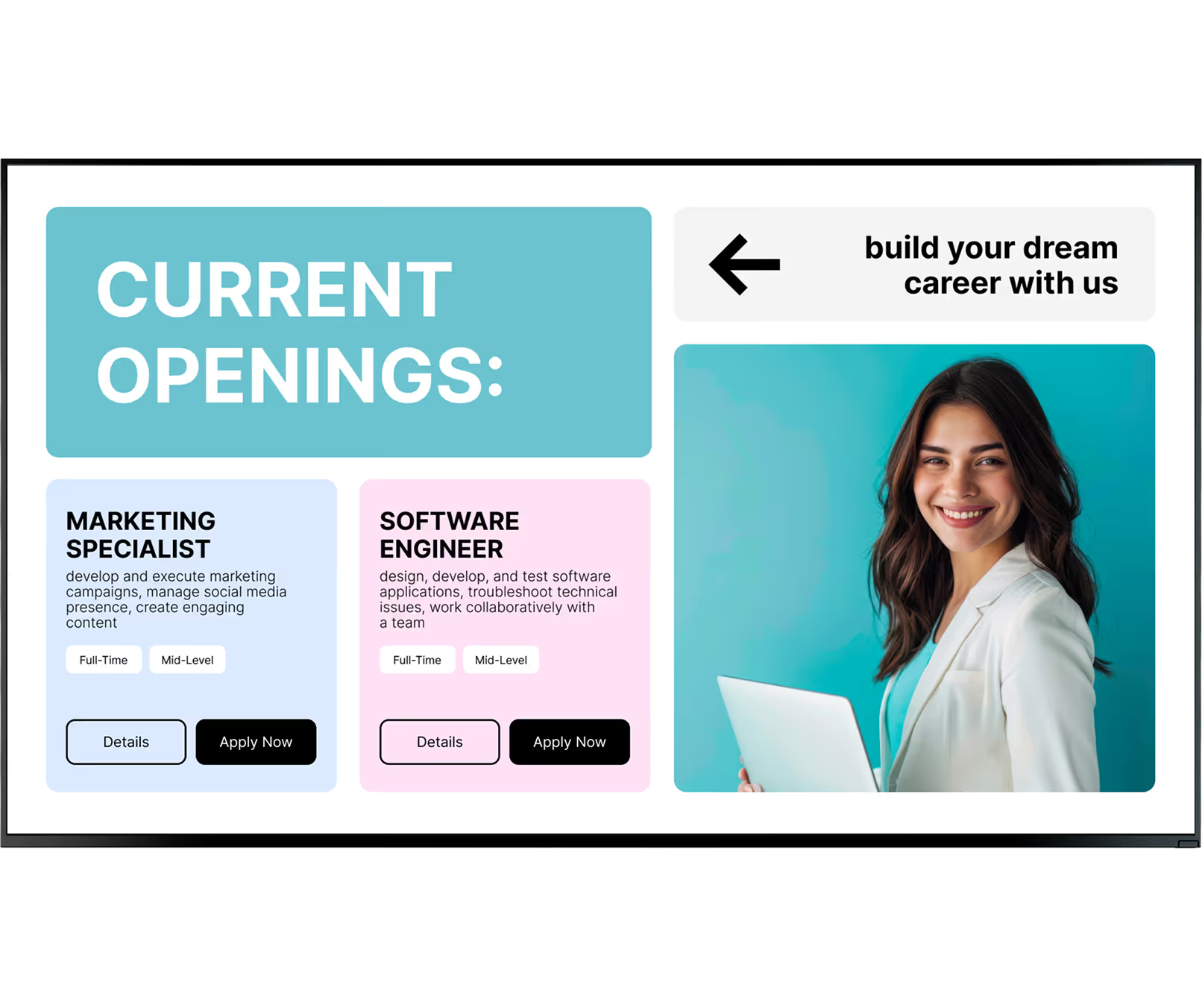
Your communications team should not need a designer to keep screens current. Look DS includes a library of professional enterprise templates — KPI dashboards, emergency alert overlays, meeting room schedules, employee recognition layouts, and lobby welcome screens — ready to customise in minutes.

Apply your brand colours and fonts once and every template inherits them automatically. Local teams pick an approved layout, type in their update, and publish — no agency, no waiting, no version control headaches.