Table of Content
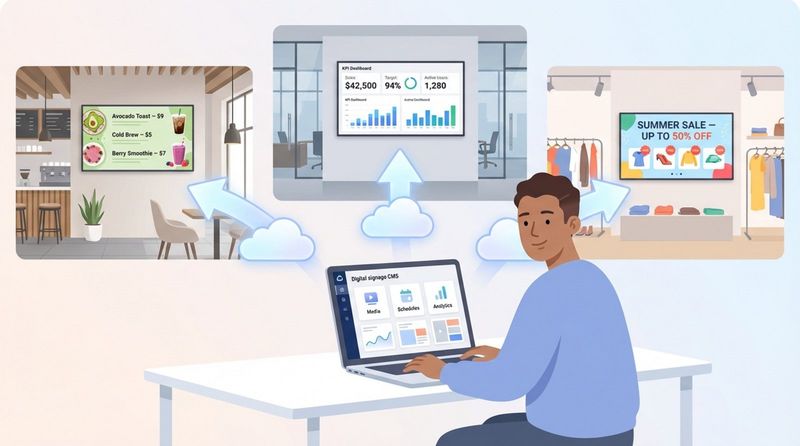
How can you turn a standard TV into a dynamic business display without buying expensive hardware? Digital signage software for smart TVs is a Content Management System (CMS) that solves this by letting you run an app directly on the TV’s operating system. Instead of juggling cables and media players, you simply design, schedule, and publish content-videos, images, and dashboards-from a cloud-based dashboard to your screen in minutes.
This setup is ideal for teams that need to move fast. By leveraging the processor already built into your TV, you remove the need for complicated installations. Whether you are a small business setting up your first screen or a large enterprise managing a global network, modern software like Look Digital Signage makes the process intuitive, affordable, and scalable.
What is digital signage software for smart TVs?
Think of digital signage software as the operating system for your visual communications. The TV provides the screen, but the software decides what to show and when. It connects your creative assets-menus, promotions, internal announcements-to the physical display. Because most modern solutions are cloud-based, you can manage your screens from anywhere. You simply log into a web portal, upload your media, and hit publish.
This software is designed to communicate directly with smart TV hardware. Unlike a standard computer, a smart TV runs on specialized operating systems like , , or . Professional software, such as the Look App, is optimized for these systems to ensure smooth animations, stable playback, and reliable performance, even during long operating hours.
How does smart TV digital signage differ from traditional digital signage displays?
The main difference lies in the hardware required. Traditional setups usually involve three components: the screen, the software, and an external media player (like a mini PC) connected via . Smart TV digital signage utilizes "System-on-Chip" (SoC) technology, meaning the media player is already built into the TV. This reduces clutter, eliminates extra cables, and simplifies troubleshooting.
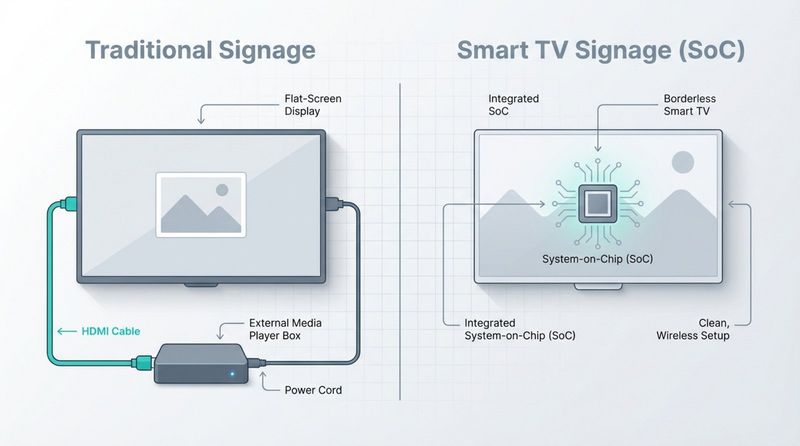
While traditional commercial displays are built for 24/7 heavy-duty use with specialized cooling, the gap is closing. Many modern smart TVs now feature "Pro" modes suitable for business environments. For many teams, this offers a perfect balance of performance and cost-efficiency.
Which smart TV operating systems support digital signage software?
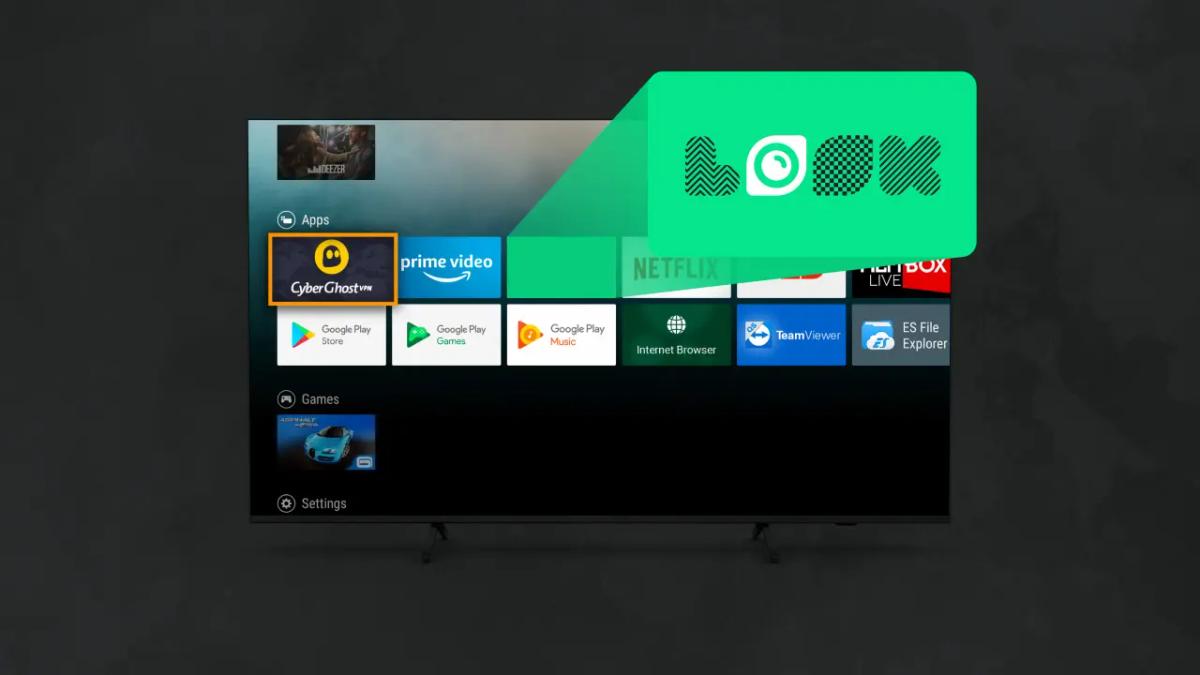
Compatibility depends on the operating system your TV uses. The most flexible option is often Android, used by brands like Sony, Philips, and Hisense. You can easily download the Look App directly from the Google Play Store to get started.
Other major manufacturers use proprietary systems. Samsung uses Tizen, while LG uses webOS. Both are stable and security-focused. Amazon’s FireOS (Fire TV Sticks) is a popular, budget-friendly entry point. When choosing hardware, always verify that your chosen software provider offers a native app for that specific OS to ensure reliable playback.
Types of smart TVs for digital signage
Selecting the right hardware is just as critical as choosing the right software. While grabbing the cheapest consumer TV might be tempting, it is important to match the screen to your specific environment. Smart TVs generally fall into two categories: consumer-grade and commercial-grade.
Today, you have options ranging from affordable screens under $300 to high-end professional displays. Your choice should depend on run-time requirements and lighting conditions. A screen in a sunlit storefront needs high brightness (nits), while a breakroom screen can work well with standard consumer brightness.
Recommended smart TV brands and models
For high performance, the Sony Bravia lineup is a strong contender. These Android-based displays offer excellent 4K image quality and integrate smoothly with signage apps. Samsung is another robust choice; their Tizen-powered professional displays are industry standards for reliability.
If you are starting with a limited budget, the Xiaomi TV A2 Series or TCL 4-Series are practical entry-level options. They allow you to launch a digital signage pilot quickly using the free Look App. For specialized environments requiring weatherproofing, outdoor-rated displays are necessary to handle elements like rain and direct sunlight.
Built-in SoC displays vs using external media players
Using the built-in System-on-Chip (SoC) is the most streamlined approach. It is essentially plug-and-play: download the app, pair the screen, and you are live. This reduces points of failure and keeps your installation clean.
However, external media players still have a place. If you need to display complex, data-heavy dashboards or high-bitrate 4K content, a dedicated device, like the Look HDMI Player, provides the extra processing power and storage required. An external player is also a great way to upgrade an older "dumb" TV or a smart TV with an unsupported operating system without replacing the entire screen.
Consumer TVs vs commercial-grade signage screens
Consumer TVs are typically engineered for 6 to 8 hours of daily use. Running them 24/7 can lead to issues like overheating, color degradation, or image retention. Commercial-grade screens are built for continuous operation, featuring better cooling and robust components designed to last for years.
Warranty coverage is another key factor. Many consumer TV warranties are voided if the device is used in a commercial setting. If your screens are mission-critical, investing in commercial-grade hardware ensures better support and longevity. However, for a menu board that runs only during lunch hours, a consumer TV is often a perfectly suitable and cost-effective solution.
Core features to look for in digital signage software for smart TVs
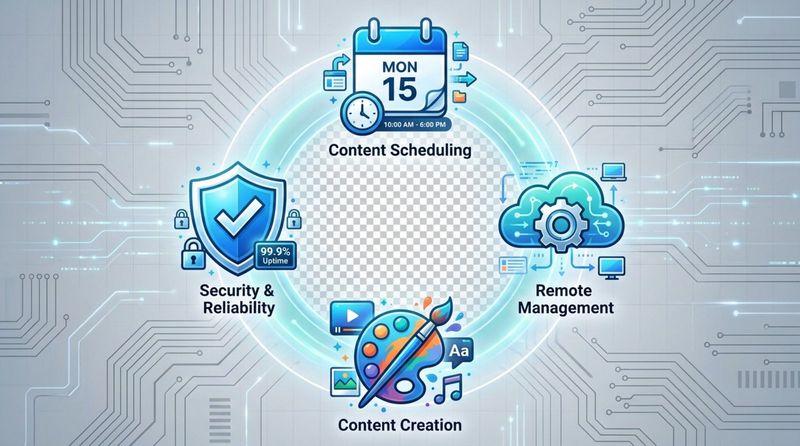
With so many options available, it is vital to focus on the features that actually save you time and keep your screens running. Look Digital Signage is designed to balance ease of use with professional power. You need a platform that allows non-technical staff to update content in minutes while giving IT teams the control they need.
Reliability is non-negotiable. Your screens represent your brand, so you cannot afford error messages or blank displays. Look for software that prioritizes uptime and ease of management.
Content scheduling and playlists
Manual updates are a drain on staff time. Smart Scheduling allows you to automate what plays and when. You can build playlists for specific times of day, such as switching a café menu from breakfast to lunch automatically at 11:00 AM.
Advanced scheduling tools let you plan weeks or months in advance. You can set holiday promotions to start on a specific date or schedule recurring announcements for team meetings. This "set and forget" approach ensures your messaging is always relevant without constant supervision.
Remote device management
Managing screens across multiple locations requires a centralized tool. The Look CMS dashboard lets you monitor the health of every screen in your network from anywhere. You can check if a device is online, view what content is currently playing, and receive alerts if a screen goes down.
Remote control features are equally important. Being able to reboot a device, update the app, or adjust volume settings remotely eliminates the need for site visits. This efficiency is crucial for scaling from one screen to hundreds.
Cloud-based vs on-premise solutions
Most businesses prefer cloud-based (SaaS) solutions for their flexibility. With Look CMS, your content is hosted securely in the cloud, updates are automatic, and you can access your account from any browser. This eliminates the need for local servers and complex IT maintenance.
However, organizations with strict data governance policies-such as banks or government facilities-may require an On-Premise solution. Look offers a self-hosted option that provides the same powerful features while keeping all data within your private infrastructure.
Supported media formats
Your software should handle your existing assets without hassle. Look Digital Signage supports all standard image and video formats (, , ), as well as content. This flexibility allows you to display everything from simple slide decks to dynamic websites.
For businesses without a design team, built-in tools like Look’s Content Creator and ready-made digital sign templates are invaluable. They let you create professional layouts and messages directly inside the CMS, ensuring your screens look polished regardless of your design resources.
Content security and reliability
Security is critical for public-facing screens. A robust platform encrypts data between the cloud and the device to prevent unauthorized access. Look Digital Signage is built with security in mind, ensuring your screens display only what you intend.
Reliability also means handling internet outages gracefully. Offline Playback is a core feature of the Look App. It caches content locally on the device, so your playlists keep running smoothly even if the internet connection drops. When connectivity returns, the system automatically syncs any changes.
User permissions and collaboration tools
As your network expands, you may need multiple people to manage content. Granular user permissions allow you to assign specific roles. For instance, a store manager can be given access to update local offers, while the corporate marketing team retains control over brand-level campaigns.
This structure prevents accidental changes and ensures brand consistency across all locations. It empowers local teams to be responsive while maintaining overall quality control.
System compatibility and scalability
Your solution should grow with you. Whether you are managing a single display or a global network of thousands, the workflow should remain simple. Look DS offers features like screen grouping and tagging, allowing you to publish updates to specific regions or store types with a single click.
Integrations are also key for automating content. Look allows you to connect with external tools via or , or display live data using built-in apps for weather, news, and social feeds. This turns your screens into active, data-driven communication points.
How to set up digital signage on a smart TV
Setting up digital signage on a smart TV is straightforward. You do not need deep technical knowledge to get started. The process with Look Digital Signage typically involves four steps: hardware setup, connection, app installation, and publishing.
Before beginning, ensure you have your TV remote, WiFi credentials, and access to the Look CMS on your computer. Having a few images or videos ready will help you test your setup immediately.
Choosing the right TV and mounting solutions
Select a screen size appropriate for your viewing distance. A 43-inch to 65-inch screen is standard for most retail and office environments. Decide if you need landscape (horizontal) or portrait (vertical) orientation based on your content strategy-menus often work well in portrait mode.
Mounting options vary by use case:
- Wall Mounts: The standard for clean, permanent installations.
- Ceiling Mounts: Ideal for menu boards or window displays.
- Freestanding Kiosks: Great for lobbies and wayfinding.
- Mobile Carts: Useful for flexible office or classroom use.
Ensure your mount is VESA-compatible and rated for the weight of your TV.
Connecting to reliable WiFi or Ethernet
A stable internet connection is essential for downloading content updates. While WiFi is convenient, a wired Ethernet connection is recommended for the best stability, especially in environments with high wireless interference like malls or busy restaurants.
If you must use WiFi, ensure the signal strength is high at the TV's location. Remember, thanks to Offline Playback, the internet is primarily used to download new content; the Look App will continue to play cached content smoothly even if the connection briefly drops.
Installing and configuring digital signage software
Once your TV is powered on and connected, navigate to the app store (Google Play, Amazon store, etc.). Search for "Look Digital Signage" and install the Look App. Launching the app will display a unique 6-digit pairing code.
Log into your Look CMS account on your computer, click "Add Screen," and enter the code. This instantly links your hardware to your account. From this moment on, you can control the screen entirely from your web dashboard.
Check out our guide on How to pair the first screen with Look
Creating and publishing content
Now you can focus on your message. Use the Layout Designer to create multi-zone screens, or choose from the library of Ready-made Templates to get started quickly. You can upload your own media or use the Look AI Wizard to help generate text and visuals.
Add your items to a playlist, set the schedule, and click "Publish." Your smart TV will download the content and begin playback immediately. You can update this content anytime, from anywhere.
Automating power on/off and content refresh
To reduce manual work, configure your TV’s power settings. Disable consumer features like "Sleep Timer" or "Eco Mode" that might turn the screen off unexpectedly. Instead, use the scheduling features within Look or the TV’s internal timer to turn the display on before business hours and off after closing.
Ensure the "Auto-Launch" feature is enabled for the Look App so that if the TV restarts after a power outage, your signage starts up automatically without requiring a remote control.
Popular use cases for digital signage on smart TVs
Smart TVs have made digital signage accessible to businesses of all sizes. The flexibility of the Look platform means one screen can serve multiple purposes-displaying menus in the morning and event promotions in the evening.
The goal is to deliver the right message at the right time. Here is how different industries utilize this technology.
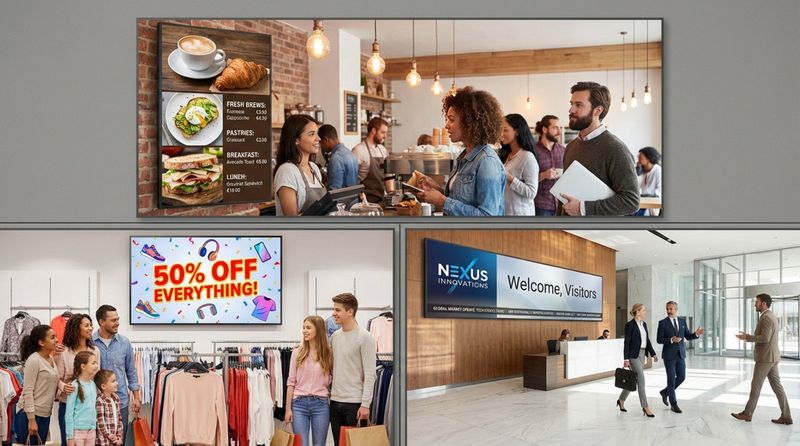
Retail promotions and advertisements
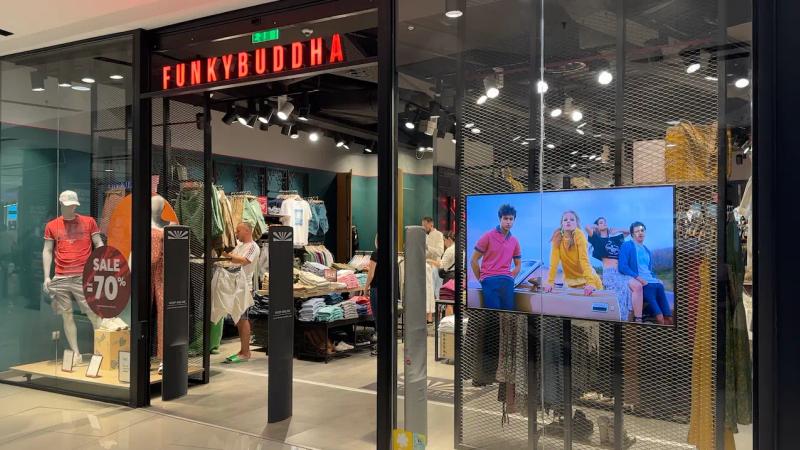
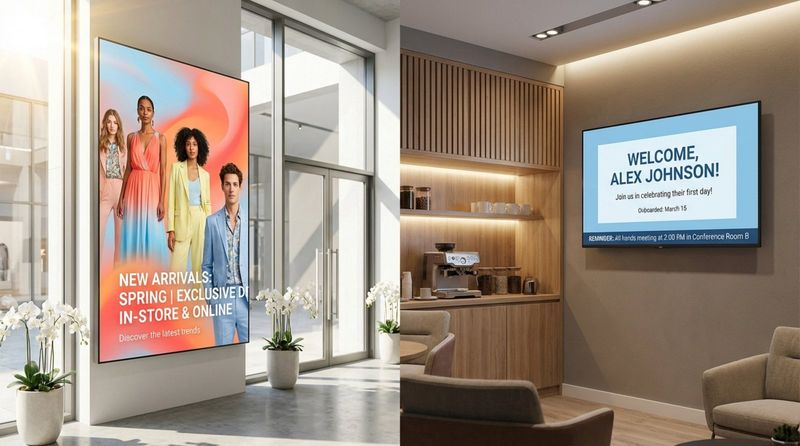
In retail, screens act as silent salespeople. Use them to highlight new arrivals, run flash sales, or display customer reviews. Dynamic video content grabs attention far better than static printed posters. Look’s Screen Layouts allow you to show a promotional video alongside a sidebar of pricing or social media feeds.
By placing screens near checkout areas, you can drive impulse purchases and reduce perceived wait times. Analytics tools in Look can even help you track playback to correlate with sales data.
Menu boards in restaurants and cafes
Digital menu boards are a standard for modern food service. They allow you to update prices and items instantly, eliminating printing costs. With Smart Scheduling, you can automatically rotate menus based on the time of day.
High-quality visuals of your food can significantly increase appetite appeal. Use the Content Creator to highlight high-margin combos or limited-time offers to boost your average ticket size.
Reception and corporate communications
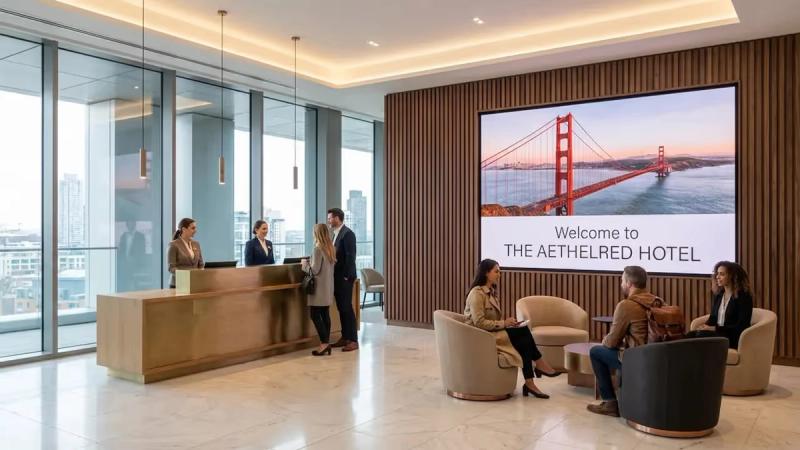
Your lobby is the first impression for visitors. A welcome screen can display company news, visitor greetings, and brand videos. In the office, screens serve as KPI dashboards, keeping teams aligned on goals using integrations with tools like Power BI or Google Slides.
For internal communications, screens in breakrooms ensure that staff who don't sit at desks-such as in manufacturing or healthcare-still see important announcements, safety updates, and employee recognition.
Education and information displays
Schools and universities use digital signage to streamline communication across campus. Hallway screens can display class schedules, upcoming events, and emergency alerts. Look’s remote management makes it easy to broadcast a single urgent message to every screen in the network instantly.
In libraries and labs, screens reduce paper waste by replacing bulletin boards with digital directories and room booking schedules.
Healthcare waiting rooms
In clinics and hospitals, signage helps reduce patient anxiety. Waiting room screens can display health tips, clinic services, and doctor profiles. This educational content turns idle wait time into a valuable touchpoint.
Queue management is another strong use case. Displaying queue numbers or directions on screens helps manage patient flow and reduces interruptions for front-desk staff.
Visitor wayfinding and directories
Navigating large buildings can be frustrating. Digital directories in lobbies help visitors find their destination quickly. You can easily update tenant lists without replacing physical signs. Look supports interactive scenarios (on touch-enabled screens) or QR codes that allow visitors to take a map with them on their phones.
Benefits and potential challenges of using smart TVs for digital signage
Smart TVs offer a low barrier to entry, but it is important to understand the trade-offs. While they are cost-effective and easy to source, professional management software like Look DS is essential to bridge the gap between consumer hardware and business needs.
Cost efficiency and ease of deployment
The primary advantage is cost. You can purchase a 4K smart TV for a fraction of the cost of a specialized commercial display. Because the player is built-in, you save money on external hardware and reduce installation complexity. This makes it possible for small businesses to look professional on a tight budget.
Limitations in device management or longevity
Consumer TVs are not designed for 24/7 operation. Heavy usage can shorten their lifespan compared to commercial displays. Additionally, consumer firmware may lack granular control options, such as locking physical buttons or precise color calibration.
Security and content interruption risks
Consumer displays may interrupt content with system notifications or "Smart TV" pop-ups. Managing these settings is crucial. Using a secure app like Look ensures your content remains the focus, and utilizing Offline Playback protects against network instability.
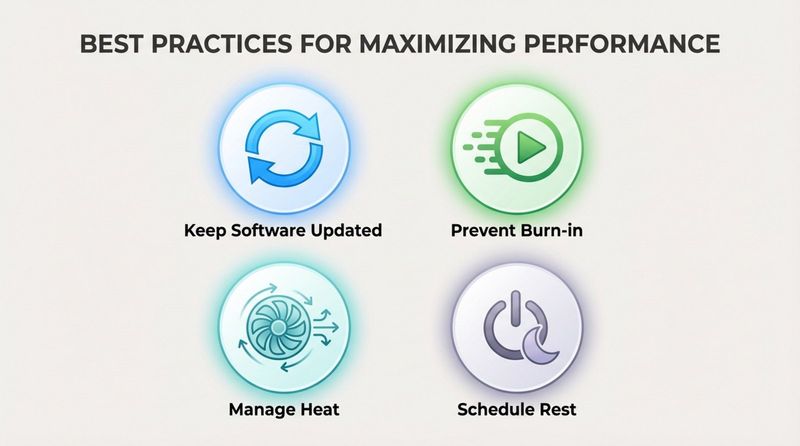
Best practices for maximizing performance
To get the most out of your smart TV signage:
- Keep Software Updated: regularly update the Look App and TV firmware.
- Prevent Burn-in: Avoid static images for long periods; use motion or scheduled playlist changes.
- Manage Heat: Ensure adequate ventilation around the screen.
- Schedule Rest: Turn screens off during non-business hours to extend panel life.
Frequently asked questions about digital signage software for smart TVs
Can any smart TV be used for digital signage?
While many can, sticking to major operating systems like , , or ensures the best experience. These platforms support the native Look App, which provides better performance and stability than running signage through a web browser.
Do you need extra hardware or accessories?
Generally, no. You only need the TV, power, and internet. However, for demanding 4K video walls or interactive setups, adding a dedicated media player like the Look Player can boost performance and reliability.
What happens if the smart TV loses internet connectivity?
If you are using Look Digital Signage, your screens will keep running. The software caches media locally on the TV's storage. The screen will continue to play the scheduled content seamlessly, and will simply wait for the connection to return before downloading new updates.
How secure is the digital signage software for smart TVs?
Look prioritizes security with encrypted data transfer and secure cloud hosting. For added security on your end, we recommend placing your signage screens on a guest WiFi network, separate from your internal business operations.
Is there a difference in lifespan between commercial and consumer TVs in signage use?
Yes. Commercial displays are rated for significantly longer hours (often 50,000+ hours) and harsh environments. However, for standard business hours (e.g., retail or office use), a consumer smart TV running Look software is often a reliable and cost-effective choice for 3-5 years.
Conclusion
Smart TVs have democratized digital signage, making powerful visual communication accessible to everyone. By pairing affordable hardware with professional software like Look Digital Signage, you can create a reliable, engaging, and easy-to-manage network.
Whether you want to drive sales with digital menus, improve employee engagement with internal dashboards, or simply welcome visitors, the technology is now within reach. You can start small with a single screen and scale as your needs grow. To see how easy it is to get your first screen live, you can try Look today.