Table of Content
Amazon now sells a dedicated Signage Stick for $99, but the regular Fire TV Stick still makes a lot of sense for most SMBs. At half the price, you're getting 4K playback, 16GB of storage, and compatibility with your digital signage software. It's not going to compete with an Nvidia Shield or Mac Mini on raw power, but for menu boards, lobby screens, and retail displays, it gets the job done.
In 2025, Amazon refreshed the lineup with the Fire TV Stick 4K Plus, which is a rebrand of the 2023 4K with no hardware changes, the Fire TV Stick HD to replace the Lite and 3rd Gen, and the Fire TV Stick 4K Select, a budget 4K option running Amazon's new Vega OS instead of Fire OS.
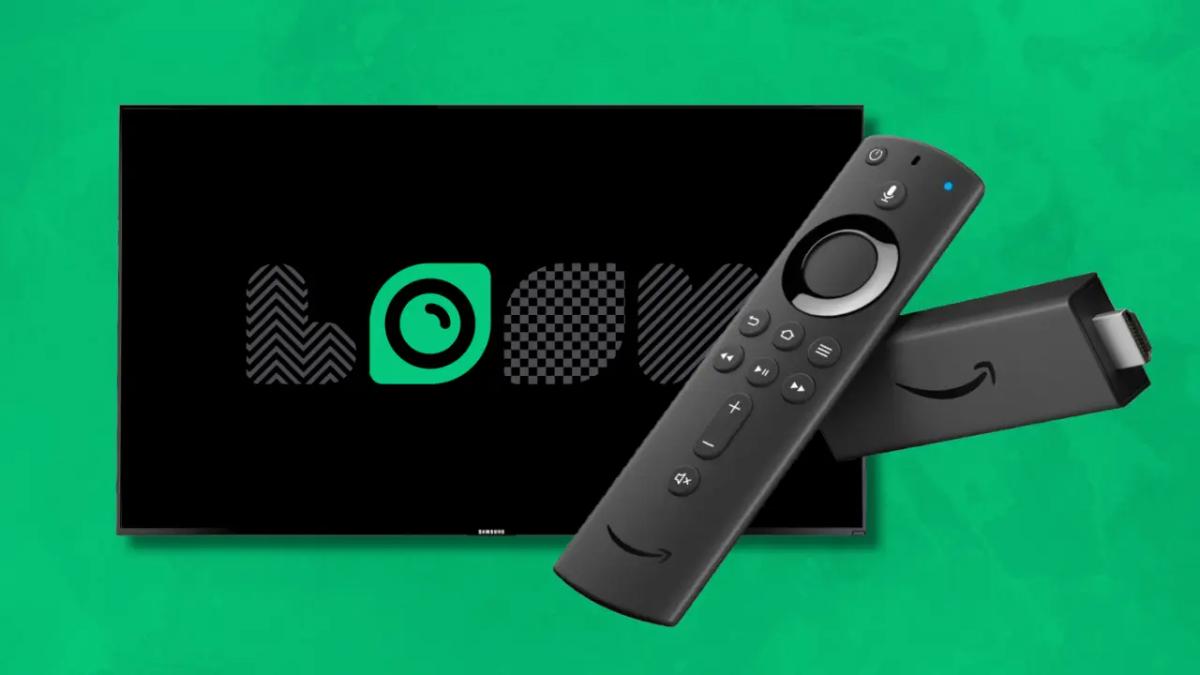
For digital signage, the Fire TV Stick 4K Max remains the best choice thanks to its faster processor, Wi-Fi 6E, and 16GB of storage. When paired with Look Digital Signage, you can have a screen up and running in under ten minutes.
In this post, we're going to look at what makes the Fire TV Stick a legitimate signage option, where a professional-grade player would be better, how to work around the Fire OS update, and a step-by-step setup guide of the Look CMS.
TL;DR Look DS Verdict
The Fire TV Stick 4K Max is a solid, affordable option for entry-level digital signage. It handles 4K content well, setup takes minutes, and at $60, it's hard to beat on price.
Fire TV Stick 4K Max (2nd Gen) Specs:
Price: $59.99
RAM: 2 GB
Storage: 16 GB
Wi-Fi: Wi-Fi 6E (tri-band)
Max Resolution: 4K @ 60fps
Pros
- Incredibly affordable at $60
- Fast app loading and smooth navigation
- Compatible with Look Digital Signage software
- Compact, hides behind the TV
Cons
- No kiosk mode without workarounds
- Not rated for 24/7 commercial use
- Fire OS 8 blocks auto-start for signage apps (requires ADB commands to fix)
Why the Fire TV Stick is Still a Viable Option for Digital Signage
4K Video Playback
The Fire TV Stick 4K Max supports 4K resolution at 60 frames per second, with HDR10, HDR10+, and Dolby Vision. For most signage content, that's more than enough. It handles H.265 and VP9 codecs without breaking a sweat, and in real-world testing, it's played video files up to 400Mbps without issues. If you're running menu boards, promotional loops, or lobby displays, you're not going to hit its limits.
Compact and Easy to Hide
The device is about the size of a USB stick. It plugs directly into your TV's HDMI port and tucks away behind the screen. You don't have to deal with mounting brackets, visible cables, or a clunky media player sitting on a shelf.
App Support
Fire OS is based on Android, which means most signage apps, including Look DS, run natively. You're not locked into a proprietary ecosystem or stuck with limited software options.
Wi-Fi 6E Connectivity
The 4K Max supports Wi-Fi 6E, which means faster speeds and less interference in crowded network environments. For businesses with multiple devices competing for bandwidth, that helps keep your screens connected and your content playing smoothly.
Remote Content Management
Pair it with Look DS and you can update content, change schedules, and monitor screens from anywhere.
Amazon’s Fire Stick Lineup as of Early 2026
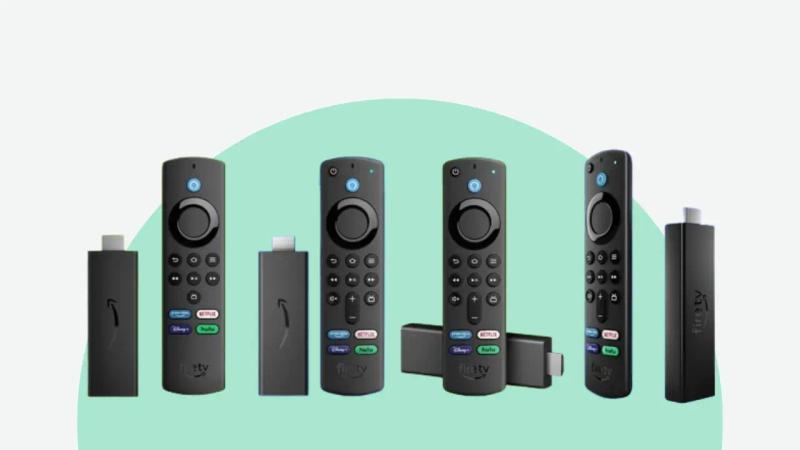
- ❌ Fire TV Stick (2014): The original model with HD streaming and basic app access.
- ❌ Fire TV Stick (2nd Gen, 2016): Faster processor and added Alexa voice search.
- ❌ Fire TV Stick Basic Edition (2017): International version of the 2nd Gen, available in 100+ countries but without Alexa voice remote.
- ❌ Fire TV Stick 4K (1st gen, 2018): Introduced 4K Ultra HD and Dolby Vision.
- ⚠️ Fire TV Stick Lite (2020): Budget-friendly 1080p streaming with a simpler remote. Being phased out.
- ⚠️ Fire TV Stick (3rd gen, 2020): Improved performance and better Alexa integration over the 2nd Gen. Being phased out.
- ❌ Fire TV Stick 4K Max (1st gen, 2021): Faster processor and Wi-Fi 6 support.
- ✅ Fire TV Stick 4K (2nd gen, 2023): Faster processor, 2GB RAM, and AV1 codec support. 8GB storage. Now sold as the Fire TV Stick 4K Plus.
- ✅ Fire TV Stick 4K Max (2nd gen, 2023): Fastest processor (2.0 GHz), Wi-Fi 6E, and 16GB storage. Best option for digital signage.
- ✅ Fire TV Stick HD (2024): Replaces the Lite and 3rd Gen. Full HD with Alexa voice remote. 8GB storage.
- ✅ Fire TV Stick 4K Plus (2025): Same hardware as the 4K (2nd gen), just rebranded. Wi-Fi 6, 2GB RAM, 8GB storage.
- ⚠️ Fire TV Stick 4K Select (2025): Budget 4K option at $39.99, but runs Vega OS instead of Fire OS. Only 1GB RAM and doesn't support sideloading.
Useful clarification about the Amazon rebrand
When Amazon launched the Fire TV Stick 4K Select in October 2025, it created immediate confusion where shoppers couldn't tell if "4K" or "4K Select" was the better model. The names alone didn't tell you anything useful.
Amazon's fix was to rename the Fire TV Stick 4K to Fire TV Stick 4K Plus. The hardware stayed exactly the same, only the name on the box changed. The idea was to create a clearer hierarchy: 4K Select → 4K Plus → 4K Max, from budget to high-end.
It helps a little, but Amazon still sells three nearly identical-looking 4K sticks within $10 of each other.
An important detail to keep in mind is that the 4K Select runs Vega OS, Amazon's new Linux-based operating system. It has half the RAM of both the 4K Plus and 4K Max, and doesn't support sideloading. For digital signage, that's a dealbreaker because it ultimately means your content takes longer to load and the interface feels sluggish when you're navigating between playlists or updating schedules. The 2023 4K Max is still the superior choice and best recommended for smooth operation.
Handy Tips for Reliable Operation
Power it from the wall, not the TV.
TV USB ports often don't provide enough consistent power, which leads to random reboots, sluggish performance, and playback issues. Always use the included wall adapter to keep your content playing without interruption. Alternatively, you can opt to use a power strip tucked behind the TV, or try the Mission Cables USB Power Cable, which has a built-in battery to supplement weak USB ports.
Consider an Ethernet adapter for mission-critical displays.
The Fire TV Stick doesn't come with an Ethernet socket, but you can use an Amazon Ethernet Adapter, they cost around $15 and provide 10/100 Mbps wired connectivity. For 4K content or locations with unreliable Wi-Fi, a wired connection eliminates drops and provides more consistent bandwidth.
Keep it ventilated
Fire Sticks run warm during continuous playback. Maintain ambient temperature below 35°C to prevent thermal throttling. Don't mount the device in an enclosed space behind the TV without airflow. If you're using the HDMI extender cable, position the stick where air can circulate.
Enable HDMI-CEC for auto power-on.
If your display supports it, enabling HDMI-CEC lets the TV power on automatically when the Fire Stick starts. Useful after power outages or for scheduled content windows.
Let offline caching do its job.
Look Digital Signage downloads and caches your content locally, so screens keep playing even if the internet drops. New content syncs automatically when connectivity returns, you only need active internet when pushing updates.
Fire OS Changes that Affected Auto-Launch for Signage Apps
Amazon pushed a Fire OS update in early 2024 that affected how Fire TV Sticks work for digital signage. The update blocked apps from bypassing the home screen on startup, which meant signage apps no longer launched automatically. It also disabled parts of the Android Debug Bridge (ADB), making it harder to clear caches or configure auto-start behavior.
The good news is that this only affects Fire OS 8 devices. If you're running an older Fire TV Stick Lite (2020) or earlier models on Fire OS 7, auto-launch still works out of the box. But if you have a 2021 Fire TV Stick 4K or 4K Max, you'll need to run some ADB commands to get the same functionality back.
Working Around Fire OS 8
To configure Fire OS 8 devices on Look Digital Signage, you will start by enabling developer options on the Fire Stick, then using ADB (Android Debug Bridge) from a computer on the same network, grant the SYSTEM_ALERT_WINDOW permission which will let your signage app bypass the home screen and launch automatically on boot. It sounds technical, but it's a one-time setup that takes about 10 minutes.
We've put together a step-by-step guide that walks you through the whole process.
Once that's done, you'll also want to disable sleep and screensaver interruptions. Head to Settings > Display & Sound and set the sleep timer to "Never." Then go to Settings > Preferences > Featured Content and turn off all the promotional options. This stops those "Are you still watching?" prompts from hijacking your display.
Finally, enable "Launch player on startup" in the Look app settings. This handles auto-launch at the software level, so your signage starts playing the moment the device powers on.
If your display supports HDMI-CEC, enable that too. It lets the TV power on automatically when the Fire Stick starts, which is useful after power outages or for scheduled content.
How the Fire TV Stick Compares Against Other Budget Alternatives
The Fire Stick is cheap and capable, but it's not the only option under $100. Here's how it stacks up against other popular budget devices for digital signage.
Google Chromecast with Google TV – Officially Discontinued
Google stopped making the Chromecast in late 2024 in place of the beefier Google TV Streamer at $100. That said, if you already own one, it's pretty similar to the Fire TV Stick in size, price, and specs. Setup is simple and it's fully compatible with the Look CMS for content management.
If you're buying new, we wrote a separate post about how the Google TV Streamer works for digital signage.
Read about it here: All you Need to Know About the Google TV Streamer
The DIY Pick: Raspberry Pi 5
The Pi 5 board costs from $45 to $145 for the most specced-out model. Once you add a case, HDMI cable, power supply, and SD card, you're looking at $95-$220 total. What you get in return is dual 4K HDMI output, a proper quad-core ARM processor, and full control over the operating system.
It's more power than most simple signage setups need, but if you want flexibility, local storage, or plan to run heavier content, nothing at this price comes close. Setup does require flashing an OS and some configuration, so it's better suited for anyone comfortable with a bit of hands-on work.
Good news: Look Digital Signage is now officially compatible with the Raspberry Pi devices. Find out more.
Best for Extra Ports: Xiaomi TV Box S
The Xiaomi TV Box S gives you a full-size USB port and an audio output. The Fire Stick's USB port is used for power, so you get more flexibility here for things like ethernet adapters or external speakers.
The older models (1st and 2nd Gen) were fine but were held back by limited storage and dated processors. The 3rd Gen released in 2025 finally fixed these shortcomings with 32GBs of storage, a much faster GPU, Wi-Fi 6, and proper Dolby Vision support. At around $75, it’s one of the top Android boxes for digital signage.
Made for Signage: Amazon Signage Stick
Priced at $99, it's nearly double the price of a Fire Stick 4K Max. But it's purpose-built for commercial use. You won’t have to grapple with the Fire OS permissions or deal with consumer apps cluttering the interface. The Signage Stick boots straight into kiosk mode, auto-launches your CMS, and stays there.
You also get secure boot and encrypted storage. If you're deploying more than a few screens or just want something that works out of the box without extra setup, the extra $40 is worth it.
Step-by-Step Setup Guide for Amazon Fire Stick with Look
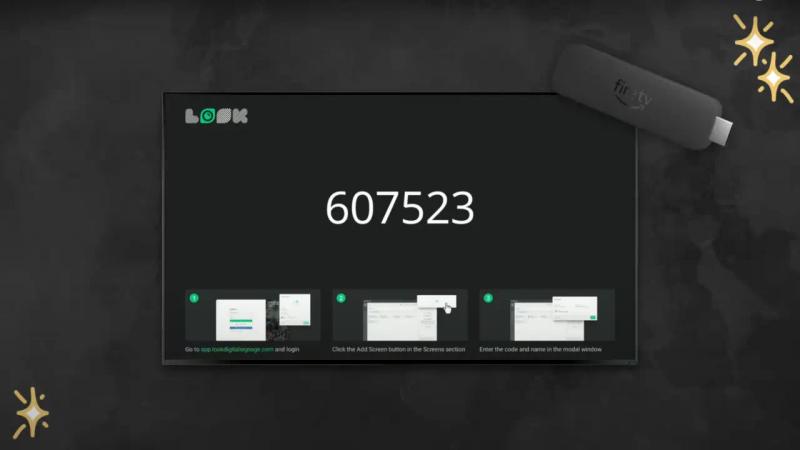
Setting up your Amazon Fire TV Stick for digital signage with Look Digital Signage is simple and can be done in just a few steps. Follow this guide to get your Fire Stick up and running:
- Set Up the Fire Stick: Plug the Fire Stick into the HDMI port on your TV, power it on, and select the correct input. When prompted, choose your language and connect to Wi-Fi, either by entering your password or using WPS. Then, sign in or create an Amazon account.
- Pair the Remote: Follow the on-screen instructions to sync the Alexa Voice Remote with your Fire Stick.
- Install Look Digital Signage: From the Fire TV home screen, go to the App Store, search for Look Digital Signage, and install the Look app.
- Grant Permissions: Open the Look Digital Signage app, and grant the necessary permissions for it to function correctly.
- Enter Six-Digit Code: A six-digit code will appear on the screen. Enter this code in the Add Screen section of your Look Digital Signage account to pair the device.
- Manage Content: Congratulations! Your Fire Stick is now connected to Look Digital Signage. You can start managing and scheduling content remotely from your Look account, wherever you are.
For detailed instructions, check out our Amazon Fire Stick Media Player Video Tutorial or How to Set Up Amazon Fire Stick Article
What You Can Actually Do with Look CMS on Fire Stick
The Fire Stick handles playback; Look handles everything else. Here's what the software brings to the table:
- Dayparting and time-based scheduling – Run different content at different times, all from a single playlist that switches automatically based on hour or day of the week.
- Transitions and timing control – Set how long each item displays and add transitions between them for smoother visual flow. Keeps things looking polished without needing design skills.
- Web pages and live data – Display dashboards, social feeds, live metrics, or any web-based content directly on screen. Particularly useful for internal comms or integrating third-party data.
- Multi-zone layouts – Combine video, images, text tickers, weather, and branding on the same screen using Look's content creator tool.
- Scalability – Add limitless screens to your network and control them from a single dashboard. Screen grouping, templated layouts, and bulk scheduling help you manage hundreds of Fire TV screens from a single dashboard.
When to Choose the Amazon Fire TV Stick for Digital Signage?
Given the specs that Amazon has packed into this little device, you’ve got plenty to work with for most signage needs. Provided you’re indoors in a climate-controlled space and displaying light to moderate content like images, videos, simple web pages, or basic multi-zone layouts, you’re good to go.
Here are some common use cases and content ideas:
- Office lobby displays – welcome messages, company announcements, meeting room schedules
- Breakroom and employee areas – internal comms, safety reminders, team updates, birthday shoutouts
- Retail promotional screens – product highlights, sales, seasonal offers
- Restaurant menu boards – daily specials, pricing, rotating food imagery
- Waiting room digital signage – patient information, estimated wait times, entertainment
- Salon and spa screens – service menus, promotions, ambiance visuals
- Gym and fitness studios – class schedules, trainer spotlights, motivational content
- Hotel lobby displays – local attractions, check-out info, weather updates
- Classroom or campus displays – announcements, event schedules, wayfinding
When to Choose Something Else
The Fire Stick is great for a lot of signage scenarios, but it's not the right fit for everything. For instance:
Harsh or industrial environments.
The Fire Stick isn't ruggedized. If you're deploying in a warehouse, outdoor kiosk or anywhere with temperature extremes and heavy dust, a professional player such as the Look HD 2222 will hold up better over time.
No Native Kiosk Mode
Fire TV Sticks do not officially support a native kiosk lockdown. While you can approximate a lockdown using ADB commands and third-party apps, it requires manual configuration on every device and can be disabled by Amazon system updates.
Enterprise device management is a challenge
If you're rolling out dozens of Fire TV Sticks, be prepared to set up each device manually. Fire TV Sticks aren't well supported by MDM (Mobile Device Management) tools that let you configure devices in bulk or manage settings remotely across your entire fleet.
Your signage CMS handles content updates, but OS-level setup and app management still require hands-on work per device. For 5-10 screens, that's fine. For 50-100+, it becomes a significant time investment, and a reason to consider the Amazon Signage Stick or professional hardware that supports centralized provisioning.
Complex HTML Dashboards or Multi-Display Setups
Fire Sticks work best with straightforward content. If you need complex HTML5 dashboards, authenticated web apps, or multiple displays from a single device, more powerful hardware will perform better.
Quick Comparison: Fire TV Stick vs Commercial Options
| Feature | Fire Stick 4K Max 2nd Gen | Amazon Signage Stick | Look HD-2222 |
|---|---|---|---|
| Price | $59.99 | $99.00 | $169.00 |
| Operating System | Fire OS 8 (Android-based) | Fire OS (Signage Edition) | Android 11 |
| Processor | Quad-core 2.0 GHz | Quad-core 2.0GHz | Quad-core 2.0 GHz (RockChip RK3568) |
| RAM | 2 GB | 2 GB | 4 GB DDR4 |
| Storage | 16 GB | 16 GB | 32 GB |
| Wi-Fi | Wi-Fi 6E (tri-band) | Wi-Fi 6E (tri-band) | Wi-Fi 6 (802.11ax) |
| Ethernet | 10/100 Mbps (with adapter) | 10/100 Mbps (with adapter) | Gigabit LAN (built-in) |
| Max Resolution | 4K support | 4K support | 4K with HDR |
| HDR Support | Dolby Vision, HDR10, HDR10+, HLG | HDR10, HDR10+ | HDR supported |
| Kiosk Mode | Doesn’t support "true" kiosk mode natively (needs ADB workarounds) | Native kiosk mode (out-of-box) | Native kiosk mode |
| 24/7 Rating | Consumer-grade (not rated for 24/7) | Commercial-grade | Commercial-grade (24/7 rated) |
| Setup Effort | DIY-friendly (minimal setup) | Minimal (built for signage) | Minimal (plug & play) |
| Cooling | Passive (can run warm) | Passive | Passive (designed for continuous operation) |
| Hardware Watchdog | No | No | Yes |
| Best For | Budget-conscious SMBs, pilot projects, low-traffic displays | Multi-location deployments, unattended operation, scalable signage networks | Mission-critical displays, 24/7 operation, harsh environments, professional installations |
Real Businesses using Fire TV Sticks with Look CMS for Digital Signage
Feedback Design Studio – Uruguay
Feedback is a design studio in Pando, Uruguay, and part of the Look DS Reseller Program, which allows them to offer digital signage as a service to their own clients. Using Fire Sticks paired with Look, they turn their clients' existing TVs into signage screens.
Their most-used features include the YouTube app for quick video updates, the weather widget for local forecasts, and scheduled playback for time-based content. Once the Fire Stick is installed, they can push content updates, monitor screen performance, and manage playlists for all their clients remotely from Look's intuitive web-based dashboard.
Riverview Kennels Pet Lodge – Oregon, USA
Riverview Kennels has been around since 1980, but when Michael and Kimberly took over a couple years ago, they wanted to give the place a fresh feel. They already had TVs and Fire Sticks lying around, so when they found Look DS, they were able to turn what they had into a proper signage setup without buying new hardware.
Now their lobby screens show service menus, pricing, current specials, and pet videos to keep guests entertained. For guests checking in their dogs or waiting on a grooming appointment, it makes the whole experience feel more polished. And for a 40-year-old business, that makes a huge difference.
Turn Any Screen into a Signage Display with the Fire TV Stick and Look DS
At the end of the day, the Fire TV Stick is a $60 device doing the job of players that cost five times as much. It won't work for every situation, but for small businesses, franchises, and agencies managing a modest number of screens, it delivers solid value with minimal hassle.
With Look DS, you get proof-of-play reporting, remote monitoring, role-based security, and content scheduling, all available from a single dashboard. Your screens stay up, your content stays fresh, and you don't have to be on-site to make updates.
Want to see how it works? Install Look from the Amazon Appstore and start a 14-day free trial.
Or if you'd rather talk through your options with the Look team, book a demo, and we'll walk you through it.
FAQs on Amazon Fire TV Stick
Is the Fire TV Stick good for 24/7 digital signage?
For light to moderate signage, yes. Fire TV Sticks handle 4K content well, boot quickly, and work seamlessly with cloud-based signage software. Setup is straightforward, and the price makes it easy to deploy multiple screens. Just don't rely on them for true 24/7 continuous operation.
How do you put the Fire TV Stick in kiosk mode?
It depends on which Fire OS you're running. Older Fire TV Sticks with Fire OS 7 (2020 models and earlier) support auto-launch out of the box. You can enable it directly in your signage app settings.
Fire OS 8 devices (2021 and newer) require a one-time ADB setup from your computer since Amazon blocked auto-launch on boot. It takes about 10 minutes, after which your Fire TV Stick will boot straight into your signage app. If you want native kiosk mode without any configuration, you’re better off with the Amazon Signage Stick.
What's the best Fire TV Stick for 4K digital signage?
The Fire TV Stick 4K Max (2nd Gen) is your best option. It has a faster processor than the standard 4K model, 16GB of storage (double the capacity), and Wi-Fi 6E support for better performance in environments with multiple connected devices.