Table of Content
Have you ever noticed how the digital screens in shops, lobbies, or cafes almost always seem to work perfectly? The reason isn’t luck-it’s a carefully followed digital signage maintenance checklist. Like any other advanced technology, digital signage is not “set it and forget it.” It needs regular, planned care to work well, avoid glitches, and stay useful as a communication tool for your business. Ignoring maintenance can lead to blank screens, old content, expensive repairs, and even harm to your brand image.
This guide explains why a digital signage maintenance checklist is so important, what it should include, and how to build a clear schedule that keeps your displays sharp, reliable, and profitable.
Why Use a Digital Signage Maintenance Checklist?
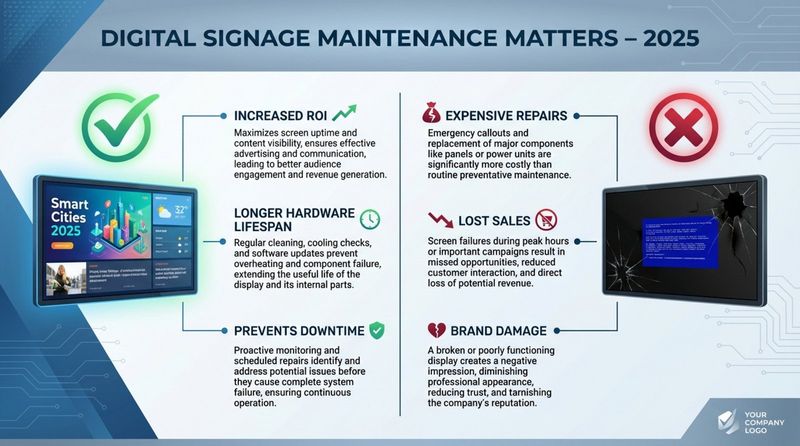
A clear maintenance checklist for your digital signage is more than a nice-to-have; it is a smart business tool. It is your first defense against many potential problems, protecting your investment and helping your messages reach your audience as planned. Treat it like a plan for keeping your screens running smoothly all the time.
Prevents Downtime and Screen Failures
One of the biggest benefits of a maintenance checklist is fewer surprise outages and screen failures. A blank or flickering screen is more than a small annoyance-it is a missed chance to inform, influence, or sell. Regular checks help you spot and fix small issues before they turn into big failures that shut your screens down completely.
For example, a loose cable might cause occasional flickering that, left alone, becomes a full signal loss. A checklist helps you catch these signals early so the display doesn’t go dark at a busy time. This kind of routine care greatly lowers the risk that your digital signage becomes a source of irritation instead of value.
Keeps Content Running Smoothly
Your signage is only effective if the content shows correctly. A good checklist helps keep content running without freezes or gaps. Imagine a promo video stopping halfway or an important alert never appearing. These problems hurt both the viewer’s experience and your brand’s trustworthiness.
By regularly checking content playback, schedules, and logs for errors, you can keep your messages accurate, on time, and complete. This steady performance builds trust with your audience and supports better results from your campaigns.
Helps Hardware and Software Last Longer
Digital signage screens, media players, and software can be a big expense. Regular care helps protect that money and extend the life of your equipment. With cleaning, updates, and minor repairs, screens often run for 5-7 years or more.
Simple tasks like dusting vents, keeping airflow clear, and installing software updates reduce stress on parts and lower the chance of early failure. Over time, this means more years of use from your displays and media players, fewer replacements, and a better return on what you paid for the system.
Improves Viewer Engagement and ROI
Well-maintained digital signage is more attractive and effective. Clear, bright screens that respond quickly and show fresh content hold attention. On the other hand, glitchy or outdated screens turn people off and make your business look careless. A broken or stuck screen can be worse than having no screen at all.
Keeping your signage clean, updated, and responsive strengthens customer engagement. That, in turn, helps your bottom line-smooth, high-quality content makes it more likely people will buy, visit, or absorb key information.
Lowers Emergency Repair and Maintenance Costs
Skipping regular maintenance often leads to larger, more expensive problems. Fixing a small issue, like updating old software or tightening a cable, is far cheaper than replacing failed hardware after a breakdown.
By routinely inspecting, cleaning, and updating all parts of your system, you reduce the odds of sudden failures that require urgent-and costly-repairs. This kind of planned, preventive work saves money and limits disruption to your operations.
Key Items to Include in a Digital Signage Maintenance Checklist
For an effective checklist, you need to cover every part of the system that affects performance. That means the screen, the player, the network, and the content itself. Thinking about all of these together helps you avoid gaps that could lead to problems later.
Display and Hardware Inspection
The display is the most visible part of your setup, and any problem with it is immediately obvious. Regularly inspect the screen for cracks, scratches, dead pixels, or color problems that affect picture quality. Watch for burn-in on OLED and LCD screens where static images have been shown too long.
Also check the hardware around the screen. Look at media players for unusual noise or heat. Make sure mounts and brackets are solid, straight, and not worn out. Loose or damaged mounts can cause accidents and break the display. These basic visual checks are key to catching problems while they are still small.
Software and Firmware Updates
The software behind your signage is just as important as the hardware you can see. Old software can slow things down, leave security holes, and create compatibility problems. Your checklist should include regular checks for new versions of your CMS (content management system), media player software, and display firmware.
Updates usually include bug fixes, speed improvements, and security patches that protect against attacks. Plan time to apply updates so your system stays stable, secure, and able to handle new content types. Confirm your CMS is on the latest version, and when possible, test updates on a single device before rolling them out to all screens.
Content Playback and Schedule Review
The main purpose of digital signage is to show the right content at the right time. Part of your checklist should be regular checks of what is actually playing. Look for freezing, lagging, cropping, or stretched images, and check that promos or messages appear on their planned schedule.
Review your playlists and schedules so that expired offers are removed and current ones are active. Use CMS tools such as previews and playback logs to spot issues early. For interactive features, test touch, QR codes, buttons, or motion sensors to confirm they work properly.
Network and Connectivity Checks
Your network is the link between your CMS and your screens. Without a stable connection, content updates, remote control, and monitoring can all fail. Poor connections often show up as slow-loading content, sync delays, or offline screens.
Your checklist should include testing Wi-Fi or Ethernet connections for stability and speed, checking cables for damage or loose ends, and looking out for Wi-Fi signal problems. Watching for IP conflicts and restarting routers or switches on a planned basis can help prevent many common network issues.
Power Supply and Battery Backup Check
Power problems can stop your digital signage instantly. Inspect power supplies for heat, buzzing, or other signs of wear. Check all power cords for fraying, loose plugs, or damage that could cause random shutdowns or even safety risks.
If you use UPS units (battery backup), test them regularly so they work during an outage and allow for safe shutdowns. Use surge protectors on all devices to protect against power spikes that can damage your hardware.
Physical Cleaning and Preventive Care
Dirty screens look unprofessional and can be harder to read. Dust and grime can also slowly harm components. Include a cleaning routine in your checklist. Use a soft, lint-free cloth and a screen-safe cleaner or plain water. Do not use harsh chemicals like ammonia-based glass cleaners.
Use compressed air on vents and fans for both displays and media players. This helps prevent overheating. Regular cleaning keeps your screens looking good and helps your hardware last longer.
Environmental and Location-Specific Checks
Where your screens are located affects how you should care for them. For indoor screens, check that they are in a cool, open area with enough airflow and not sitting in direct sunlight for long periods.
Outdoor screens deal with sun, rain, wind, and temperature swings. Make sure outdoor enclosures are sealed and rated for water and dust protection. Check for rust, cracks, or damage, and confirm any built-in heaters or fans are working. Regularly remove dirt, leaves, and other debris that may collect on or around the unit.
Security: Physical and Digital
Security covers both the physical screen and the software that runs it. For physical security, make sure displays are fixed firmly to the wall or stand and are not easy to pull down or damage. Use lockable enclosures, secure the media player and power source, and, where needed, use shatter-resistant glass.
On the digital side, use strong passwords and role-based access in your CMS. Use encrypted connections such as VPNs where possible. Turn off unused ports like USB and HDMI if they are not needed. Regularly review access logs to spot strange activity and respond to it quickly.
Digital Signage Maintenance Checklist by Frequency
Maintenance is much easier when broken up into regular time-based tasks. Grouping tasks by how often they should be done keeps work manageable and makes sure nothing is forgotten.
Daily Checks
Daily tasks are quick visual checks that catch issues before they affect customers. They usually take just a few minutes per screen.
- Confirm Screens Are On: Walk by each display and make sure it is powered on and showing content, not frozen or blank.
- Check Content and Timing: Look briefly at what is playing. Is it the right playlist or message? Are there any obvious glitches?
- Watch for Errors: Note any error messages on screens or in your CMS dashboard. Even small issues like brief flickers should be logged.
- Quick Cable Check: Look at visible power, HDMI, and network cables to confirm they are firmly connected.
This simple routine can prevent many larger problems later.
Weekly Checks
Weekly checks go a bit deeper and address problems that build up slowly.
- Screen Condition: Look closely for cracks, strong scratches, groups of dead pixels, or color shifts. If possible, use a test pattern to check brightness and color across the screen.
- Clean Screens and Area: Wipe the screen and bezel with a suitable cloth and cleaner. Use compressed air on vents and fans.
- Test Network: Run simple network tests (like ping) to check that the connection is stable and content loads quickly.
- Restart Devices: Reboot media players and displays to refresh performance and clear cached data.
- Review Schedules and Analytics: Confirm schedules match your plans and remove expired campaigns. Check any analytics for strange drops in views or engagement.
- Check Cables by Hand: Inspect and gently tug on power and data cables to see if any are loose or damaged.
- Test Interactivity: For touchscreens, buttons, or sensors, test full functionality and recalibrate if the touch accuracy is off.

Monthly Checks
Monthly tasks are broader and help keep your system stable and secure over the long term.
- Test Network and Backup Power: Run more thorough tests on connection speed and reliability. Test UPS units or other backup power systems.
- Apply Updates: Check for and install updates for your CMS, media players, and display firmware.
- Review Content Strategy: Look at your content as a whole. Is it still relevant and engaging? Should anything be refreshed or removed?
- Inspect Power Supplies: Check PSUs for unusual sounds, heat, or other signs of wear. Confirm all devices use surge protection.
- Run Full System Checks: Use any built-in diagnostic tools to scan for hidden problems with screens, players, or network links.
- Back Up Data: Back up content files, playlists, and CMS settings so you can restore quickly after any failure.
Quarterly or Seasonal Checks
Quarterly or seasonal work goes deeper and often lines up with changes in weather or business cycles.
- Deep Clean Hardware: Where possible and safe, open enclosures to blow out dust from internal fans and filters. Confirm that air can move freely around all devices.
- Check Power Systems Thoroughly: Inspect wiring, outlets, power strips, and UPS units for wear, rust, or overheating. Review any power usage data you may have.
- Review Maintenance Logs: Look for repeated issues in your records. Spot patterns and address root causes rather than just treating symptoms.
- Check Weather Protection: For outdoor units, inspect seals, gaskets, housings, and drainage paths for damage from heat, cold, or moisture.
- Review Player and Screen Age: Take note of which devices are getting old or slowing down so you can plan replacements and budget ahead.
- Security Review: Recheck access permissions, firewalls, passwords, and remote access rules to keep your system safe.
Special Tips for Outdoor and Interactive Digital Signage
Outdoor screens and interactive units need extra care. They must deal with weather, people touching them, and higher wear.
Weather Protection and Environmental Care
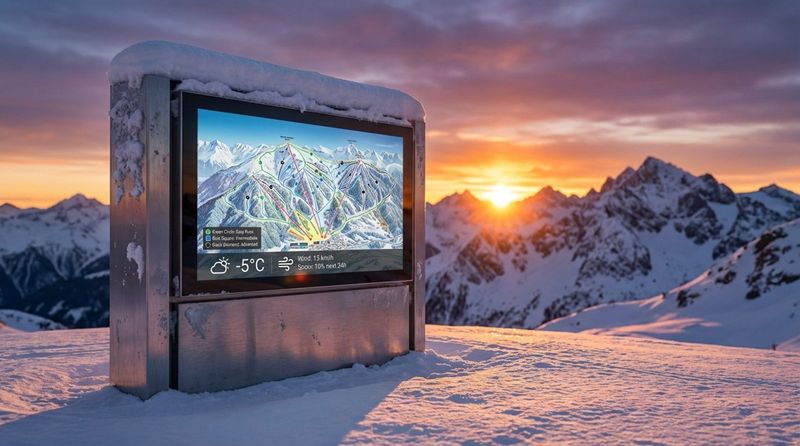
Outdoor signage faces water, dust, snow, extreme heat or cold, wind, and strong sunlight. Without the right protection, you may see fading, internal damage, or total failure.
Check that outdoor enclosures are sealed properly, with no cracks or gaps. Confirm that fans, heaters, or air conditioners inside the enclosures are working. Make sure the IP rating of the hardware and enclosure matches local conditions. Clean off dirt, bird droppings, pollen, and other buildup regularly. Use anti-glare and UV-resistant coatings where needed to keep content readable and reduce fading.
Protection Against Vandalism and Tampering
Screens in public areas are more likely to be bumped, scratched, or intentionally damaged. A strong maintenance plan for these locations must include extra security steps.
Use secure, tamper-resistant mounts and housings. Hide cables and lock media players and power sources so people cannot easily reach or unplug them. For the software side, only give CMS access to approved users, use strong authentication, and encrypt data where possible. Keep an eye on access logs for unusual activity and lock down unused ports so someone cannot plug in a USB stick and change content.
Care for Touchscreens and Other Interactive Features
Interactive displays such as kiosks and touch panels experience frequent physical contact. They collect fingerprints, germs, and sometimes damage.
Clean touch surfaces regularly with screen-safe cleaner and microfiber cloths, and disinfect them often in busy locations. Test the touch response across the full screen to see if any areas are slow or unresponsive. Run calibration tools if taps do not line up with the on-screen buttons. Check for cracks or scratches that affect use. Install updates for interactive apps so that bugs and performance issues are fixed quickly. Where possible, gather user feedback to spot recurring problems like slow loading or confusing interface elements.
Common Digital Signage Problems-and How to Avoid Them
Even strong systems can have issues. Knowing the most common ones makes it easier to prevent them and fix them quickly. Most failures start small, so early signs matter.
Blank, Flickering, or Distorted Screens
Blank screens, flicker, strange colors, and lines are among the most visible and annoying problems. You may see a black screen, a desktop instead of your content, or images that look washed out or tinted.
These issues often point to power problems, loose connections, or worn hardware. A loose HDMI or power cable is a frequent cause. Aging power supplies can also deliver unstable power. Groups of dead pixels or growing dark spots show panel aging. Very high or very low temperatures can damage panels and electronics as well.
Unresponsive or Frozen Playback
If your content stops, hangs on one frame, or the player ignores commands, you are facing a playback issue. For touchscreens, this can mean taps not registering or big delays.
Common causes include software bugs, old firmware, low memory, or an overworked CPU. Corrupted files and overheating media players also contribute. Old drivers or operating systems can make apps crash or fail to load.
Content Errors and Schedule Problems
Content errors occur when the wrong media plays, content doesn’t update on time, or error messages replace your visuals. This may include expired ads still running, missing videos, or graphics in the wrong layout.
These problems often come from the CMS-such as incorrect schedules, unsupported formats, broken files, sync issues, or simple user mistakes during upload. Very large, uncompressed media files can also overload players and cause playback failures.
Network Drops or Slow Connections
Frequent Wi-Fi drops, long loading times, out-of-sync screens, or players that show as offline usually stem from network trouble.
Causes range from loose Ethernet cables and weak Wi-Fi signals to misconfigured routers, blocked ports, overloaded networks, or IP conflicts. Walls and other obstacles can also weaken wireless signals and cause unstable connections.
Overheating and Environmental Wear
Heat, dust, moisture, and sunlight all affect hardware health. Overheating may show up as hot surfaces, fans running loudly, random restarts, or shutdowns.
Dust buildup clogs vents and fans. Moisture can lead to rust or short circuits. Direct sun can fade screens and lower brightness, especially on unprotected panels. Ignoring these factors often leads to shorter hardware life and higher repair costs.
How Regular Maintenance Prevents These Problems
Most of these issues can be greatly reduced with steady, planned maintenance. A strong checklist helps you spot early warning signs and fix them quickly.
Regular visual checks catch flicker, blank screens, or strange colors early so you can test power sources, cables, and media players before they fail completely. Automatic or scheduled reboots reduce memory leaks and clear temporary data that cause freezing. Routine CMS reviews, schedule checks, and previews help avoid wrong or old content appearing on screens. Watching network health and cleaning vents and fans helps stop overheating and connection problems. Taken together, these actions keep your signage working reliably as a long-term communication tool.
Best Practices for Maintaining Digital Signage Systems
A checklist is most effective when paired with good habits and clear processes. These practices help you manage maintenance with less stress and better results.
Create and Follow a Regular Maintenance Schedule
Maintenance works best when you treat it as ongoing, not a one-time job. Build a clear schedule for daily, weekly, monthly, and quarterly tasks so every part of the system gets regular attention.
Stick to this schedule and record when tasks are completed. Over time, these records help you spot patterns-like a device that always fails first-and update your plan. Whenever possible, test screens and apply updates during off-hours so customers are not affected.
Train Staff to Spot and Report Problems
Front-line staff are often the first to see when something is wrong. Give them simple training on what to look for and basic steps they can safely perform.
Teach them to recognize blank or frozen screens, wrong content, or obvious hardware damage. Provide short guides for quick checks, like confirming power and restarting a player. Set up an easy, defined way to report more serious problems to IT or an outside support partner so nothing gets ignored.
Use Remote Monitoring and Alerts
For multi-site networks, manual checks alone quickly become unrealistic. Remote monitoring tools built into your CMS-or separate monitoring software-let you watch system health from one dashboard.
Features such as real-time status, screenshots, and automatic alerts when a screen or player goes offline allow you to act quickly, often before your customers notice anything wrong. Remote tools also let you restart devices, clear caches, or push fixes without traveling to the location.
Back Up Content and Settings Regularly
Losing your media and configuration can mean hours or days of extra work. Regular backups of videos, images, playlists, and CMS settings help you recover quickly after a hardware failure, user error, or attack.
Keep both local and cloud backups whenever possible. This gives you options if one backup location becomes unavailable.
Test Updates Before Rolling Them Out Everywhere
Updates are important, but sometimes they cause new issues. Before updating every device, apply the change to a test screen or a low-risk location.
Watch for any playback, network, or stability issues after the update. Confirm that new versions work with your CMS, operating system, and any extra software. Keep a rollback plan ready so you can return to the previous version if needed.
Helpful Tools and Services for Digital Signage Maintenance
You do not have to manage everything on your own. Many tools and service providers can lighten the load and make your maintenance work faster and more accurate.
CMS Platforms with Built-In Diagnostics
A strong CMS is central to your network, and many modern platforms offer monitoring tools built in. These tools do more than just schedule content-they help you track the status of each screen.
Useful features include online/offline status, proof-of-play reports, and alerts when content stops playing. Some systems, such as Look Digital Signage, even provide screenshots so you can see exactly what is on each screen at any time. These tools make troubleshooting easier and speed up your response to problems.
Remote Monitoring Software
For larger networks, dedicated remote monitoring tools can provide deeper insight than a CMS alone. These systems track CPU and memory use, network performance, and error logs for each device.
They help you see early signs of failure, like increasing CPU load or frequent temperature spikes. You can often restart devices, clean up temporary files, or apply scripts from a central console, cutting down on site visits and manual work.
Third-Party Maintenance and Support
If your team lacks time or technical skills, outside maintenance providers can help. Companies such as CrownTV and VGI Digital offer installation, regular checks, updates, and repair services for digital signage networks.
They bring specialist knowledge, tools, and staff, which can shorten downtime and improve reliability. Before hiring a provider, review your current system, typical problems, and goals. Agree on what they will handle and how quickly they will respond to issues.
Built-In Hardware Diagnostics
Many display and player brands include hardware health tools in their products. For example, Samsung Smart Signage, LG SuperSign, and NEC displays often provide internal checks for temperature, fan speed, panel condition, and network status.
Learn how to use these tools for your specific models. They can help you quickly decide if a problem is caused by the hardware itself or by something else like content, cables, or network issues.
Digital Signage Maintenance Checklist: Printable Template
Using a printed or digital template brings structure to your maintenance work. It keeps tasks consistent, assigns responsibility, and helps track what has been done.
How to Split the Checklist by Role
Different people should handle different tasks based on their skills. Splitting the checklist by role keeps things clear and efficient.
- Daily Checks (Front-Line Staff / Retail Teams): Simple visual checks-are screens on, is content correct, any visible problems? Include a quick form or tool for logging issues.
- Weekly Checks (Managers / Local IT): Cleaning screens, checking cables, restarting players, testing basic connectivity, reviewing schedules, and testing interactive features.
- Monthly/Quarterly Checks (Central IT / Maintenance / Third Parties): Updates, detailed hardware inspections, power system checks, network diagnostics, and deeper content and security reviews.
Clear roles reduce confusion and help prevent both missed tasks and overlapping work.
Adapting the Checklist to Your Setup
Every digital signage setup is different. You should adjust the template to suit your hardware, software, locations, and business goals.
When customizing, think about:
- Hardware Models: Add device-specific instructions for cleaning, updating firmware, and using built-in diagnostics.
- Software and CMS: Include steps that match your CMS features, such as proof-of-play reports or screenshot tools.
- Environment: Increase weather and corrosion checks for outdoor units and vent cleaning for dusty locations.
- Usage: For 24/7 or heavy-use screens, schedule more frequent inspections for heat and wear. For interactive units, add calibration and physical surface checks.
- Business Priority: For displays that directly affect sales or safety, prioritize uptime, content accuracy, and rapid response.
Review and update your checklist whenever you add new screens, change CMS platforms, or move locations so it always matches your real setup.
Getting the Most from Digital Signage with Regular Maintenance
Digital signage plays a key role in modern communication, marketing, and branding. But the real value does not come from installing screens alone-it comes from keeping them in good working order over time through regular maintenance.
A system that is checked, cleaned, updated, and monitored on a schedule delivers clear images, smooth playback, and stable performance. That consistency makes your brand look professional and dependable and helps your messages reach people clearly and on time.
Planned maintenance also protects your investment. By stopping small issues early and limiting damage from heat, dirt, or moisture, your equipment lasts longer and you spend less on urgent repairs and replacements. Over time, that means lower costs and better results from the same hardware.
By making maintenance a normal part of your operations, your digital signage becomes a reliable, long-term asset that supports your business goals without constant crisis management or surprise failures.
Frequently Asked Questions about Digital Signage Maintenance
Should maintenance be done in-house or outsourced?
That depends on your system’s size, how complex it is, and the skills of your staff. Basic tasks like daily visual checks and cleaning are usually easy to keep in-house with some simple training. Teaching staff to spot and report issues quickly can reduce downtime a lot.
For more advanced tasks-like deep diagnostics, firmware updates, and major repairs-outside experts can be a better choice, especially for large networks, outdoor screens, or interactive setups. Many businesses use a mix: internal staff handle everyday checks, while specialists manage complex or high-risk work.
How often should maintenance be done?
Different tasks need different timing. A typical schedule looks like this:
FrequencyMain TasksDailyVisual screen checks, confirm content playback, spot errors or warnings.WeeklyClean screens, inspect connections, test network basics, reboot players, review schedules.MonthlyNetwork and UPS tests, software/firmware updates, power checks, content review, backups, system diagnostics.Quarterly/SeasonalDeep cleaning, full power inspections, review logs, check environmental protection, security review, assess aging hardware.
This layered approach covers quick daily issues and slower, long-term wear without overloading your team.
Do outdoor displays need special maintenance?
Yes. Outdoor screens deal with rain, snow, dust, wind, UV light, and large temperature swings. They need weatherproof enclosures, water- and dust-resistant seals, and appropriate IP ratings. Maintenance should include checks for rust, cracks, worn seals, and damage to coatings, along with regular cleaning to keep the screen visible. You should also test heaters or coolers inside the enclosures and consider stronger physical and digital security against tampering.
What if a problem isn’t covered by the checklist?
If you face a new issue, document exactly what you see: error messages, when it started, which device is affected, and what changed recently. Try basic steps such as checking power and cables or rebooting the device. If that does not solve the issue, pass it to your IT team, CMS provider, hardware maker, or outside support company.
After the problem is fixed, add it to your checklist along with the solution steps. Over time, your checklist will grow and make handling future issues faster and easier.