Table of Content
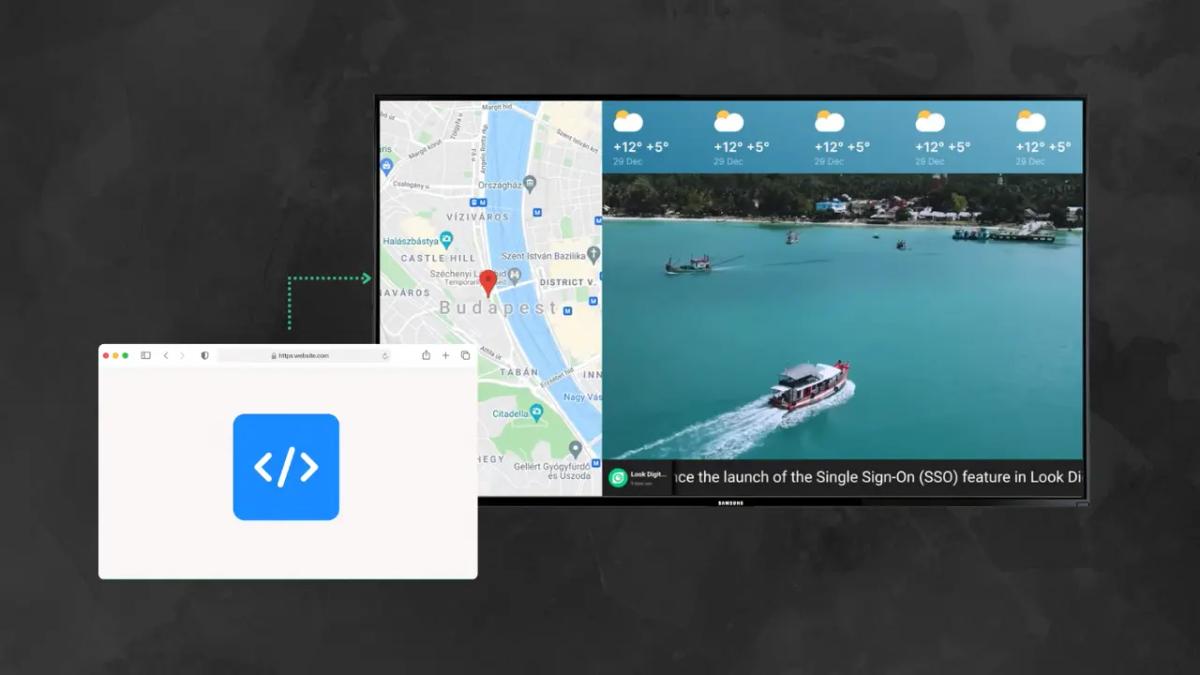
How can you keep your digital signs fresh without manually updating files every single day? An embed code is the bridge that solves this problem. It allows your screens to pull live content-like dashboards, social feeds, or weather maps-directly from the web, turning static displays into real-time communication hubs.
By using embed codes, businesses can move beyond static images and looped videos. This approach supports a "set and forget" strategy for specific zones on your screen, where the display updates automatically whenever the source changes. Whether you are showing a live countdown, a KPI dashboard, or a social media wall, embed codes provide the technical foundation for a responsive, low-maintenance network.

What is an Embed Code?
Definition and Components of Embed Code
An embed code is a block of instructions-usually written in HTML or JavaScript-that you copy and paste into another system. It typically uses tags like , , or . These tags tell your digital signage player exactly where to fetch external content, how large to display it, and which settings (like autoplay or mute) to apply.
Think of an embed code as a precise set of directions. The (source) attribute points to the URL of the content, while other attributes define the width, height, and borders. Because these snippets follow standard web protocols, many tools work together seamlessly. This ensures a video hosted on a major platform looks just as sharp on your lobby screen as it does on a desktop browser.
How Embed Codes Work
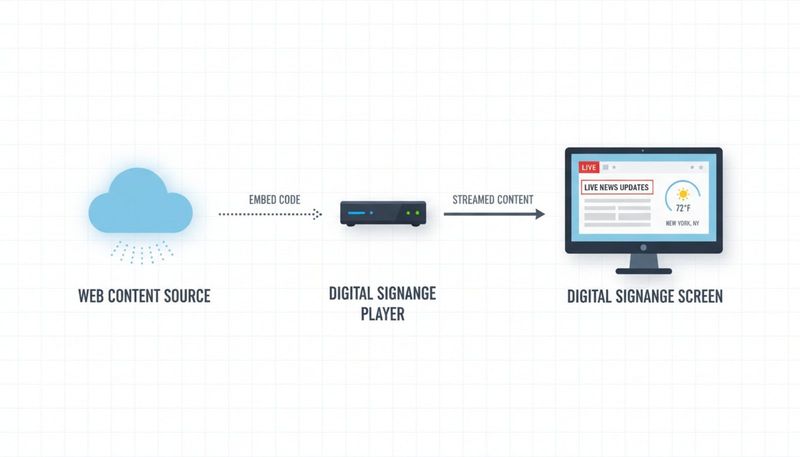
When your digital signage player encounters an embed code, it generally does not download the file like it would a standard image. Instead, it opens a specific window on the screen and requests the data from the server hosting the content. That server streams the information directly to your display in real time.
This live connection makes embedding incredibly powerful. Because the player constantly checks the source, any update-such as a price change on a web-based menu or a new post on a feed-appears on the screen almost immediately. It eliminates manual uploads and leverages existing web systems to deliver fresh visuals automatically.
Common Embed Code Formats and Examples
The most common format is the IFrame (Inline Frame). An IFrame essentially places a website inside your screen layout. It carves out a rectangular area to display a specific URL, making it the standard method for embedding Google Maps, YouTube videos, or entire web pages. It is reliable across most devices and simple to implement.
Another frequent format is the JavaScript Widget. These are often more dynamic and suitable for interactive elements like stock tickers or live weather widgets that require logic to function. While IFrames act like windows, JavaScript embeds act like small applications running inside your signage design. Knowing which types your digital signage software accepts is the first step toward a successful setup.
Why Use Embed Code with Digital Signage?
Expanding Content Possibilities
The primary reason to use embed codes is to break free from static content. Without embedding, a content manager must constantly design or source new visuals to keep screens engaging. With embed codes, you can tap into a vast ecosystem of web tools. You can display live traffic maps, flight status boards, or interactive polls that update as people vote.
This flexibility supports smarter communication. Instead of a static photo of a product, you can embed a live feed of customers using it. This adds social proof and variety that is difficult to replicate with basic media files, helping to hold viewer attention longer.
Enabling Real-Time Data and Live Feeds
In fast-paced environments, information expires quickly. Embed codes solve this by pulling data in real time. In a corporate office, this might mean embedding a Power BI dashboard with live sales figures. In retail, it could be a "trending now" section based on current website activity. Because the embed connects to a live database, the information is always accurate.
Live feeds also create urgency. Displaying a live news stream or sports scores can transform a simple screen into a focal point. This turns your digital signage into a useful, data-driven resource that people actively look for, rather than just background decoration.
Improving Content Management Efficiency
Managing a network of screens can be labor-intensive if you update every display manually. Embed codes introduce automation that significantly reduces this workload. Once you configure an HTML widget in your CMS, you rarely need to touch it again. The content updates automatically based on the source, allowing you to focus on strategy rather than file management.
This efficiency also ensures consistency across channels. If your marketing team updates a promotional banner on your website and that section is embedded in your signage, both platforms align instantly. Your branding and messaging remain consistent without requiring double the effort.
Which Types of Content Can Be Embedded in Digital Signage?
Web Pages and HTML Widgets
The simplest application of embed code is displaying a standard web page. This is ideal for internal portals or dashboards built in tools like Tableau or Google Data Studio. By embedding these URLs, any screen becomes a live business intelligence monitor.
Using web pages also allows for complex layouts that might exceed standard CMS capabilities. With HTML and CSS, you can design branded headers, animations, or custom tickers on a private URL, and then simply embed that URL into your playlist. This gives designers full control over the aesthetic while keeping the deployment process simple.
Social Media Feeds
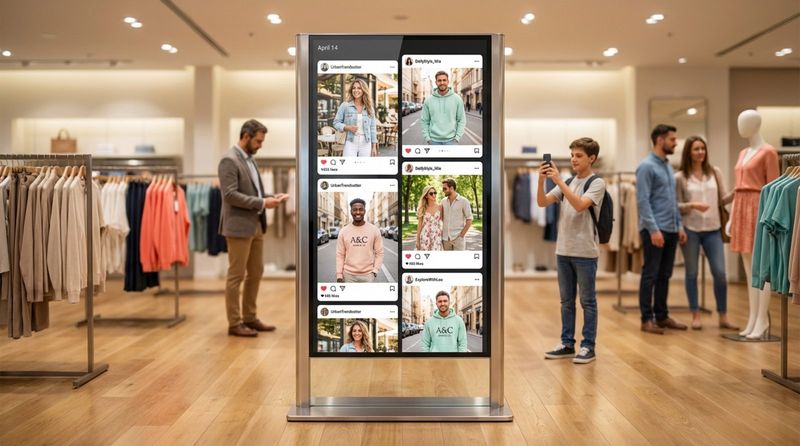
Social media is a popular use case for embed codes. Platforms like Instagram, X (formerly Twitter), and Facebook allow you to embed individual posts or feeds based on hashtags. In retail or event settings, displaying user-generated content encourages visitors to engage with your brand online.
Many third-party social wall providers offer embed codes with built-in moderation. This allows you to filter content before it reaches your screens, ensuring you get the benefit of social proof while maintaining a brand-safe environment.
Videos, Maps, and Live Stats
Embed codes differ from standard video files by allowing for live streaming. Embedding a YouTube or Vimeo live stream allows you to broadcast town halls or keynotes to every screen in your network simultaneously.
Live statistics are another powerful application. Whether it is a stock price, local air quality index, or a countdown to a product launch, these data points provide instant value. They can often be styled via CSS to match your brand guidelines, ensuring they look like a native part of your content strategy.
How Digital Signage Platforms Support Embed Code
Popular Platforms with Embed Code Widgets
Most modern digital signage solutions include specific tools for external content. Look Digital Signage, for example, simplifies this process with dedicated features in the Look CMS. Instead of writing complex code, you simply use the built-in "Embed" or "HTML" widgets to integrate third-party tools.
These platforms often execute the code in a "sandbox" environment. This ensures that the embedded content runs safely without crashing the player or breaking the rest of your playlist. This safety layer is essential for teams that want to experiment with dynamic content without risking network stability.
Unique Features for Embedding HTML and Web Content
Reliable software like Look DS offers more than just a place to paste code. It provides Integrations and API access that allow you to connect various services seamlessly. For example, you might use an embed widget to display a Google Slide presentation that your team updates remotely, or a Microsoft Power BI report that tracks KPIs.
Some advanced setups allow for custom CSS injection, letting you adjust the fonts and colors of the embedded content to match your brand. Additionally, the ability to layer transparent widgets over video backgrounds can create professional, polished screen layouts that look like high-end broadcast graphics.
How to Use Embed Code in Digital Signage
Step 1: Identify Embeddable Content
First, verify that your desired content allows embedding. Some websites block IFrames for security reasons (using "X-Frame-Options"). Look for "Share" or "Embed" buttons on the service you wish to use. If you see code beginning with or , it is likely compatible.
Consider readability. A dashboard designed for a laptop monitor may be unreadable on a wall-mounted display. Choose content with bold text and clear data visualizations that can be understood from a distance.
Step 2: Obtain the Appropriate Embed Code
Once selected, copy the embed code. Many platforms allow you to customize settings-such as autoplay or player controls-before generating the snippet. Configuring these options beforehand ensures the content behaves correctly on your signage.
If a direct embed code isn't provided, you can often structure a basic IFrame yourself: . Always verify that you have the right to display the content publicly.
Step 3: Insert Embed Code into Digital Signage Platform
Log in to your Look CMS dashboard and navigate to the layout editor. Select the HTML or Embed integration widget and drag it onto your canvas. A settings panel will appear where you can paste the code snippet.
Ensure the widget dimensions match the content. Using percentage-based widths (e.g., ) is often safer than fixed pixels, as it prevents content from being cut off on different screen sizes.
Step 4: Preview and Schedule Embedded Content
Always preview your work. Because embed codes rely on external servers, they may load differently than local files. Use the CMS preview function to check load times and visual alignment. If a source site is slow, it may result in a blank screen, which disrupts the viewer experience.
Once verified, use Smart Scheduling to determine when this content appears. You might schedule a traffic map for the morning rush and a social feed for the afternoon. Look CMS manages the transition, while the embed code ensures the data is fresh every time it plays.
What Are the Benefits of Using Embed Code in Digital Signage?
Increases Content Flexibility
Embedding opens up a world of content beyond what your CMS provides out of the box. If a new data tool or social platform emerges, you can integrate it immediately using embed codes without waiting for a software update. This keeps your communication strategy agile.
This flexibility extends to design. You can create Screen Layouts that combine local assets with live web data. For instance, a lobby screen could feature a company video on one side and a live weather widget on the other.
Delivers Instant Updates with No Manual Effort
Traditional workflows often involve a designer editing a file, an admin uploading it, and a manager scheduling it. With an embedded menu or spreadsheet, the screen updates the moment the source changes. This reduces the risk of displaying outdated pricing or old internal announcements.
This is critical for safety messaging. If your signage is connected to an alerting system via embed code, screens can instantly switch to emergency instructions the moment an alert is triggered, ensuring safety protocols are communicated without delay.
Simplifies Cross-Platform Integration
Businesses use many tools-Slack, Trello, Shopify, Salesforce. Embed codes allow you to bring these "digital office" tools into the physical space. This visibility helps align teams and keeps performance metrics top-of-mind.
It also ensures brand consistency. Instead of redesigning a graphic for your website, app, and signage, you can build one responsive web version and embed it everywhere. This maintains a unified look across all customer touchpoints.
What Risks or Challenges Are Associated with Embedding Code in Digital Signage?
Compatibility Issues with Different Devices
Not all hardware handles web content equally well. Complex JavaScript widgets may run smoothly on a PC but struggle on basic Android sticks or older smart TVs. For reliable playback of heavy web content, using a dedicated device like the Look HDMI Player is often the best choice. It is designed to handle the processing demands of modern HTML5 content better than consumer-grade hardware.
Test your content on the actual hardware you intend to use. A font or animation that looks perfect on a desktop browser may render differently on a specific operating system.
Content Ownership, Licenses, and Permissions
Technical capability does not equal legal permission. Displaying copyrighted news feeds or premium weather services in a public space often requires a specific commercial license. Always confirm you have the rights to display third-party content in your business environment.
Additionally, be aware of watermarks and branding on free widgets. If you embed a free social wall, it may display the provider's logo unless you upgrade to a paid plan.
Network and Security Considerations
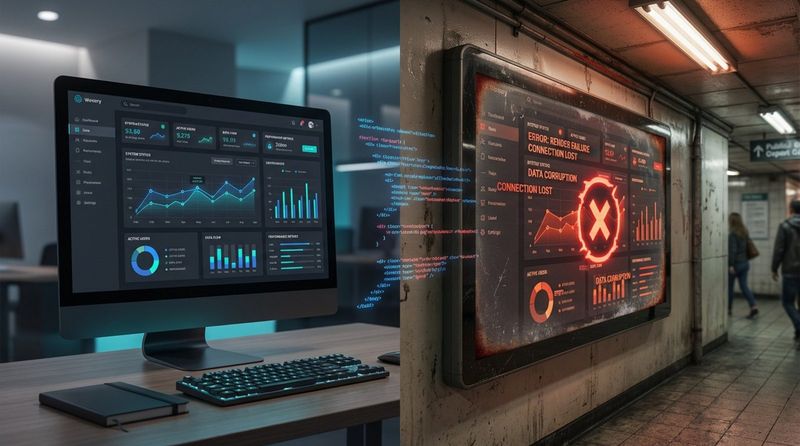
Embed codes generally require a stable internet connection. If the network drops, the embedded zone may display an error. While Offline Playback protects your cached videos and images, live web content usually needs an active link. Ensure your network is stable if live feeds are critical.
From a security standpoint, only embed code from trusted sources. Embedding insecure or compromised websites can expose your network to risks. Ensure internal dashboards are secure but accessible to the player without requiring manual login interactions.
Best Practices for Embedding Code in Digital Signage
Ensuring Responsive Content Layout
Screens vary in resolution and orientation. Your embedded content must adapt. Whenever possible, use relative sizing (percentages) rather than fixed pixel counts in your code. This ensures the content fills the designated zone correctly, whether on a vertical kiosk or a horizontal video wall.
If embedding a full webpage, check for mobile-friendly versions. These often feature larger text and simplified interfaces that are easier to read on digital signage.
Choosing Reliable Data Sources
Your display is only as reliable as its source. If you embed a widget from a small, unstable website, your screen will look broken if that site goes down. Stick to major providers for news, weather, and finance. They offer better uptime and server reliability.
Have a fallback plan. In Look CMS, you can design your playlist so that if an internet-dependent item is skipped due to connection issues, cached content plays instead. This keeps your screens looking professional even during network hiccups.
Testing Embedded Content on All Displays
Before a full rollout, test your embeds on the target hardware. Check for readability, contrast, and performance. Many web pages use bright white backgrounds which can be glaring on large displays; you may need to adjust the CSS or choose "dark mode" versions of widgets if available.
If your screens are interactive, verify that touch gestures work within the iframe. Some embed codes block interaction by default, which can frustrate users trying to scroll a map or menu.
Quick Tips for Successful Embed Code Integration
What to Avoid When Using Embed Codes
Avoid embedding pages cluttered with pop-ups, cookie consent banners, or auto-playing audio. A digital signage player cannot click "Accept Cookies," so that banner will obscure your content indefinitely. Use specific "embed-friendly" URLs provided by services, which usually strip away these distractions.
Also, steer clear of extremely heavy pages with excessive scripts. These can tax the player's CPU, leading to stuttering playback or overheating.
Maintaining Up-to-Date Content
While embed codes offer automation, they are not completely maintenance-free. Web services occasionally change their API structures or embed formats, which can break existing links. A quick monthly audit of your screens ensures all live feeds are functioning correctly.
Looking forward, the combination of integrations and embed codes will only get stronger. Look Digital Signage continues to expand support for these tools, helping you build a network that isn't just a slideshow, but a live, responsive part of your business operations.