Table of Content
Can you use a Smart TV for digital signage? Yes. Modern Smart TVs are basically built-in computers with high-definition screens, so they offer a low-cost, easy way for businesses to share messages without paying for special hardware. Using the TV’s own software and internet connection, a regular Smart TV can become a powerful screen for stores, offices, and public areas.
The setup is simple, but good results depend on knowing what the TV hardware can do and how the software works with it. This guide explains how Smart TVs have developed, why they are worth using, and the exact steps to turn a home TV into a professional display. Whether you run a small shop or manage many screens across different sites, Smart TVs give you a flexible way to create clear, eye-catching digital signage.
What Defines a Smart TV for Digital Signage Applications?
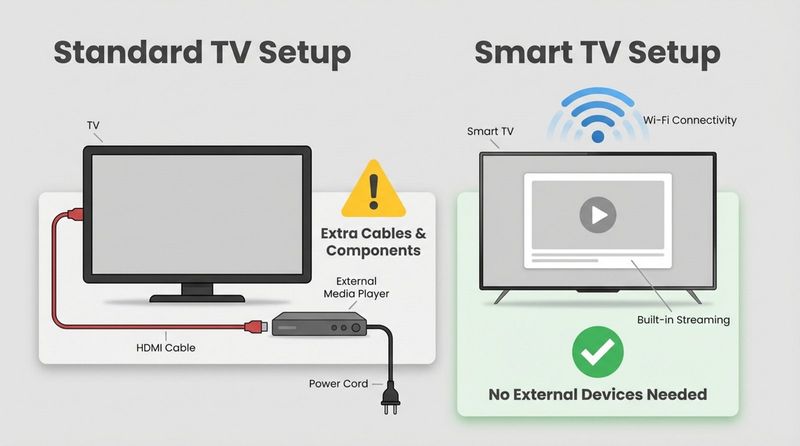
A Smart TV is a television with its own operating system and internet access. Old-style TVs need an outside device for content, but Smart TVs can run apps on their own. For digital signage, this means the TV acts as both the media player and the screen, so you need fewer cables and no extra streaming sticks or boxes in many cases.
For business use, these screens act like flexible canvases. They can play many media formats and receive updates over the internet. A manager in one city can change a menu or promo on a screen in another city within seconds. This built-in connectivity makes Smart TVs a strong and affordable option compared with older, dedicated signage players.
Key Features of Smart TVs Supporting Digital Signage
The main feature that makes Smart TVs useful for signage is their Wi-Fi or Ethernet connection. This lets the TV talk to cloud-based Content Management Systems (CMS), so your screens can always show your latest ads and information. Without a network, a Smart TV is just a display; with it, it can show live data, social feeds, and scheduled messages.
Smart TVs also include app stores and often support voice assistants. You probably won’t use voice control for signage, but the powerful chips that handle these features also handle HD or 4K video and smooth slide changes. Brands like Samsung, LG, and Sony send regular software updates, which help keep the TV secure and able to display modern web content correctly.
Differences Between Smart TVs and Standard TVs
The big gap between a Smart TV and a standard TV is in the built-in “brain.” A standard TV is just a passive screen waiting for a signal from HDMI or VGA. To use it for signage, you need a separate media player, which adds cost and another thing that can break. It acts more like a monitor than a complete system.
Smart TVs, on the other hand, have internal storage and a full operating system-such as Android TV, Tizen, or WebOS-that can run signage apps directly. This all-in-one design makes setup easier. Instead of dealing with both a TV and an external box, you only manage one device, which is ideal for companies without a full IT team.
Can Any Smart TV Be Used for Digital Signage Purposes?
Most current Smart TVs can technically run some form of signage, but they are not all equally suited. How well they work depends a lot on the operating system. Android TV models usually support the widest range of apps. Some brands use closed systems that support fewer apps. If your signage platform doesn’t offer a native app for the TV’s OS, you might need to run content through the built-in browser, which may be less stable for continuous use.
You also need to think about hardware topics like brightness and cooling. A cheap TV made for a dim bedroom might be hard to see in a bright window and may overheat if it runs for 18 hours straight each day. So while almost any Smart TV can work in an emergency, picking one with a strong OS and good brightness is key if you want a professional result.
Why Use a Smart TV for Digital Signage Solutions?
The global digital signage market was worth about $23.6 billion in 2022, and Smart TVs have played a major part in that growth. In the past, many businesses skipped digital signage because commercial displays were too expensive. Smart TVs changed that by bringing high-definition screens to the mass market at much lower prices.
The simple “plug-and-play” feel is another big reason people choose them. Because these TVs are made for home users, their menus are easy to understand. Many staff members already know how to move through a TV menu, so training is quick. This helps you deploy new screens faster and cuts down on support needs.
Benefits of Deploying Smart TVs for Digital Signage
The biggest immediate benefit is saving money. If you already own a TV or buy a consumer Smart TV, you won’t need separate media players or complex wiring. Using one device for both playback and display also makes maintenance simpler. When something goes wrong, you only need to check one unit instead of chasing problems across both a player and a screen.
Remote control is another strong advantage. Since Smart TVs are online, you can use cloud platforms to manage content on many screens from one place. You can send updates instantly-great for time-limited offers, urgent alerts, or switching from breakfast to dinner menus without visiting each TV with a USB stick.
Common Use Cases Across Industries
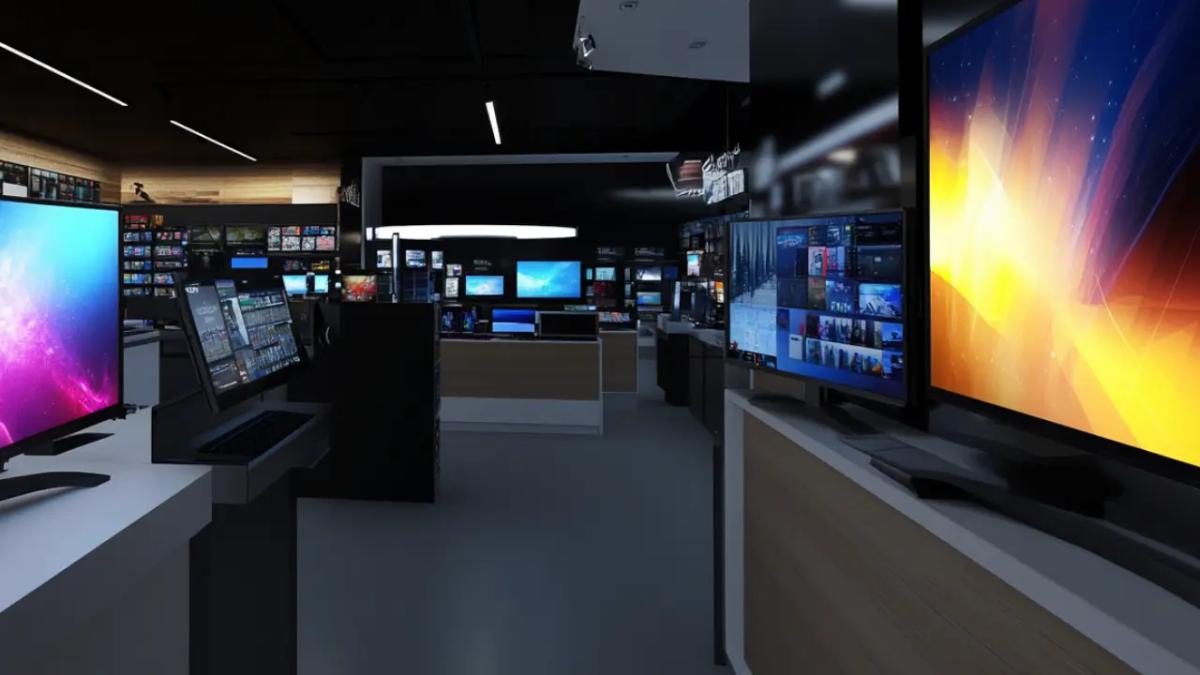
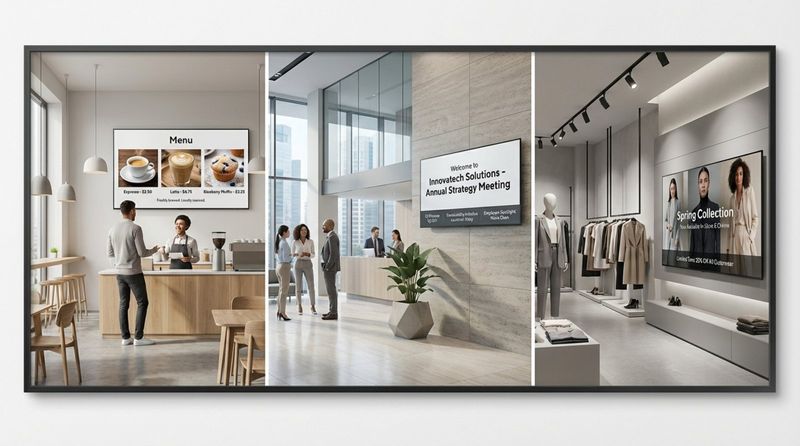
Retailers use Smart TVs in windows and inside stores for promos and digital posters. Bright 4K displays attract attention and can quickly reflect new stock or pricing. Restaurants and cafes use them for menu boards so they can easily change sold-out items or spotlight new dishes with short videos.
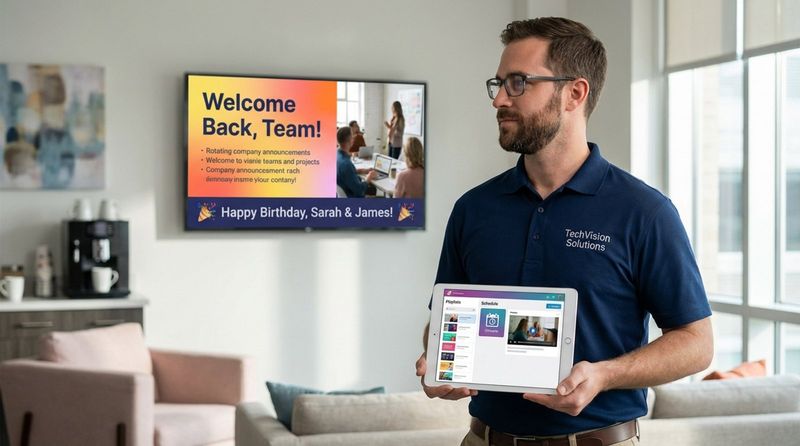
Offices and schools use Smart TVs to share internal messages. In hallways or break rooms, they can show employee highlights, company announcements, safety tips, or live social media feeds. Because they are easy to mount and available in many sizes, they work well in lobbies, waiting rooms, corridors, and classrooms alike.
What to Consider When Choosing a Smart TV for Digital Signage Needs?
Picking the right Smart TV means matching the screen to your space and your content. A TV that looks good in a living room may appear dull in a bright lobby. Before you buy, check that the technical specs are strong enough for business use.
You should also think about the software “ecosystem” you are joining. The TV hardware only works well if it runs the software you need. Making sure the TV’s operating system works smoothly with your chosen CMS and tools will prevent many setup problems later.
Essential Technical Specifications: Brightness, Resolution, and Ports
Brightness, measured in nits, is crucial. Home TVs usually provide 250-400 nits, which is fine for indoor rooms with controlled light. But a screen in a bright storefront or semi-outdoor spot may need much more. In those cases, look for higher nit ratings within consumer models or move to a commercial display that can reach 800+ nits.
Resolution also matters. Most signage today is 1080p (Full HD) or 4K. A 4K TV keeps text sharp and images detailed, which is important for your brand image. Also, check that the TV has multiple HDMI and USB ports. Even if you rely on internal apps now, extra ports give you options to plug in a future media player or a USB drive with local content.
Operating System and App Ecosystem Support
The operating system is the center of your signage setup. Android TV is a popular choice because it is open and has many signage apps in the Google Play Store. Samsung’s Tizen and LG’s WebOS are also strong, stable platforms, but their app stores have fewer options. Make sure your chosen signage app has a proper version for the system you plan to buy.
Ongoing firmware support is also important. Choose brands that release updates for several years. These updates add new features but also fix security issues and bugs that could otherwise affect your signage network.
Compatibility with Content Management Solutions
A Content Management System (CMS) is where you create, organize, and schedule your content. Some Smart TVs include simple CMS tools, but for serious business use you will usually want a third-party platform such as Look Digital Signage. These systems let you create playlists, schedule screen changes, and check screen status from one online dashboard.
Before you settle on a TV model, check for features like “Kiosk Mode” or “Auto-start.” These make the signage app launch automatically after power is restored, so the TV doesn’t sit on a home screen or “no signal” page. Without this, you might need someone with a remote to restart the app every time the power flickers.
Energy Efficiency and Durability for 24/7 Operation
Consumer Smart TVs are often built for about 6-8 hours of viewing per day. If you need to run around the clock, they can suffer from burn-in and heat problems. Look for energy-efficient models to keep bills down, and leave enough space behind the TV for airflow.
To make a consumer TV last longer in signage use, set timers so the screen turns off outside business hours. This cuts power use and gives the components time to cool. If you truly need nonstop, 24/7 operation, you may need to upgrade to “commercial-lite” models that are rated for longer use but still include smart features.
Leading Digital Signage Software and Tools Compatible with Smart TVs
Your software connects your content ideas to your screens. For Smart TVs, the best tools usually run in the cloud, letting you set up your screens once and then manage them remotely. These platforms are built to be simple, often with drag-and-drop tools so that anyone on your team can build layouts and playlists.
When you pick software, think about how many screens you have now and how many you might have later. One or two screens may only need a basic browser tool. A network of many displays across different locations will need stronger management and scheduling features.
Popular Cloud-Based Digital Signage Platforms
Services like Look give you a single online dashboard for your entire network. These cloud platforms are ideal if you need to control screens in multiple locations. You can sync content, check which screens are online, and push updates in real time. They offer large template libraries and support for live content such as weather, news, and social media walls. This lets you turn static image loops into living displays that hold people’s attention longer.
Recommended Apps for Major Smart TV Brands
Sony TVs with Android TV can access a wide list of native apps straight from the Play Store. For Samsung (Tizen) and LG (WebOS), you should choose signage services that offer dedicated apps for those systems. Native apps usually give better performance than browser-based setups because they are tuned for the TV’s exact hardware.
Many advanced CMS platforms release special versions for major TV brands.
How to Set Up a Smart TV for Digital Signage: Step-by-Step
Setting up a Smart TV for signage follows a clear path: choose your hardware, pick your software, prepare your content, and then link everything together. By moving through these steps in order, you can build a system that is reliable, secure, and pleasant to view.
Avoid rushing. Time spent adjusting screen settings and testing your layouts early on will help you avoid issues like cut-off text or dropped connections later. Here is a simple step-by-step approach:
1. Select the Most Compatible Smart TV Model
Start by picking a TV that suits your room and your budget. Look for a stable OS (such as Android TV) and a resolution that matches your content, ideally 4K. Check the viewing distance: a 43-inch TV often works well in a small office, while a large lobby may need a 65- or 75-inch model to be clearly seen.
2. Choose Digital Signage Software or Platform
Decide whether you’ll use a full cloud CMS or a basic browser-based tool. Think about your growth plans. If you expect to expand to many screens, it makes sense to pick a scalable platform now so you don’t have to move content later. Also look at how easy the software is to use and what kind of support the provider offers.
3. Prepare and Optimize Content for Display
Format your content for the TV’s resolution and aspect ratio. Use high-quality images (JPEG or PNG) and videos (MP4). If you are not a designer, tools like Canva offer ready-made layouts sized for digital screens. Keep your message simple and use the same logos, colors, and fonts on all slides so your branding stays consistent.
4. Install and Configure the Digital Signage Application
Go to the TV’s app store, search for your signage app, and install it. Open the app and follow the prompts to link the TV with your account, usually by typing a pairing code into the provider’s website. If you use a browser-based option, open the TV’s browser, go to the supplied URL, and save it as a bookmark or home page.
5. Upload, Schedule, and Run Your Content
On your computer, log into the CMS or online tool. Upload your images and videos, then arrange them into playlists. Set schedules-for example, one set of slides in the morning, another in the afternoon. Once you save your changes, the software will sync to the TV and start playing your content.
6. Fine-Tune TV Settings for Optimal Results
Use the TV’s settings menu to improve the viewing experience. Turn off power-saving or sleep timers that might switch the TV off by itself. Adjust brightness and contrast based on the room’s lighting. Look for options like “Auto-start” or “Auto Power On” so the TV starts showing content again after a power cut.
7. Test and Troubleshoot the Display
Let the playlist run at least twice. Watch for problems like text cut off at the edges, poor video quality, or rough transitions. If you use audio, test the volume in the real environment. Testing on site also lets you spot glare, reflections, or viewing-angle problems.
8. Secure Your Digital Signage Network
Security is often forgotten with TVs. Connect your screens to a password-protected Wi-Fi network. If possible, put signage devices on their own VLAN so they are separate from your main office network. Keep the TV’s firmware updated, and lock down access to your CMS with strong passwords and multi-factor authentication (MFA).
Best Practices for Captivating Digital Signage Content on Smart TVs
Designing for a digital sign is different from designing for a web page or printed flyer. People are often walking past and only glance at the screen. You have just a few seconds to grab their attention and pass on the main idea.
Your goal is to provide clear, useful information. Whether you’re giving directions, promoting a product, or adding mood and atmosphere, each slide should have a clear purpose and a simple next step for the viewer. The practices below will help your signage support your business goals.
Designing for Visibility and Viewing Distance
Think about where viewers will stand or walk. If the TV is behind a counter or high on a wall, text needs to be bigger than it would at eye level. Use strong contrast between background and text-like dark text on a light background or light text on a dark solid color. Avoid busy photos behind text, which make reading harder.
Font choice is also key. Use bold, sans-serif fonts like Arial, Helvetica, or Open Sans. These are easier to read from a distance. Follow the “three-second rule”: someone should understand the main point of a slide within three seconds.
Concise Messaging and Branding Consistency
Keep the message short. Stick to one main idea per slide. Use a clear headline and a few bullet points instead of long paragraphs. If you need to share a lot of information, spread it across several slides in your playlist instead of cramming everything into one.
Your screens are part of your brand. Use your official logo, colors, and fonts every time. This steady look builds recognition. Templates make it easier for different teams and locations to keep a consistent style.
Use of High-Quality Images, Videos, and Animations
Low-quality images can hurt your brand. Always use high-resolution visuals that match the TV’s resolution. On a 4K TV, use 4K images and properly encoded videos. A bit of motion-short clips or gentle animations-helps attract the eye, but too many fast effects can annoy viewers.
Real photos usually work better than generic stock images. Show your actual products, staff, or location whenever you can. This feels more honest and helps customers connect with your business.
Scheduling Content for Maximum Impact
Timing matters. Use scheduling tools to show content that fits the time of day or current conditions. A gym might show motivation tips and class times in the morning, then focus on recovery and nutrition in the evening. A store might promote rain jackets only when the forecast shows rain, using a live weather widget.
Update your content often. Even strong designs get ignored if they never change. Refresh your playlists at least weekly so regular visitors keep noticing the screen. This is especially important in offices and workplaces where the same people walk by every day.
Maintaining Consistency Across Multiple Displays
If you run several Smart TVs, they should feel like they belong to the same system. A central CMS lets you push shared branding and messages to all screens while still allowing local content. For example, every TV in a hotel might show the same welcome banner, but each area also has its own slides for that space.
Check your screens regularly. Make sure brightness, color, and content are up to date on each one. If one screen shows old content or looks dim, it damages the overall impression. Many CMS tools can send alerts if a screen goes offline or stops updating.
What Are the Limitations and Challenges of Using Smart TVs for Digital Signage?
Smart TVs are great for many use cases, but they are not a perfect match for every project. It helps to be clear about their limits before you roll them out, especially if you compare them with commercial-grade signage hardware.
Most issues come from the fact that consumer TVs are made for home viewing. In busy business locations that need long hours and heavy use, these TVs can run into problems that would never appear in a living room. Knowing these points ahead of time helps you plan better and decide when you might need to upgrade.
Network Connectivity and Stability Issues
Most Smart TVs rely on Wi-Fi, which can be unstable in offices, malls, or other crowded spaces. If the connection drops, content might pause or show error messages. A wired Ethernet link is usually more stable for signage, but some low-cost TVs don’t have fast Ethernet ports, which can slow large file downloads.
Processing and Performance Constraints
The chips inside consumer TVs are geared for streaming apps like Netflix and YouTube, not for heavy interactive dashboards or complex animated layouts. If you use very high-bitrate 4K video or many live widgets, the TV may lag or crash. You may need to optimize files, for example by compressing video with efficient codecs like H.265.
Security and Remote Management Concerns
Consumer Smart TVs generally offer fewer enterprise-level security options. Some models may have weak security settings that do not meet strict IT rules. And while many CMS tools can control content remotely, they cannot always restart the TV or change hardware-level settings from afar. Fixing those issues might require someone to visit the site and use the remote.
Longevity and Commercial-Grade Requirements
As mentioned earlier, consumer TVs are not intended for 24/7 use. Constant operation can lead to ghosting or permanent burn-in, especially if you display static graphics like logos in the same place all day. Also, many home TV warranties exclude business use. If uptime is critical, the lack of a business-grade warranty can be a major risk.
Frequently Asked Questions about Using Smart TVs for Digital Signage
Setting up digital signage can feel complex at first, especially with technology changing quickly. Below are answers to common questions from businesses considering Smart TVs for signage.
Is It Advisable to Use a Consumer TV Instead of a Commercial Display?
This depends on your budget and installation conditions. For small companies, start-ups, or office areas where screens are only on during working hours, a consumer Smart TV is a very good, low-cost option. For bright windows, outdoor-facing areas, or 24/7 critical displays like airport signs, a commercial display is usually a better choice because of higher brightness, better cooling, and business-focused warranties.
How Do You Remotely Manage Content on Multiple TVs?
The easiest method is to use a cloud CMS. Install the CMS app on every Smart TV, then log into a central dashboard from your computer. From there, you can group TVs, send updates to many screens at once, and schedule content without walking up to each TV or using USB sticks.
What Types of Announcements and Content Work Best?
Content that is very visual and light on text works best. Examples include welcome messages, daily deals, coming events, and staff spotlights. Adding live elements such as weather, local news, or social feeds helps keep the screen fresh. Always include a clear call to action, like “Visit reception,” “Scan this QR code,” or “Ask our staff for details.”
Maximizing the Value of Smart TVs in Your Digital Signage Strategy
To get real value from Smart TV signage, treat it as an active part of your communication plan, not just a decorative screen. The real strength comes from testing, measuring, and improving. Many CMS tools offer analytics, such as how often certain content is displayed and when it performs best. If you notice higher sales or engagement when a certain slide is on-screen, you can use that information to guide future content.
Also think about energy use and sustainability. Choosing efficient LED Smart TVs and using power schedules cuts costs and supports greener business practices. As technology moves forward, Smart TVs are likely to gain smarter features, such as AI-based content suggestions and richer interaction options. By putting a solid Smart TV signage system in place now, you set your business up to benefit from these improvements and keep delivering clear, vivid messages to your audience.