Table of Content
What is a Chromebox and does it make sense for your business setup? A Chromebox is a compact desktop computer running Google’s ChromeOS that offers a secure, fast, and affordable alternative to traditional Windows or Mac desktops. While it relies heavily on cloud-based applications, its "set and forget" nature makes it a strong contender for digital signage, kiosks, and streamlined office workstations.
For teams operating in cloud-centric environments, the Chromebox removes the bloat of traditional operating systems. It focuses on speed and security, making it ideal for organizations that need to deploy hardware quickly without complicated setup. However, understanding its reliance on internet connectivity and specific software limitations is key to deciding if it fits your operational needs.
What is a Chromebox?
Chromebox origin and development
The Chromebox emerged in 2012, shortly after the introduction of Chromebook laptops. The concept was straightforward: take the speed and simplicity of the Chrome browser and house it in a small form-factor PC. Unlike large tower desktops, these units were designed to be tucked away on a desk or mounted behind a monitor.
Over the last decade, the device has matured from a basic classroom tool into a viable business endpoint. Modern versions now feature stronger processors (up to Intel Core i7) and varied port selections. While the market share is smaller than Windows PCs, the Chromebox has carved out a niche for reliability in environments where uptime matters.
Key features of Chromebox
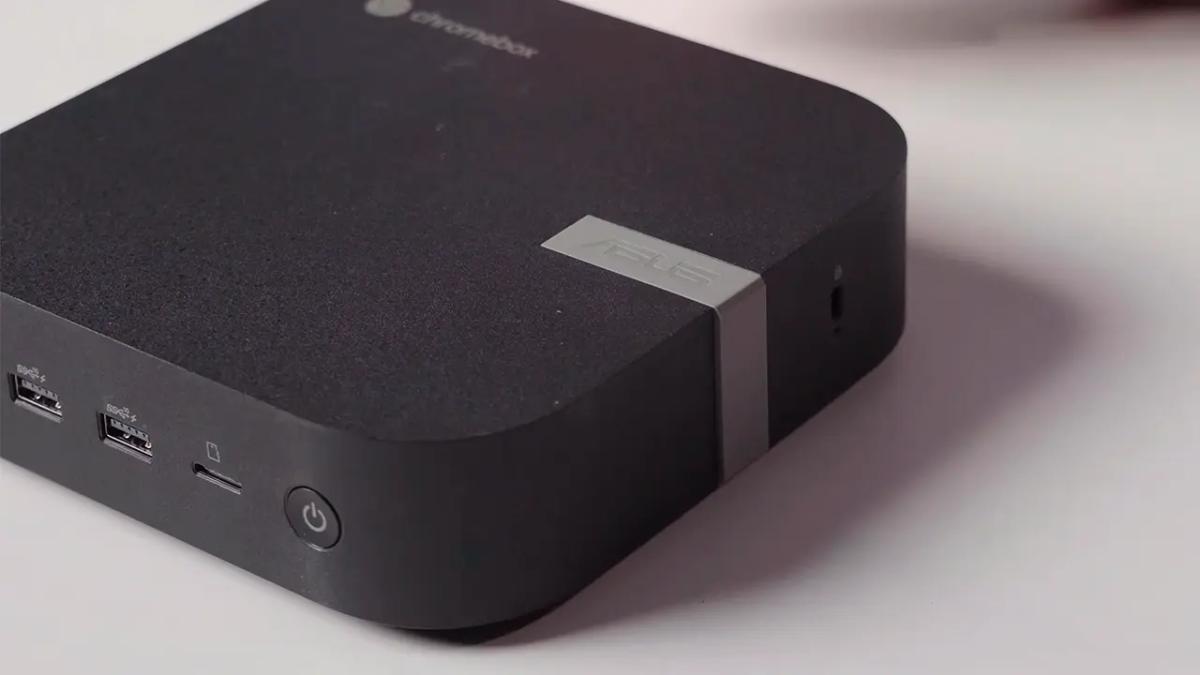
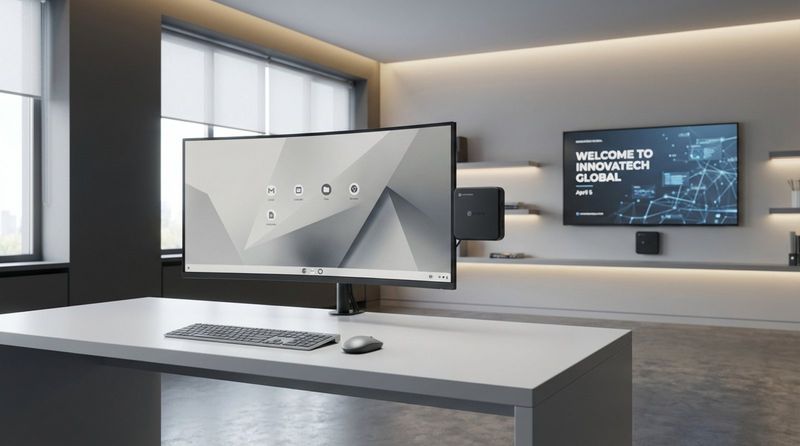
Physically, a Chromebox is defined by its compact, box-like footprint. Most are lightweight and support VESA mounting, allowing you to attach the unit directly to the back of a display for a clean, wire-free look-a popular configuration for digital signage and kiosks.
Internally, they prioritize efficiency. Because ChromeOS is lightweight, even entry-level models with Intel Celeron chips and 4GB of RAM can handle daily tasks smoothly. Connectivity is usually robust, featuring HDMI, USB-C, and USB-A ports, ensuring you can connect the necessary peripherals and displays without needing adapters.
How Chromebox differs from Chromebooks and other desktop computers
The distinction is simple: a Chromebook is a portable laptop with a screen and keyboard; a Chromebox is a stationary desktop that requires external peripherals. This makes the Chromebox less portable but more adaptable, as you can choose your own monitor size and input devices.
Compared to Windows or Mac systems, the Chromebox is far more specialized. It does not run a heavy local operating system or manage a complex registry. It is designed to run web applications and Android apps efficiently. For IT teams, this means significantly less time spent on driver updates and system maintenance.
How does Chrome OS power a Chromebox?
Advantages of Chrome OS for desktop use
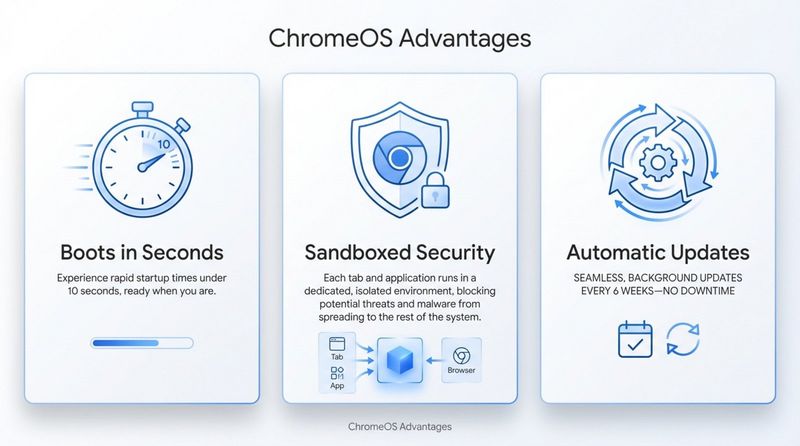
ChromeOS is built on a Linux kernel but optimized for the web. This architecture allows Chromeboxes to boot in seconds-often under ten. For businesses, this speed reduces downtime significantly. If a power outage occurs, a Chromebox can reboot and be back online displaying content or ready for work almost immediately.
The OS also handles updates automatically in the background. Unlike other systems that may force a restart during business hours, ChromeOS applies updates seamlessly, ensuring security patches are applied without disrupting operations.
Limitations of Chrome OS on Chromebox devices
The primary trade-off is the reliance on connectivity. While offline modes exist for core Google apps and specific software (like digital signage players), the device is most powerful when connected to the internet. If your operations require heavy local processing without a network connection, this may be a limitation.
Additionally, you cannot install traditional `.exe` or `.dmg` software. Industry-standard tools like the full Adobe Creative Suite or heavy CAD software are not supported natively. Workflows must be adapted to web-based alternatives or Android app equivalents.
Android and Linux app support on Chromebox
To bridge the software gap, Google enables support for Android apps via the Google Play Store and Linux applications via "Crostini." This allows you to run mobile versions of popular tools (like Microsoft Office or Slack) directly on the desktop. For advanced technical teams, the Linux container allows for the installation of development tools and editors, adding a layer of flexibility for those comfortable with a bit of technical configuration.
Chromebox pros and cons: Key points
Top 5 benefits of using a Chromebox
Fast startup and performance
Speed is inherent to the design. Without the weight of legacy software, a Chromebox boots and wakes from sleep almost instantly. For customer-facing screens or kiosks, this responsiveness ensures that your content is always visible when it needs to be.
Strong security features
ChromeOS utilizes "sandboxing," isolating each app and tab. If one process is compromised, the threat is contained. Furthermore, "Verified Boot" automatically checks the system integrity at every startup, repairing any corrupted files without user intervention.
Low maintenance and easy updates
For operations managers, the "set and forget" nature of a Chromebox is a major asset. There is no need for complex antivirus suites or manual driver installations. A "Powerwash" feature allows you to factory reset the device in minutes, simplifying troubleshooting.
Energy efficiency and compact size
These devices are energy-sipping, often consuming just 10-15 watts compared to the 200+ watts of a standard desktop. For businesses running multiple screens or workstations 24/7, this results in measurable utility savings.
Cost-effectiveness
With no operating system licensing fees and modest hardware requirements, Chromeboxes are generally more affordable than their Windows counterparts. This allows businesses to scale their hardware network from one screen to thousands without a massive upfront capital expenditure.
Top 5 drawbacks of Chromebox
Limited offline functionality
While cached data allows for some offline work, the system is designed for the cloud. Extended offline periods can limit access to files and collaborative tools unless specific offline-capable apps are used.
Restricted local storage
Most units come with small SSDs (32GB-128GB), operating on the assumption that you will store data in the cloud. This is generally insufficient for storing large local libraries of high-resolution video or raw assets.
Incompatibility with specific software
The inability to run legacy Windows software is a dealbreaker for some. If your business relies on a specific proprietary program that does not have a web-based or Android version, a Chromebox will not fit that specific workflow.
Not designed for heavy multimedia creation
While excellent for displaying 4K content, Chromeboxes are not built for creating it. Rendering 3D graphics or editing multi-track video requires dedicated GPUs that these compact units lack.
Hardware limitations
Unlike a tower PC, you generally cannot upgrade the CPU or GPU later. You are purchasing a fixed appliance. While RAM and storage are sometimes upgradable, the core performance ceiling is determined at the time of purchase.
Who should consider a Chromebox?
Best use cases for Chromebox
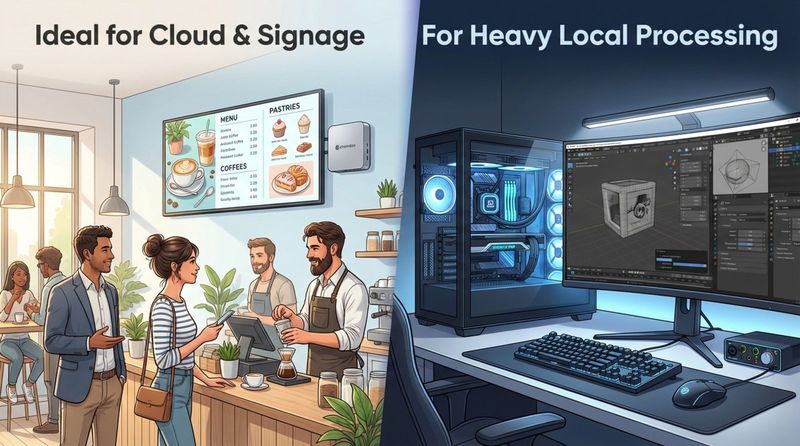
Chromeboxes shine in education and general office work, but they are particularly effective for digital signage. Because they are small, reliable, and secure, they make excellent media players for retail screens, menu boards, and corporate communication displays.
If you are looking to power a screen network, we recommend using Look Digital Signage software on a Chromebox. By installing the Look App from the Google Play Store (or via Chrome Device Management), you can turn a Chromebox into a professional signage player. This setup supports offline playback-ensuring your screens stay running even if the internet drops-and allows for smart scheduling of content remotely.
Scenarios where a Chromebox falls short
For creative professionals, engineers, or hardcore gamers, a Chromebox is likely underpowered. Workflows that require raw local processing power, complex file management, or zero-latency graphics rendering are better suited to high-end workstations.
Chromebox vs Chromebook: Main differences
Form factor and portability
Choose a Chromebook if mobility is required. Choose a Chromebox for stationary setups like reception desks, kiosks, or permanent digital signage installations where you want to hide the hardware and use a specific large-format display.
Hardware and performance comparison
Chromeboxes often edge out Chromebooks in performance per dollar. Without the constraints of battery life and thermal management for a lap-top device, they can sustain higher performance for longer periods, which is critical for devices running 12+ hours a day.
Price ranges and target user profiles
While prices are similar (typically $200-$600), the target differs. A Chromebook is a personal device; a Chromebox is often an infrastructure device-used as a shared terminal, a media player, or a fixed workstation.
Chromebox vs mini PC: Which is the better choice?
Performance and upgradeability
Windows Mini PCs generally offer a higher performance ceiling and more upgrade options. If you need to drive video walls or run complex local software, a high-spec Mini PC might be necessary.
Software and OS compatibility
The Mini PC offers universal compatibility with Windows software. However, with that flexibility comes the burden of Windows maintenance-updates, patches, and driver issues. The Chromebox offers a more streamlined, appliance-like experience with less administrative overhead.
Value for money over time
Chromeboxes are cheaper initially but have an "Auto Update Expiration" (AUE) date from Google. Windows Mini PCs may last longer in terms of hardware utility but often incur higher support and licensing costs over their lifespan.
Best alternatives to Chromebox in 2026
Look HDMI Player (Plug and Play)
If your primary goal is digital signage, a generic Chromebox might actually be more hardware than you need. The Look HDMI Player is a dedicated hardware option designed specifically for this purpose. It offers a true plug-and-play experience, connecting directly to your screen's HDMI port to run Look Digital Signage. It provides professional-grade reliability and remote management without the setup time required to configure a full ChromeOS desktop environment.
Windows mini PCs as alternatives
For those needing full Windows compatibility in a small package, brands offering Intel NUC-style devices provide a balance of size and traditional desktop power, albeit at a potentially higher price point and maintenance load.
Should you buy a Chromebox?
Who will benefit most from a Chromebox?
A Chromebox is an excellent investment for businesses that live in the cloud. It is ideal for deploying simple workstations, customer kiosks, and reliable digital signage players. When paired with solutions like Look Digital Signage, it becomes a powerful tool to manage content across multiple locations from anywhere, providing a secure and scalable way to keep your screens active.
Situations where another device makes more sense
If your daily operations depend on specialized local software, high-end content creation, or you require a specialized hardware solution like the Look HDMI Player for simpler deployment, a standard Chromebox may not be the right fit.
Frequently asked questions about Chromebox
What is a Chromebox used for?
Beyond browsing, they are widely used for digital signage, interactive kiosks, and thin-client workstations in call centers and schools. They provide a secure access point to web apps and remote desktops.
Is a Chromebox worth it in 2026?
Yes, for specific use cases. As cloud tools become the standard for business, the need for heavy local processing diminishes. For reliable, low-cost access to web-based operations and signage, they offer excellent value.
How secure is a Chromebox?
Extremely secure. The combination of automatic updates, verified boot processes, and data encryption makes it difficult for malware to compromise the system, which is vital for business networks.
Can you install Windows on a Chromebox?
Technically yes, but it is not recommended. It requires bypassing firmware security, voids warranties, and often results in driver instability. If you need Windows, it is better to buy a Windows Mini PC.
How do you reset or wipe a Chromebox?
The "Powerwash" feature in the settings menu wipes user data and restores the device to factory settings quickly. This is useful when repurposing a device from a workstation to a digital signage player.
What is Chromebox for Meetings?
This is a hardware kit optimized for Google Meet, including a camera and speaker/mic. It transforms a standard display into a dedicated video conferencing suite.