Screen Layouts. Editable Content
The Editable Content widget lets you embed editable content directly into a screen layout — just like other widgets (Apps, Media). This is especially useful for multi-zone layouts where each zone needs to play its own independent content.
Adding a Widget
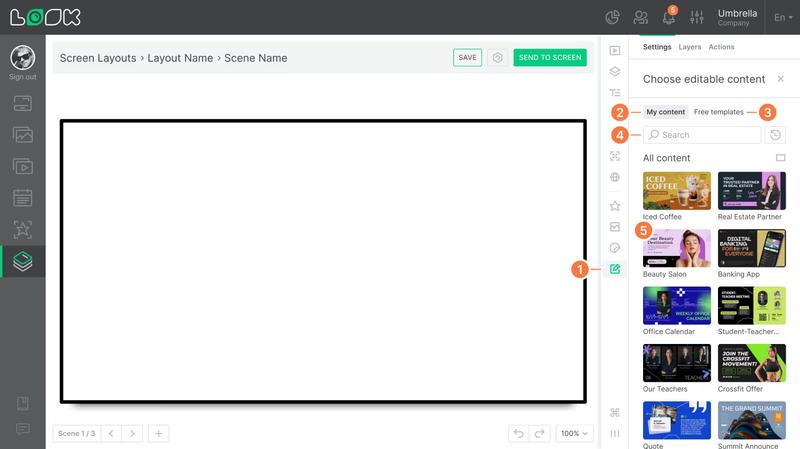
- Click the Editable Content icon in the toolbar. The Choose editable content sidebar will open with two tabs.
- My content — all content you have already created or added to your library.
- Free templates — ready-made templates from Look. When you add a template, it is automatically saved to your content library.
- Search, sorting, and orientation selection are available in both tabs.
- Click a content preview to place it on the canvas.
Widget Settings
Once added, the widget can be configured in the right panel under the Settings tab.
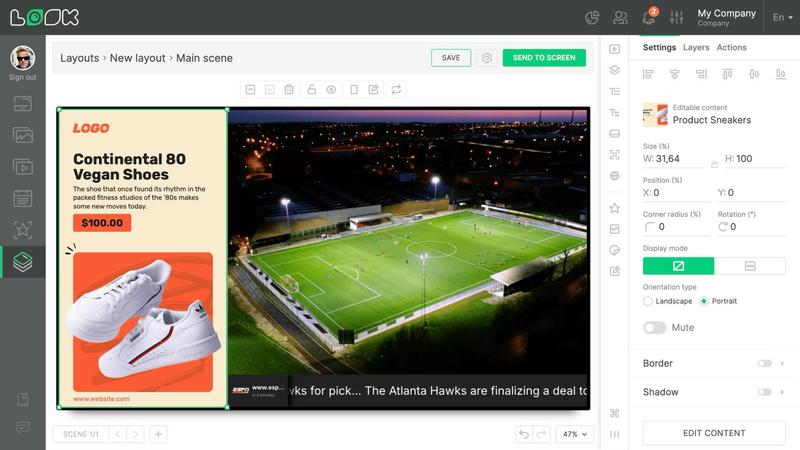
Display mode — controls how content is displayed inside the widget:
- Original aspect ratio (default) — preserves the original aspect ratio of the content.
- Stretch — scales content freely, without maintaining proportions.
Orientation type — switches the content orientation (Landscape / Portrait) while preserving its original aspect ratio. Not available in Stretch mode.
Mute — disables the widget's audio.
Standard size and position parameters are also available: Size, Position, Radius, Rotation, Border, Shadow.
If the Content Has Been Deleted
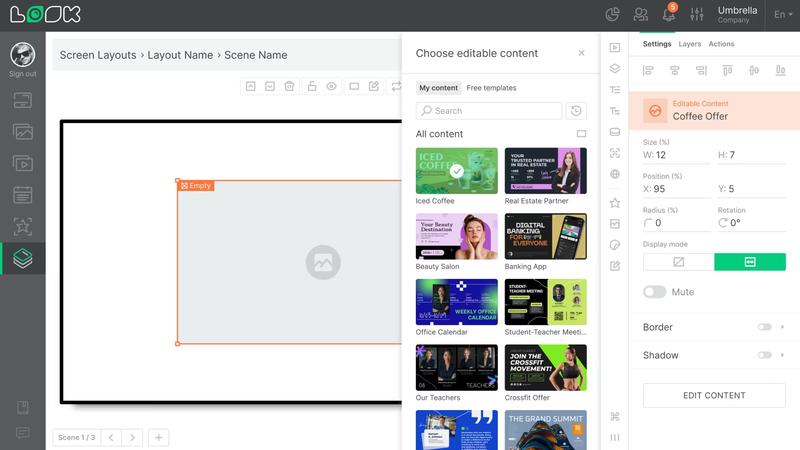
If the content used in a widget has been removed from the library, the widget on the canvas appears empty with an Empty label and an orange border. You can select a different piece of content to replace it in the right panel.
Editing Content
To open the editor for the selected content, click the Edit content button at the bottom of the right panel. If there are unsaved changes in the layout, the system will prompt you to save them before proceeding.
Once inside the content editor, a Back to screen layout button will appear — use it to quickly return to the layout after making edits.