🚪 Meeting Room Digital Signage

Digital Signage for Meeting Rooms

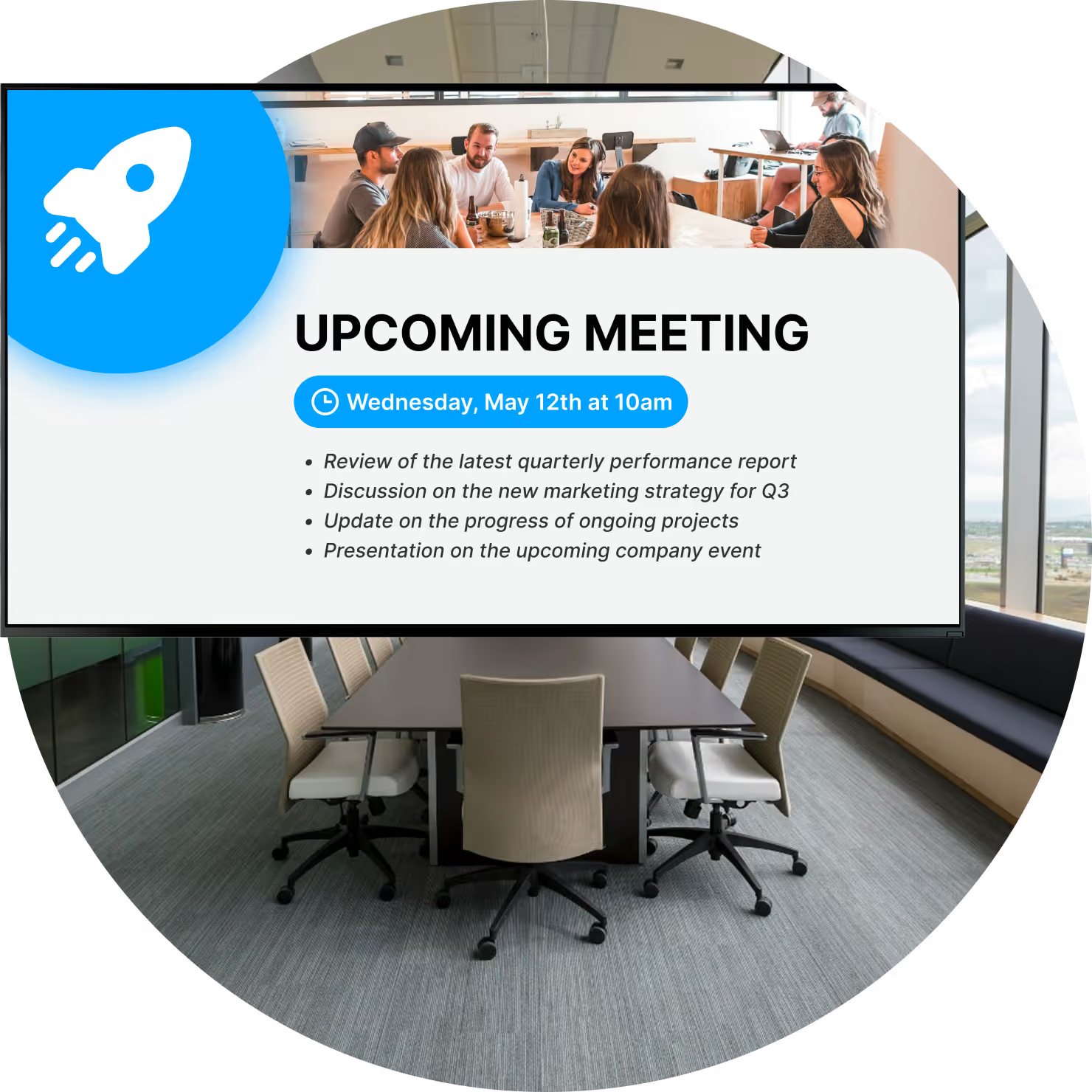
Why do people still knock on a door to find out if a room is available? A panel outside each room displays current and upcoming bookings from Google Calendar or Outlook and refreshes automatically. Manage every door, corridor and in-room screen from one browser.

Schedules that refresh on their own

The Calendar app displays Google Calendar or Outlook schedules and updates the door panel automatically.

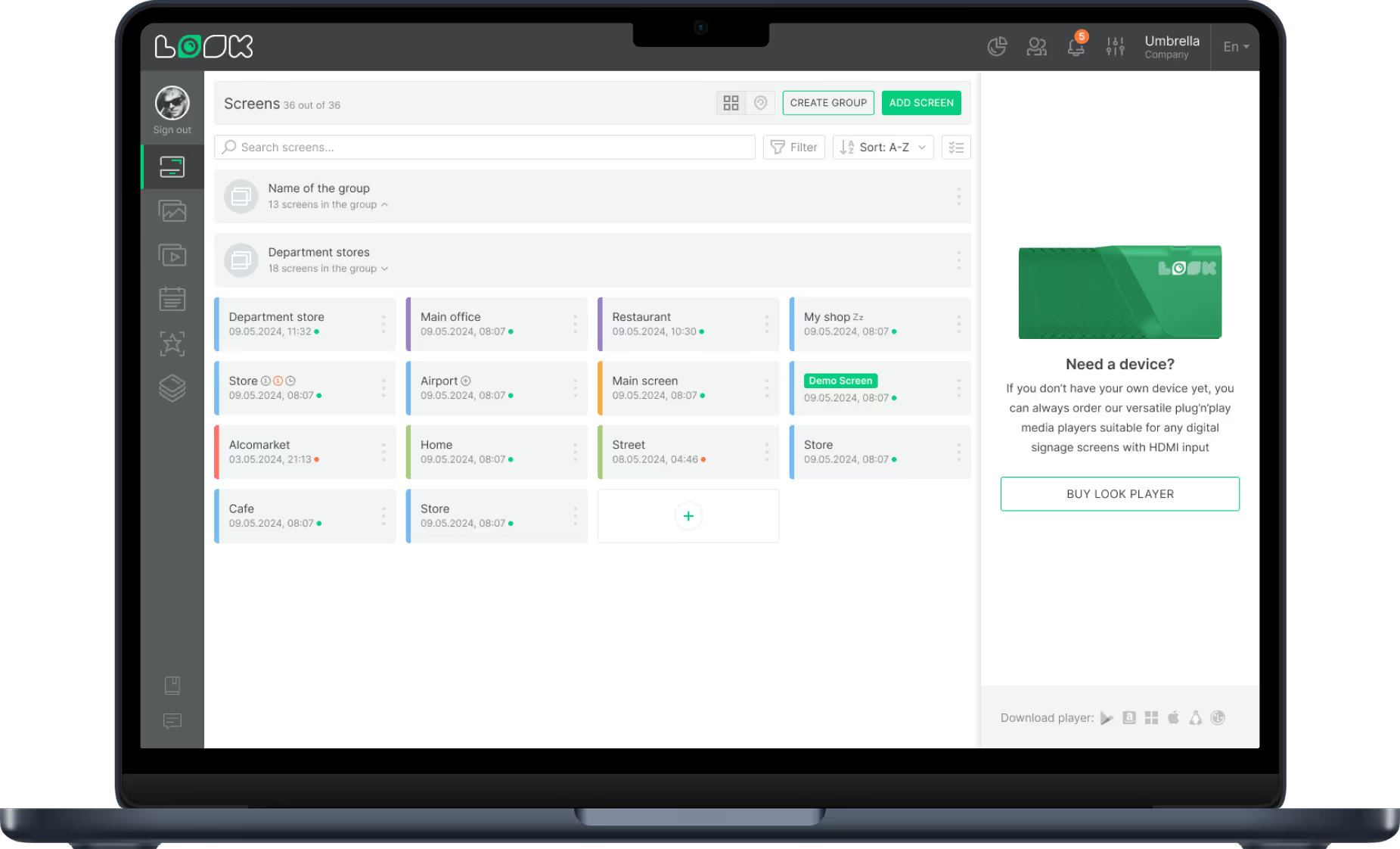
One dashboard for every floor

Group panels by floor, building or site and publish to the whole group at once.

Works with supported screens you already own

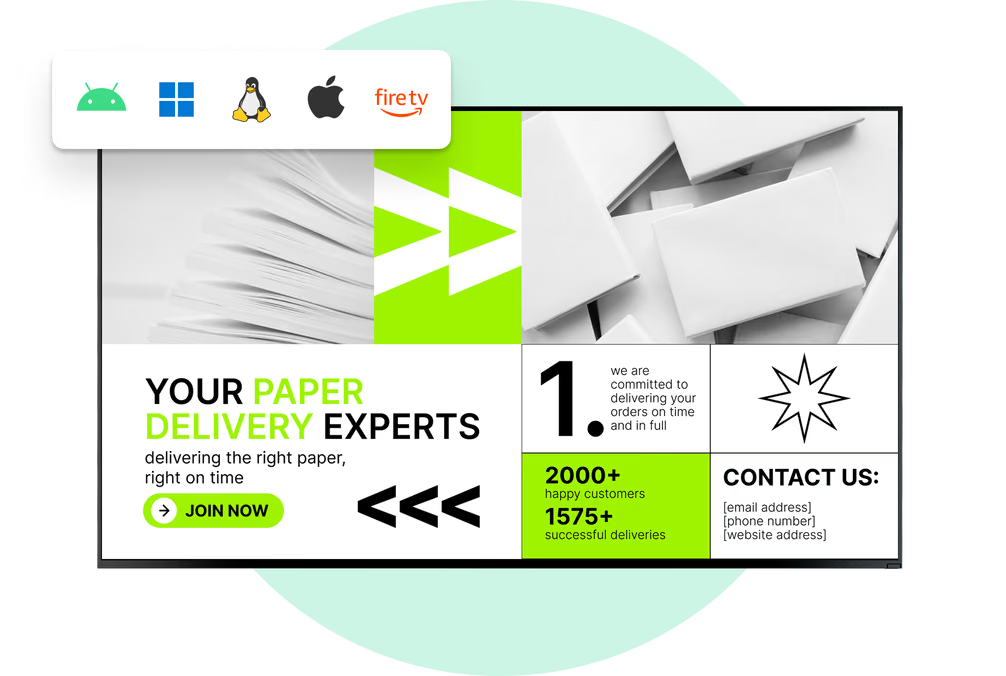
The Look App runs on Android, Windows, Tizen, webOS and more, with an HDMI Player option.
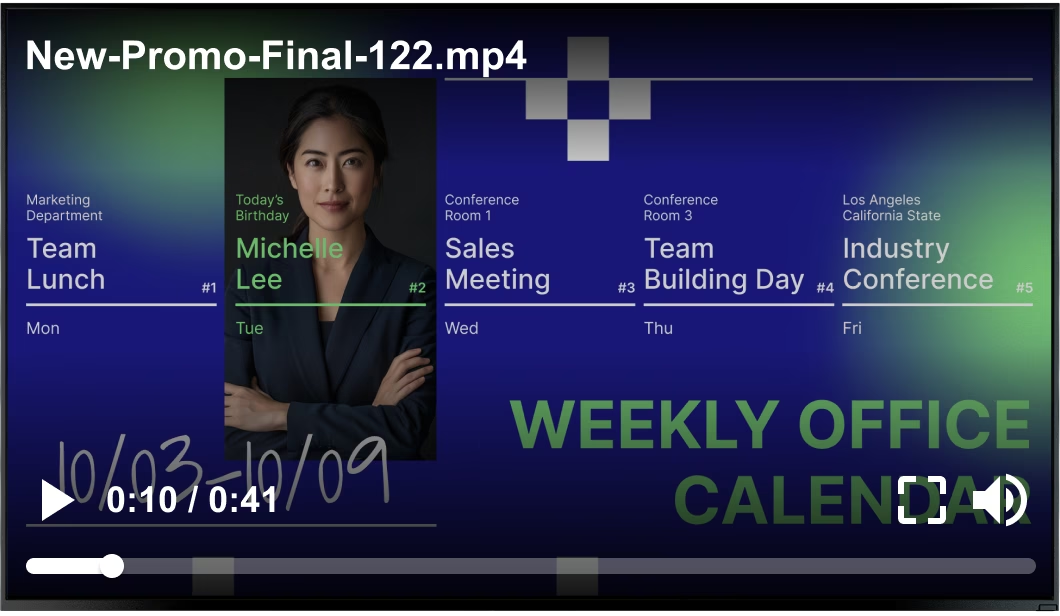
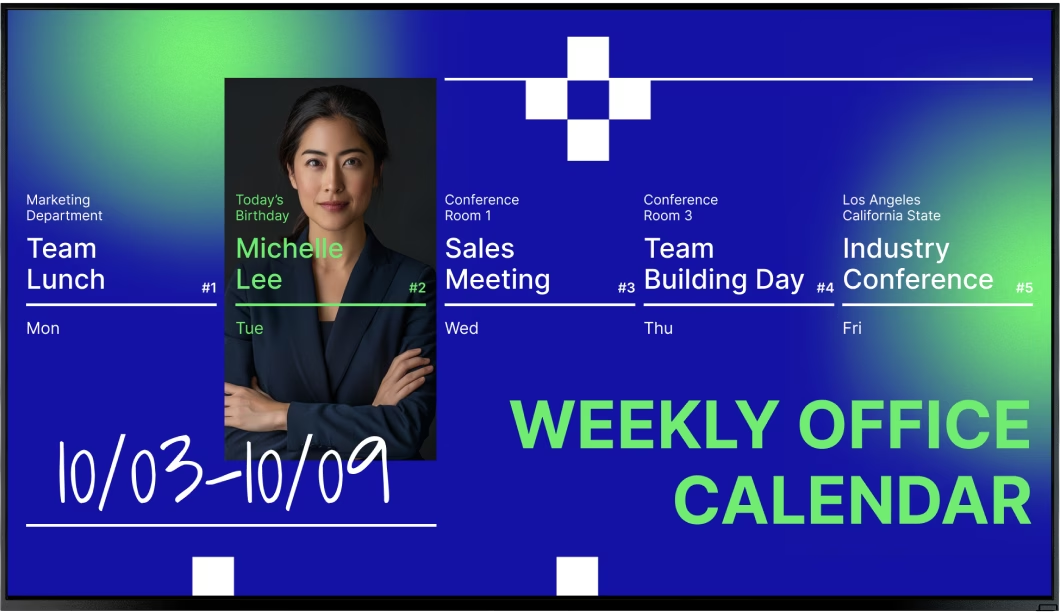
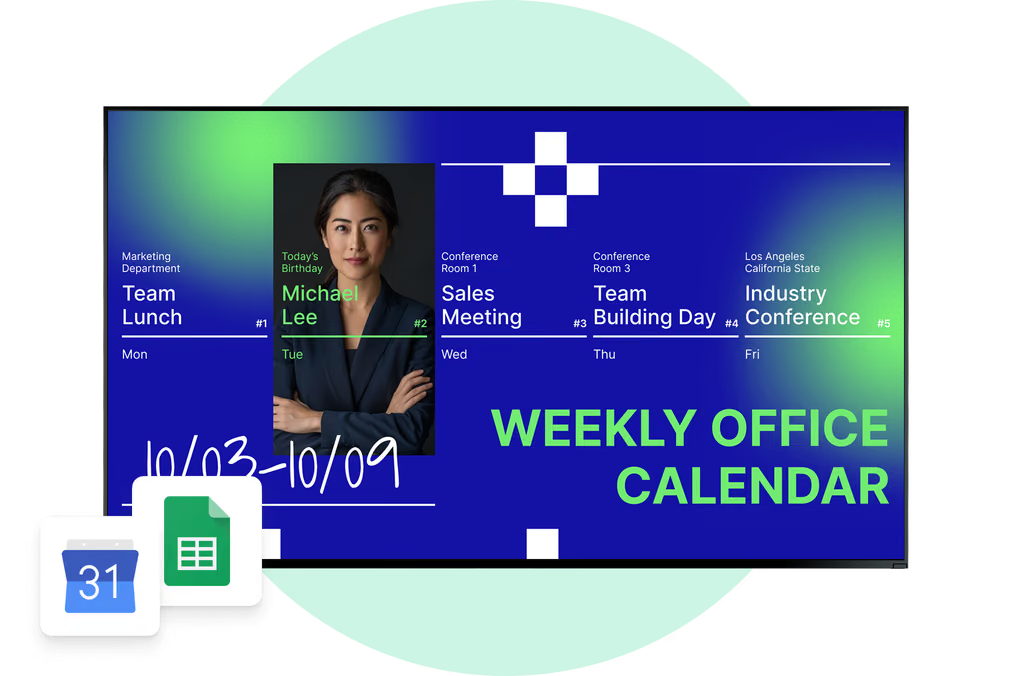
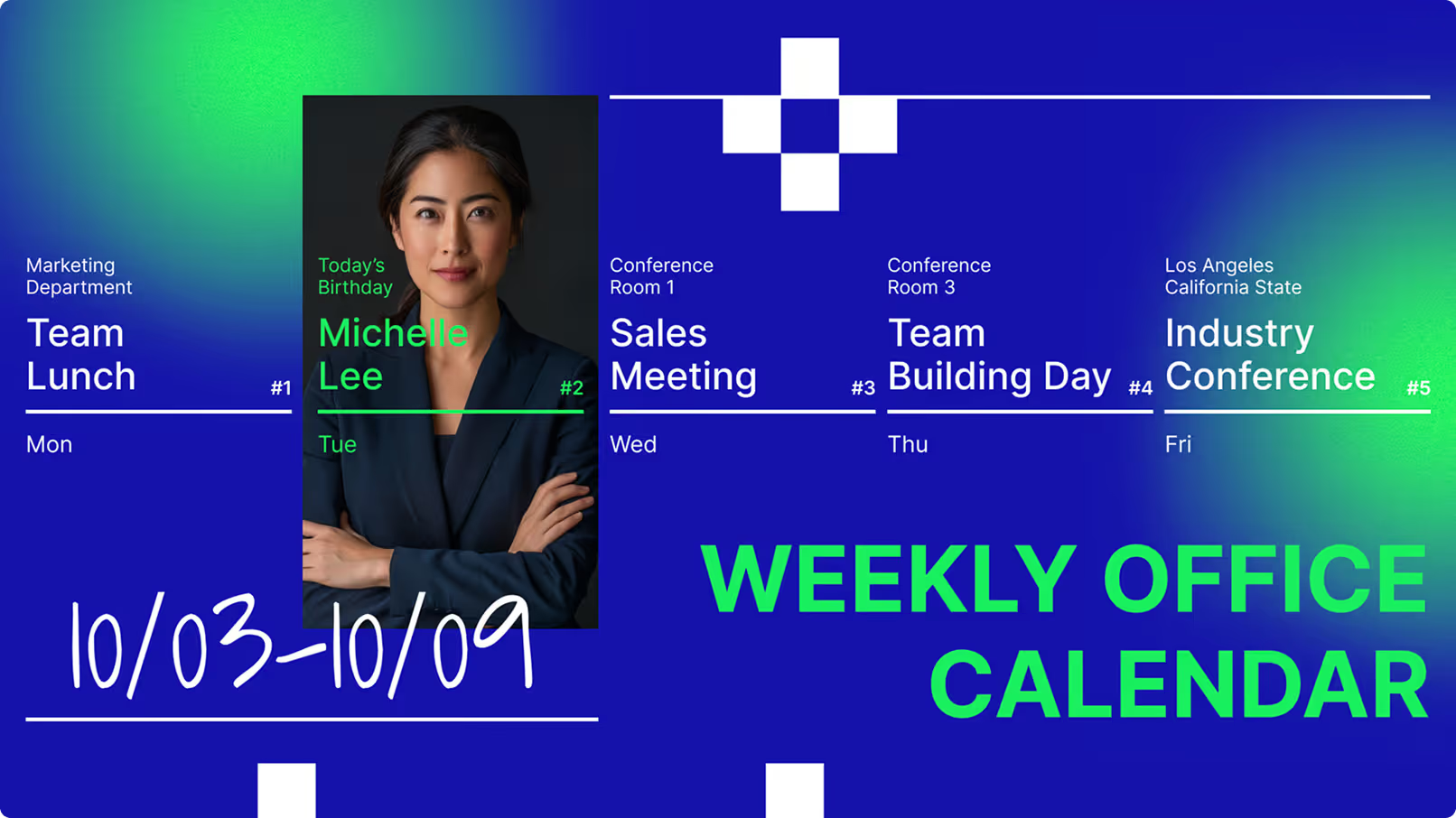
Weekly Office Calendar screen with a staff birthday
  • No credit card required. From $6 per screen/month with volume pricing.

  • Runs on Android, Windows, Linux, Tizen, webOS, Raspberry Pi and more.

  • 24/7 in-app support from real people.

Captera Rating
4.9
G2 Rating
5.0
60 000+
Screens
11 000+
Users
120+
Countries
Capterra Best Value · G2 High Performer
Software Advice · Customer Support 2026

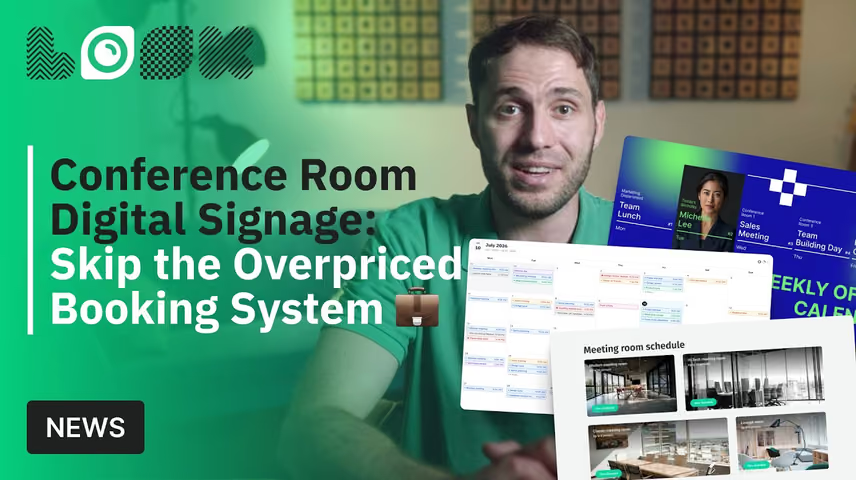
Conference room digital signage: skip the overpriced booking system 👉

Watch video · 6:22
Conference Room Digital Signage: Skip the Overpriced Booking SystemYouTube

Which rooms really need a booking panel, which screen you already own will do, how a live room calendar is set up in Look DS, and what the two paths actually cost.

Take control of every meeting room screen in the building

Meeting room digital signage lets offices show live room availability, schedules, directions and workplace messages on screens outside and inside meeting rooms, all managed from one centralized platform.
Instead of a printed schedule taped to the door, the panel displays the room calendar and refreshes automatically. Facilities and IT publish remotely, schedule content by time of day and target one floor or every site. Rooms stay up to date.

Sound familiar?

    • A red cross inside a black circle

      Knocking first, to see if the room is taken

    • A red cross inside a black circle

      A schedule printed at 8, wrong by 9

    • A red cross inside a black circle

      Visitors lost somewhere down the wrong corridor

    • A red cross inside a black circle

      No two office screens showing the same thing

Generic stock video file playing over a Weekly Office Calendar screen Black USB flash drive with 4 GB storage capacity

What you get with Look

    • Room status readable from the hallway

    • Calendars that feed the screens directly

    • All the room screens in one dashboard

    • One template, your branding, every panel

Clean Weekly Office Calendar screen without the video overlay Green shield icon with a white check mark
Try with demo screen now
Run demo screen right in your browser

From one door panel to the whole floor

Connect a screen, add the room calendar and publish. Scale the same workflow across the floor, other buildings and every company location.
  • Schedule

    Connect the screen

    Install the Look App on a supported smart display or connect a Look HDMI Player, pair it with the 6-digit device code and the screen is ready for content.
  • Content

    Add the room calendar and layout

    Add the Calendar app for that room's Google Calendar or Outlook schedule, then use a Screen Layout to put a clock and a notice zone beside it.
  • Playlists

    Schedule it and publish

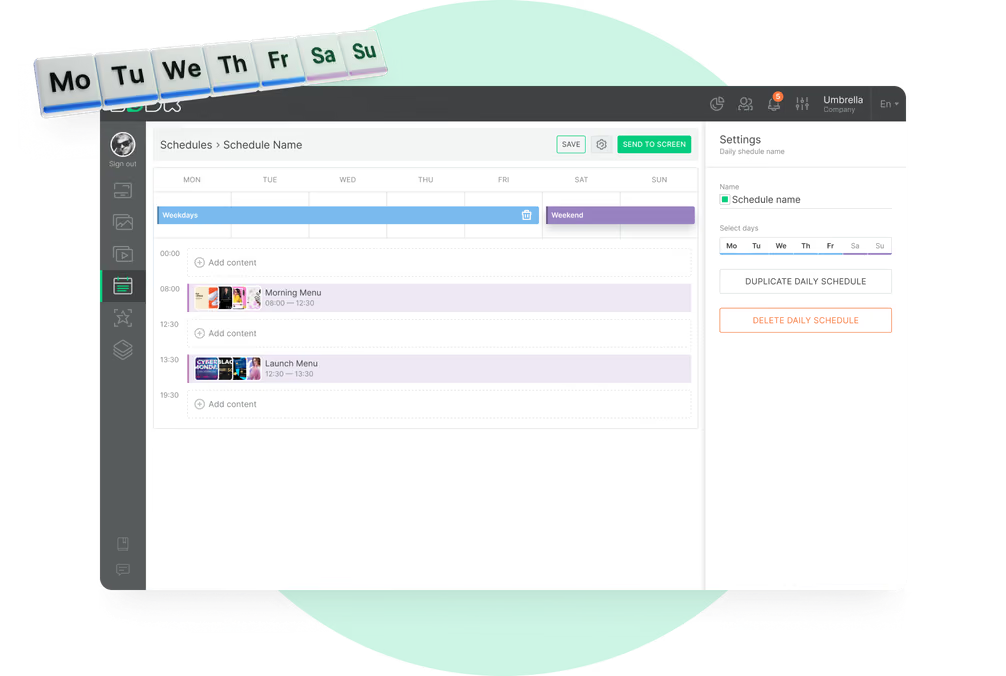
    Set a weekly schedule in the screen's own time zone. Group the panels by floor or site. Then publish to one room, or to all of them, from any browser.
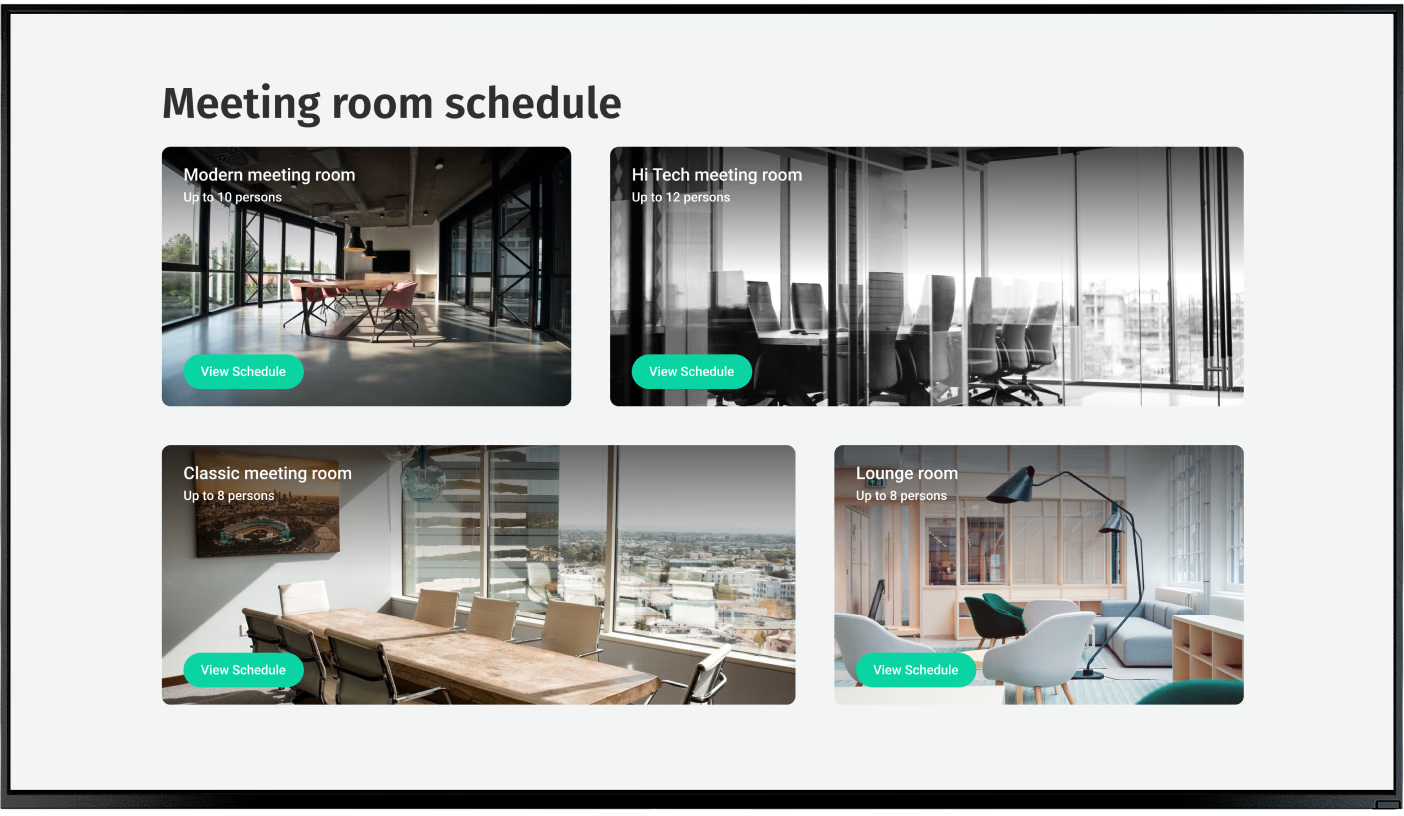
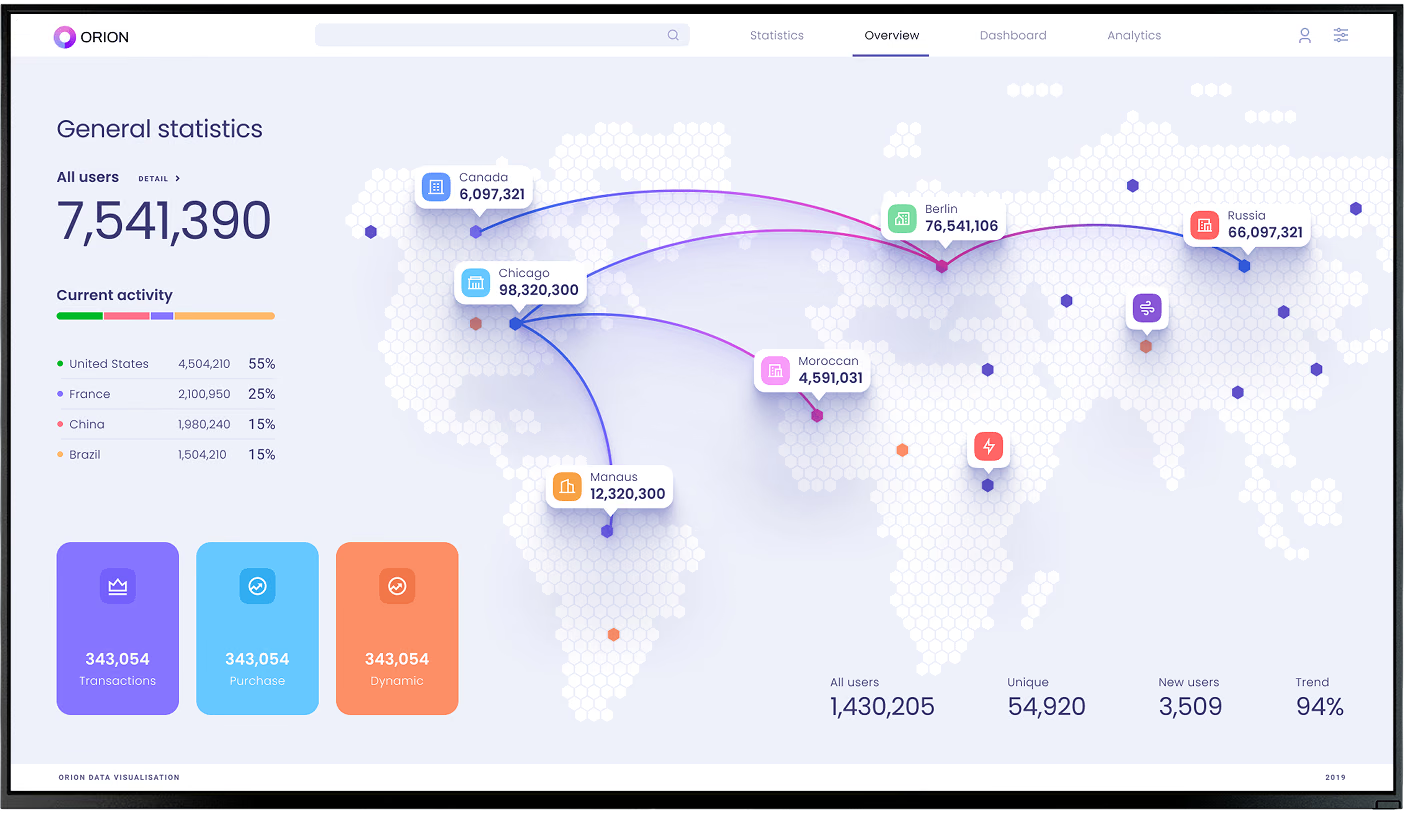
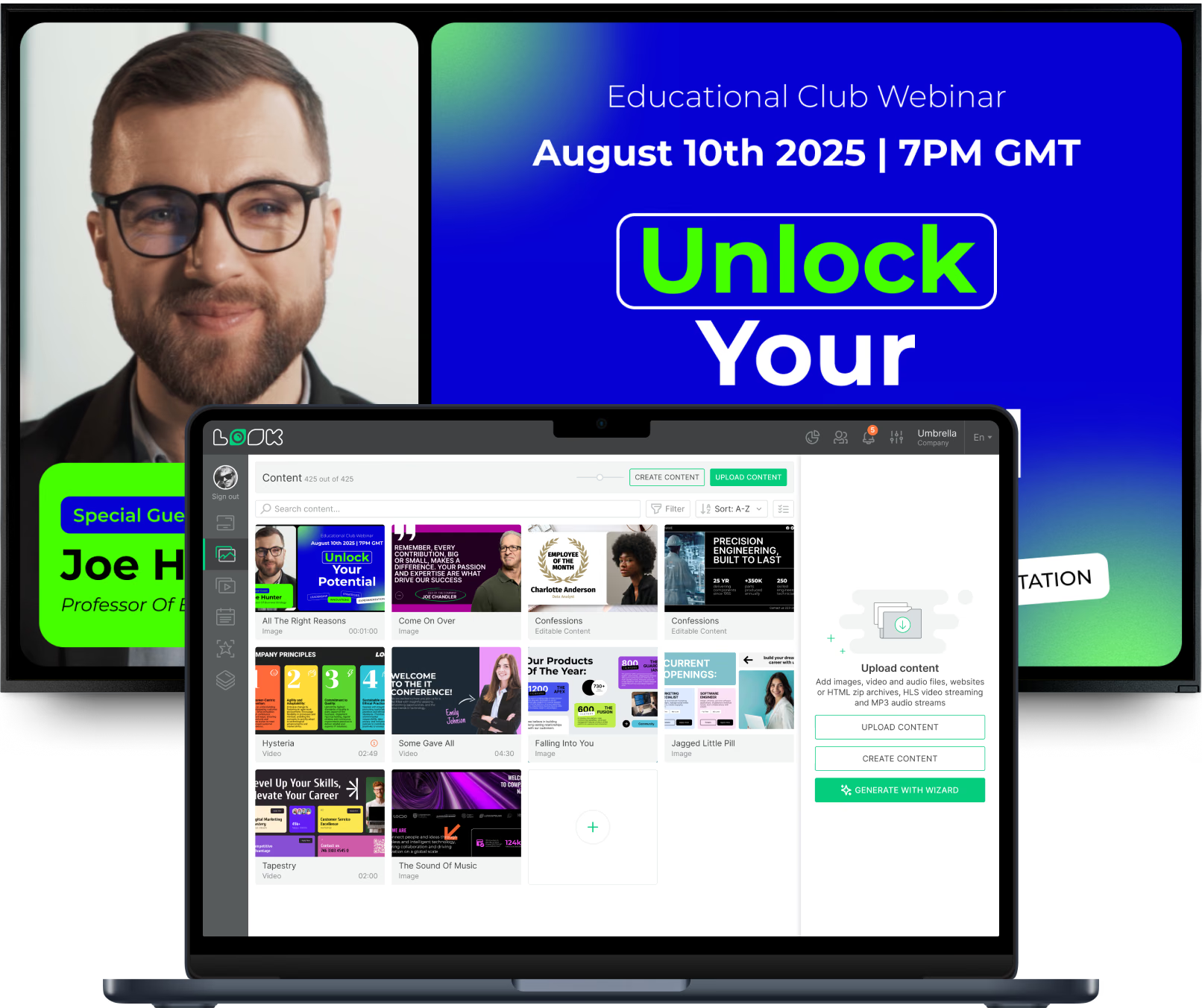
Meeting room schedule board with four room photos General statistics dashboard with a world map Laptop with the Look content editor building an Educational Club Webinar promotion

Digital signage for every meeting space

A panel by the door, a summary screen by the elevator and the display inside the room each answer a different question. Look runs all of them from one account, with their own content, layouts and schedules.

Door panels outside meeting rooms

Room status readable from down the hallway.
A small panel at eye level shows the current booking, organizer and next available time. The Calendar app displays the room's Google Calendar or Outlook schedule and refreshes automatically, keeping the panel aligned with the source calendar.
Sizing is in percentages, so a single design covers both the narrow panel by the door and the wider screen down the corridor.
Best for: Current booking, next free slot, organizer name, room name and capacity, clock

Corridor and elevator lobby screens

One screen answers the whole floor at a glance.
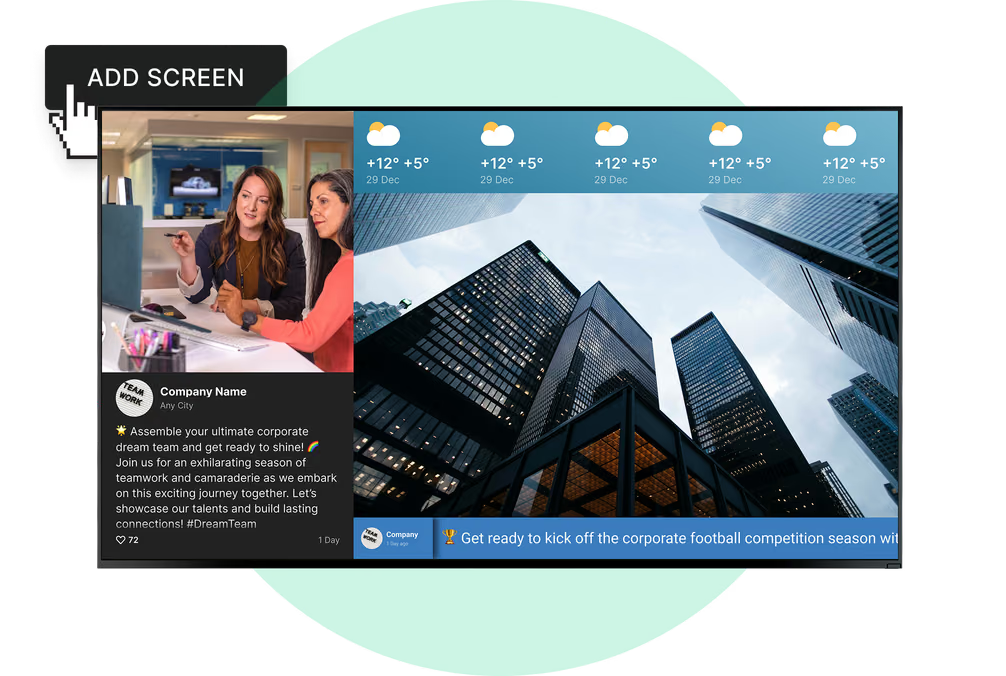
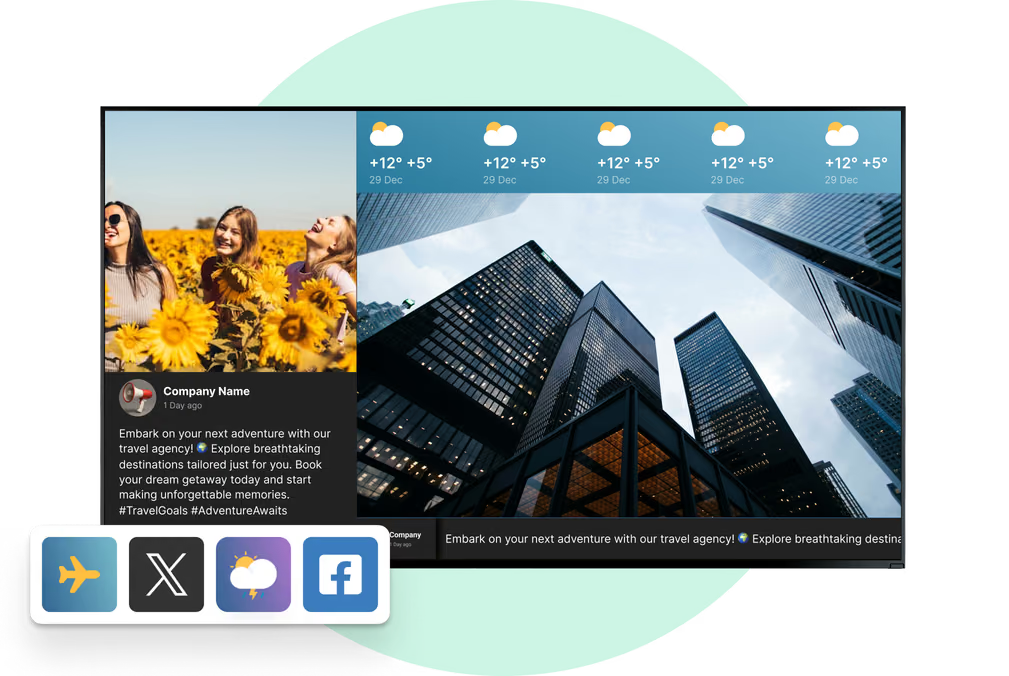
People stepping out of an elevator need an overview, not a door-by-door search. A Screen Layout splits the display into zones: nearby room availability, a floor plan image and a ticker carrying today's notices.
You can point each zone at a different source: calendar for the room list, weekly schedule for the notice area.
Best for: Room lists, floor plans, today's events, visitor directions, office notices

Displays inside the meeting room

Make the in-room screen valuable between bookings.
The display inside the room does not have to sit dark until the next meeting. Google Slides runs a standing agenda directly from Drive, while Power BI, Geckoboard and Embeddable Code put a live dashboard or an internal web page on the same screen.
Smart Scheduling controls what appears throughout the day: the agenda in the morning, team metrics in the afternoon and a branded slide on client days.
Best for: Standing agendas, Google Slides decks, KPI dashboards, project updates, branded holding screens

Huddle rooms and focus booths

Small rooms turn over fastest, so their screens have the hardest job.
A two-person room can change hands five times before lunch, which is exactly when a printed schedule fails you. A compact panel on the door showing the current booking and the next free slot stops anyone walking in on a call.
You keep booking where it already lives. The panel is a display of the calendar, nothing more, and a QR widget in the layout sends staff to your booking page on a phone.
Best for: Current booking, next free slot, QR link to the booking page, room name, clock

Boardrooms and executive suites

A branded welcome in place of a bare room number.
When the board meets or a client visits, the panel outside can show the visiting company's name and the session title in place of a calendar row. A ready-made template turns that into a quick edit, and the shared brand kit holds fonts and colors steady.
When the room is free again, the weekly schedule returns it to the standard room-status layout without anyone touching it.
Best for: Visitor welcomes, session titles, branded holding slides, room schedule, world clocks

Training rooms and multipurpose spaces

Rooms whose purpose changes through the week.
A room used for onboarding on Monday and a town hall on Thursday needs a screen that changes with it. Smart Scheduling runs a different daily plan per weekday, and the content Lifetime setting gives a training series an end date so it retires itself.
Inside the room the same display shows the session schedule, then hands over to the deck through Google Slides.
Best for: Session schedules, agendas, Google Slides decks, course notices, dated campaigns

To use Look digital signage software

Look service works seamlessly on any hardware, whether you're planning to purchase or already use it
Or

Install FREE Look App

Transform any TV or compatible device into digital signage by installing the free Look app.
WindowsAmazon Signage
Androidgoogle-tvLinuxOS Fire Amazon
macOSWebOSOS Tizen OS Raspberry Pi
Supported Operating Systems

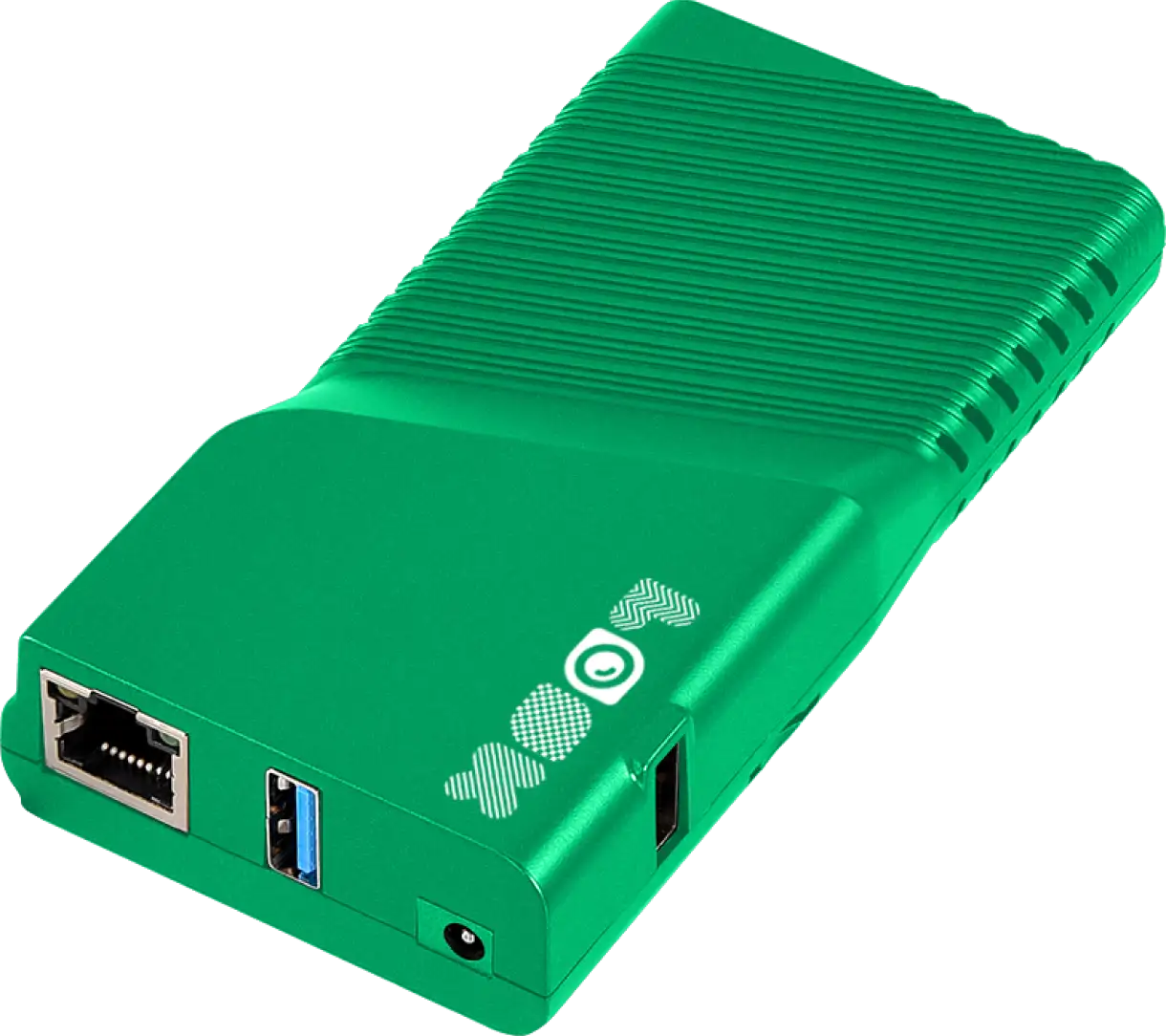
Plug Look HDMI Player

Connect the Plug & Play Look Player to your display’s HDMI input for instant setup. Worldwide shipping.
Buy nowLook HDMI Player

What our customers say

Real businesses, real results.
Captera Rating
4.9
G2 Rating
5
In terms of using the system, the other options that I found were a little clunky and Look was not only affordable but really easy for us to deploy and get up and running.
Michael Bowers
Look is well-priced, it’s a very user-friendly software cloud-based service, where you can update your screens from wherever you are. We can definitely recommend to others!
Jonathan Florin
We have 22 locations and zero issues with Look software. It’s so easy to use and has a lot of useful tools that we utilize in our day-to-day business. All-in-all, our experience was top-notch.
Ervin Piotrowski
60 000+
Screens
11 000+
Users
120+
Countries

Free templates

Templates built for meeting room screens

There is no blank canvas here. The collection already has what a meeting room network really shows: room-status panels, daily agendas, visitor welcome screens, corridor room lists, announcement slides for the screen inside the room. Colors and fonts go in once, every template picks them up, and a panel built by facilities matches one built by communications.
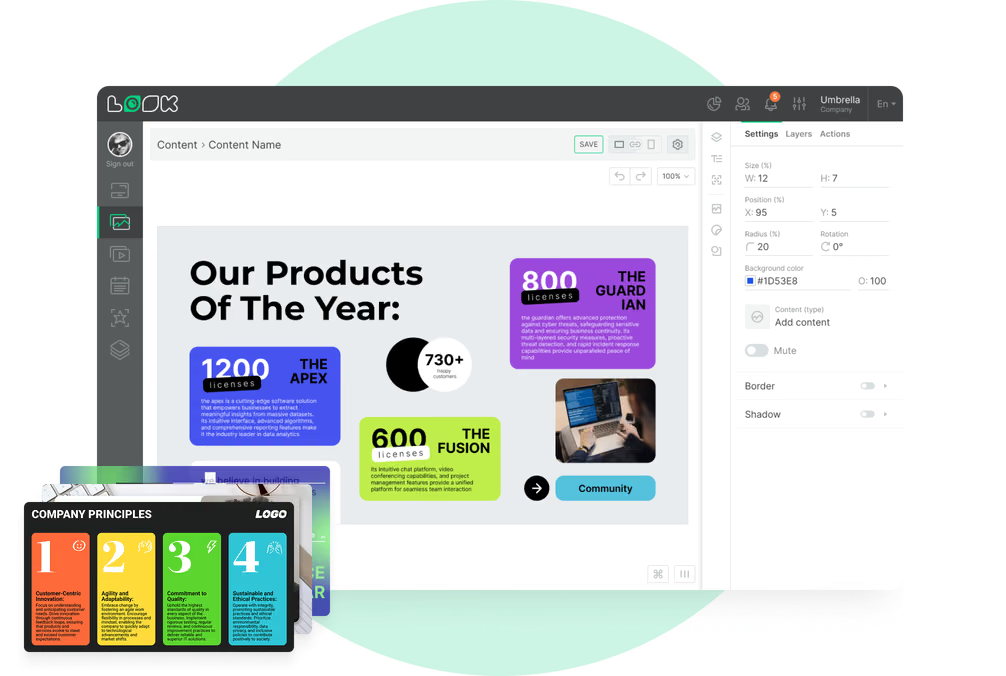
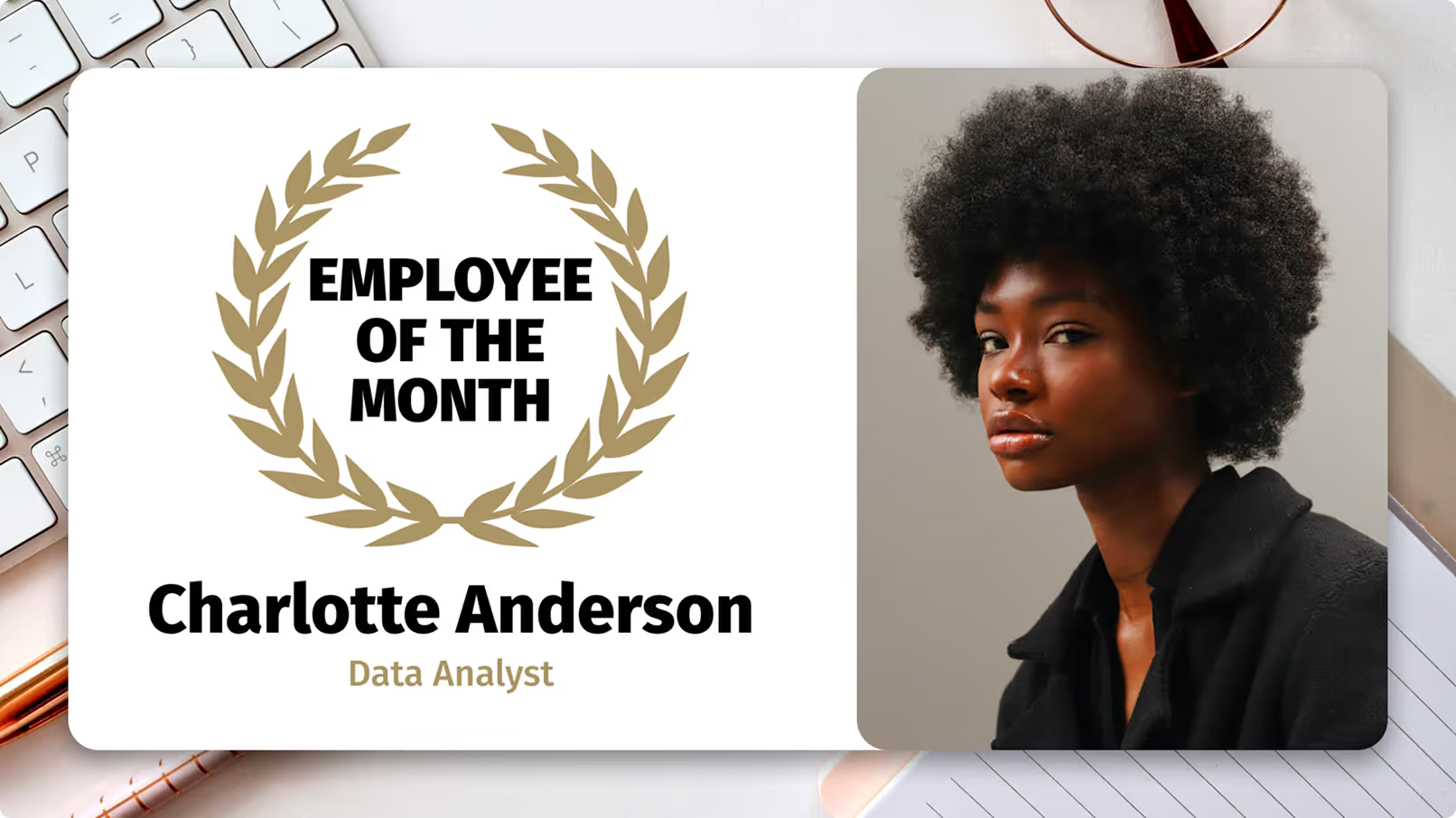
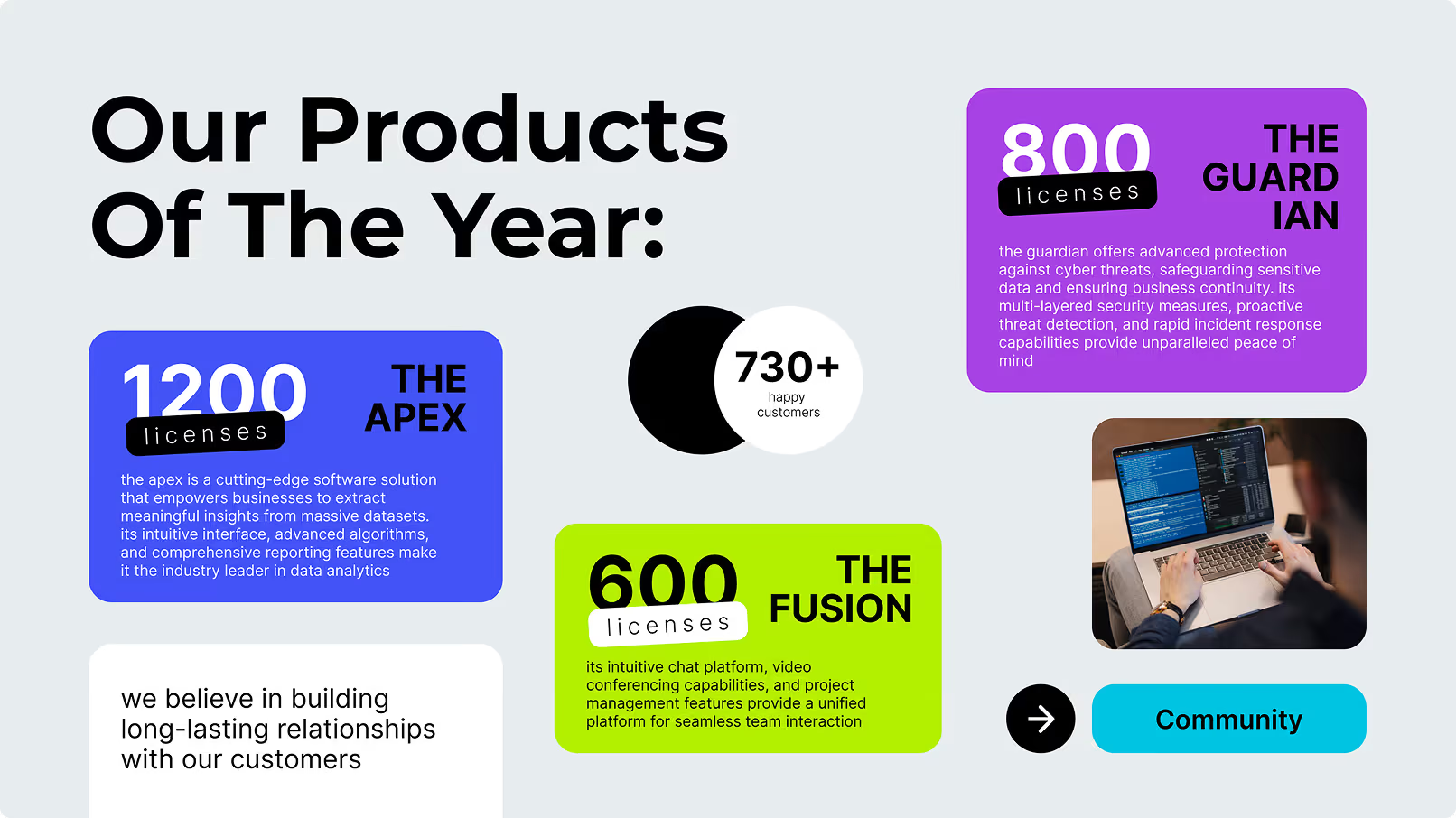
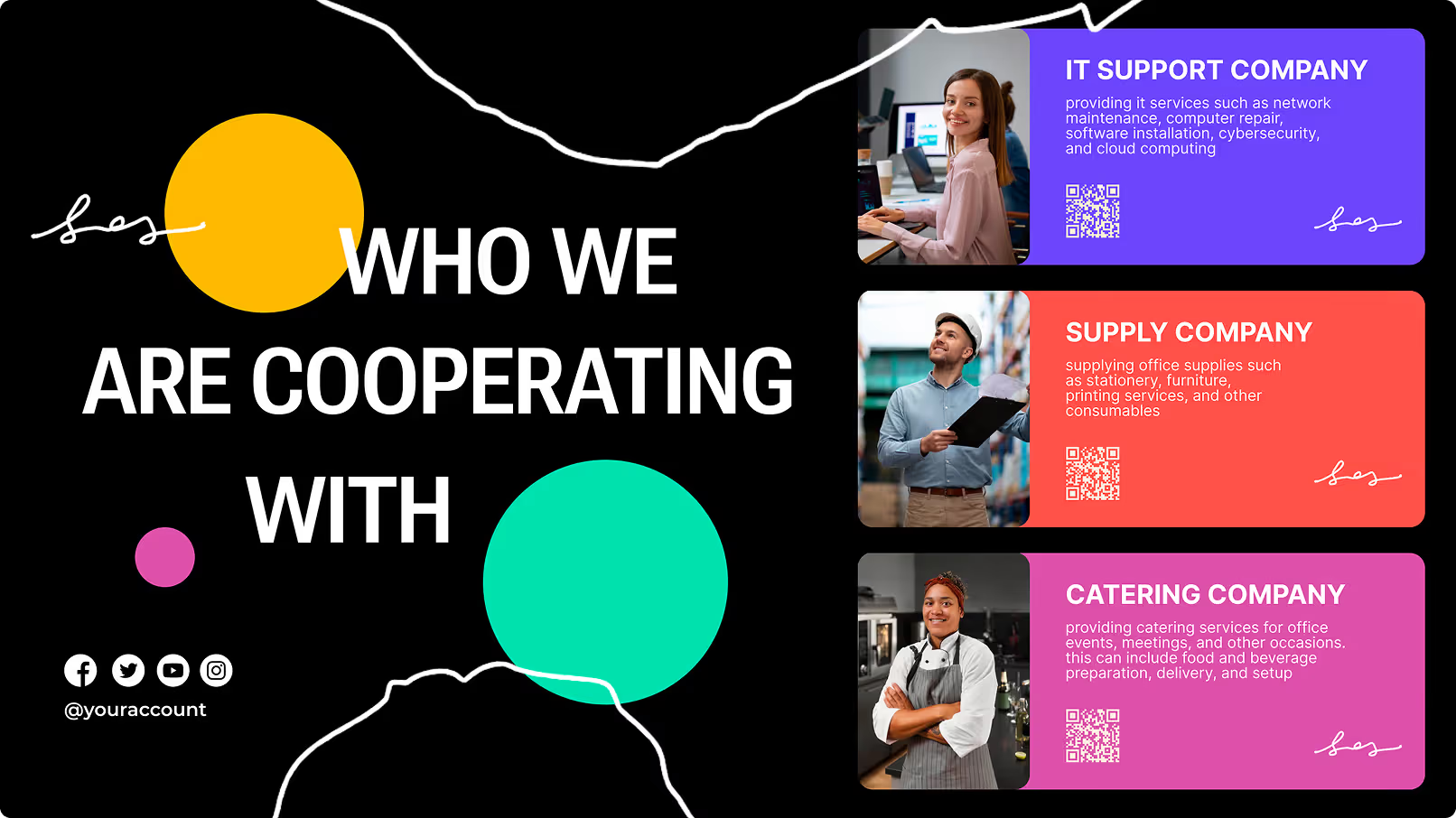
Employee of the Month template with a laurel wreath badge and staff photoOur Products Of The Year template with license pricing cards and a laptop imageWho We Are Cooperating With template with three partner company cards and QR codes
Our Products Of The Year template with license pricing cards and a laptop imageWho We Are Cooperating With template with three partner company cards and QR codesWeekly Office Calendar template with a team birthday and meeting schedule
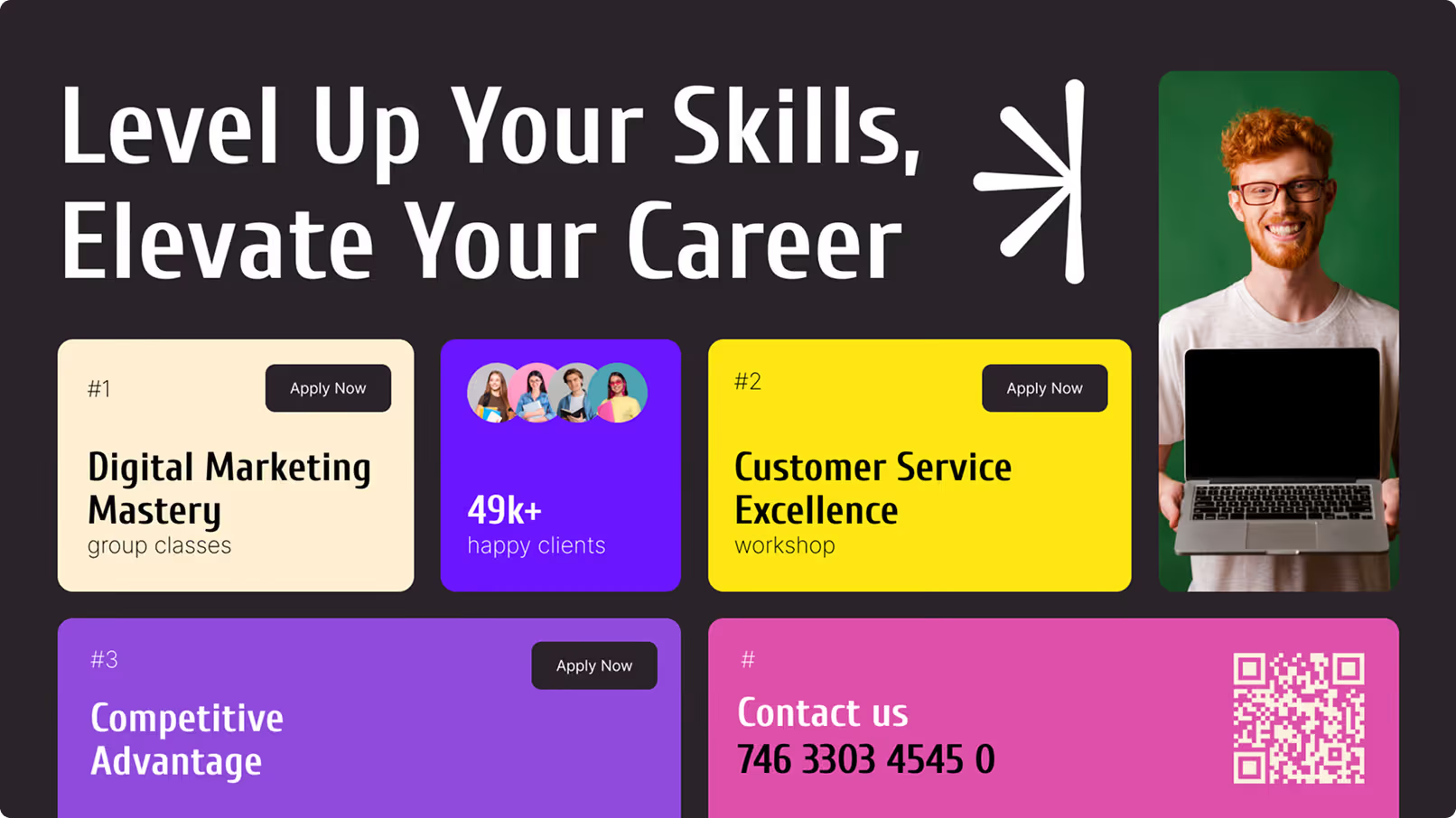
Who We Are Cooperating With template with three partner company cards and QR codesWeekly Office Calendar template with a team birthday and meeting scheduleLevel Up Your Skills training template with workshop cards and a laptop presenter
Weekly Office Calendar template with a team birthday and meeting scheduleLevel Up Your Skills training template with workshop cards and a laptop presenterUnlock Your Potential webinar template with a special guest speaker card
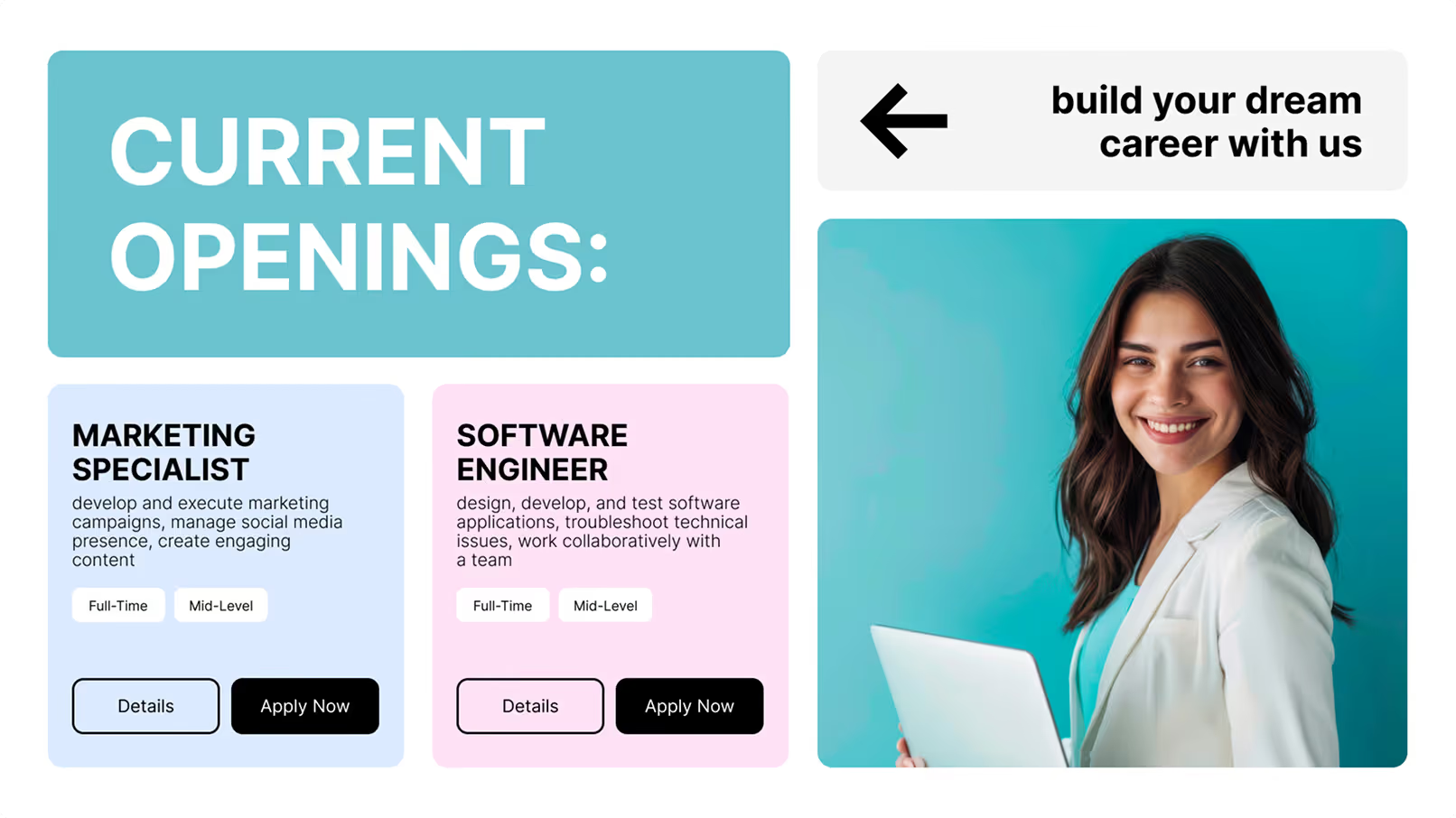
Level Up Your Skills training template with workshop cards and a laptop presenterUnlock Your Potential webinar template with a special guest speaker cardCurrent Openings job board template with Marketing Specialist and Software Engineer roles
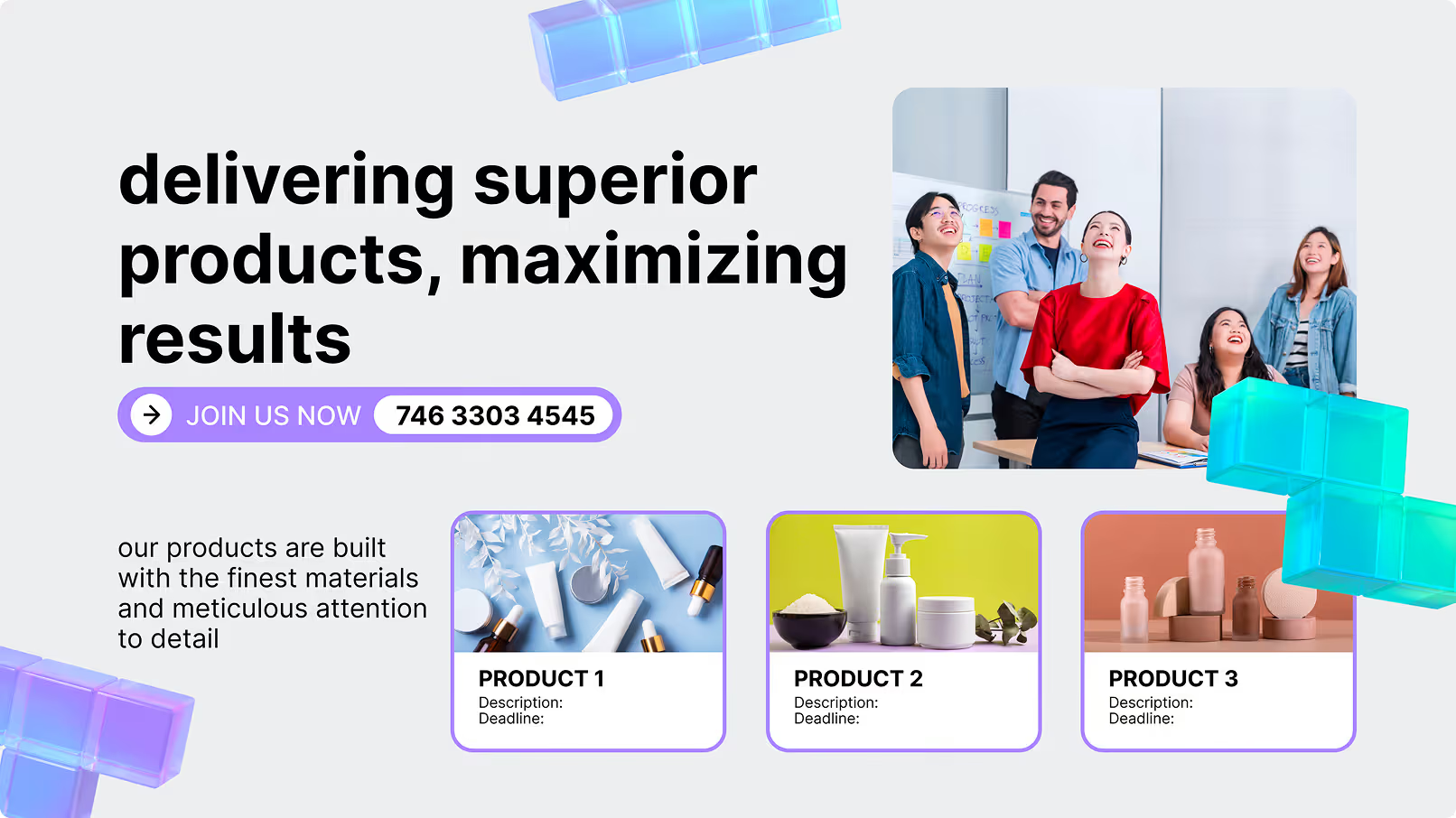
Unlock Your Potential webinar template with a special guest speaker cardCurrent Openings job board template with Marketing Specialist and Software Engineer rolesDelivering superior products template with a team photo and three product cards
Current Openings job board template with Marketing Specialist and Software Engineer rolesDelivering superior products template with a team photo and three product cardsEmployee of the Month template with a laurel wreath badge and staff photo
Delivering superior products template with a team photo and three product cardsEmployee of the Month template with a laurel wreath badge and staff photoOur Products Of The Year template with license pricing cards and a laptop image

Built-in apps

Apps that keep room screens current on their own

An app drops into a playlist like any other item and then looks after itself, which is the end of the weekly calendar export. Cached images and videos play on through an outage; the online apps resume when the network does.

Frequently asked questions about meeting room digital signage

What is meeting room digital signage?

Meeting room digital signage is a network of digital displays used to show room availability, meeting schedules, directions, visitor information, and workplace announcements. Small screens are typically installed outside meeting rooms, while larger displays may be placed in corridors, reception areas, or inside the rooms themselves. The screens are managed through a digital signage CMS, allowing administrators to update content, organize displays, and monitor the entire network from one central dashboard.

How does meeting room digital signage work?

Meeting room signage displays schedule information from a connected source. When the source information changes, the content on the screen updates automatically. Look DS manages the visual layer: screen layouts, playlists, room-status content, wayfinding, branded messages, live web content, and device monitoring. Booking rules and room permissions may remain within the organization’s existing calendar or room-management system.

Why is meeting room signage especially useful in a hybrid workplace?

Hybrid work makes room demand less predictable. Some days may have many employees competing for the same spaces, while rooms remain underused on others. Live room-status screens show available rooms without interrupting meetings. They also reduce ghost bookings and make high-demand rooms easier to use.

What types of rooms and workplaces benefit from digital signage?

Meeting room digital signage is particularly useful for: сonference rooms and boardrooms, huddle rooms and focus rooms, training and multipurpose rooms, hot-desking areas, coworking and flexible workspaces, executive suites, multi-floor offices, corporate campuses and shared meeting facilities Spaces with frequent schedule changes, high turnover, multiple departments, or many visitors usually see the greatest benefit.

Which calendar platforms can be used with meeting room signage?

Meeting room signage may display schedule data from platforms such as Google Calendar, Google Workspace, Microsoft Outlook, and Microsoft 365, depending on the selected integration and configuration. Organizations using an on-premises Microsoft Exchange Server environment should confirm the necessary integration process before deployment. Having an on-premises digital signage installation does not automatically mean that every on-premises calendar system is supported without additional setup.

Does Look DS work with Microsoft Teams Rooms and Google Workspace?

Look DS can be used alongside Microsoft 365, Google Workspace, Google Calendar, Outlook, and Microsoft Teams Rooms environments when the required calendar or data integration is configured.

Can employees book a meeting room directly from the screen?

Interactive booking is possible when the touchscreen signage is connected to a room-booking workflow that supports reservations from the display. Depending on the setup, employees may be able to: Reserve an available room from a touchscreen Open an existing booking page or mobile app through a QR code Check in to a meeting Extend or end a reservation View upcoming availability These actions depend on the connected calendar or booking system. A digital signage CMS alone does not automatically provide room-booking logic or calendar write-back.

Can employees book rooms from their phones?

Yes. A QR code displayed on a room sign can direct employees to the organization’s existing mobile booking page, calendar, web application, or workplace app. This provides a convenient option for non-touch displays and lets employees reserve a room from their mobile device without using the physical screen.

How do check-in and automatic room release work?

Check-in and auto-release are usually controlled by the connected room-booking or workplace-management system. When supported, the meeting organizer must confirm that the room is being used. If no check-in is recorded within a defined period, the booking system can release the room and update the availability shown on the signage. Some organizations connect third-party occupancy sensors to their room-management infrastructure. These sensors are separate from Look DS and must be configured through the relevant platform.

Can meeting room signage eliminate double bookings?

Meeting room signage helps reduce booking conflicts by giving everyone the same visible schedule and room-status information. However, no signage platform can guarantee zero double bookings unless the source calendar, booking permissions, integrations, and synchronization rules are also configured correctly. Look DS displays and distributes the information provided by the connected systems; it does not replace the booking database itself.

How does meeting room signage reduce ghost meetings?

Ghost meetings happen when rooms are reserved but not in use. Signage makes room status visible and supports a check-in process. When the connected booking system supports check-in and auto-release, unconfirmed reservations may be returned to the booking pool. Some workplaces also use third-party occupancy sensors to identify rooms that have been booked but remain empty.

What room-utilization analytics are available?

Look DS provides digital signage reporting such as playback statistics, screen activity, content usage, and device-health information. Administrators can use this data to confirm that room schedules, wayfinding content, and other messages are being delivered correctly. Metrics such as: Booked rooms versus checked-in meetings No-show rates Auto-released reservations Busiest rooms Peak booking hours Average meeting duration Actual room occupancy Normally come from the connected calendar, booking platform, check-in system, or occupancy-sensor solution. Look DS should not be presented as a standalone space-analytics platform unless those data sources have been specifically integrated.

What hardware can be used for meeting room digital signage?

Common hardware options include: Tablet-sized touchscreen door signs Non-touch status displays Power over Ethernet touchscreen panels Battery-powered e-ink displays LCD or LED corridor screens Smart TVs inside meeting rooms Lobby displays Interactive wayfinding screens Standard displays connected to a digital signage media player Look DS can run through the Look App on supported devices or through a Look HDMI Player connected to an HDMI display. Door-sign panels, touchscreens, e-ink devices, LED status strips, mounts, and sensors may be supplied by third-party hardware vendors.

What is the difference between PoE touchscreens and e-ink room signs?

Power over Ethernet, or PoE, delivers power and network connectivity through a single cable. PoE touchscreens are suitable for interactive installations that require booking, check-in, or other touch controls supported by the connected system. E-ink displays consume very little power and may operate on batteries for extended periods. Their wireless installation makes them useful on glass walls or in locations where running new cables is difficult. The right option depends on whether the screen needs interactivity, how often its content changes, local Wi-Fi or network reliability, available power, viewing conditions, and installation cost.

Do I need to purchase special screens?

Not necessarily. You can reuse existing smart TVs and compatible displays by installing the Look app or connecting a Look player. Dedicated commercial displays may be preferable for door signs, corridors, and always-on environments because they are designed for longer operating hours and easier mounting. A small pilot can help determine whether existing hardware is sufficient before a larger investment is made.

Where should meeting room door signs be installed?

Door signs should be at a comfortable viewing height near the entrance. A suitable height is approximately 60 inches from the floor, though accessibility requirements and the building's physical layout must also be considered. The screen should be easy to read from the hallway without obstructing the entrance. Color-coded indicators make the room's status visible from farther away.
Can meeting room signage provide wayfinding and navigation?

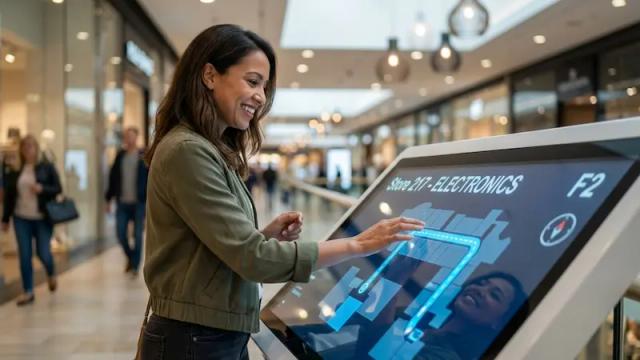
Yes. Larger screens in the corridor, lobby, and reception area can display: nearby meeting rooms, current room availability, meeting names and time slots, floor plans, directional arrows, interactive maps, visitor destinations and reception instructions. Multi-zone layouts combine room information with maps, announcements, or safety messages, reducing visitor confusion and reception staff workload.

What can in-room screens display when no meeting is taking place?

Instead of remaining blank, an idle meeting room screen can display a scheduled playlist. This content may include company announcements, KPIs and performance dashboards, project updates, leadership messages, safety reminders, team recognition, training information, branded content, visitor welcomes, and live internal web pages. Look DS can display compatible web pages and dashboards by URL, including browser-based or HTML5 content. For example, a screen may show a live Power BI dashboard or another internal web application and refresh it automatically. Room availability should remain the primary purpose of this solution page. Wider employee communication, company culture, onboarding, and leadership content can be covered in greater depth on a dedicated corporate digital signage page.

How can signage content be personalized for different departments or floors?

Administrators can organize screens into groups by room, department, floor, building, or location. Different playlists and layouts can then be assigned to each group. For example: Reception screens can welcome visitors Sales-area screens can show performance dashboards Engineering corridors can show project updates Executive areas can display branded event information Global emergency content can be sent to every screen Local announcements can remain limited to one floor Templates can be customized with the organization’s logo, brand colors, typefaces, and visual style. Relevant targeting also prevents information overload caused by showing the same generic content on every screen.

Can different users or coworking tenants receive separate access?

Role-based access can be used to control who manages particular screens, content, playlists, or locations within the digital signage platform. In a shared workspace, an operator manages the screen network and teams have access restrictions. Rules about booking rooms, authentication, and reservations should be managed by the connected calendar or platform.

Can meeting room screens display emergency alerts?

Yes. Administrators can override normal signage with urgent instructions, evacuation routes, or safety messages. This is useful for screens inside meeting rooms and in lobbies. Look DS APIs, Action Links, or automation platforms such as Zapier may also be used to trigger specific content from an external workflow. A direct connection to an emergency notification platform requires a confirmed integration and should not be assumed to be available by default. Digital signage should complement, not replace, legally required alarms, public-address systems, emergency lighting, or other life-safety infrastructure.

Is Look DS cloud-based or available on-premise?

Look DS is available as a cloud-based SaaS platform for centralized remote management and scalable screen deployment. An on-premise digital signage option is also available for organizations that need to host the server infrastructure within their own environment. The appropriate deployment model depends on internal IT policies, hosting requirements, network architecture, and administrative resources.

Can non-technical staff manage meeting room screens?

You can handle routine screen and content management through the Look CMS dashboard. Users can update playlists and layouts, customize templates, schedule content, group screens, and publish content. They can also monitor device status and review playback statistics. Calendar-driven information can update automatically, reducing the amount of manual work required from IT and office administrators.

How much training is required?

Most teams can begin with a small set of workflows: connecting screens, choosing templates, assigning playlists, grouping devices, and checking screen status. A brief IT, facilities, reception, or office management staff onboarding session is recommended. Employees also need clear instructions on room check-in, QR booking, auto-release rules, and screen status meaning. The technical setup may be straightforward, but successful adoption also depends on employee behavior and consistent room-management policies.

What is the best way to roll out meeting room signage?

Start with a pilot involving two or three rooms. Choose rooms with different usage patterns, such as a high-demand conference room, a small huddle room, and a client-facing boardroom. During the pilot, test: Calendar data accuracy Screen placement Readability Templates and branding Network reliability Device health Touch or QR interactions Employee check-in behavior Wayfinding requirements Reporting and measurement Use feedback from IT, facilities teams, employees, and reception staff before expanding to additional floors or buildings.

How much does meeting room digital signage cost?

The total cost depends on the number and type of screens, software licenses, media players, mounting equipment, installation, network infrastructure, and integration requirements. Typical cost items include: Digital signage software licenses Touchscreens or e-ink displays Smart TVs or standard commercial screens Media players Wall or glass mounts PoE cabling or electrical work Wi-Fi and network configuration Calendar or booking-system integration Installation and maintenance Staff onboarding and training Costs may be reduced by reusing existing screens, starting with a limited pilot, and eliminating printed room schedules and repetitive manual content updates.

Does meeting room signage require a permanent internet connection?

An internet or local network connection is required to receive new schedule data, remote commands, web pages, and content updates. Locally cached signage content may continue playing if the connection is temporarily interrupted, but live room availability, dynamic dashboards, and calendar changes may not refresh until connectivity is restored. Network reliability is particularly important for screens that display frequently changing booking information.

Does Look DS provide video conferencing cameras, microphones, or soundbars?

No. Look DS is a digital signage platform and does not replace a video conferencing system. Cameras, microphones, speakers, soundbars, room controllers, and conferencing appliances must be selected separately. Using Look DS in an office with Microsoft Teams Rooms or Zoom Rooms does not imply hardware certification, AV integration, or control of the conferencing equipment.