Product
How it worksFeaturesAppsFree digital signage templatesDigital signage hardwareOn-premise digital signage
Solutions
Choose your business and find out how to increase efficiency
retail
Retail

Supermarket & shopping mall

Grocery store

Pet store

corporate
Corporate

Meeting & conference room

HR

Lobby

Breakroom

education
Education

School

University

event
Events
Digital signage for government, preview
Government
Hospitality
Hospitality

Resort

Hotel

Night club

Spa

Beauty industry

digital signage for healthcare
Healthcare

Hospital

Medical center

Veterinary

Pharmacy

Dental

Waiting room

Manufacturing Preview
Manufacturing
menu
Digital menu

Quick service restaurant (QSR)

Cafe

Bar

Drive thru

Pizzeria

Food truck

Digital signage for restaurants, preview
Restaurant, cafe & bar
Digital Signage for Entertainment, amusement parks
Entertainment

Arena and stadium

Cinema

Museum

Amusement park

Casino

fitness
Fitness
banking
Banking
advert
Advertising

Digital out-of-home (DOOH)

Indoor

transportation
Transportation

Airport

Gas station

Bus station

Train station

Parking

Car Dealership
Car dealership
real estate preview
Real estate
Digital signage for church, Preview
Сhurch
Resources
Use casesFAQKnowledge baseBlogDownloads
Company
About usReseller programWhite labelContacts
Pricing
AI Wizard
new
Log inTry for free
English
English
Italian
Spanish
Portuguese
French
Deutsch
Русский icon
Русский
Home
Knowledge base
Content
Content Creator Adaptive Orientation

Content Creator Adaptive Orientation

Because all size and positioning settings are defined in percentages, the content automatically adapts to any screen resolution while preserving its proportions and placement. However, in some cases you may need to adjust the content for different screen resolutions. For example, if a group includes screens with different orientations — portrait and landscape — you can configure the same content to display correctly on both.

Content orientation
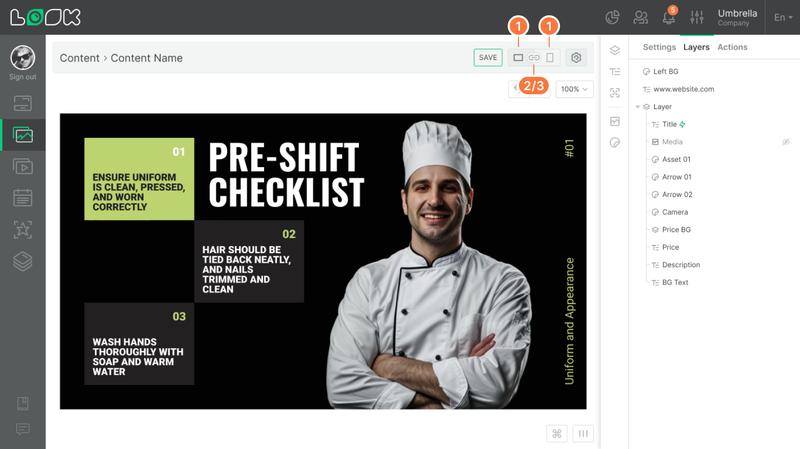
Adaptive orientation of editable content
  1. To see how the content will look in horizontal and vertical orientation, use the icons to the left of the settings icon in the page navigation panel.
  2. All content changes are automatically applied to both orientations. To separately adjust the horizontal and vertical content orientations, click on the chain icon Unlink layout orientations. When you unlink the orientations, the vertical and horizontal versions of the content adjust independently. This means that you can change the aspect ratio, positioning, add or remove layers and widgets in one orientation of the content, and it will not affect appearance of the content in the other orientation.
  3. To restore the link between the horizontal and vertical orientations of the content, click the Link layout orientation chain icon. The link is reestablished, and the modal window prompts you to choose which orientation settings to save; the settings for the opposite orientation are automatically deleted.

‍

Can't find your answer?
Contact Support
Content
Content Interface
Uploading Content and Content Types
Adding apps
Content settings
Content Usage
Content search and filtering
Multi-Selection of Content
Creating Content with Look AI Wizard
Content Creator Interface
Content Creator Settings
Content Creator Media
Content Creator Text
Content Creator Assets
Content Creator QR code
Editable content and templates
Visual Content Creation Editor
Content Creator List of Layers
Content Creator Shortcut & Grid
Content Creator Adaptive Orientation
Content Creator Layer
Categories
Getting started
Getting started
Hardware
Hardware
Screens
Screens
Company
Company
Actions
Actions
Content
Content
Playlist
Playlist
Schedules
Schedules
Screen Layouts
Screen Layouts
Apps
Apps
Billing
Billing
Product
How it worksFeaturesAI WizardWizardAppsFree digital signage templatesDigital signage hardwareOn-premise digital signagePricing
Company
About usReseller programWhite LabelContacts
Solutions
Retail Hospitality BankingCorporateHealthcare FitnessAdvertising Education TransportationEventsReal estateManufacturingRestaurants, cafes & barsEntertainmentCar dealershipGovernmentChurchDigital signage solutions
Resourses
FAQUse casesKnowledge baseLook academyBlogWhat is digital signageDigital signage displaysDownloadsAlternativesTroubleshootingRSS
Instagram linkFacebook linkX iconLinkedIn linkYouTube Icon
Look DS LLC. Address: 1201 N Orange Street Suite #7003, Wilmington, DE 19801, United States
info@lookdigitalsignage.com
capterra-best-valueSoftware Sugest Awardsoftware-advice-customer-supportget-app-category-leaderG2-spring-2025-HighPerformer-Small-Businesscapterra-short-list-2025
Look Digital Signage Software Logo Footer
Privacy Policy
Terms of Service
Service Level Agreement
©2026 LOOK DS LLC