Content Creator Media
To insert Media, click the Media icon in the toolbar or press the M shortcut key. The Choose media panel will open in the right sidebar, showing three tabs.
My media
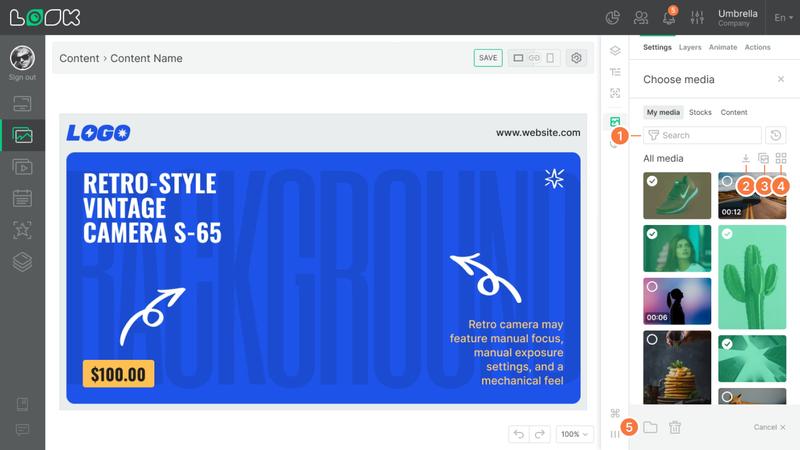
Your personal media library — it holds all the files you have uploaded or explicitly added to the library.
- Search and filtering
Files can be searched by name, filtered by type (Image, Video) and orientation (Landscape, Portrait), and sorted. The Recents sort order is selected by default, showing the most recently used files first. - Adding files
The Upload Media button opens the file picker (images and videos are supported). - View modes: all media or folders
- View modes: grid or list
- Multi-select
Selecting any file puts all others into multi-select mode. A bottom bar appears with options to move files to a folder, delete them, or clear the selection.
Removing from the library
Deleting a file from My media removes it from the library, but does not remove it from the canvas if it has already been placed there.
Folders
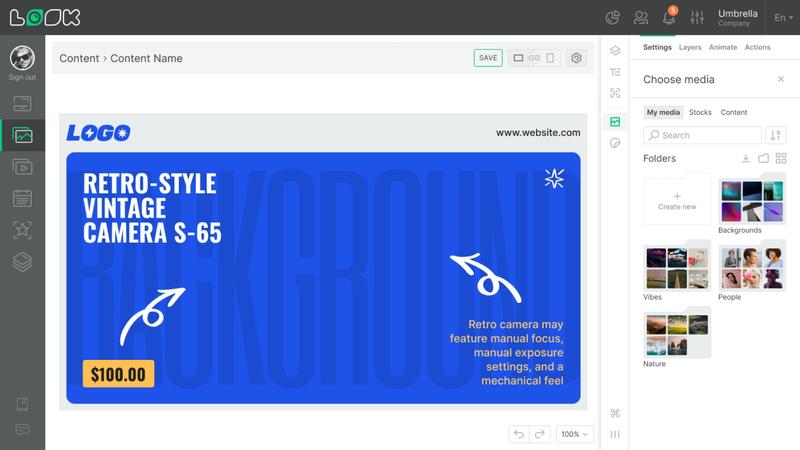
Files can be organized into folders. Folders don't affect visibility in the main library (All media) — a file in a folder still appears in All media. The same file can belong to multiple folders at once. Deleting a folder does not delete the files inside it.
You can move a file to a folder via the preview dropdown menu, via multi-select, or from the floating toolbar of a Media element already placed on the canvas.
Stocks
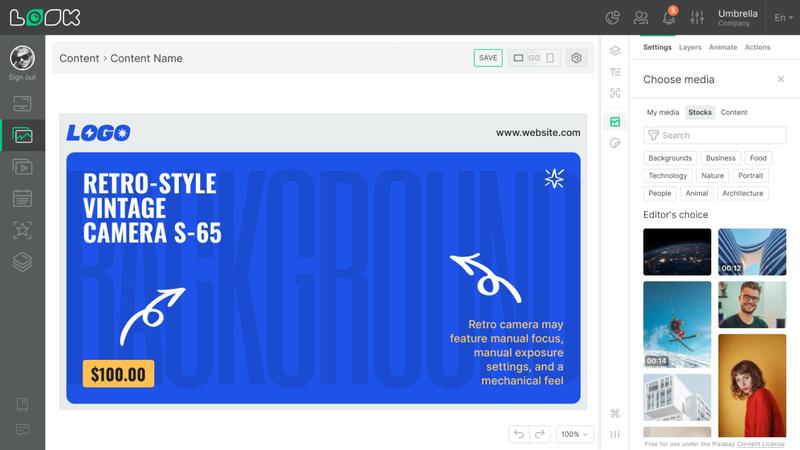
A tab for browsing and adding stock media. Filtering by type (Image, Video) and orientation is available.
By default, stock files added to the canvas are not saved to My media. You can add them to the library via the preview dropdown menu or through multi-select.
Content
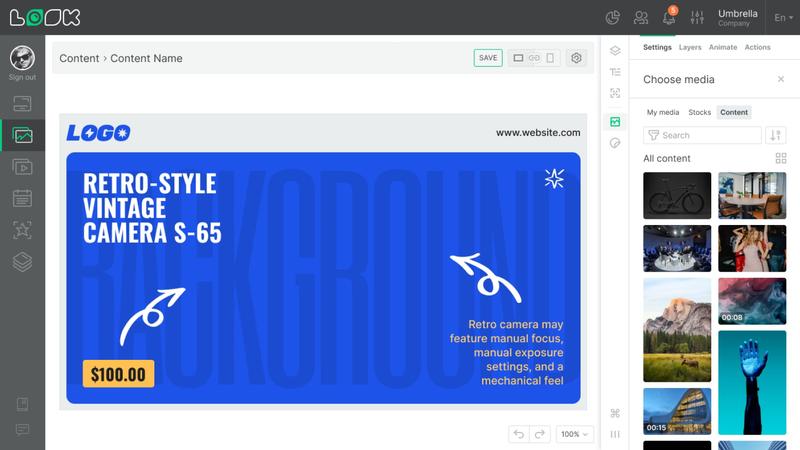
A tab for using images and videos from your main Content section. Search, type and orientation filtering, sorting, and both grid and list views are available.
By default, files from Content placed on the canvas are not added to My media. You can save them to the library via the preview dropdown menu or through multi-select.
Media files live independently from your content library: deleting, blocking, or setting an expiry on a file in the Content section has no effect on Media that has already been placed.
Media settings
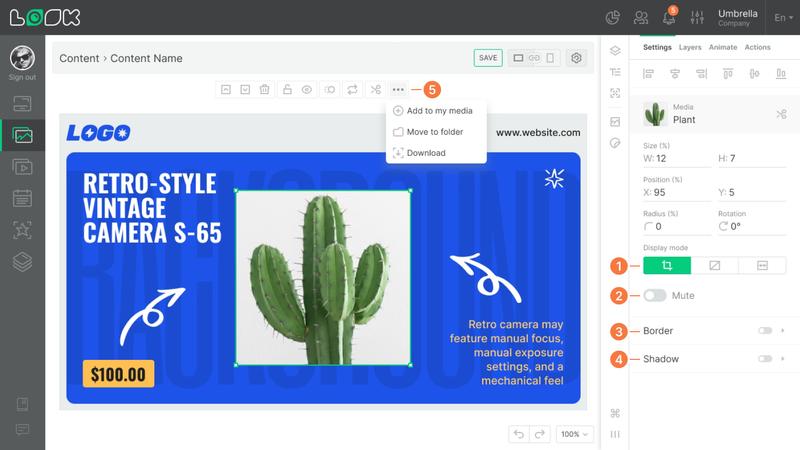
Once Media is placed on the canvas, its settings appear in the right sidebar:
- Display mode — how the file fills the widget area: crop to center, fit while preserving the original aspect ratio, or stretch to fill the full area.

- Mute — disables the audio track (video only).
- Border — stroke width and color.
- Shadow — intensity, color, and blur of the shadow.
- The floating toolbar of a selected Media element also provides quick actions: add to My media, move to folder, download.