Content Creator Text
Add text to your layout and style it with built-in or custom fonts.
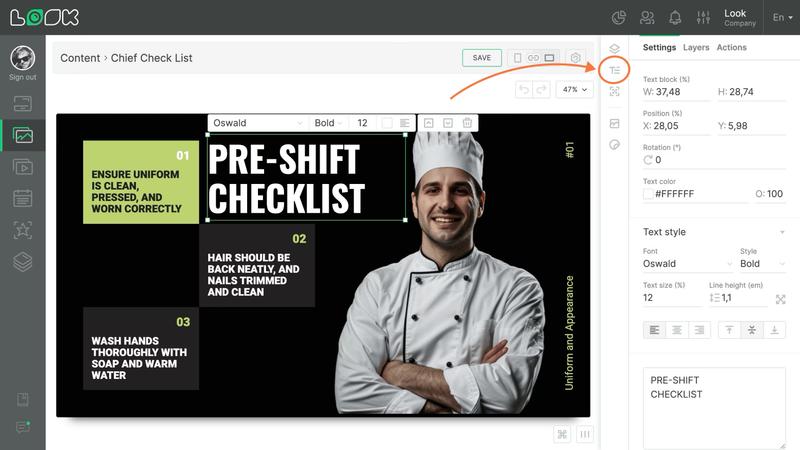
Creating and configuring text blocks
- To create a text widget, select the T icon in the toolbar or press the quick add hotkey T.
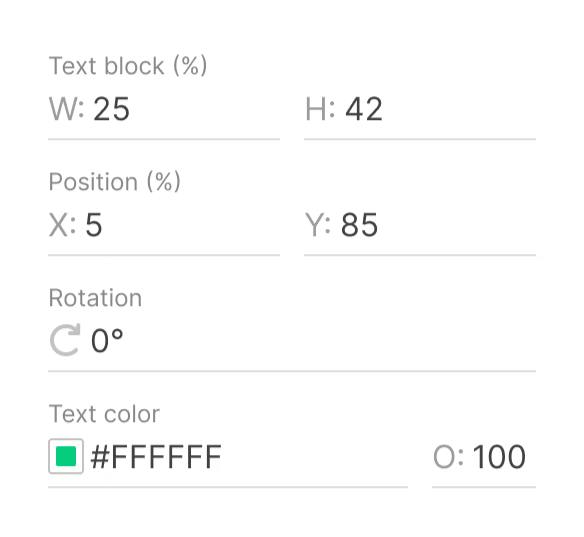
- Control size with the Text area parameter and positioning with Position. The Rotation function lets you rotate the element at any angle. Text color settings adjust the shade and transparency of the text.
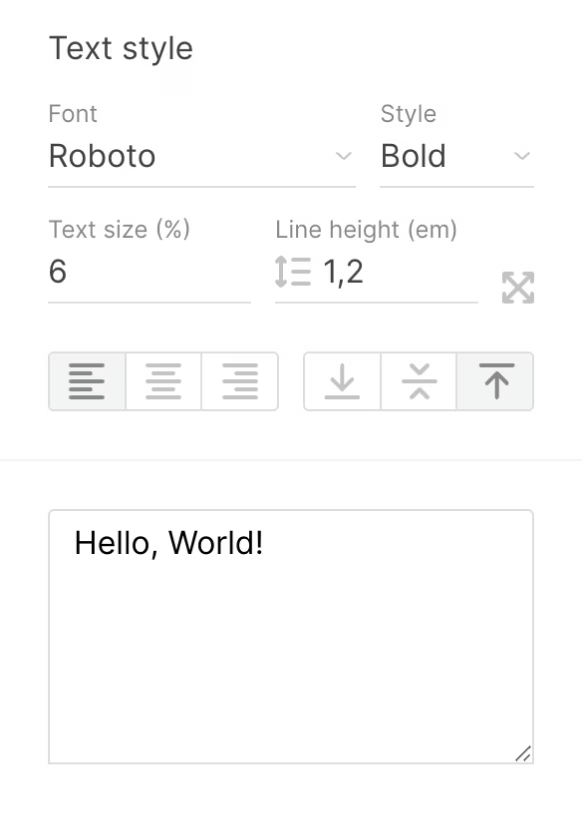
- The Text style section includes font selection, weight, size, line spacing, and alignment (horizontal/vertical). The Fit to size button next to Line height automatically sets the maximum font size to fit the block dimensions. Edit content in the bottom field or directly in the workspace with a double-click.
Adding fonts
- To add a new font, click Add font in the font selection list.
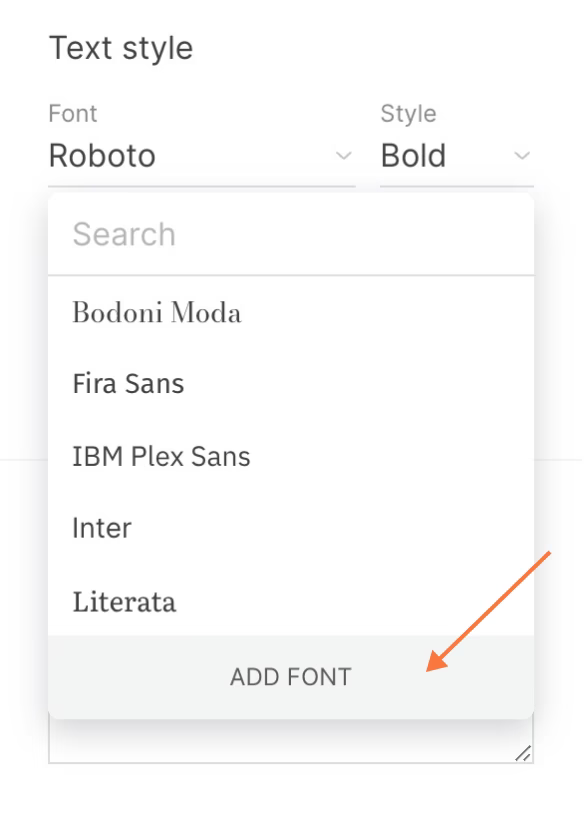
- The modal window offers two options: connect from Google Fonts library or upload your own file. To select from Google Fonts, click "+" next to your desired option.
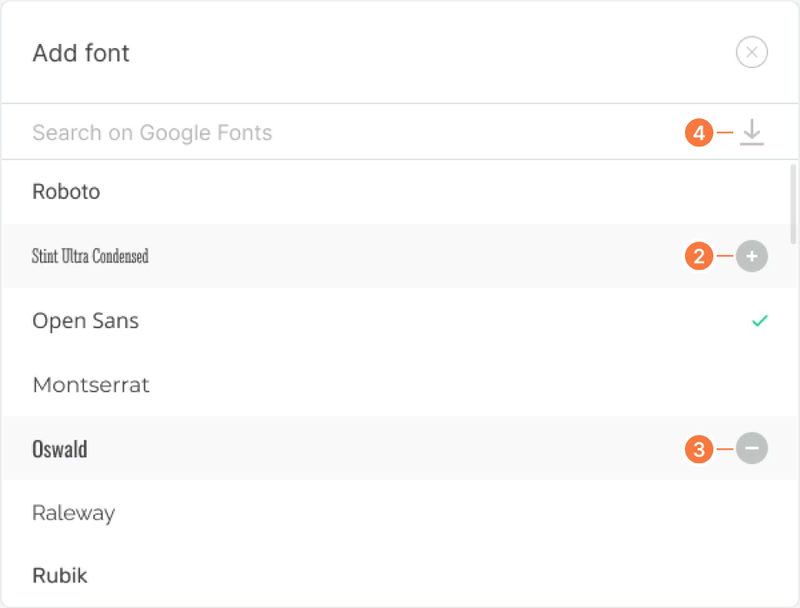
- Remove fonts using the "–" icon.
- Upload custom files through the corresponding icon in the search bar.
- New fonts will appear in the main font selection list.
Can't find your answer?
Contact Support