Content Creator Layer
A layer is a separate working area within a editable content. You can add other content to it, as well as nest other layers and widgets (in this case, the layer functions as a group).
Adding a layer
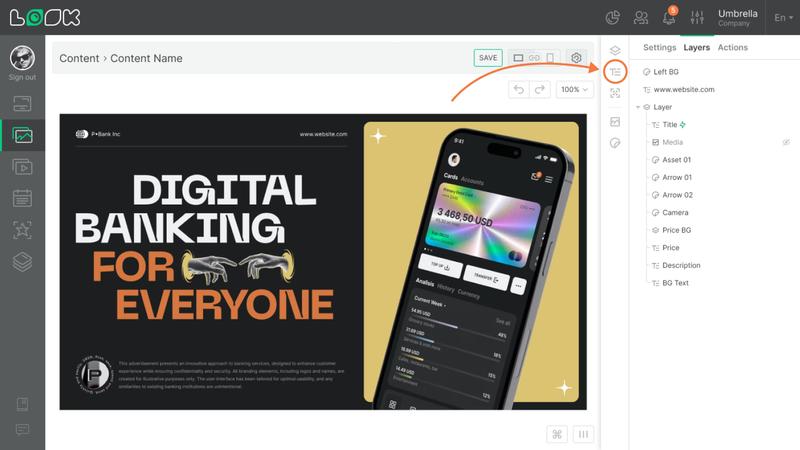
To create a new layer, click the Layer icon in the toolbar or use the L keyboard shortcut.
Layer settings
- To open the settings, select the layer on the canvas or in the layer list and switch to the Settings tab.
You can quickly open the settings of any layer or widget by double-clicking the desired element.
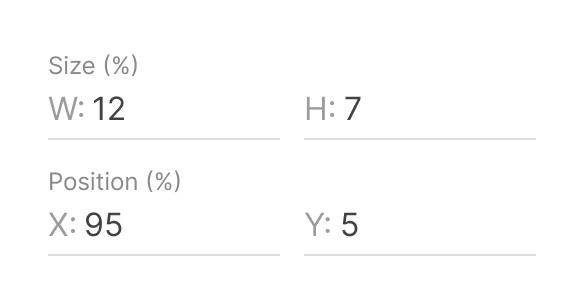
- The first group of settings controls the layer’s size and position. All values are set in percentages.
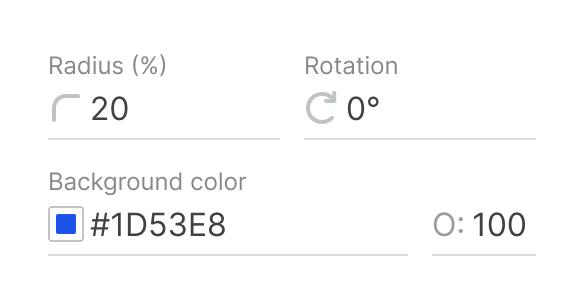
- Here you can also adjust corner radius, rotate the layer, and change the background color and opacity.
Adding background content to a layer
A layer background can be filled with an image or video from the Media library.
- In the layer settings, click Choose content.
- Select the required content from the list.
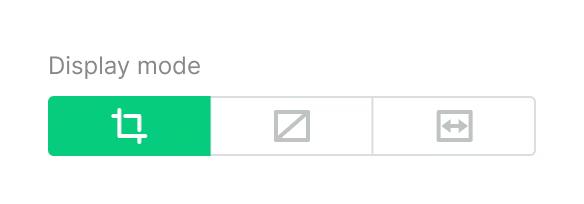
- If needed, set the display mode for images.
Display mode defines how an image or video is displayed within the layer.
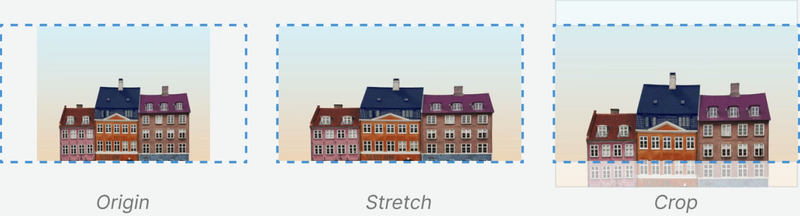
- The Mute toggle disables sound for background content that includes audio (for example, videos).
- To remove background content from the layer, click the Remove icon next to the content name.
Border and shadow
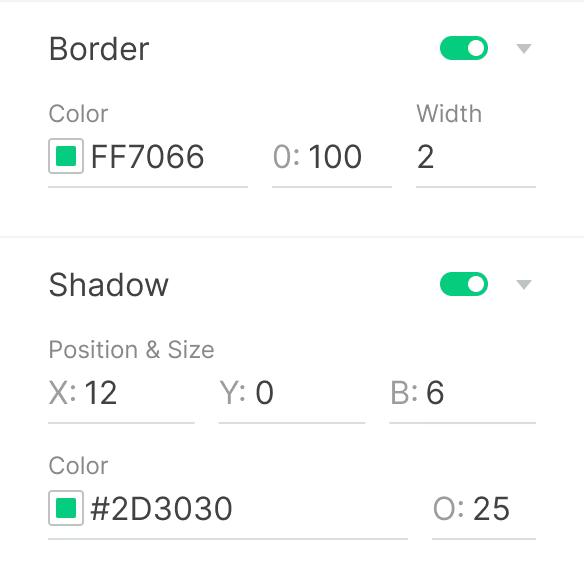
Layers also support border and shadow settings.
Adding layers and widgets inside a layer
You can add other layers and widgets inside a layer. Nested elements automatically adjust their size and position based on the parent layer.
To add an element, select the layer on the canvas and click the icon of the required item in the right-hand toolbar.
Can't find your answer?
Contact Support