Content Creator Assets
The Assets widget lets you place your own images on a layout — such as logos, stickers, emojis, or any other decorative elements in JPG or PNG format.
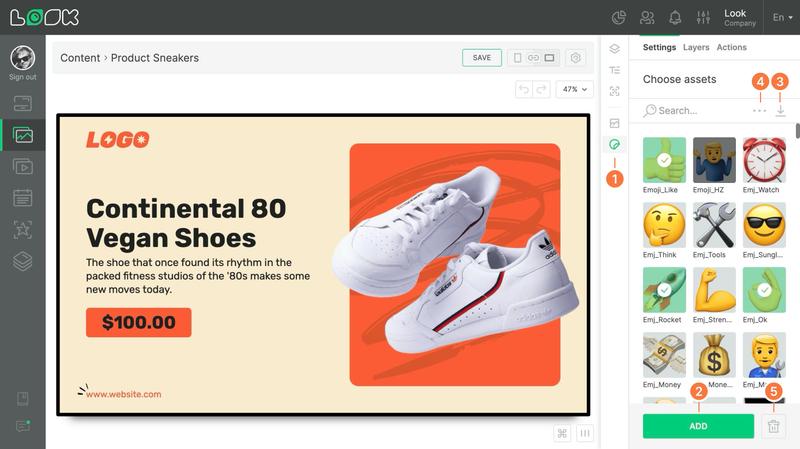
Adding an image
- Click the Assets button in the toolbar or press the I hotkey.
- In the sidebar, select the image you want and click Add, or simply drag it onto the workspace.
Uploading new assets
- To upload a new file, click the Upload assets button on the right side of the search bar.
Managing and sorting
- Use the menu with the three-dot icon to sort assets alphabetically or by date added.
- To remove an asset, select it and click Delete in the sidebar.
When you delete an asset, it will also be removed from all layouts where it was previously used.
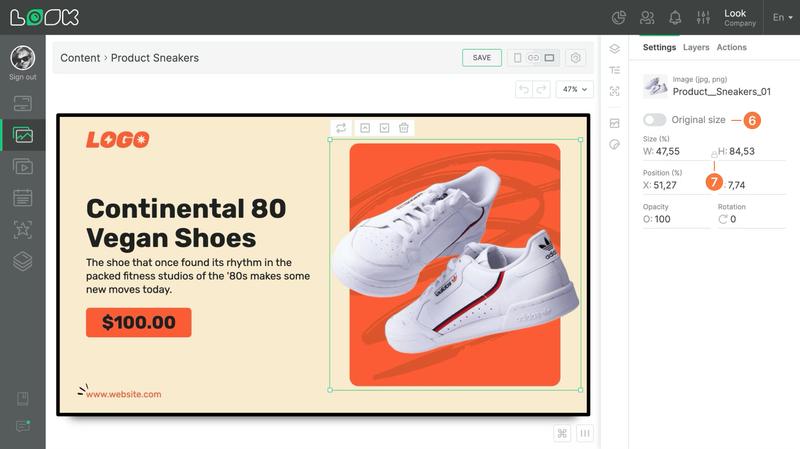
Display settings
- The Original size option displays the image in its native resolution.
- To keep proportions when resizing, enable the Keep original ratio icon between the width and height fields.
Can't find your answer?
Contact Support