
Table of Content
Is the Apple Mac Mini a smart choice for your digital signage network? Yes, especially if you prioritize performance and long-term reliability. Sitting comfortably between simple media sticks and bulky tower computers, the Mac Mini delivers the processing power needed for crisp 4K content and complex layouts, allowing you to keep your screens running smoothly 24/7 without constant maintenance.
While low-cost streaming devices often struggle with heavy video files or multi-zone setups, the Mac Mini handles demanding content with ease. Its compatibility with professional software like Look Digital Signage and Mobile Device Management (MDM) tools makes it a strong candidate for businesses that need to scale from one screen to thousands while keeping management simple.
What Is the Apple Mac Mini and Why Use It for Digital Signage Hardware?
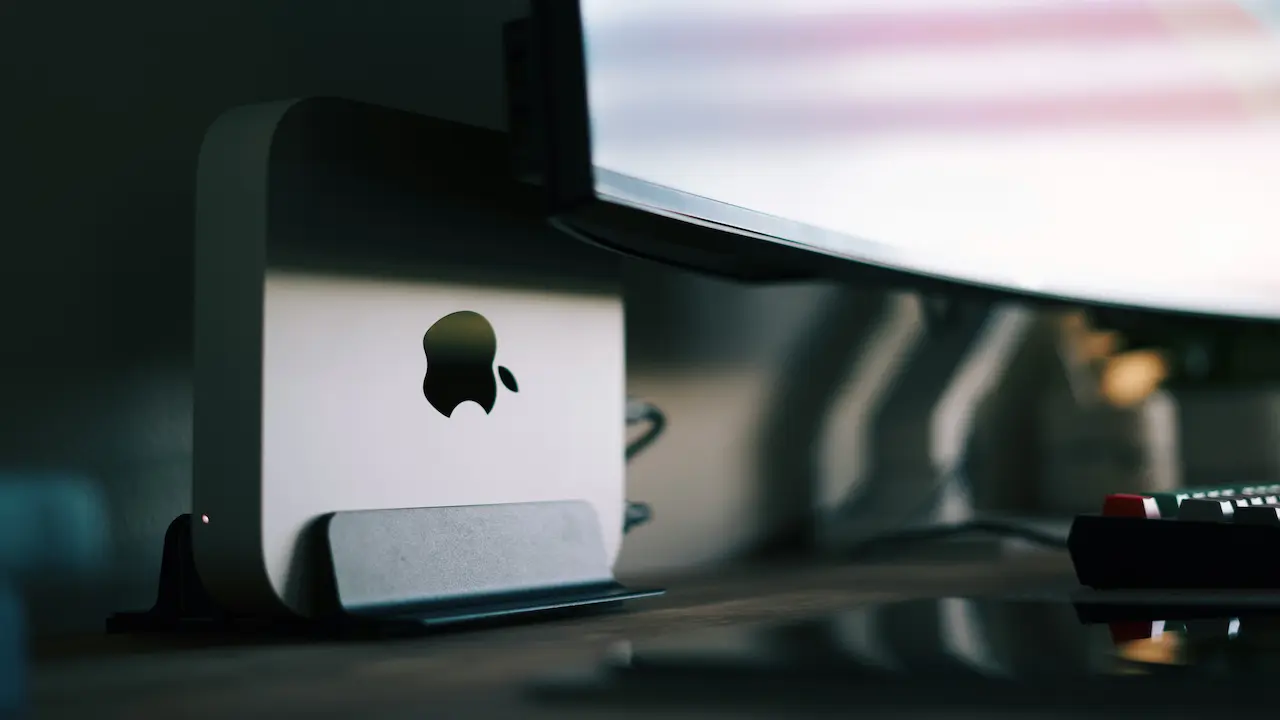
The Apple Mac Mini is a compact desktop computer that packs workstation-level performance into a 7.7-inch square aluminum frame. Because it ships without a built-in display or keyboard, it serves perfectly as a dedicated media player that can be tucked away behind large commercial displays or inside kiosk enclosures. It has evolved from an entry-level Mac into a robust commercial player capable of powering sophisticated digital signage projects.
.webp)
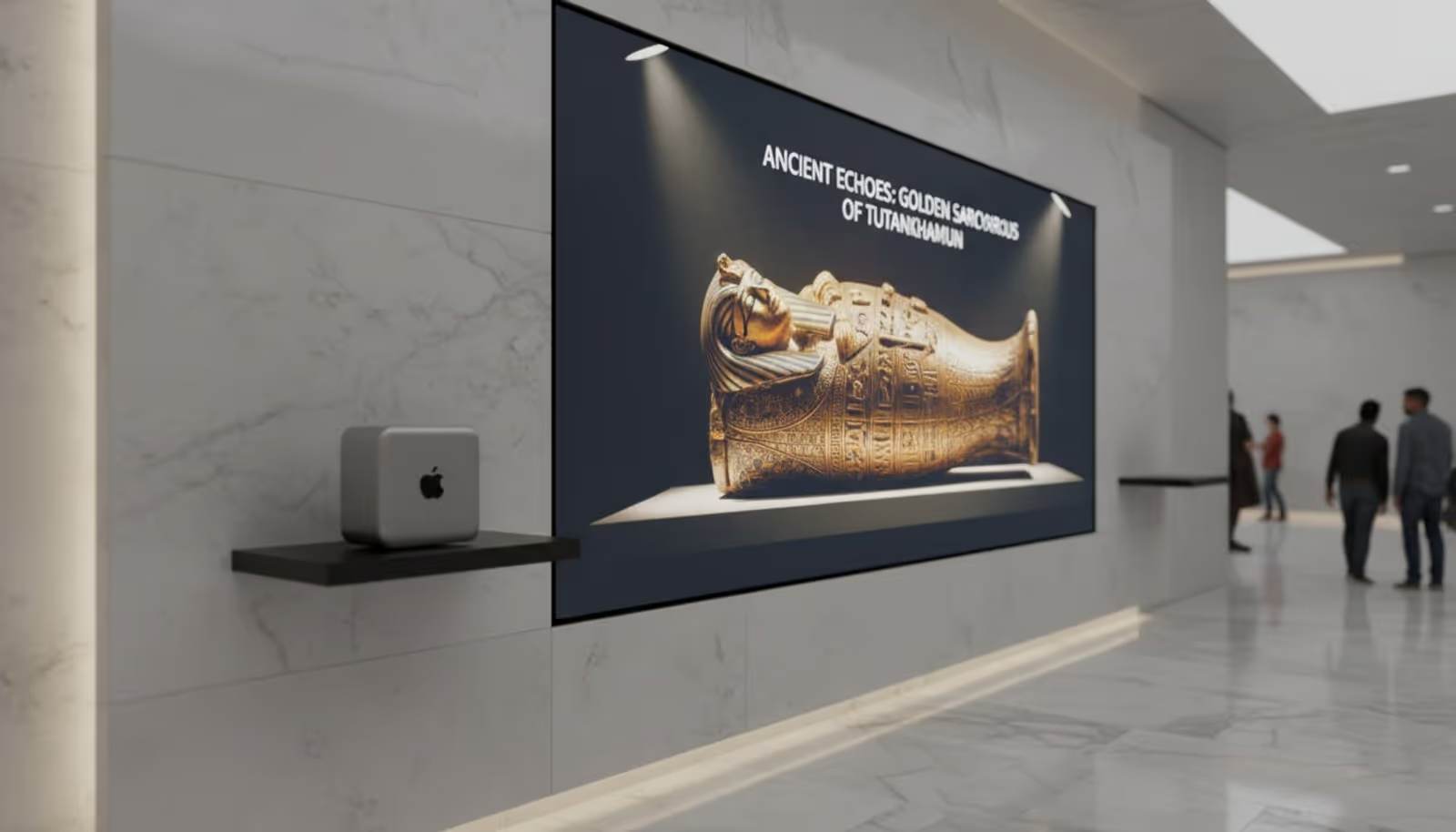
Choosing a Mac Mini is a decision for longevity and stability. While cheaper dongles might suffice for a basic image slideshow, the Mac Mini is built for scenarios where performance is non-negotiable. Running on macOS, it offers a secure, stable environment that resists the crashes and lag often seen in consumer-grade streaming sticks. It is a frequent choice for flagship retail stores, corporate HQs, and museums that require fluid, stutter-free visuals.
Key Features of Mac Mini Relevant to Digital Signage
The defining advantage of the modern Mac Mini is Apple silicon (M1, M2, and newer chips). This architecture unifies the CPU, GPU, and Neural Engine, significantly reducing lag and power consumption. For your signage, this means the device can run data-heavy animations and high-resolution video loops for days on end without overheating.
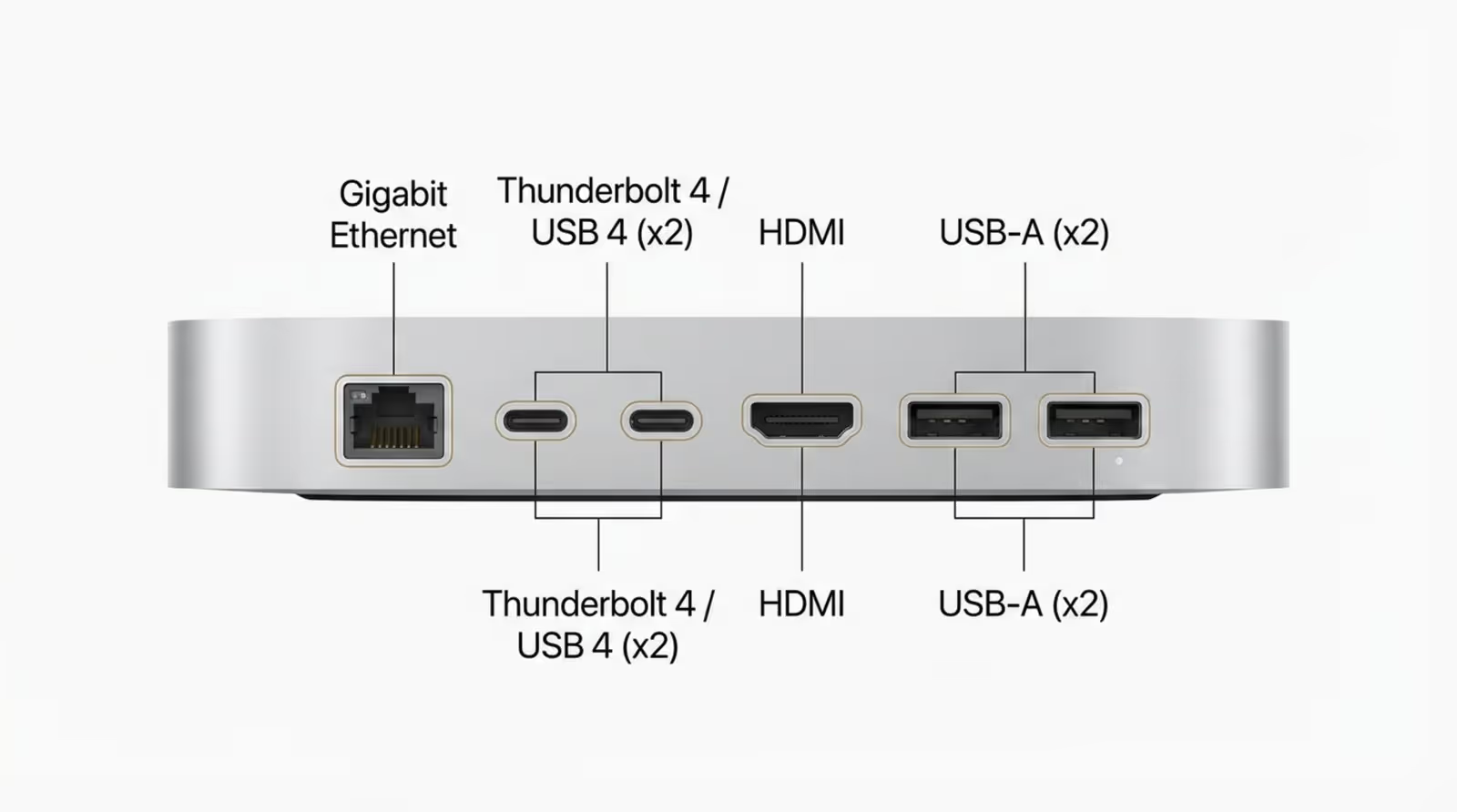
Connectivity is another strong point. With Thunderbolt 4 and HDMI ports, the Mac Mini connects easily to professional displays. It also operates quietly; the efficiency of the M-series chips means fans rarely spin up audibly, making the device suitable for quiet environments like libraries, galleries, or executive boardrooms.
Advantages of Apple Mac Mini over Other Hardware Options
Compared to consumer options like basic TV sticks, the Mac Mini sits in a different reliability tier. Plastic dongles often lack the thermal management required for 24/7 commercial use, leading to throttling or failure. The Mac Mini’s aluminum chassis acts as an effective heat sink, keeping internal components cool even when driving 4K content to multiple screens.
Flexibility is also key. The Mac Mini can function as a dedicated player, a local content server, or an interactive kiosk controller. The stability of macOS minimizes system crashes, ensuring your screens stay live-a critical factor for public-facing displays where an error message or black screen looks unprofessional.
Technical Specifications That Matter for Digital Signage
Understanding the hardware helps you select the right configuration for your specific needs. Apple silicon has redefined what a small form-factor computer can do. Unified memory allows the CPU and GPU to access data instantly, ensuring that large video files load and play without hesitation.
Storage reliability is equally important. With fast SSD options starting at 256GB, you can cache large libraries of high-quality content locally. This supports offline playback, meaning your screens keep running your scheduled playlists even if the internet connection drops.
Processing Power: Comparing M1 vs M2 Mac Mini
The M1 chip (released in 2020) features an 8-core CPU and GPU, which is more than capable of handling standard digital signage tasks, including 4K video and split-screen zones. The M2 chip (2022) offers a performance bump with a 10-core GPU option, making it a better fit for highly demanding tasks like rendering live data dashboards or complex interactive scenarios.
For most standard signage networks, an M1 Mac Mini provides excellent performance at a better value. However, opting for M2 or newer chips gives you "future-proofing," ensuring your hardware can handle software updates and richer content formats for years to come.
Connectivity Options: HDMI, USB-C, Thunderbolt, Ethernet, and Wi-Fi
Robust connectivity is essential for a stable setup. The Mac Mini includes two Thunderbolt 4 (USB-C) ports for high-speed data and video output (up to 6K), alongside a standard HDMI port for easy connection to most commercial TVs (4K at 60Hz). This allows you to drive two separate screens from a single device.
For networking, the built-in Gigabit Ethernet port is highly recommended for signage to ensure a consistent connection for remote updates. Wi-Fi 6 is available for wireless setups, providing fast and stable throughput. USB-A ports allow you to connect peripherals like touch overlays or cameras if your project requires interactivity.
Memory and Storage Considerations
Because the unified memory is built into the chip, it cannot be upgraded later, so choosing the right spec upfront is vital. For most digital signage content, 8GB of memory is sufficient. However, if you plan to use complex HTML5 widgets or touch interactivity, 16GB will ensure smoother operation.
Similarly, storage is fixed. A 256GB SSD is usually plenty, as cloud-based software like Look Digital Signage typically downloads only the necessary files for the current schedule to the local drive.
Graphics Capabilities for HD and 4K Displays
Graphics performance is where the Mac Mini shines. The M-series GPUs render colors accurately and handle video decoding efficiently. This is critical for premium brands-such as luxury retail or design studios-where color representation must be perfect.
The hardware supports a wide array of modern video codecs, ensuring your content plays back exactly as intended. Whether powering a single promotional screen or a video wall, the Mac Mini maintains high frame rates and smooth transitions.
Setting Up Apple Mac Mini for Digital Signage Displays
While the Mac Mini is consumer-friendly, configuring it for unattended commercial use requires a few specific steps. Since it is a desktop computer, you will need a mouse and keyboard for the initial setup before deploying it to its final location.
During the macOS setup, create a dedicated "Signage" user account. This prevents personal notifications, iCloud pop-ups, or unrelated background apps from interfering with your content.
Physical Setup and Screen Connections
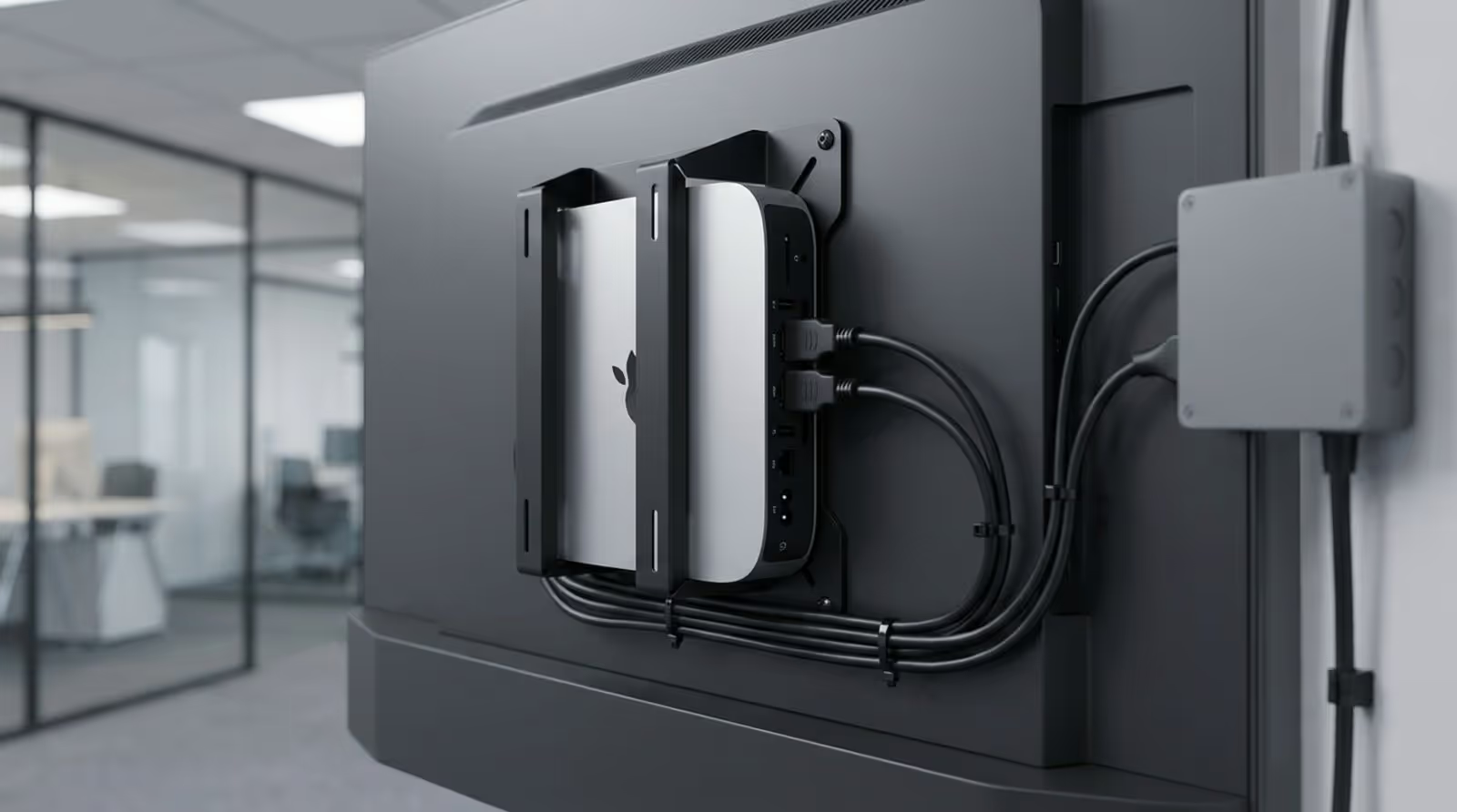
Connect the Mac Mini to your display via HDMI for standard 4K screens, or Thunderbolt for higher resolutions. Because the device is small (roughly 20cm x 20cm), it can be easily mounted behind a screen using a VESA bracket. This secures the hardware and hides cabling for a clean, professional look.
Ensure there is at least an inch of airflow around the device. While M-series chips run cool, proper ventilation ensures longevity, especially if the screen is mounted in a recessed wall or enclosure.
Network Configuration and Security Settings
A wired Ethernet connection is always preferred for "set and forget" reliability. If you must use Wi-Fi, ensure the signal strength is robust at the installation site. In System Settings, configure the "Energy Saver" options to prevent the computer and hard disk from going to sleep. You want the display to remain active during business hours.
Additionally, disable "Automatic Software Updates" that might force a restart in the middle of the day. You can schedule these manually or manage them via remote tools to ensure they happen outside of operating hours.
Managing Devices at Scale with MDM Solutions
If you are deploying screens across multiple locations, configuring each Mac Mini manually is inefficient. Mobile Device Management (MDM) solutions allow IT teams to enroll devices automatically. You can push network settings, security restrictions, and your digital signage app to all devices simultaneously.
MDM also adds a layer of security, allowing you to remotely lock or wipe a device if it is lost or stolen. For enterprise deployments, this centralized control is indispensable.
Selecting Compatible Digital Signage Software for macOS
The hardware provides the power, but the software determines how easy it is to manage your screens. To get the most out of your Mac Mini, you need a solution that runs natively on macOS and offers robust remote management features.
We recommend Look Digital Signage as a strong fit for the Mac ecosystem. It offers a dedicated player app for macOS that utilizes the hardware's graphics capabilities to deliver smooth, reliable playback.
Why Look Digital Signage Fits the Mac Mini
Look Digital Signage is designed to help you manage content on one or one thousand screens from a simple web-based dashboard. It pairs perfectly with the Mac Mini’s performance capabilities:
- Screen Layouts: Use the Mac Mini's GPU to render multi-zone layouts with video, images, and tickers simultaneously.
- Offline Playback: The Look app caches content to the Mac Mini’s SSD, ensuring your screens keep playing even if the internet goes down.
- Proof-of-Play: Get detailed analytics on what played and when, helping you prove ROI to stakeholders.
- Remote Management: Update content, change schedules, and monitor device health from anywhere, without needing to touch the Mac Mini physically.
Key Software Features to Consider
When selecting your platform, prioritize Smart Scheduling. This allows you to set content to play at specific times of day (dayparting) or on specific dates, automating your workflow. If your Mac Mini is powering a touchscreen, ensure the software supports Interactive Scenarios to create touch-based navigation or catalogs.
Look for a solution that supports "Auto-Start" on macOS, ensuring the player app launches immediately if the device reboots after a power outage.

Integration with Apple Ecosystem
Using Macs for signage often simplifies workflows for creative teams. Designers working on Macs can easily preview content before publishing. Furthermore, the Mac Mini integrates well with Apple’s native security protocols, helping you meet strict IT compliance requirements in corporate or healthcare environments.
How the Apple Mac Mini Increases Productivity in Digital Signage Applications
Productivity in digital signage is about minimizing downtime and reducing the time staff spend fixing technical issues. The Mac Mini excels here by offering industrial-grade stability. Unlike cheaper players that may freeze and require manual reboots, the Mac Mini runs reliably, letting your team focus on messaging rather than maintenance.
The speed of the M-series chips also means content updates render quickly. When you publish a new playlist from your CMS, the Mac Mini processes and displays it in minutes, keeping your communication real-time and relevant.
Reliable, Continuous Operation for Business Environments
In business settings, a blank screen is a missed opportunity. The Mac Mini’s build quality and the stability of macOS reduce the risk of outages. You can confidently schedule content to run 24/7, knowing the hardware can handle the workload.
This reliability extends to complex content. Whether you are running a live social media wall or a 4K video loop, the hardware keeps up without the stuttering or buffering that often plagues underpowered devices.
Efficient Performance and Speed with M1 and M2 Chips
Navigating through menus, loading dynamic web widgets (like weather or traffic), and switching between playlist items happens instantly on a Mac Mini. This responsiveness creates a premium viewer experience.
The extra performance headroom also allows you to execute more creative concepts. You can layer transparent videos over static backgrounds or run data-heavy HTML5 apps without worrying about frame rate drops.
Multitasking and Multi-Display Support
The Mac Mini can drive two independent displays, which can be a significant cost saver. For example, a retail store could use a single Mac Mini to power a window display facing the street and a promotional screen inside the shop. Look Digital Signage supports managing these screens effectively, maximizing the utility of a single hardware unit.
Practical Applications: Where the Apple Mac Mini Shines as Digital Signage Hardware
Because of its premium nature, the Mac Mini is best suited for environments where visual fidelity and uptime are critical. It transforms screens from simple monitors into powerful communication hubs.
Retail Stores and Point-of-Sale Marketing
In high-end retail, screens must look immaculate. Use Mac Minis to power 4K video walls or interactive product catalogs. With Look Digital Signage templates, marketing teams can quickly update promotions across all store locations in minutes, ensuring branding is consistent and timely.

Corporate Offices and Conference Rooms
Corporate teams use Mac Minis to display Power BI dashboards, company news, and room schedules. The device integrates seamlessly into secure corporate networks. IT managers appreciate the ability to monitor these endpoints remotely, ensuring internal comms are always live.
Educational Institutions
Schools and universities rely on digital signage for campus alerts and wayfinding. A Mac Mini can drive projector systems in lecture halls or hallway information screens. With centralized scheduling, administrators can automate announcements for different buildings or departments effortlessly.
Healthcare Facilities and Waiting Rooms
In waiting rooms, screens help reduce perceived wait times by providing entertainment and health information. The Mac Mini’s quiet operation is perfect for these noise-sensitive environments. Use Look Content Creator to easily build informative slides about clinic services or hygiene tips.
Hospitality, QSRs, and Cafes
For digital menu boards, clarity and reliability are paramount. A Mac Mini ensures high-resolution food imagery looks appetizing and that price updates happen instantly. The solid-state design resists the dust and grease often found in restaurant environments better than active-cooling devices with large vents.
Cost Considerations and Return on Investment
While the upfront cost of a Mac Mini (starting around $599) is higher than a consumer media stick, the Total Cost of Ownership (TCO) is often lower. A Mac Mini can easily serve for five years or more, whereas cheaper sticks frequently burn out or become obsolete within 18 months.
When you factor in the labor cost of replacing failed units and the "cost" of having a black screen during business hours, the Mac Mini proves to be a smart investment for serious businesses.
Initial Hardware and Software Costs
Your budget should include the Mac Mini, a VESA mount, appropriate cables, and a subscription to a reliable CMS like Look Digital Signage. While the initial outlay is higher, you are paying for commercial-grade stability and performance.
Energy Efficiency and Operating Expenses
The efficiency of Apple silicon is a major operational benefit. M1 and M2 Mac Minis consume significantly less power than older desktops or inefficient media players. Over a deployment of 50 or 100 screens running 24/7, these energy savings are substantial.
Long-Term Reliability and Upgrade Path
Apple supports its devices with OS updates for many years, keeping your signage secure. While you cannot upgrade the RAM internally, the base performance is so high that an M1 Mac Mini purchased today will likely remain relevant for digital signage duties for many years to come.
Frequently Asked Questions about Apple Mac Mini in Digital Signage
How Many Displays Can a Mac Mini Support?
Standard M1 and M2 Mac Minis support up to two displays simultaneously (one via HDMI, one via Thunderbolt). If you need to drive video walls with three or more screens from a single source, you would need the more expensive "Pro" models or specialized hardware.
Is Mac Mini Suitable for Large-Scale Deployments?
Absolutely. When paired with MDM tools and a cloud-based CMS like Look Digital Signage, managing hundreds of Mac Minis is straightforward. You can group screens by location, update content globally, and monitor performance from a central dashboard.
Do You Need Additional Hardware?
Yes. The Mac Mini is the media player. You will also need a commercial display (screen), video cables, and a mount to secure the device. For the initial configuration, you will temporarily need a mouse and keyboard.
What Are the Ongoing Maintenance Requirements?
Maintenance is minimal. Keep the device relatively dust-free to ensure proper cooling. On the software side, use remote management to apply security updates during off-hours. With a stable platform like Look DS, the system is designed to run autonomously.

Final Thoughts on Maximizing Productivity with Apple Mac Mini Digital Signage
The Apple Mac Mini offers a perfect balance of power, size, and reliability for businesses that take their digital signage seriously. It eliminates the frustrations of underpowered hardware, allowing you to focus on your content strategy rather than troubleshooting technical glitches.
By pairing this robust hardware with Look Digital Signage, you get a system that is easy to set up, simple to manage remotely, and powerful enough to handle whatever content you create. Whether you are running a single menu board or a global network of corporate screens, this combination provides a solid foundation for success.
In conclusion, although the initial investment in a Mac Mini is higher compared to consumer sticks, the Total Cost of Ownership over time is justified by its durability and minimal maintenance.