
Table of Content
How much smoother would your workday be if everyone had instant access to the same, up-to-date schedule? A Google Calendar wall display or Outlook wall calendar lets you turn any tablet or TV into a shared calendar view that connects to Office 365, Google Workspace, or iCloud. Everyone sees the same information in real time, which eliminates confusion about meeting times, room bookings, or company events.
For HR teams managing multiple offices or departments, pairing your wall calendar with Look digital signage software gives you centralized control over multiple displays, automated scheduling updates, and integration with the calendar tools your company already uses. The setup is straightforward, and the impact on communication and coordination is immediate.
Want to see how to get started? Read on!
What is a Digital Wall Calendar?
Simply put, a digital calendar is the electronic version of a paper-based calendar. That means you can carry your calendar with you if you have an electronic device such as a tablet or mobile phone.
Given that organizations today face the challenge of keeping dispersed teams aligned and informed, electronic wall calendars can address this issue by providing a shared, real-time view of important events.
Essentially, a digital wall calendar is a large digital display that syncs with online calendars, such as Google Calendar or Outlook, to show daily schedules in a visually appealing way.
What makes it different from just opening your calendar on a TV? Three things:
- It stays on all the time. There’s no need to grab a remote or wake up a screen because your schedule is always visible.
- It updates automatically. Change a meeting time on your phone while you're out, and it's updated on the wall when you walk in.
- It's designed for viewing from a distance. The text is large, the layout is clean, and multiple people can see it at once.
Digital Signage and Calendar Integration
Digital wall calendars wouldn’t be possible without the underlying digital signage technology. Digital signage allows you to broadcast different types of content on large screens, commonly used for advertisements, menus, and information boards. But the same tech can power a calendar solution.
Using digital signage for HR, you can create customized displays by embedding videos, images, and animations. You can adjust layouts, add interactive elements like touch functionality, and even display data from multiple sources simultaneously.

Benefits of Using a Digital Wall Calendar
Enhanced Organization and Time Management
- Real-Time Updates: Unlike paper calendars, which require manual updates, digital calendars sync automatically across multiple devices. Any changes you make to your schedule on your phone, computer, or tablet are instantly reflected on all connected devices.
- Streamlined Coordination: Digital wall calendars reduce back-and-forth emails and make it easier for employees to see availability, find open meeting rooms, and stay informed about company events.
Visual Communication and Engagement
- Branded Displays: Your calendar displays are an extension of your company culture. Use them to reinforce your brand through company colors, logos, and messaging, while keeping employees informed.
- Dynamic Content: Many digital calendar solutions provide dynamic features like animated backgrounds, customizable widgets, and the ability to combine calendars with announcements, photos, or important notices.
Cost-Effective and Sustainable
- Reducing Paper Use: Digital calendars eliminate the need for printed schedules, meeting room booking sheets, and monthly calendar updates. This reduces waste and supports your company's sustainability initiatives.
- Long-Term Savings: While there's an initial investment in hardware, you eliminate recurring costs like printing schedules, updating boards manually, and replacing outdated materials. Digital calendars also include features like automated reminders and integrated task management that save administrative time.
How to Set Up a Digital Wall Calendar with Look Digital Signage
If you're ready to implement a digital wall calendar, Look Digital Signage has you covered with a built-in Embed app and Zapier automation.
Here's how to get started:
Hardware Requirements
The beauty of digital calendars is that you probably already have most of what you need. Compatibility-wise, Look CMS works with screens from popular display manufacturers.
For Light Commercial Use: If you have a modern smart TV that runs on Android TV, Amazon Fire TV, LG WebOS, or macOS, you can download the Look app directly from the app store, which will enable the TV to display your digital calendar content without any additional hardware in the form of a media player.
For Commercial and Extended-Use Applications: Businesses operating displays for extended hours (12-16 hours daily) or in demanding environments will benefit more from commercial-grade displays.
The Look HD-2222 Lite media player provides dedicated hardware optimized for digital signage. This plug-and-play device connects to any display with an HDMI input.
However, if your TV screen doesn’t have a compatible operating system, you might have to opt for a budget-friendly streaming device or a professional media player for businesses needing rugged performance.
For users on Windows or Linux, Look DS provides application files that enable you to repurpose any existing desktop systems or dedicated mini-PCs as digital signage players.
Display Size Guideline
For smaller spaces such as corporate break rooms, individual offices, or small meeting rooms, a display ranging from 32 to 43 inches will provide adequate visibility without overwhelming the space. In larger areas like conference rooms or lobbies, consider screens that are 50 inches or larger to ensure clear visibility from a distance.
Google Calendar Setup Process
Since Google Calendar has a public sharing option, here is a step-by-step process on how you can set it up on Look:
- Open Google Calendar on your web browser.
- On the left side, under "My Calendars," hover over the calendar you want to share, then click the three vertical dots (Options) next to it.
- Select Settings and Sharing.
- Scroll down to the Access permissions for events section and check the box for “Make available to public.”
Privacy heads-up: This makes all events on this calendar visible to anyone with the link. If you have personal appointments mixed with family or work events, consider creating a separate "Display Calendar" with only the events you want to be public.
- Scroll down further to the Integrate calendar section, where you’ll find the Embed code.
- Click "Customize" to adjust display parameters:
- View type (monthly grid or agenda list)
- Dimensions (minimum 500 x 500 pixels recommended)
- Visible elements (title, navigation, date, calendar list)
- Color scheme
- Copy the iframe code and paste it into the embedded code text section in Look, and click “Add content.”
- You can use the demo screen to see exactly how the calendar will look on your displays.
Microsoft Outlook / Office 365 Calendar Setup Process
Organizations using Office 365 can publish Outlook calendars for display, though with some limitations compared to Google Calendar.
Implementation Steps:
- Access your Office 365 account through a web browser
- Open the app launcher (nine-dot icon) and select Outlook
- Navigate to Settings (gear icon) > View all Outlook settings
- Select Calendar > Shared calendars
- Under "Publish a calendar":
- Select the calendar to share
- Choose permission level ("Can view all details" for most calendar displays)
- Click "Publish"
- Two links appear: an HTML link and an ICS link
- Copy the HTML link
- In Look DS, use the embedded code app to add the HTML link
Important limitations: Outlook calendar embeds typically default to month view and don't offer as many customization options as Google Calendar. The display is functional but less flexible for adjusting the layout.
Apple Calendar / iCloud Calendar Setup Process
Apple's iCloud calendars do not support direct iframe embedding. Two workarounds are available:
Option A: Publish "On My Mac" Calendars
- Open Calendar on a Mac computer
- Create a calendar in the "On My Mac" section (not iCloud)
- Select the calendar and choose Edit > Publish
- This generates a webcal:// URL for subscription
Limitation: "On My Mac" calendars don't sync with iCloud, so you lose the convenience of updating from your iPhone or iPad.
Option B: Sync Through Google Calendar (Recommended)
- Make the iCloud calendar public at icloud.com
- Copy the webcal:// URL provided by iCloud
- In Google Calendar, select "Add calendar" > "From URL"
- Paste the iCloud webcal:// URL
- Google Calendar syncs with the iCloud calendar
- Embed the Google Calendar using the standard Google Calendar process
This workaround gives you flexibility. You can keep using Apple Calendar on your devices, but the wall display pulls from Google Calendar, which offers better embedding options.
Pro Tip: Take advantage of Look’s integration with Zapier to automate real-time content updates on your existing layouts. Once you create a Zap that is triggered by a new event in your calendar, your layouts receive automatic changes based on the action you set.
Content Management and Updates
With this integration, Look gives you stress-free way of keeping your displays showing the most current information across teams and departments. When you add, update, or remove an event from your calendar, the updates automatically appear on the screen in real-time. Any change you make to the calendar will reflect immediately on the screens.

Security & Privacy
- Use read‑only or secret links instead of public URLs; many platforms support secret iCal feeds that restrict who can access the calendar.
- Create separate display calendars for meeting room bookings and public events so personal appointments remain private.
- Follow security best practices for authentication. For Microsoft 365, create a service account with only the permissions you need and turn on two‑factor authentication. If your device or software can’t handle multi‑factor authentication, such as certain legacy players, generate an app password in your Microsoft account’s security settings. Apple handles this differently but just as securely: after enabling two‑factor authentication, you can create an app‑specific password for third‑party apps. When you manage devices, use roles with as few privileges as possible and save administrator rights for emergencies
- Review embed permissions: If embedding a Google Calendar, remember that the embedded calendar is only visible to people you share it with unless you make it public. Avoid embedding sensitive details or personal appointments in publicly visible calendars.
Where Digital Wall Calendars Make the Most Impact in Your Office
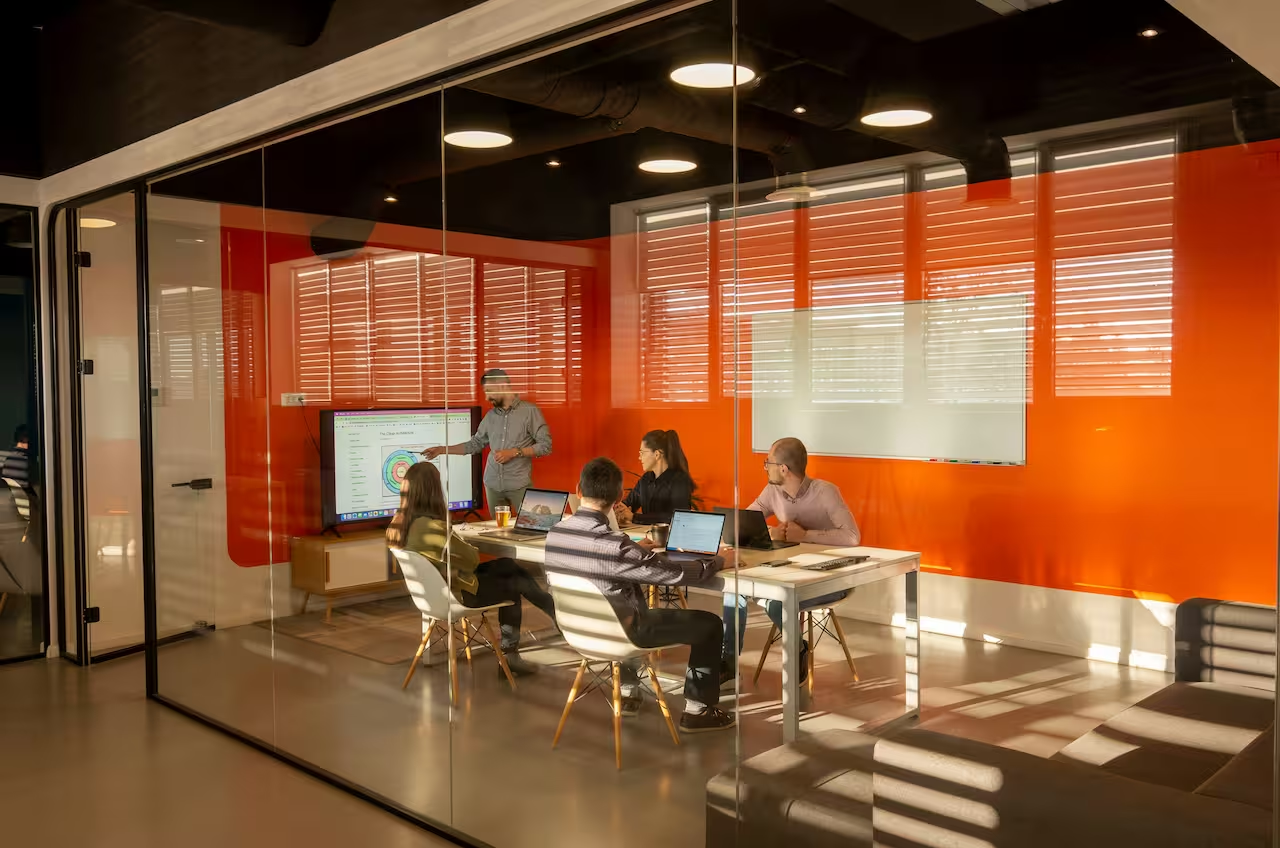
Meeting Room Management: Display room schedules outside conference rooms so employees can see availability at a glance. Show current meetings, next bookings, and open time slots to reduce double-bookings and confusion.
Reception and Lobby Areas: Welcome visitors and keep employees informed with event announcements, daily schedules, and company calendar highlights displayed in high-traffic areas.
Department Coordination: Place displays in department areas to show team schedules, project deadlines, and important dates. This keeps everyone aligned without constant email updates.
Break Rooms and Common Areas: Share company-wide events, holiday schedules, training sessions, and social activities where everyone naturally gathers throughout the day.
Office Hoteling and Desk Booking: For companies with flexible seating or hybrid work arrangements, display desk and workspace availability to help employees find open spaces quickly.
HR and Administrative Areas: Show important dates like benefits enrollment periods, performance review schedules, payroll dates, and company holidays where employees visit for HR support.
Layouts and Views
Agenda vs Monthly View
The monthly grid view shows the full month for long-term planning, ideal for reception areas and break rooms where employees want to see what’s coming up. However, it struggles with information density when you have many events.
Agenda view lists events chronologically with full details visible on each line. This format handles high-volume calendars better and works beautifully for meeting room displays and department areas where people need "what's happening now and next."
Combining Content
Your display doesn't have to show only a calendar. You can divide your screen into multiple zones using within Look DS. Here are some content combinations:
- Calendar alongside company announcements or news updates
- Calendar above, weather widget below (helpful for planning outdoor meetings or events)
- Calendar as the main content, with employee recognition or team photos in a sidebar
- Calendar combined with real-time metrics, KPIs, or department dashboards
Display Orientation
Most calendars look best in landscape (horizontal) orientation, especially if you're showing a monthly view. However, portrait (vertical) orientation works beautifully for agenda-style calendars that list events chronologically. Look DS automatically adapts your content to different orientations, so you can try both and see what works better for your space.
Color coding and filters
Assign color categories to help employees distinguish between departments, meeting rooms, or event types. Outlook allows you to right-click an appointment and pick a color category, and Google Calendar offers color labels for entries. This makes it easier to scan the calendar quickly and identify relevant information.
Idle/ambient mode
During off hours, set the screen to show photos, artwork or other non‑sensitive information. This prevents burn‑in and provides an attractive display when no calendar information is needed.
Advanced Meeting Room Solutions
- Display resource calendars outside conference rooms showing current meeting, next booking, and future availability in a "Now/Next" format. Color-code backgrounds: green when available, red when occupied, yellow for "available but booked soon.
- Integrate occupancy sensors that detect if booked rooms remain empty. Release unused rooms automatically after 10-15 minutes, increasing utilization. For touchscreen displays, you can implement check-in systems requiring meeting organizers to confirm within the first few minutes.
- Combine room calendars with wayfinding systems in large buildings. Interactive lobby kiosks can show maps of all meeting spaces, color-coded by availability, to help employees locate open rooms quickly.
Maintenance & Troubleshooting
Digital screens work best when given a little routine care. Look DS automatically caches content, so your calendar keeps showing even without an internet connection, though live data like weather will pause until the network is back. You can also monitor each display remotely from your dashboard, which tracks connectivity and playback so you can spot issues early.
If your calendar looks outdated, check refresh intervals and confirm the device timezone. Setting your screen to open in kiosk mode ensures it reloads content correctly on startup. Adjust brightness for room lighting and schedule power-saving hours to reduce energy use and extend display life.
FAQ: Your Questions Answered
Can I display multiple calendars on one screen?
Yes. Google Calendar lets you overlay multiple calendars (like separate calendars for each family member or department), and they'll all show on your embedded calendar view. You can color-code them to tell them apart. Look DS also supports multi-zone layouts if you want to show entirely separate calendars side-by-side.
What happens if my internet connection goes down?
Not to worry because once you set up your display with Look CMS, all you content is cached locally on the device. That means that already-scheduled content continues to play even if you lose internet. For calendars specifically, the last synced version remains visible. When your connection returns, everything updates automatically.
Can people interact with the calendar display to add or edit events?
The calendar display itself is view-only. To add or edit events, people use their phones, computers, or tablets like they normally would. The wall display simply shows the results.
If you use a touchscreen display, you can set up interactive buttons through Look DS for specific actions, but the calendar editing still happens through the original calendar app.
How often does the calendar update?
Changes you make in Google Calendar, Outlook, or Apple Calendar typically appear on your wall display within seconds.
Can I control multiple displays from one account?
Absolutely, which is one of the many strengths of Look CMS. From one dashboard, you can manage all your screens, whether that’s one display in the office lobby or 50 screens across multiple office locations. The only thing you need is an internet connection.
Do I need to keep a computer running to display my calendar?
Not necessarily. Once you've set everything up and published to your displays, the calendar runs on the TV, tablet, or media player itself.
Will this work with my existing calendar subscriptions?
Yes. If you've subscribed to shared calendars in your organization, such as department schedules, company holidays, or conference room bookings, you can include them in your wall display. When customizing the embed code, simply select which subscribed calendars you want to show–they usually appear in your calendar view under "Other Calendars" or "Shared Calendars–and they'll update automatically alongside your main calendar.
How much does Look Digital Signage cost?
Look offers a 14-day free trial with no credit card required. After that, pricing is based on the number of screens you're managing. For a single screen, you pay $13.5/month annually, which is subject to volume discounts once you add more screens to your network.