Win 7+

The Look App runs on any Windows device from Windows 10 or newer — no hardware upgrade required to launch your first screen

Source: Look DS technical requirements

1 → ∞

screens manageable from a single cloud CMS dashboard — start with one PC, scale to thousands of locations

Look DS platform capability

< 30 min

to install the Look App on your Windows device, pair the screen, and publish your first scheduled playlist

Source: Look DS onboarding data

0

on-site visits needed to update content — all scheduling, publishing, and device monitoring is handled remotely

Look DS remote management

What is Windows digital signage?

A familiar platform turned into a powerful screen network

Digital signage for Windows is a setup that displays media content using a Windows device — like a PC, laptop, or dedicated media player — as the playback engine. You can reuse existing devices or deploy new ones, connecting them into a unified digital network. Because Windows is a standard in most corporate IT environments, this approach builds on infrastructure your team already knows how to support.

The primary advantage is flexibility.

Unlike closed, proprietary hardware ecosystems, Windows-based signage integrates with a massive variety of displays and software platforms. This allows you to choose the exact hardware that fits your budget while leveraging professional digital signage software to manage your messaging from anywhere.

Once the Look App is installed on your Windows device, it links to your cloud dashboard. From there, you can upload files, design layouts, and publish content to a single screen or thousands of locations simultaneously — entirely remote, no site visits required.

Digital vs. traditional signage

Static signage

Expensive proprietary hardware

On-site USB drive updates

Single static content zone

High printing & labour costs

Blank screen on network failure

Look DS on Windows

Green checkmark inside a black circle.

Remote cloud updates instantly

Green checkmark inside a black circle.

Remote cloud updates instantly

Green checkmark inside a black circle.

Multi-zone dynamic layouts

Green checkmark inside a black circle.

Proof-of-Play & live monitoring

Green checkmark inside a black circle.

Offline caching keeps screens live

Green shield icon with a white check mark on a black rounded square background representing security or verification.

3 core components

1

Windows Playback Device

Any Windows PC, laptop, mini-PC, or dedicated media player running Windows 10 or newer. Repurpose existing hardware or deploy commercial-grade devices — no proprietary lock-in.

2

Cloud CMS

The Look CMS is your control centre. Upload content, build multi-zone layouts, configure schedules, and monitor device health from any web browser — from anywhere in the world.

3

Look App for Windows

Install the free Look App on your Windows device. It connects to the CMS via a unique pairing code and caches content locally so playback continues even when the internet drops.

Why it works

Six ways Windows signage works for your business

icon_XL_navigation

Flexibility for content management

Windows signage platforms offer highly flexible ways to present your media. Using Screen Layouts, you can design multi-zone displays that adapt to various screen sizes and orientations — build content once and push it to a small interactive kiosk, a standard lobby display, or a massive video wall from a single CMS.
Laptop icon

Easy fit with existing Windows setups

IT teams can use their current endpoint management, security policies, and update procedures to manage signage hardware. This drastically reduces the learning curve and lightens the IT workload. Repurposing existing Windows PCs or laptops can also significantly lower your initial hardware costs.
user icon

Better teamwork and remote management

Marketing teams can upload promotional campaigns, HR can schedule internal announcements, and IT can monitor device health — all within the same platform. Granular permissions ensure staff only access the screens and content relevant to their roles.
Shield

Kiosk mode for secure public deployments

When a Windows device is deployed in a public space, Kiosk Mode locks the system so users cannot access the underlying desktop, launch other applications, or alter system settings. The signage player launches automatically on boot, creating a tamper-proof environment requiring minimal oversight.
Eye

Proof-of-Play and live device monitoring

With tools like Proof-of-Play and Monitoring, you can verify playback with live screenshots, check device statuses including IP address, MAC address, and app version, and reboot players remotely. This ensures your screens stay running without requiring a technician on-site.
calendar_icon

Advanced scheduling and conditional playback

Smart Scheduling lets you automate campaigns by time of day, day of the week, or specific calendar dates. Conditional playback takes this further by triggering content based on external rules — like swapping to umbrella promotions when a weather widget detects rain, ensuring messaging is always highly relevant.
like
confetti
human-card
shield
LT-templates screenshot
weekdays

Every environment covered

Windows signage built for your use case

Because Windows is highly adaptable, it supports complex deployments across nearly every industry — from a single lobby screen to a global multi-location enterprise network.

Enterprise & IT

Managed corporate screen networks

Enterprise IT teams prefer Windows signage because it slots directly into existing endpoint management, security policies, and update procedures. Deploy screens at scale without introducing new infrastructure — manage them the same way you manage any other Windows device on your network.

Video Walls

Multi-screen and video wall deployments

Windows setups excel at driving multiple screens from a single player using multi-output media players or dedicated graphics cards. Map specific content to different outputs — ideal for powering video walls, digital menu boards, or multi-screen synchronized displays without needing a dedicated media player per monitor.

Interactive Kiosks

Touch-enabled self-service kiosks

Windows OS natively supports touch interfaces, allowing you to turn passive screens into interactive experiences. Using Interactive Scenarios, design multi-page touch layouts with buttons and swipe interactions — perfect for wayfinding directories, self-service product catalogs, or feedback surveys.

Retail & QSR

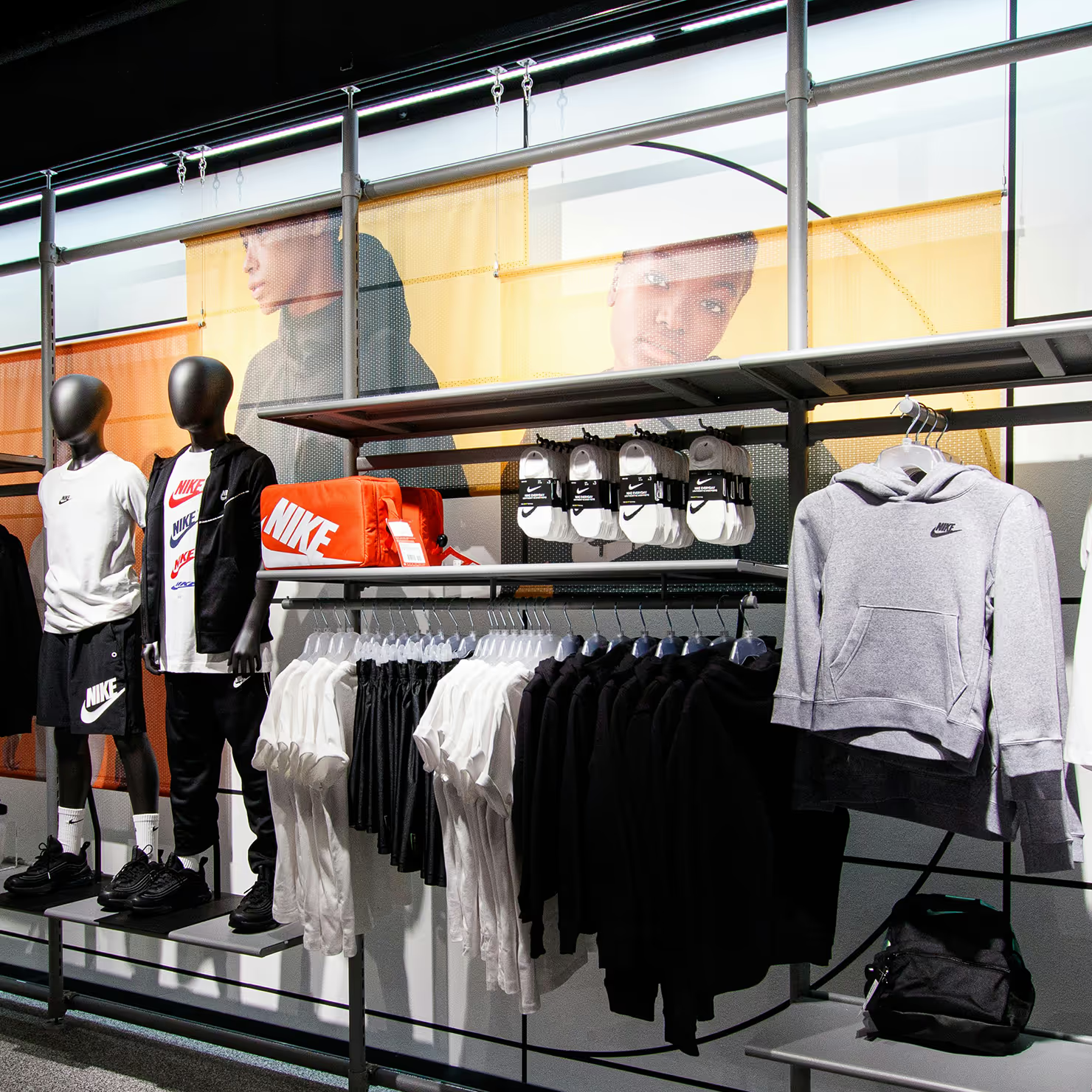
Digital menu boards and POS promotions

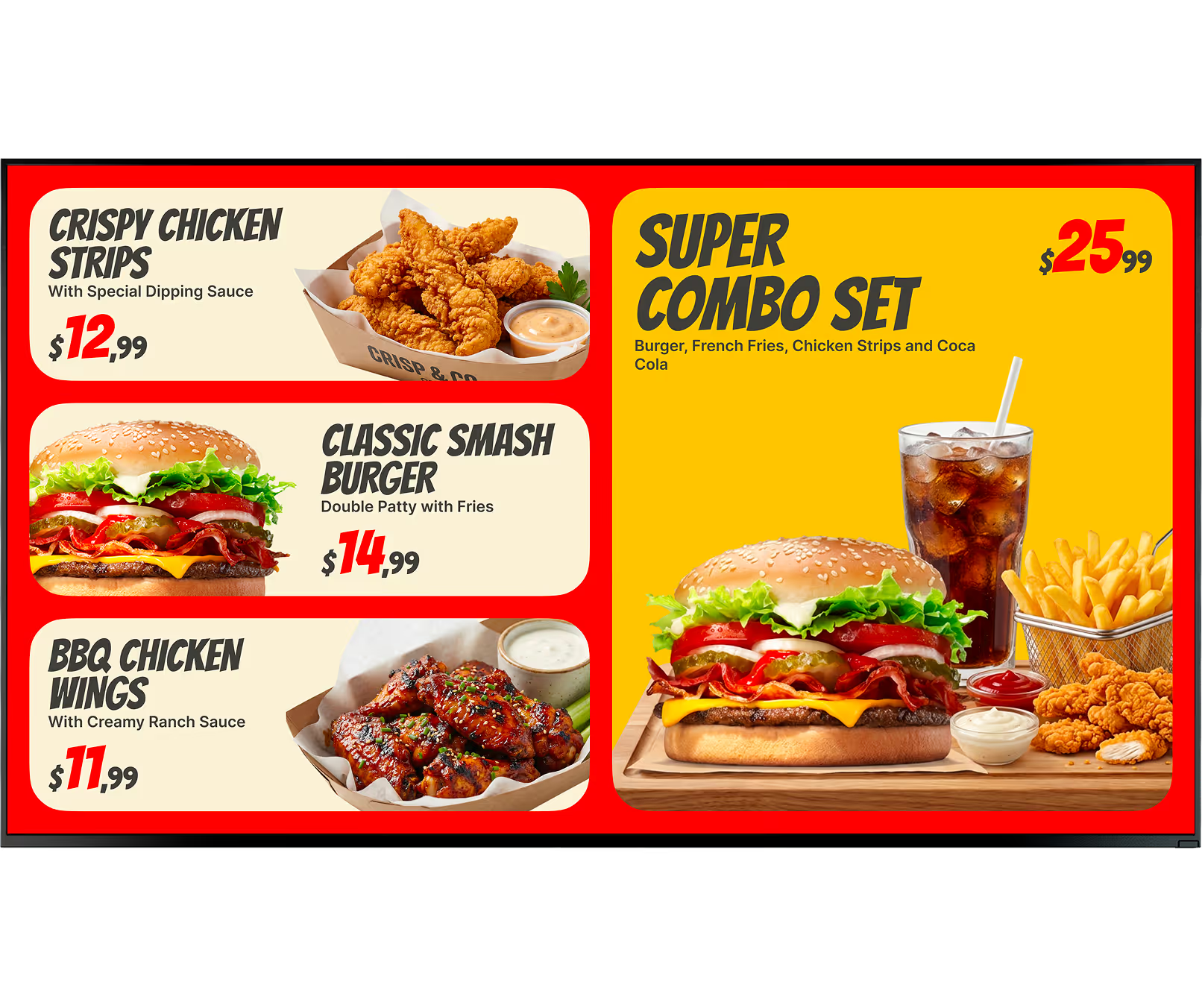
A restaurant can automatically switch from breakfast to lunch menus at precisely 11:00 AM using Smart Scheduling, without any manual intervention. Windows media players handle full HD and 4K video smoothly, making promotional content look polished across every location in a franchise network.

Corporate Comms

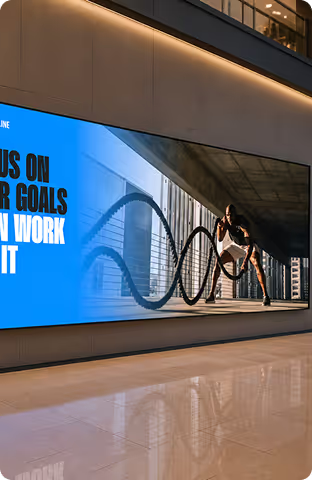
Lobbies, breakrooms, and KPI dashboards

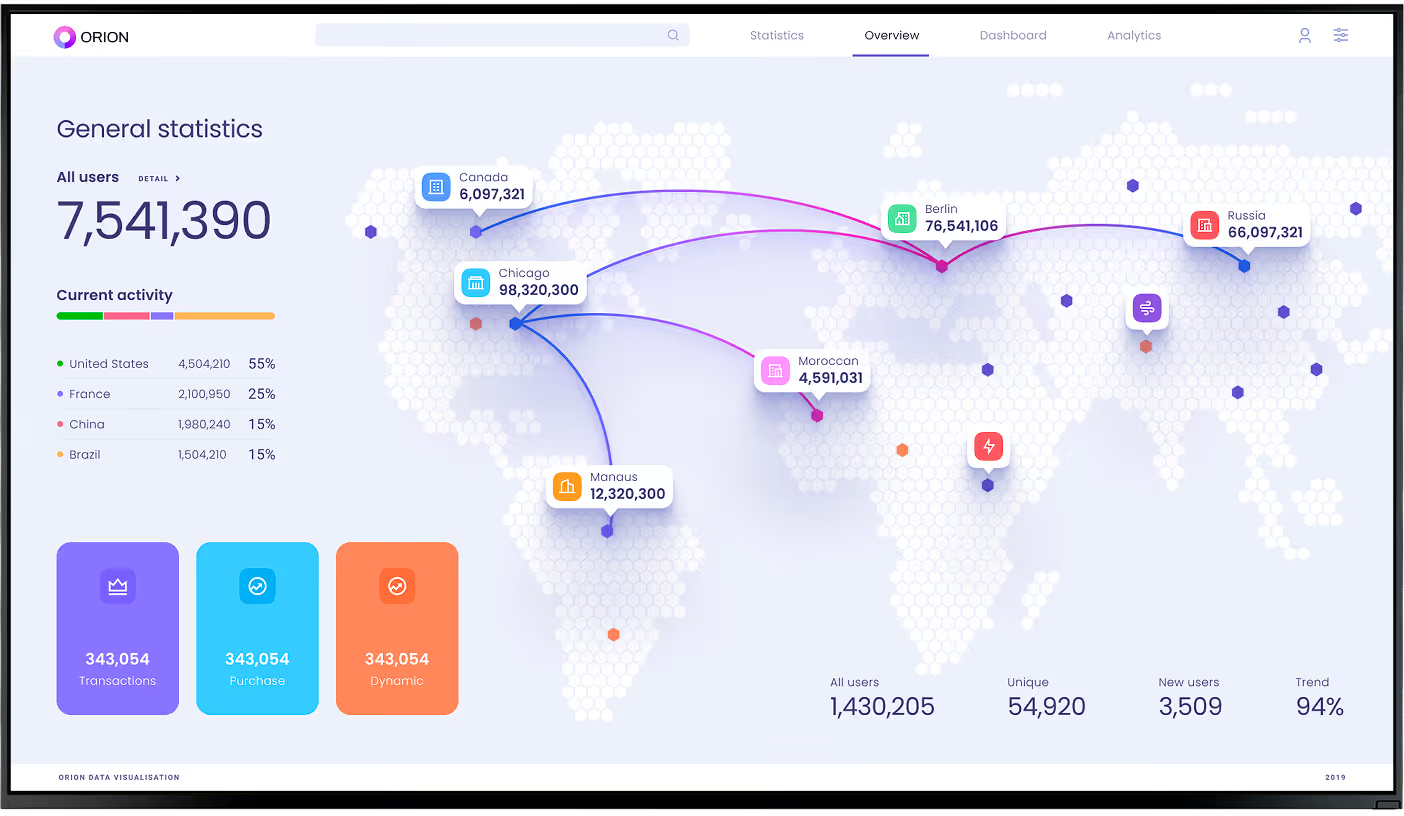
Marketing teams, HR, and IT can all operate within the same CMS with role-based permissions. Lobby screens show visitor welcome messages, breakrooms display KPI dashboards and HR announcements, and all of it is managed from the same dashboard without any department stepping on another's content.

RS232 & Automation

Sensor-triggered and automated signage

Advanced Windows signage players interface with external hardware via RS232 and TCP protocols. Connect motion detectors, RFID readers, or environmental sensors so screens dynamically trigger specific content based on real-world actions — powering on displays during business hours or switching content when customers approach.

Where you'll deploy it
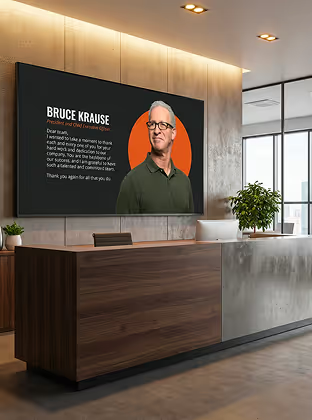
Six physical placements, one platform

Lobby and reception displays

Display welcome messages, company directories, visitor check-in guidance, and branded content on lobby screens. A Windows mini-PC hidden behind the display runs the Look App silently, while all content updates are pushed remotely from the CMS.

Multi-screen video walls

Power an entire video wall from a single Windows PC equipped with a multi-output graphics card. Map different content zones to specific outputs, synchronize playback across panels, and manage the whole installation remotely without ever visiting the site.

Interactive kiosk deployments

Pair a Windows PC with a commercial touchscreen display for self-service wayfinding directories, product browsing, or customer feedback stations. Kiosk Mode locks the device to the signage app, preventing public access to the Windows desktop.

Digital menu boards and POS displays

Drive upsells and automate dayparting at the point of decision. Schedule breakfast, lunch, and dinner menus to switch automatically at the right times across all franchise locations — eliminating print delays and manual content swaps.

Breakrooms and staff communication areas

Replace cluttered noticeboards with KPI dashboards, safety protocols, and HR announcements. Role-based access lets HR update breakroom content directly while IT monitors device health from the same centralized dashboard.

Meeting rooms and conference space displays

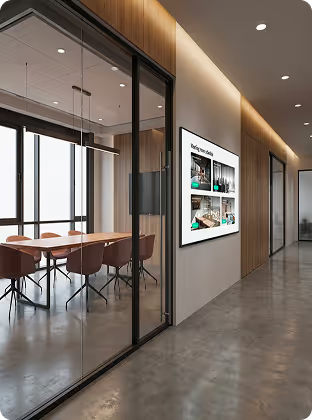
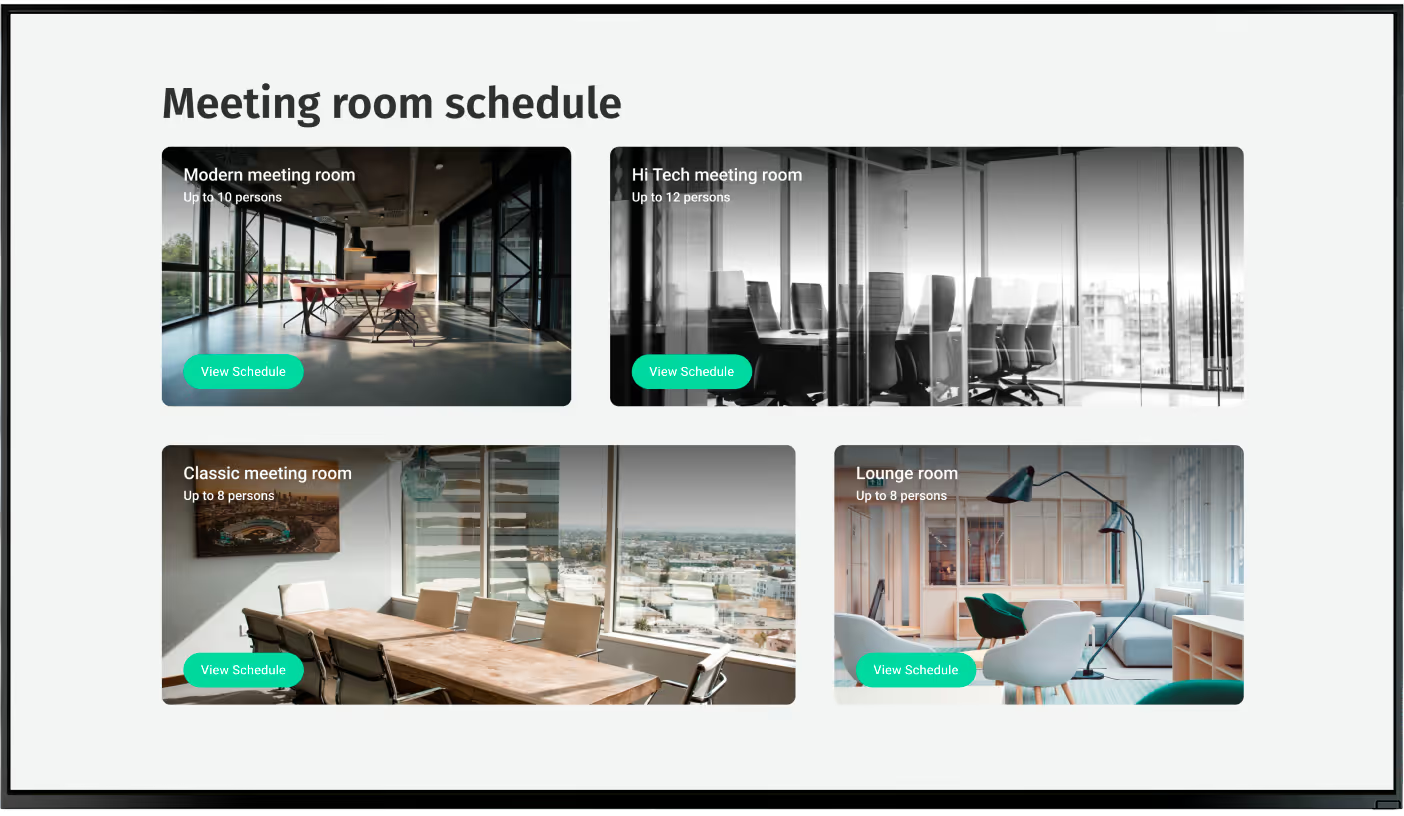
Repurpose a Windows laptop or mini-PC to drive meeting room screens showing room availability, scheduled events, and live Power BI dashboards. Integration with productivity tools keeps corporate displays automatically up to date.

Hardware & setup

Two ways to get your Windows screen online

Software provides the instructions, but your hardware dictates how smoothly those instructions are executed. Choose the option that fits your deployment.
Green shield icon with a white check mark on a black rounded square background representing security or verification.

Look App for Windows

Install the free Look App on any Windows device running Windows 10 or newer — an existing PC, a repurposed laptop, or a dedicated mini-PC media player. It acts as the bridge between your hardware and the cloud CMS, enabling full remote management, scheduling, and monitoring from a single dashboard.
Windows 7+
Free download
HDMI / DisplayPort
Wi-Fi & Ethernet
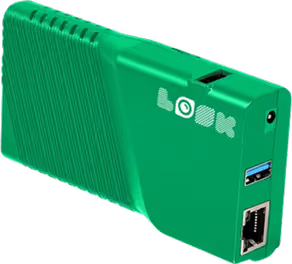
Green rectangular electronic device with ventilation slots, two USB ports, an Ethernet port, and the word 'LOOK' printed on it.

Look HDMI Player

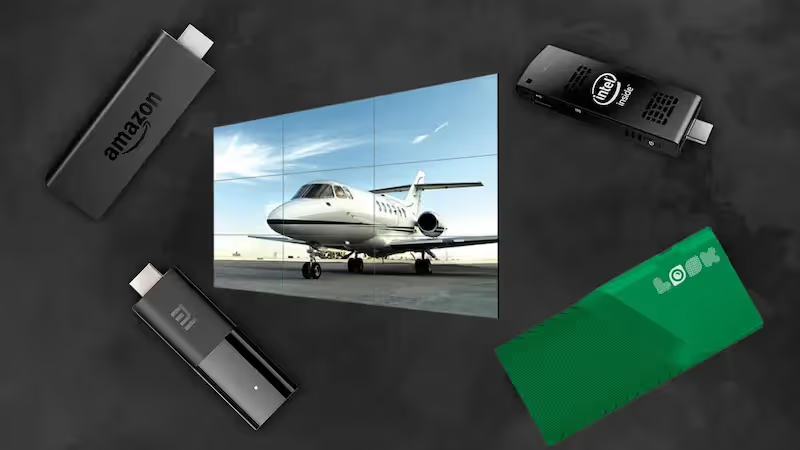
If you prefer to bypass PC hardware entirely, the plug-and-play Look HDMI Player is an excellent, reliable alternative for quick deployments. It plugs directly into any display's HDMI port, connects to Wi-Fi, and pairs with the Look CMS — no Windows device required, no IT configuration needed.

Any displays with HDMI
LED screens 
Video walls
Plug-and-play

Hardware note:

For enterprise and corporate environments, Windows signage hardware pairs best with commercial-grade monitors from brands like Hyundai, ViewSonic, LG, Samsung, and Philips — designed for continuous 24/7 operation with better brightness, heat dissipation, and commercial warranties than consumer TVs. For multi-screen setups, universal docking stations and USB-C to Dual HDMI adapters allow a single Windows PC to push 4K content to multiple monitors simultaneously.

View full hardware guide →

How it works

From Windows device to live screen — in under 30 minutes

By following this straightforward process, you can have your first Windows screen live and fully scheduled well before the end of the day.
  • Content

    Create your account and download the Look App

    Start a free trial with Look Digital Signage to get immediate access to the web dashboard. Then download the free Look App for Windows directly from the provider's site and run the installer like any standard Windows application.
  • Schedule

    Connect and register your display device

    Connect your Windows PC or media player to your display via HDMI or DisplayPort and ensure it has an active internet connection. When you launch the player app, it displays a unique pairing code — enter it into your CMS dashboard to securely link the device to your account.
  • Playlists

    Publish content and schedule remotely

    Build a playlist in the CMS, arrange your media, and use Smart Scheduling to dictate exactly when content appears. Hit publish and the Windows player downloads the assigned files — enabling offline playback if the internet drops — and begins displaying your content automatically.

Key features

Everything a Windows signage operator needs

icon navigation

Multi-screen and multi-resolution display support

Windows setups excel at driving multiple screens from a single player, especially when using multi-output media players or dedicated graphics cards. Map specific content to different outputs — ideal for powering video walls, digital menu boards, or multi-screen synchronized displays without needing a dedicated player for every monitor.
Layouts Green Icon

Customizable playback zones: size and position

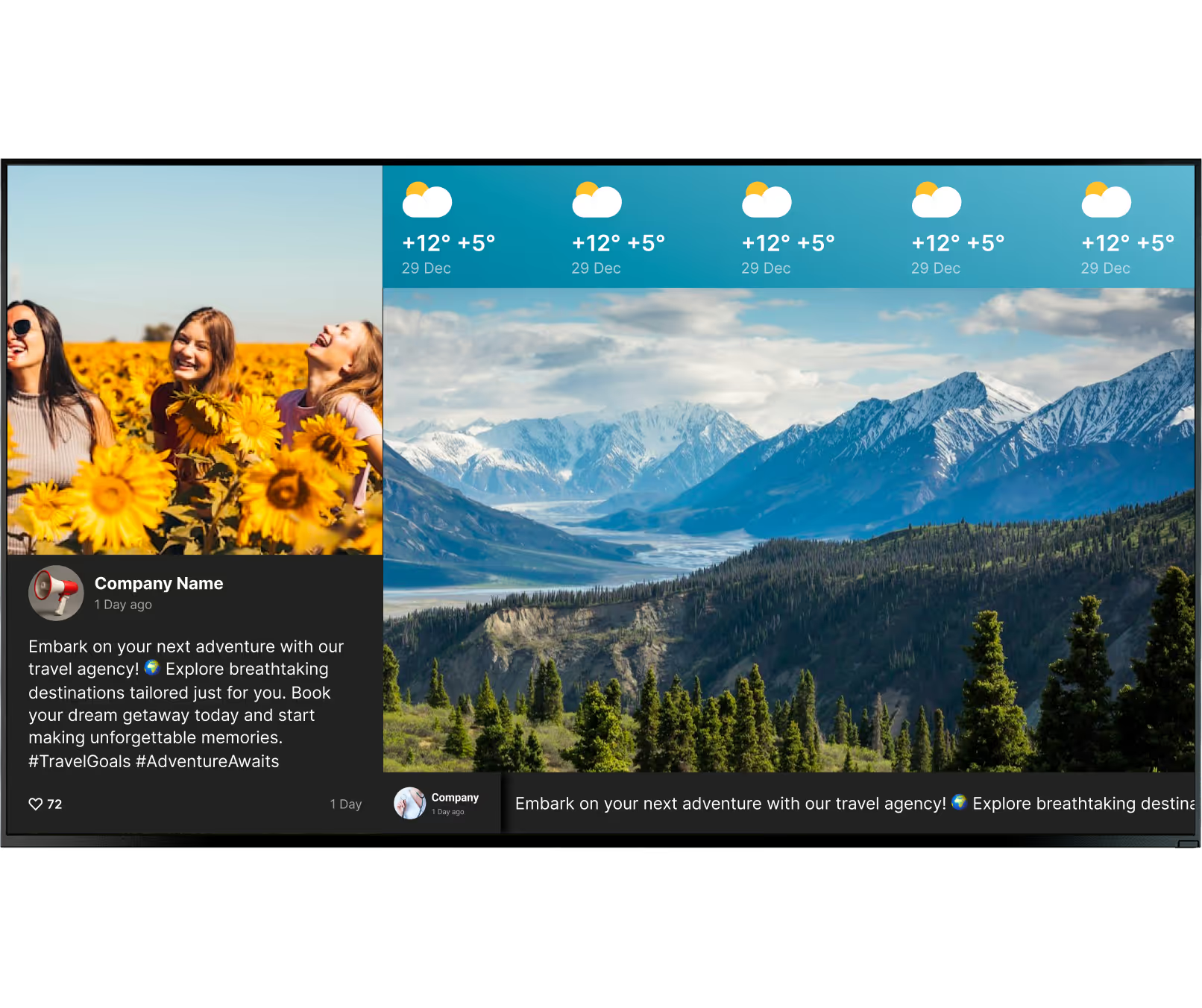
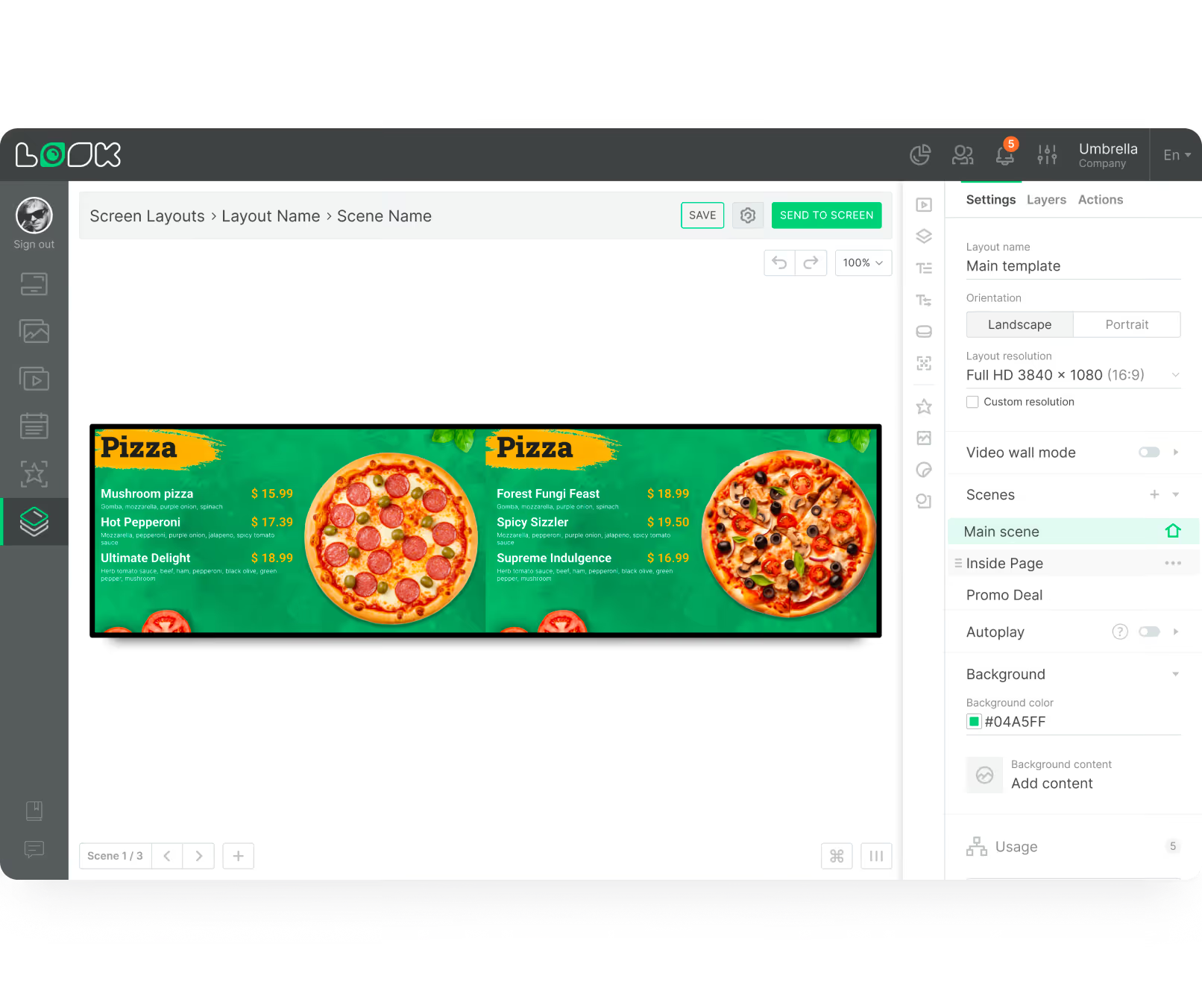
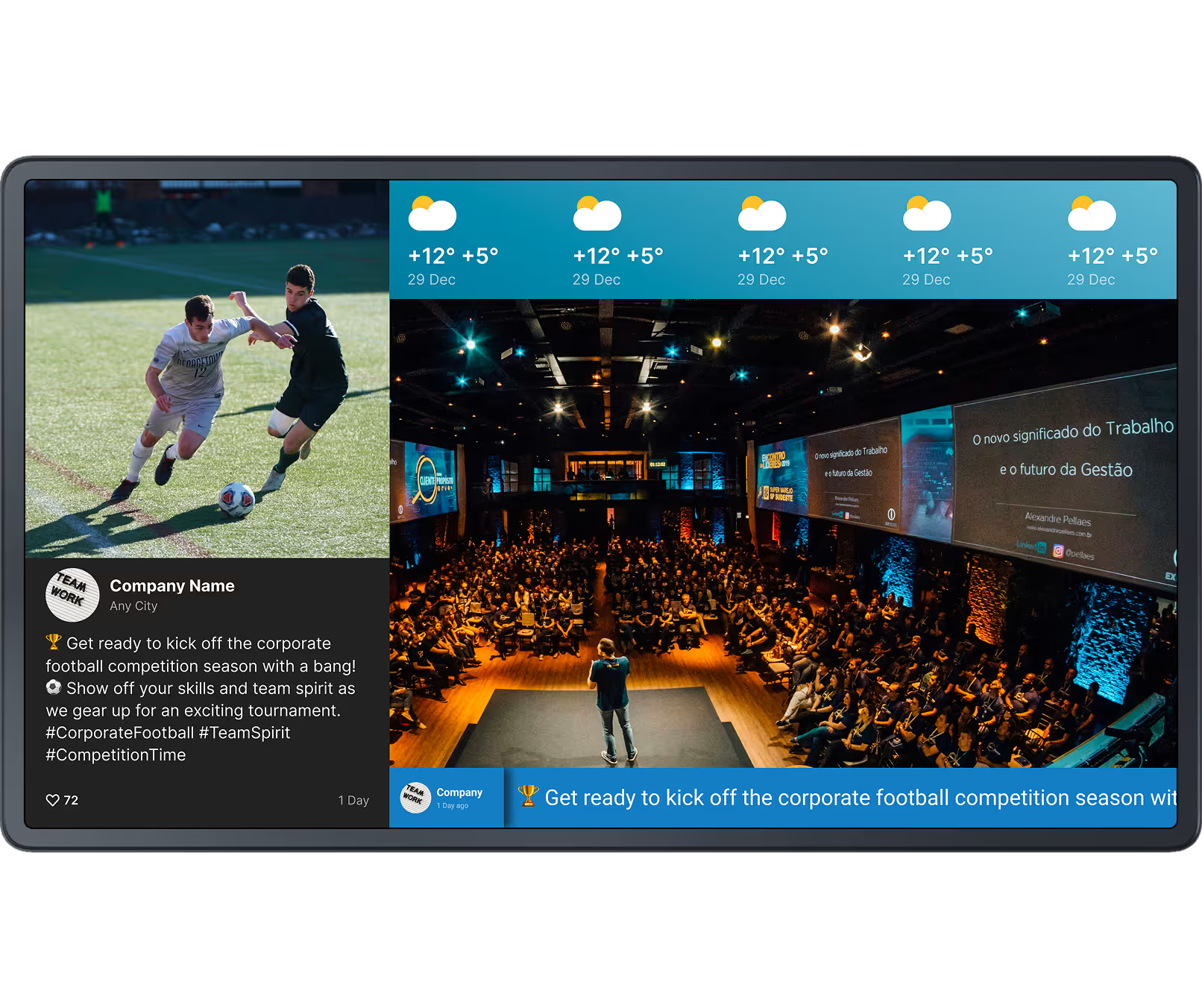
Through Screen Layouts, define the exact dimensions and positioning of your content. Divide the display into zones — a promo video in one corner, a live weather feed in another, and a scrolling ticker at the bottom. This granular control is vital for non-standard displays like LED ribbons and complex lobby dashboards.
Shield

Kiosk mode for secure display environments

When a Windows device is deployed in a public space, Kiosk Mode is essential. It locks the system so users cannot access the underlying desktop, launch other applications, or alter system settings. The signage player launches automatically upon boot, ensuring the screen always displays the intended content.
Open red velvet ring box with a diamond ring inside, alongside text offering 20% off all diamond rings for this week, with images of gold rings and chains on a dark teal background.
Laptop icon

Content creator for easy design

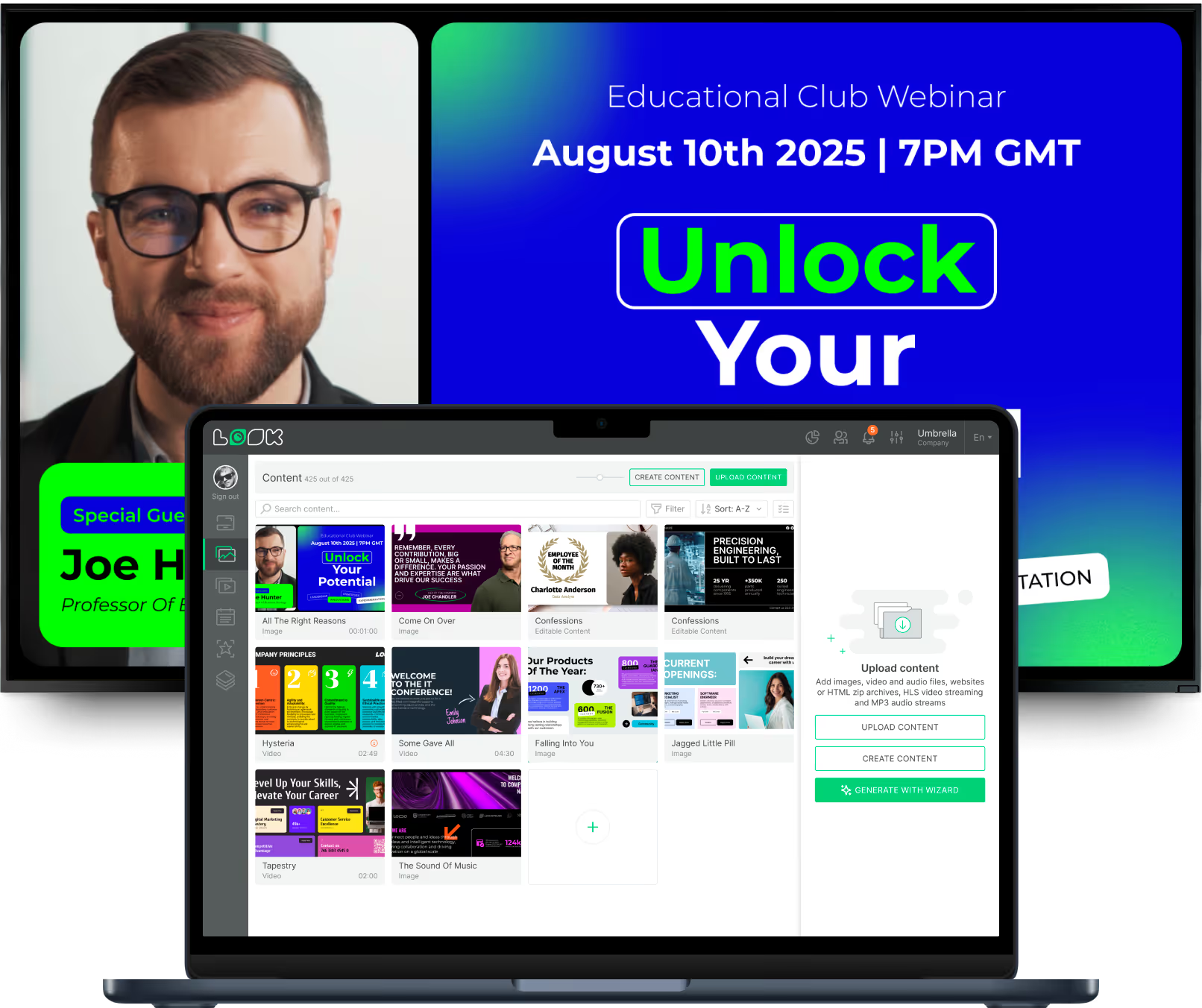
Built-in Content Creator lets you build professional layouts using drag-and-drop mechanics. Combined with Ready-made Templates, you can quickly format text, add media, adjust layers, and apply brand colors — getting your screens looking polished in minutes without a graphic design background.
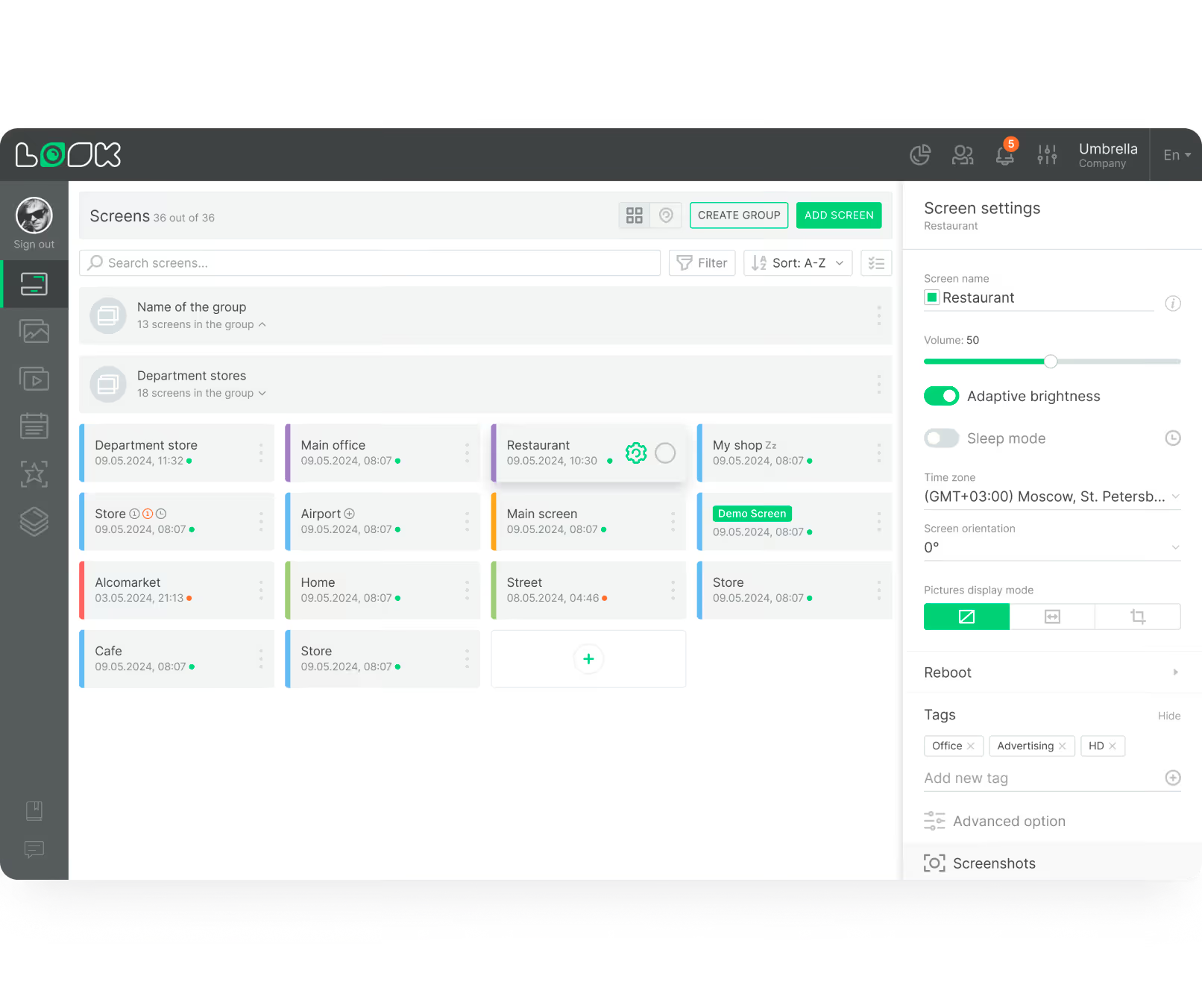
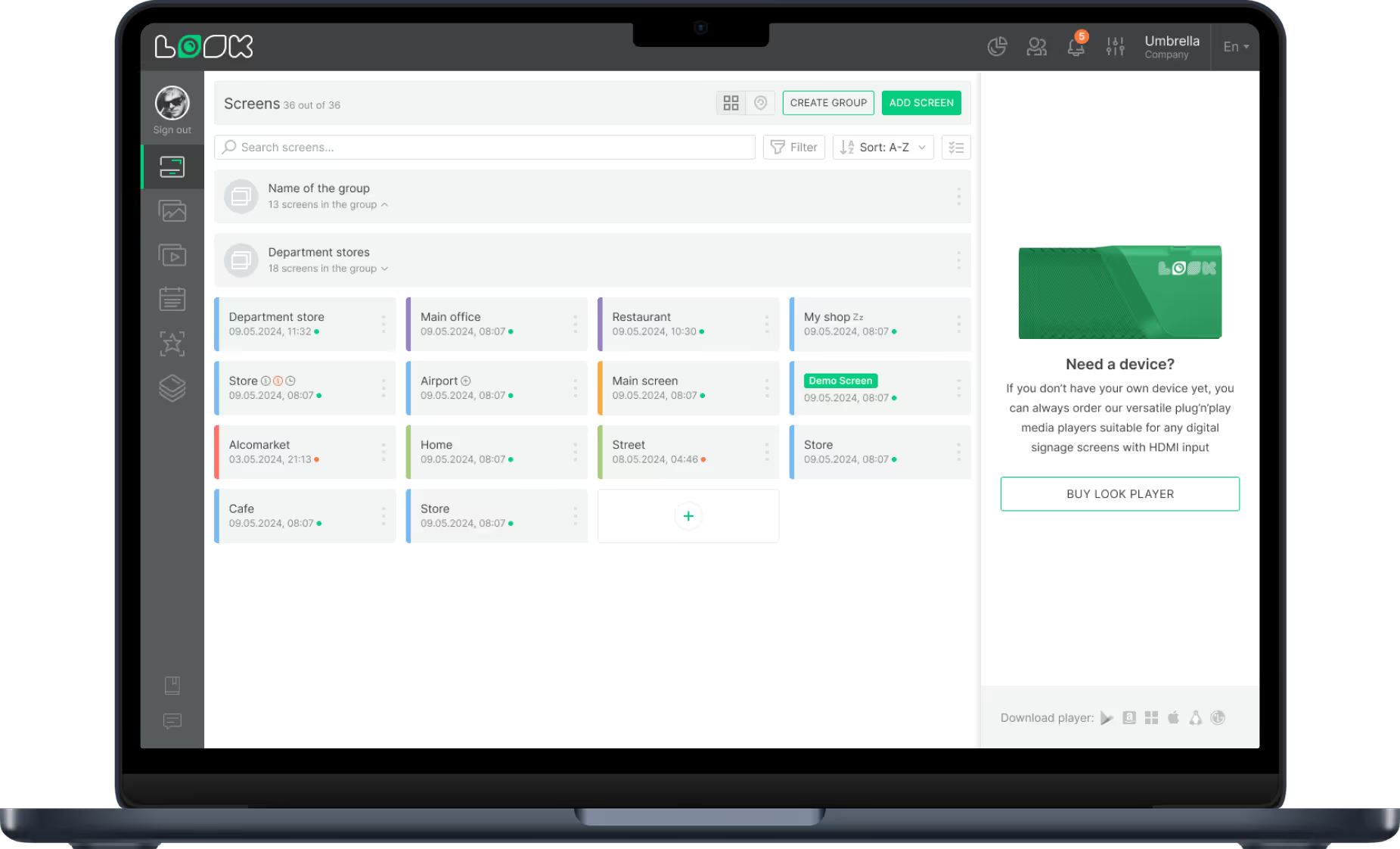
Dashboard screen showing a list of 36 grouped screens with details and status indicators for managing display settings including volume and adaptive brightness for a screen named Restaurant.
icon_XL_navigation

Advanced scheduling and conditional playback

Smart Scheduling automates campaigns by time of day, day of the week, or specific calendar dates. A restaurant can automatically switch from breakfast to lunch menus at precisely 11:00 AM. Conditional playback goes further — triggering content based on external rules like weather data, ensuring messaging is always highly relevant.
Pencil

Interactive touch content and widgets

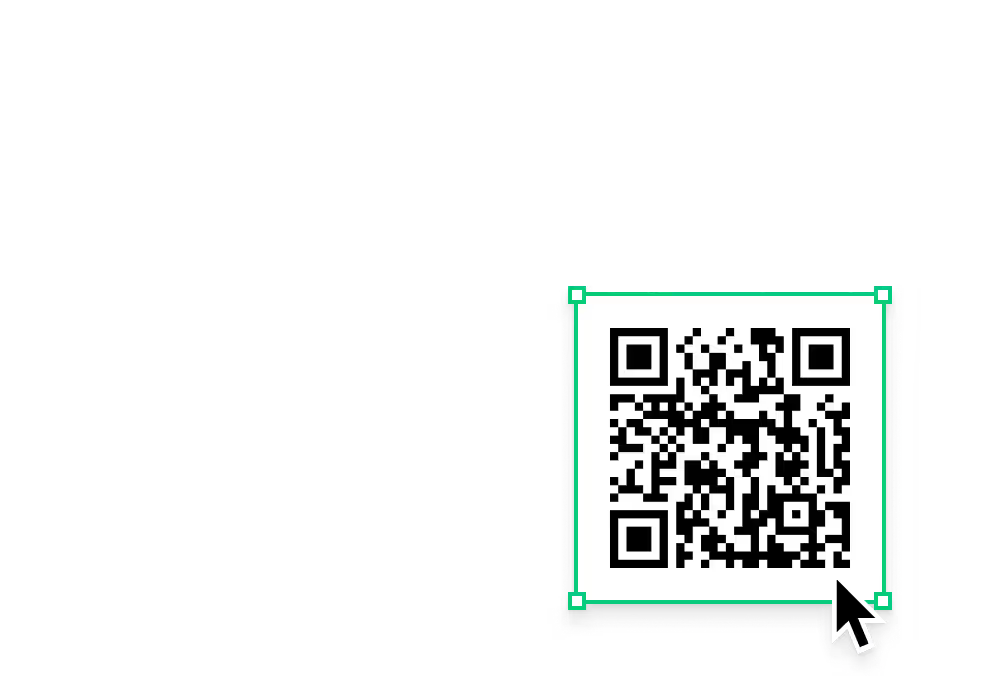
Windows OS natively supports touch interfaces. Using Interactive Scenarios, design multi-page touch layouts with buttons and swipe interactions — perfect for wayfinding directories, self-service product catalogs, or feedback surveys. Incorporate QR codes to seamlessly transition the experience from screen to the user's smartphone.
White wireless earbuds in an open charging case with a blue and orange background advertising 50% off earbud specials.
calendar_icon

Advanced scheduling and conditional playback

Smart Scheduling automates campaigns by time of day, day of the week, or specific calendar dates. A restaurant can automatically switch from breakfast to lunch menus at precisely 11:00 AM. Conditional playback goes further — triggering content based on external rules like weather data, ensuring messaging is always highly relevant.
Touch Icon

Interactive touch content and widgets

Windows OS natively supports touch interfaces. Using Interactive Scenarios, design multi-page touch layouts with buttons and swipe interactions — perfect for wayfinding directories, self-service product catalogs, or feedback surveys. Incorporate QR codes to seamlessly transition the experience from screen to the user's smartphone.
like
Digital Signage for Entertainment, apps
Open red velvet ring box with a diamond ring inside, alongside text offering 20% off all diamond rings for this week, with images of gold rings and chains on a dark teal background.
Dashboard screen showing a list of 36 grouped screens with details and status indicators for managing display settings including volume and adaptive brightness for a screen named Restaurant.
UI Screen cards
confetti
White wireless earbuds in an open charging case with a blue and orange background advertising 50% off earbud specials.
weekdays
Black and white QR code with a cursor pointer on the bottom right corner.

Content best practices

Six Windows signage tips for better results

01

Enable Kiosk Mode for every public-facing device

Any Windows screen deployed in a space accessible to the public should run in Kiosk Mode. This prevents unintended access to the Windows desktop or system settings and ensures your signage player is the only thing that runs — both on first boot and after any restart or power outage.

02

Use multi-zone layouts to maximise screen real estate

A single full-screen video loop wastes the flexibility that Windows gives you. Split displays into clearly defined zones — a primary media zone, a live data ticker, and a smaller branding panel — to deliver more value from every screen without overwhelming viewers with competing messages.

03

Tag assets for automated dynamic playlists

Instead of rebuilding individual playlists manually, tag your media assets by category, location, or campaign (e.g., "lobby", "summer-promo", "internal"). The CMS can then generate dynamic playlists based on those rules, ensuring the right content automatically flows to the right screens — saving hours of administrative time.

04

Set up Smart Scheduling before launch day

Time-based scheduling should be configured before your screens go live. Define dayparting rules, content expiry dates, and override playlists for specific calendar dates like holidays or promotions. This automation prevents stale content from playing on screens unattended and eliminates the need for manual daily updates.

05

Use commercial-grade monitors

Consumer TVs are not designed for continuous 24/7 operation. Commercial-grade monitors from brands like Hyundai, ViewSonic, LG, Samsung, and Philips offer better brightness, heat dissipation, and longer warranties suited to permanent signage installations. They typically include VESA mounting patterns and built-in speakers for a cleaner setup.

06

Monitor device health proactively with Proof-of-Play

Don't wait for a blank screen complaint to discover a device has gone offline. Use the Proof-of-Play and Monitoring tools in the CMS to verify live playback with screenshots, check device IP and app version, and set up alerts for offline devices. Proactive monitoring prevents downtime from becoming a public-facing problem.

Common mistakes

Four Windows signage mistakes to avoid

Using consumer TVs for always-on deployments

Consumer TVs are engineered for a few hours of daily home use — not 24/7 commercial operation. Running a consumer set as permanent signage leads to premature screen burn, overheating, and warranty voids, creating costly replacement cycles that far exceed the initial hardware saving.

Fix: Use commercial-grade monitors from brands like Hyundai, ViewSonic, LG, Samsung, or Philips, which are designed for continuous operation and include proper heat dissipation and commercial warranties.

Deploying public screens without Kiosk Mode

Placing a Windows device in a public space without enabling Kiosk Mode leaves the full Windows desktop exposed. Curious visitors — or deliberate misuse — can close the player app, access system settings, or launch other applications, breaking the signage experience and potentially compromising the device.

Fix: Always configure Kiosk Mode on every public-facing Windows signage device. This ensures the player app launches automatically on boot and the underlying OS remains inaccessible to anyone not authorized.

Rebuilding playlists manually instead of using tags

Manually assembling individual playlists for every screen and location is unsustainable at scale. It creates hours of repetitive administrative work, increases the chance of human error, and means content updates require touching every playlist individually instead of updating once and propagating everywhere.

Fix: Tag your media assets by campaign, location, or content type. The CMS can then build and update dynamic playlists automatically based on those tags — saving significant time and reducing errors across large screen networks.

Skipping remote monitoring setup

Assuming screens are playing correctly without configuring remote monitoring is a common oversight. Without Proof-of-Play and device health checks, a screen can display stale content or go blank for hours before anyone notices — damaging brand perception and wasting the investment in digital signage.

Fix: Configure Proof-of-Play reporting and device monitoring during initial setup. Use live screenshot verification and online/offline status alerts so your team is informed immediately when any screen requires attention, without needing an on-site visit.

What customers say

IT teams and operators trust Look DS on Windows

Captera Rating
4.9
G2 Rating
5

In terms of using the system, the other options that I found were a little clunky and Look was not only affordable but really easy for us to deploy and get up and running.

Michael Bowers
Xtreme Express LLC

Look is well-priced, it’s a very user-friendly software cloud-based service, where you can update your screens from wherever you are. We can definitely recommend to others!

Jonathan Florin
Florin Partners

Our experience with Look was simply excellent. We were able to offer our clients a new feature-rich solution that can meet their various requirements in terms of digital signage, with a relatively affordable monthly cost.


Bruno Sabatella
Feedback
60 000+
Screens
11 000+
Users
120+
Countries

FAQ

Frequently asked questions

Is digital signage software free on Windows?

While the player application — like the Look App — is typically free to download and install on your Windows devices, the cloud-based CMS used to manage the network operates on a SaaS subscription model. Most professional platforms, including Look Digital Signage, offer a fully featured free trial so you can test the software on your hardware. After the trial, pricing is usually based on a transparent, per-screen monthly or annual fee, allowing you to start small and scale smoothly.

What are the hardware requirements for Windows digital signage?

Windows hardware requirements scale with your content. At a minimum, a basic mini-PC running Windows 10 or newer can easily handle standard image slideshows and 1080p video loops. However, if you plan to run multiple 4K displays, complex HTML5 interactive widgets, or large video walls, you will need a device with a stronger processor, dedicated graphics, and adequate RAM. Always ensure your hardware outputs — HDMI or DisplayPort — match your commercial displays.

How can you manage multiple screens remotely?

Managing screens at scale is done entirely through the cloud CMS. Regardless of where your Windows devices are physically located, they maintain a connection to your central dashboard via the internet. From this single interface, you can group screens by location, push bulk playlist updates, monitor live playback statuses, and troubleshoot offline devices without ever stepping foot on-site.

Does Windows digital signage support interactive content?

Yes. When paired with a compatible touchscreen display, Windows digital signage natively supports interactive capabilities. Using tools like Interactive Scenarios, you can build touch-friendly interfaces directly within the CMS. This allows businesses to deploy self-service kiosks, interactive directories, and data-collection forms securely and reliably on standard Windows hardware.

What types of content can Windows signage players display?

Windows-based players are powerful enough to handle a wide range of media. They can run high-definition video files including .mov, .mp4, .webm, and .flv formats, and display live video streams seamlessly. You can also use standard image formats, integrate audio files, and upload custom fonts to maintain consistent branding. Broad support for .html files means screens can also display live web pages, interactive touch elements, and real-time data feeds.

How does Windows compare to Android for digital signage?

Windows players are preferred for high-performance needs, complex interactive applications, and environments where IT mandates Windows security compliance. Android devices are typically more affordable, consume less power, and have a smaller physical footprint. If you prefer to bypass PC hardware entirely, using a dedicated device like the plug-and-play Look HDMI Player is an excellent, reliable alternative for quick deployments where full Windows capability is not required.

Can Look DS integrate with Power BI, RSS feeds, and other data sources?

Yes. Through Look Apps — the built-in widget and plugin system — you can drag and drop live data feeds directly into your layouts. Popular extensions include YouTube streams, RSS news tickers, local weather, and live dashboards like Power BI. These tools transform your displays from static loops into real-time information hubs, and they update automatically without manual intervention.

Still have questions?

Our team can walk you through a full demo tailored to your setup — from single-screen pilots to multi-location rollouts.

Talk to Our Team

Or browse the knowledge base for technical documentation and setup guides.

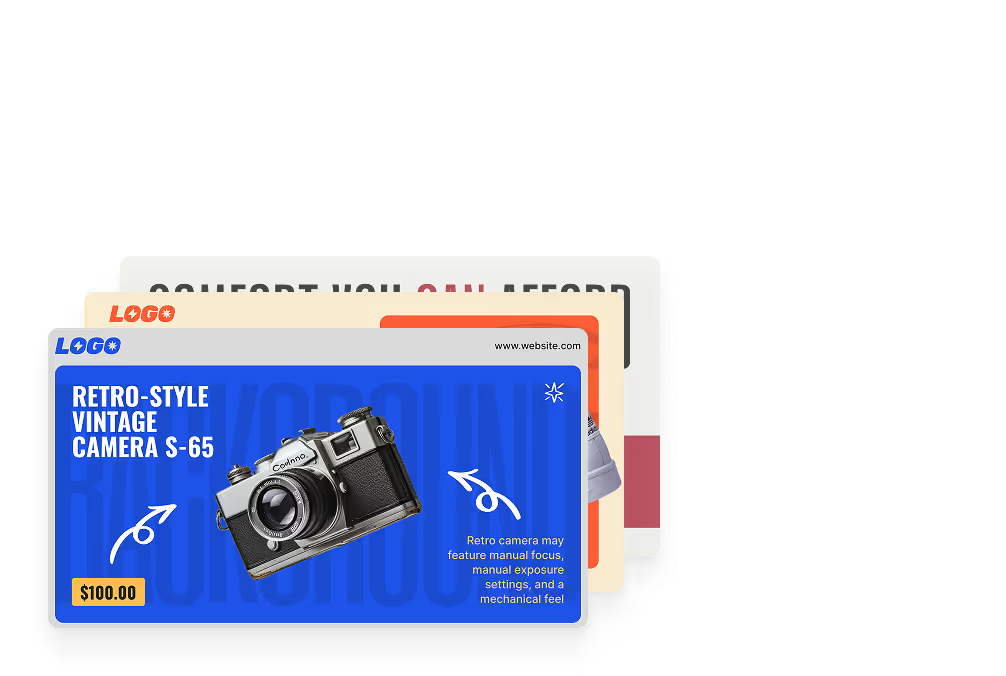
Ready-made templates

Launch your Windows screens faster with built-in templates

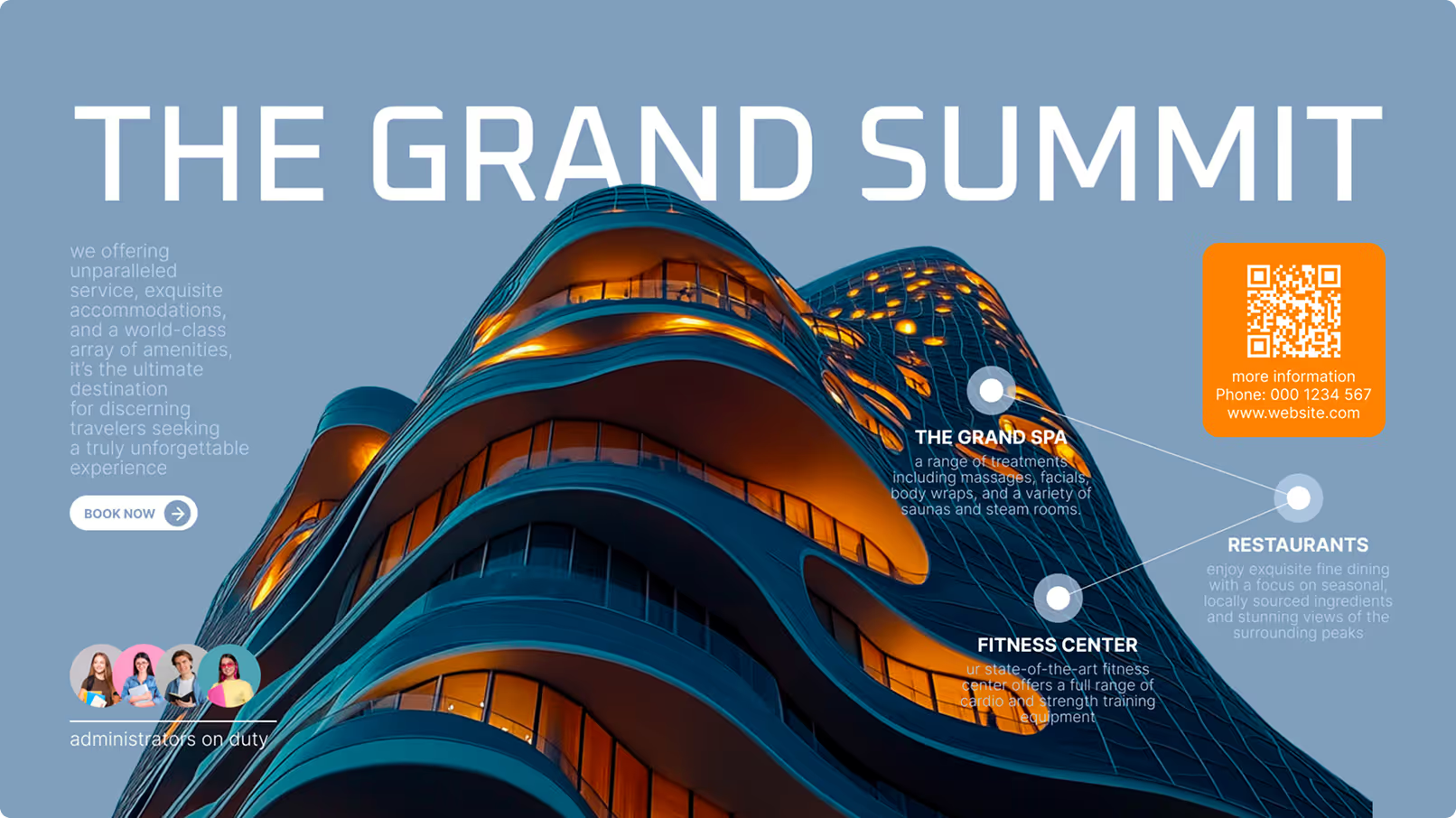
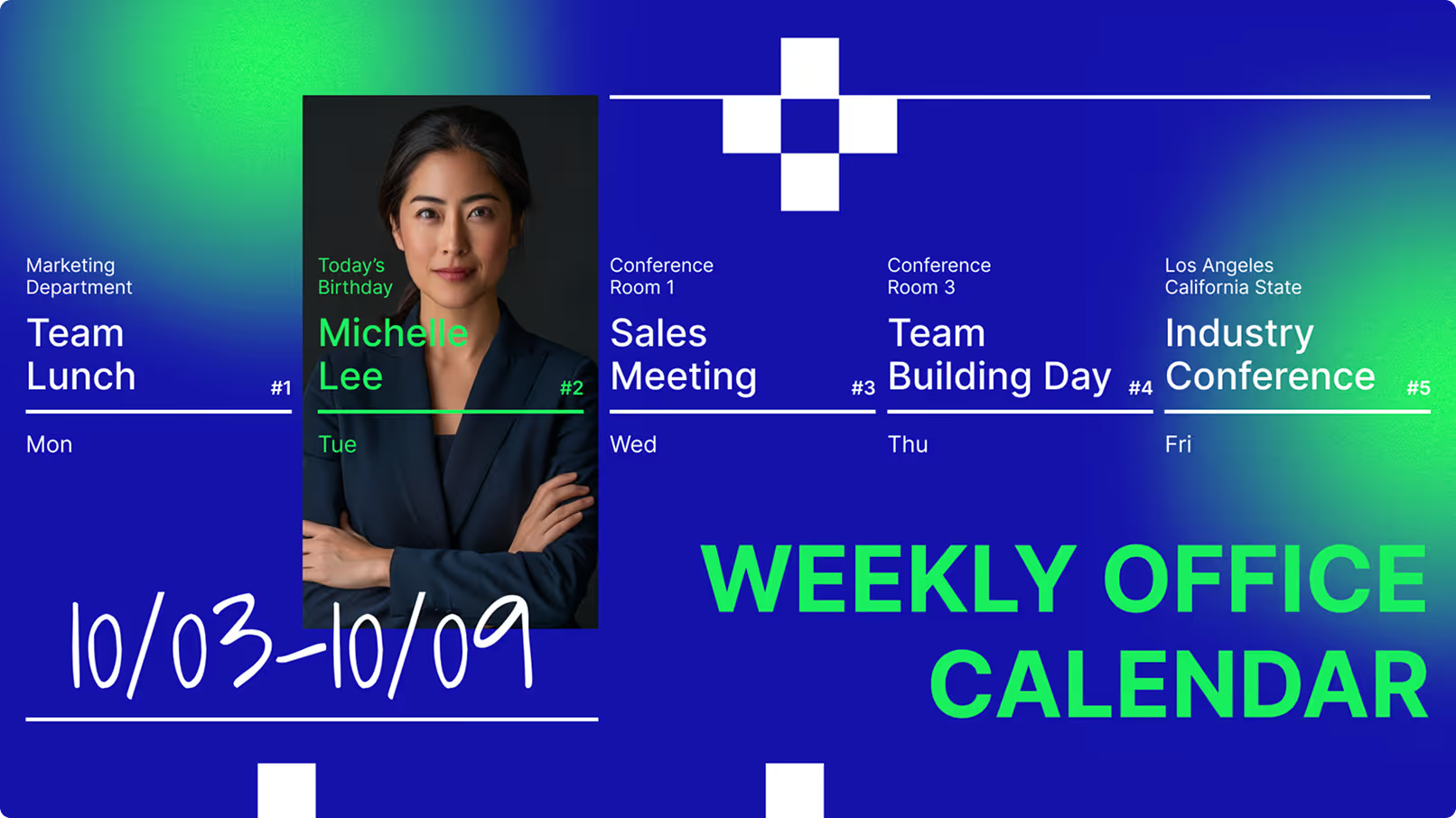
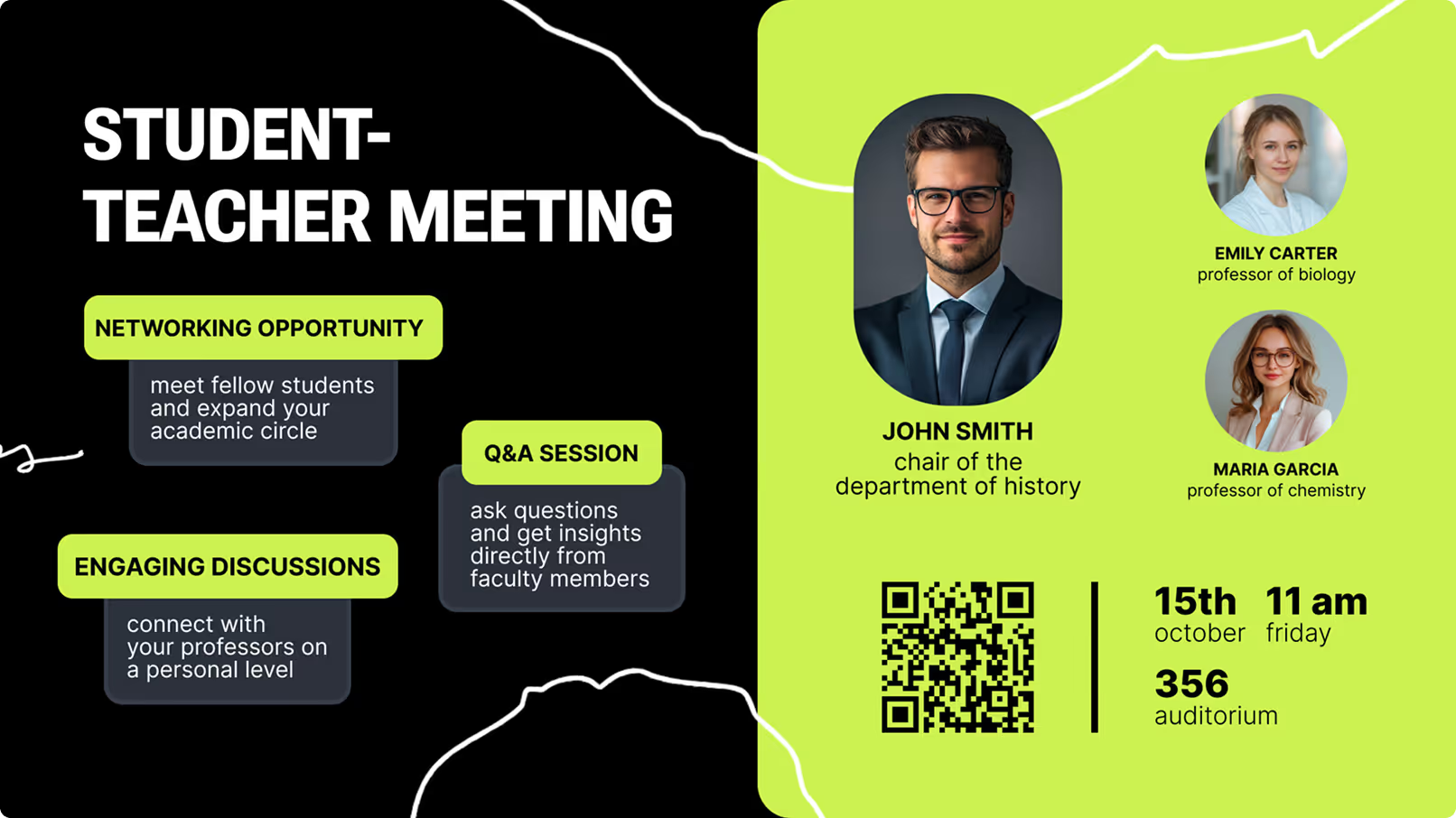
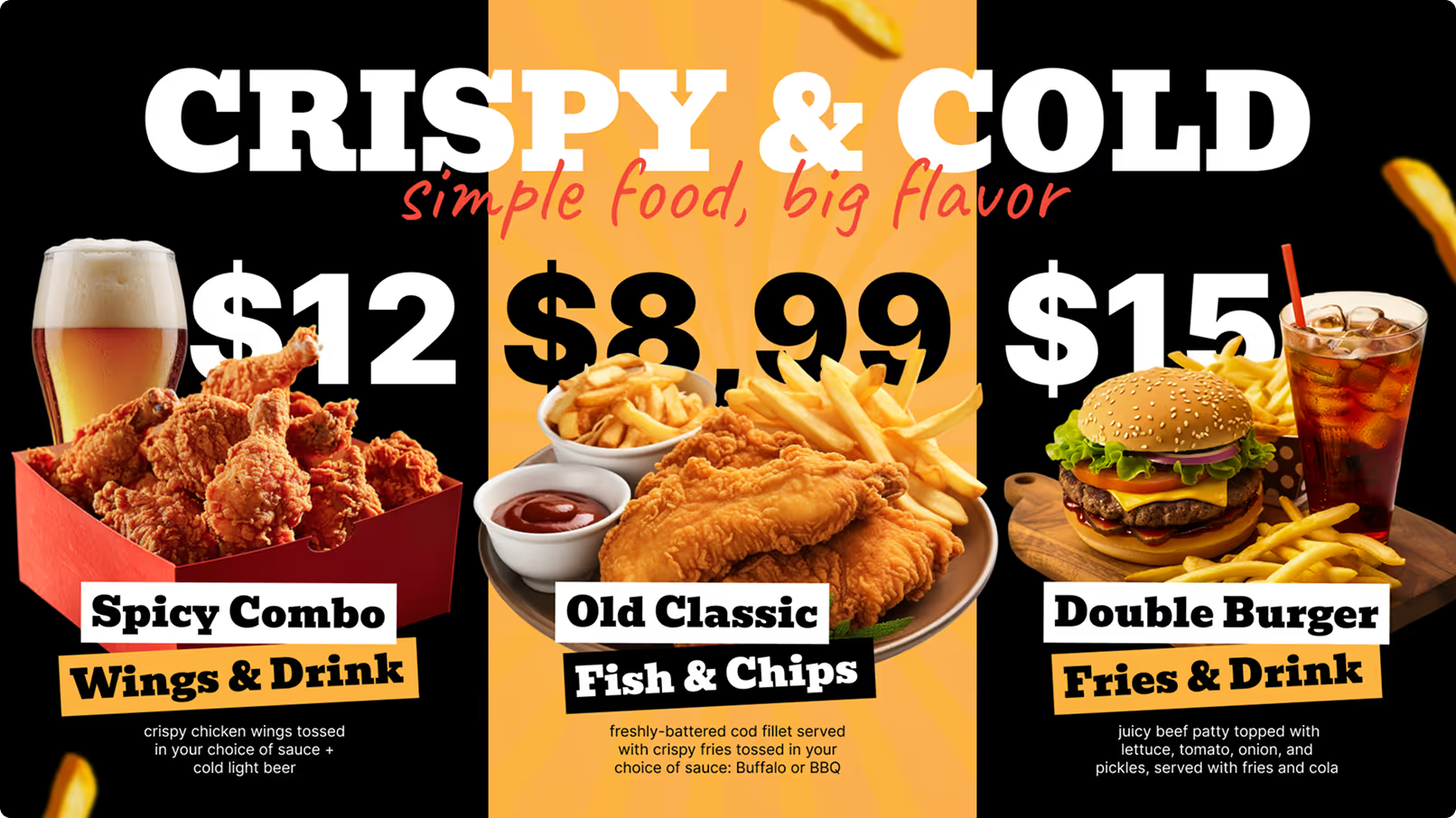
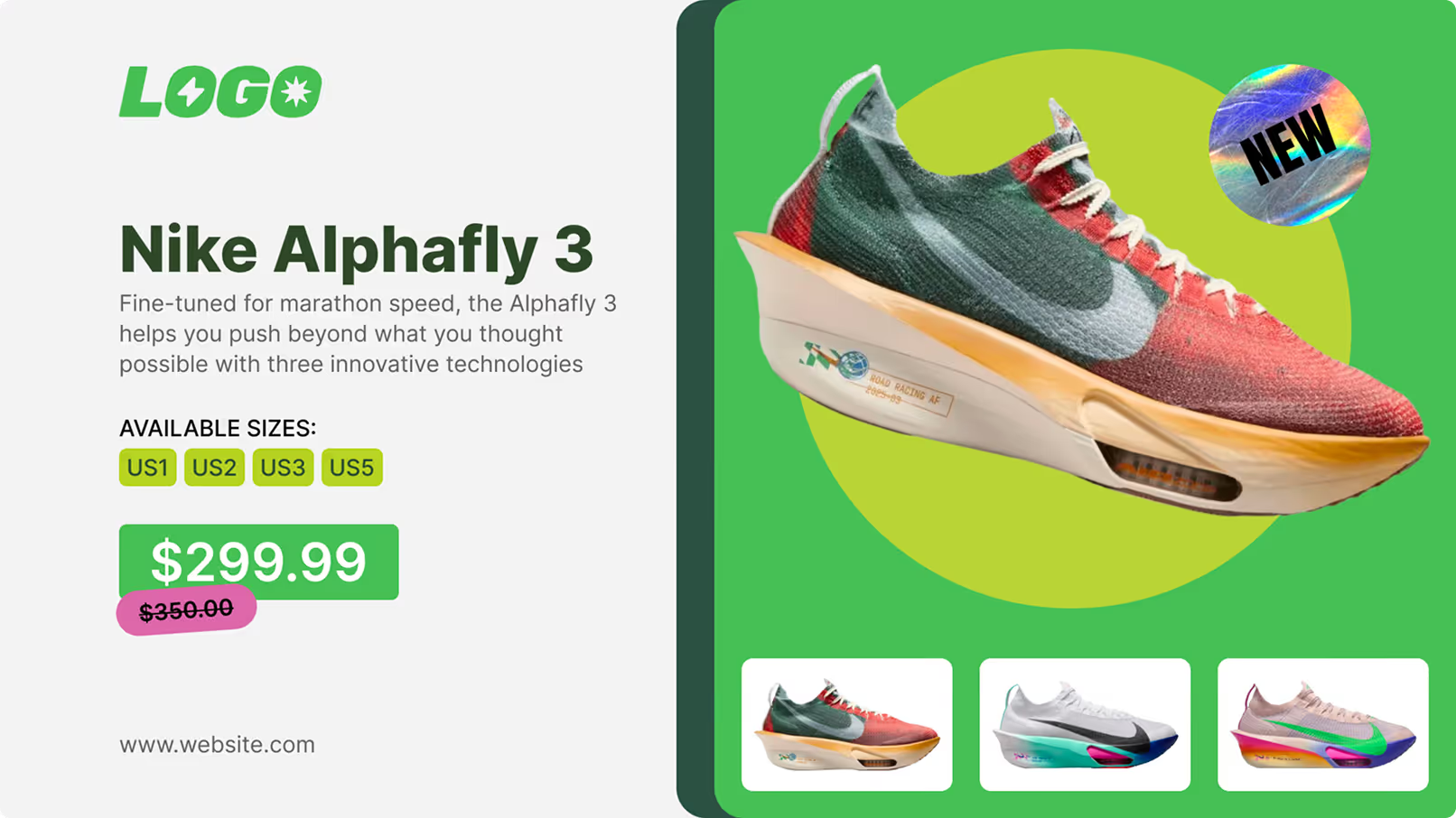
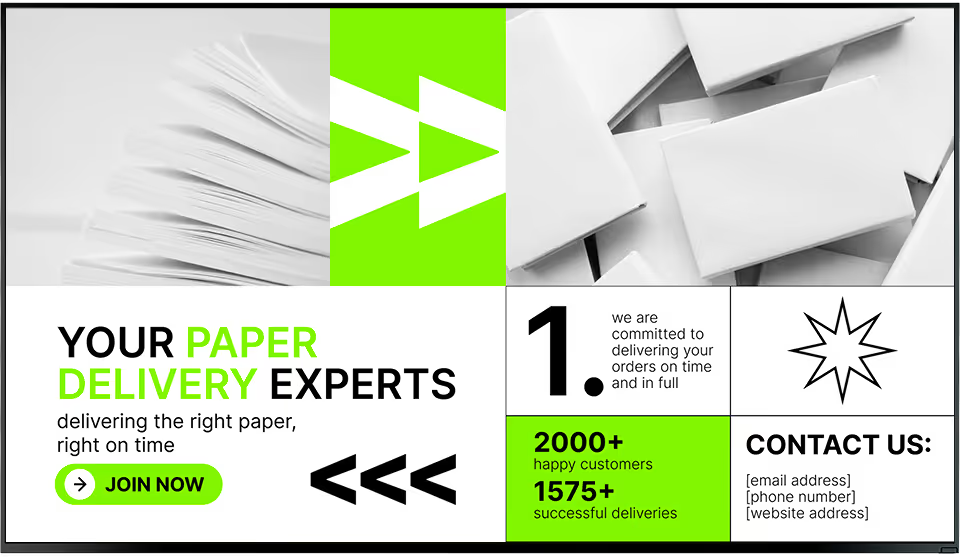
Skip the blank-canvas problem. Look DS includes a library of ready-made templates optimised for Windows landscape displays — from corporate lobby announcements and KPI dashboards to digital menu boards and event promotions. Every template is fully editable: update text, swap media, and apply your brand colours directly in the content creation builder.

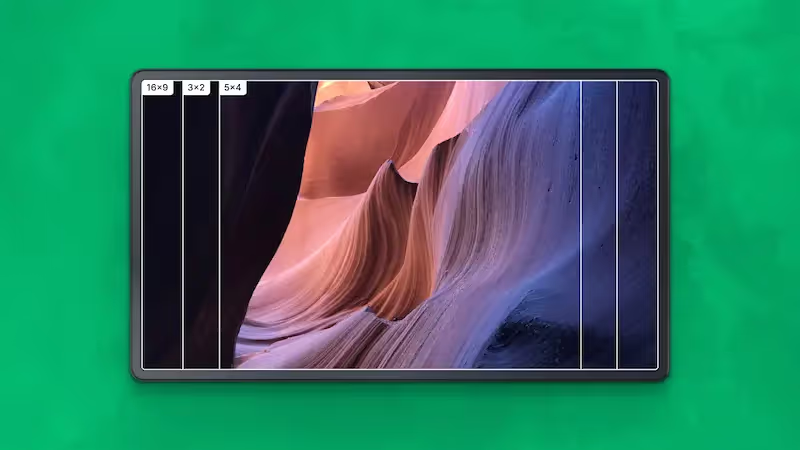
Templates are built for 16:9 landscape screens — the standard for corporate, retail, and enterprise Windows signage deployments — and can be customised to any zone layout your Windows setup supports.
Gold diamond ring in red velvet box with text advertising 20% off all diamond rings this week and images of gold jewelry.