Hardware
Digital Signage Hardware Selection: The Ultimate Buyer’s Guide 2026
July 15, 2026
June 27, 2024
by
Denis Podozhnikov


🌍 120+ countries



24/7
Continuous uptime rating for LG commercial display series
LG Commercial Displays — UH5J, UH5N, UM5N Series
4K
Native video resolution supported via the built-in display engine
LG webOS Platform Specifications
0
External media players required — the display is the player
Look DS Platform Data
Minutes
To get your first playlist live on a new LG webOS screen
Look DS Setup Guide
Understanding the Platform
Digital signage for webOS is a hardware and software setup where the display functions as its own media player. Originally a mobile operating system, webOS was acquired by LG and adapted for commercial signage displays. When you use webOS signage, you are leveraging LG's business-grade screens to show content without connecting a separate PC or media box.
Because webOS includes robust APIs,
third-party digital signage software platforms can build apps that run directly on the display's System-on-Chip (SoC). This allows you to manage everything — from timed playlists to real-time updates — via a central cloud dashboard, reducing hardware dependencies and saving maintenance time.

External media player required
Cable clutter behind screen
On-site IT visits for updates
Screen goes blank after power failure
Single output per device

Built-in SoC — screen is the player
Single clean power cable
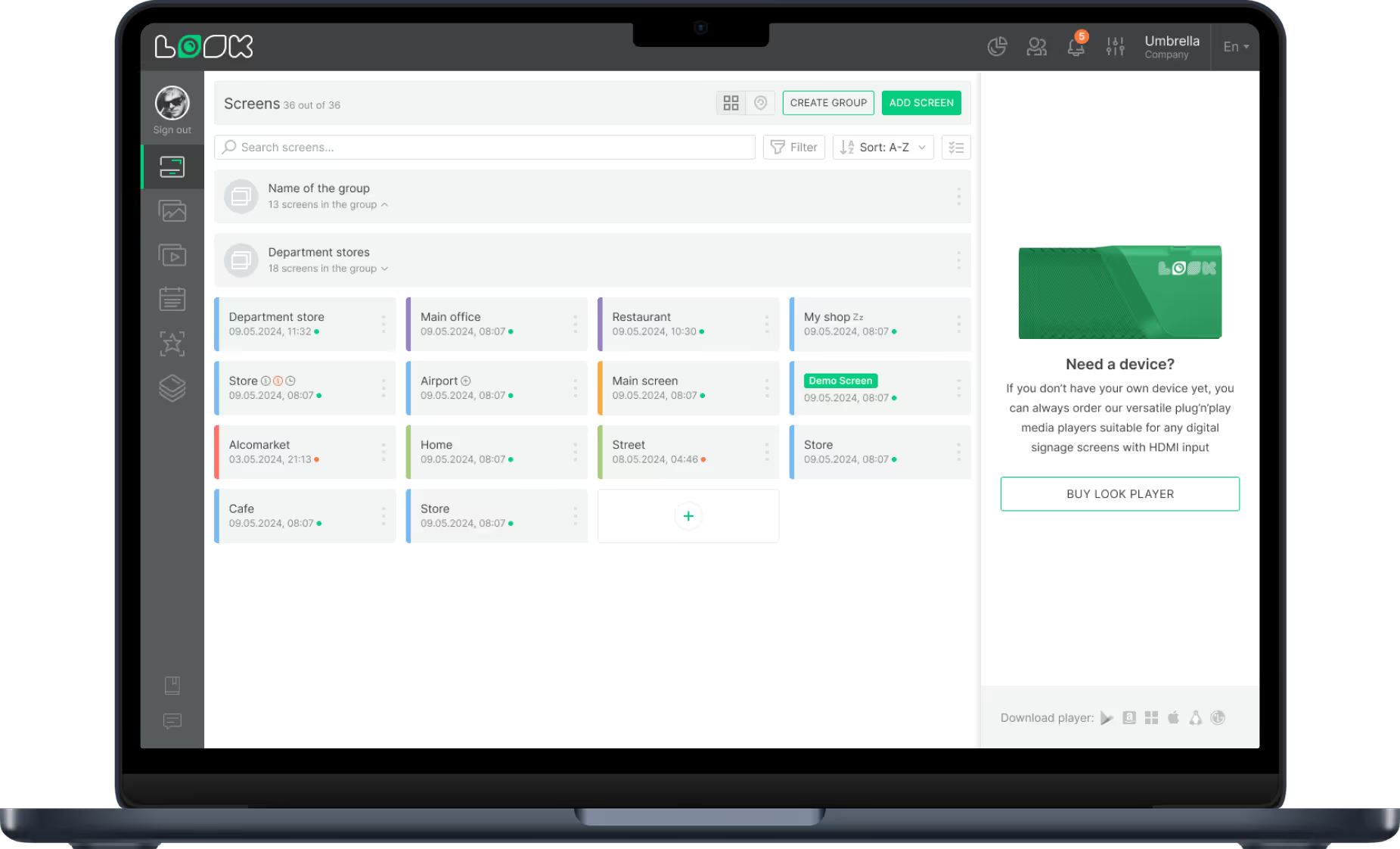
Remote updates via cloud dashboard
Auto-restart after power failure
Multi-zone layouts + live widgets
3 core components
1
A single chip inside the display houses the CPU, RAM, storage, and Wi-Fi/Bluetooth — eliminating the need for an external media player and avoiding the connection drops common with added hardware.
2
A central web-based platform like Look CMS to upload media, build playlists, schedule content, and manage all screens remotely from one dashboard — no on-site visits required.
3
Business-grade LG screens rated for 16/7 or 24/7 operation — not consumer TVs — with signage APIs that enable auto-start, crash recovery, and remote device management.
Why it works






Industry Applications
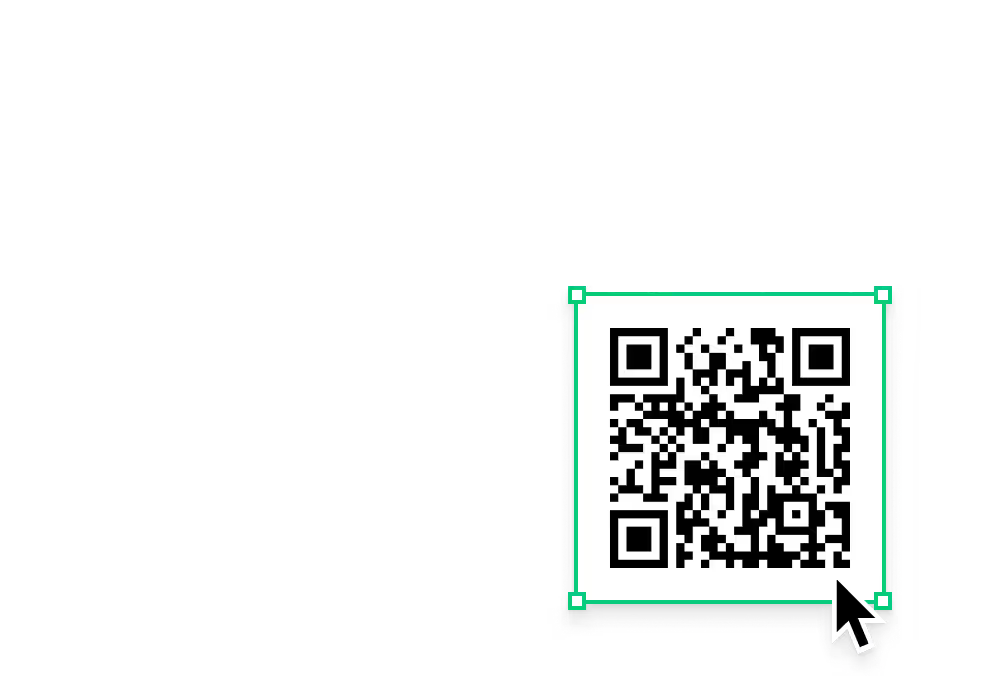
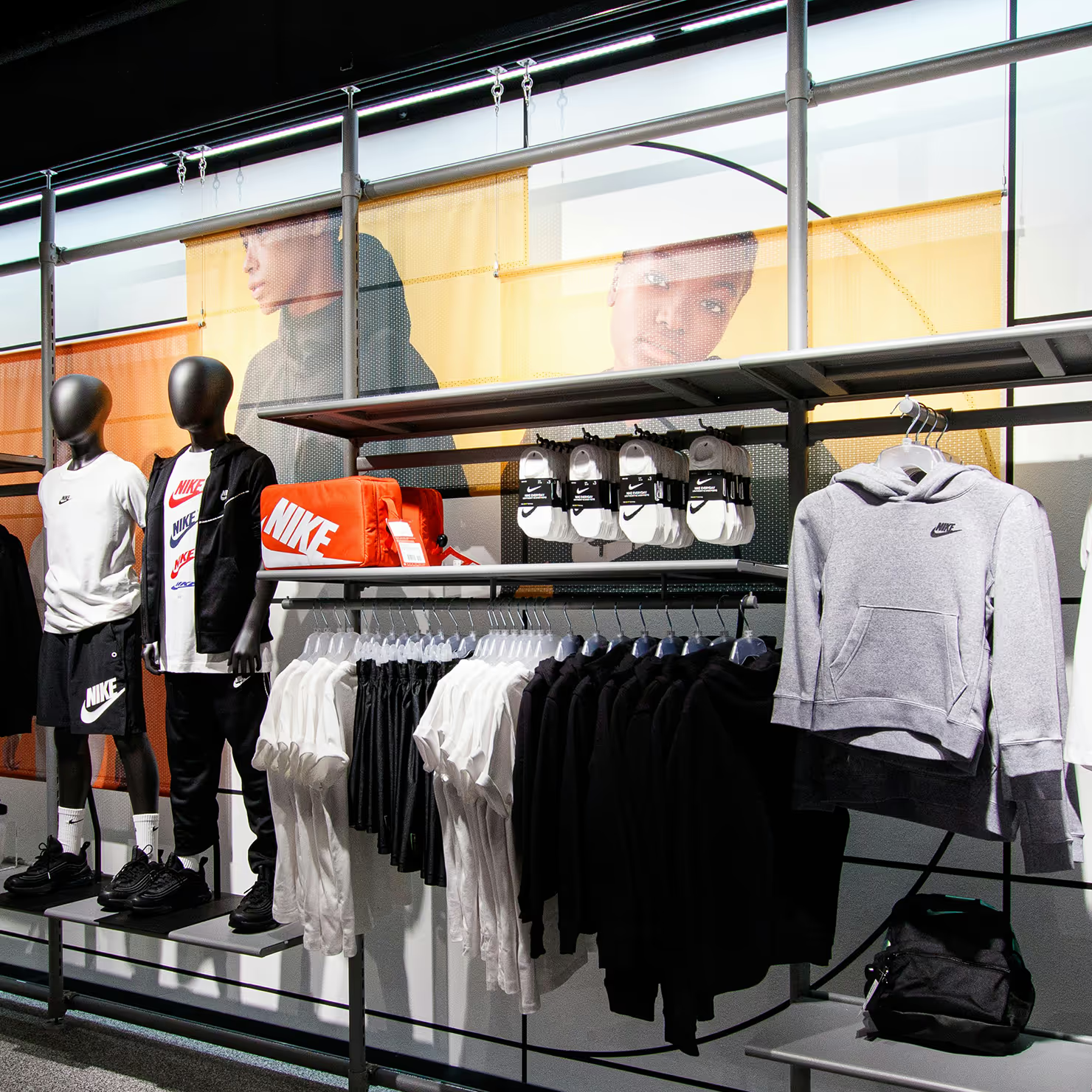
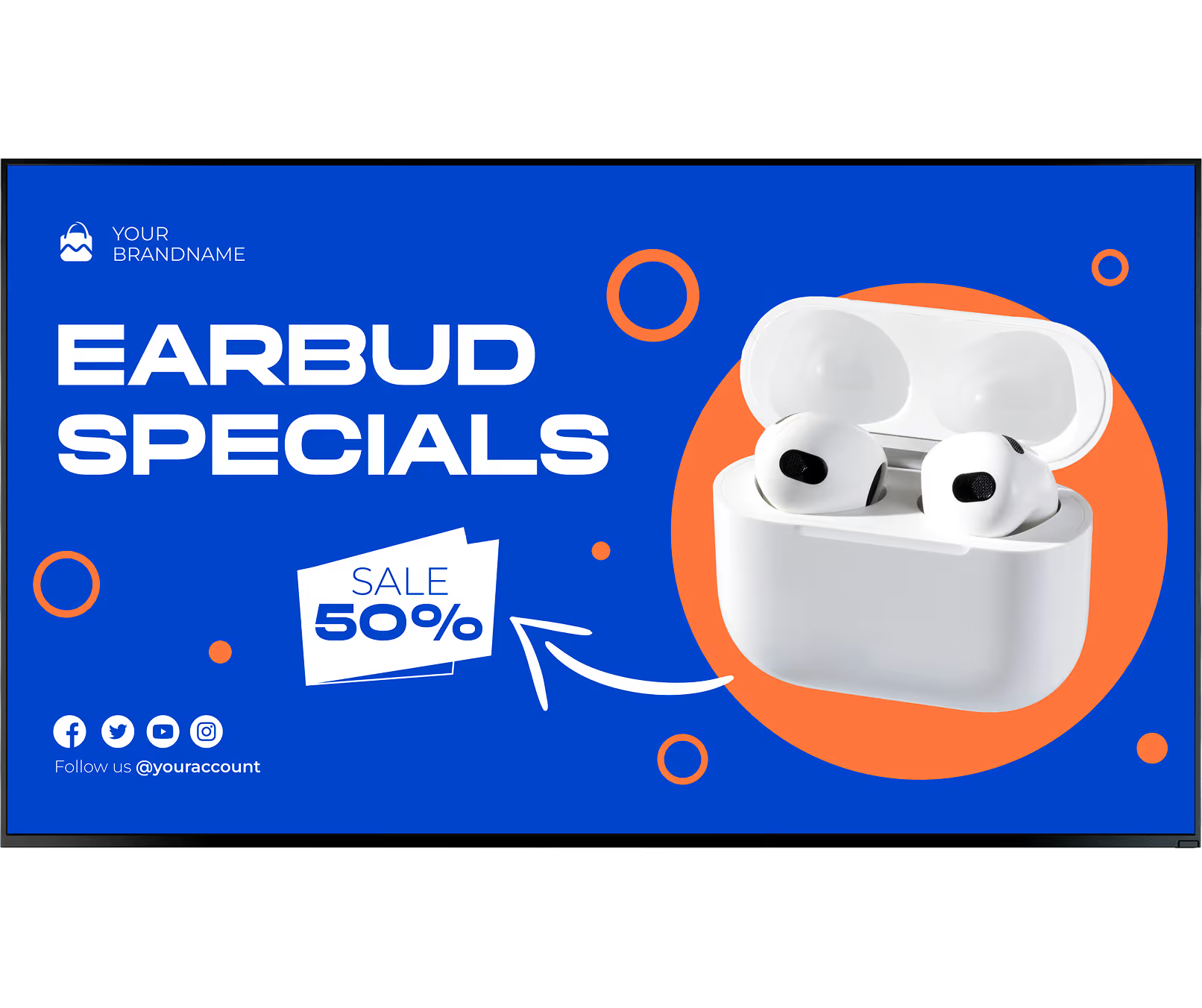
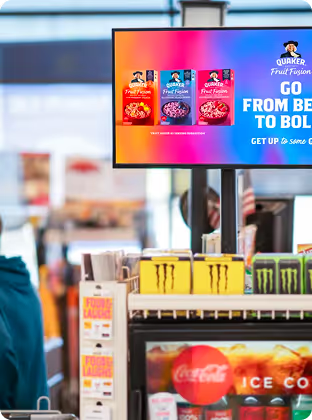
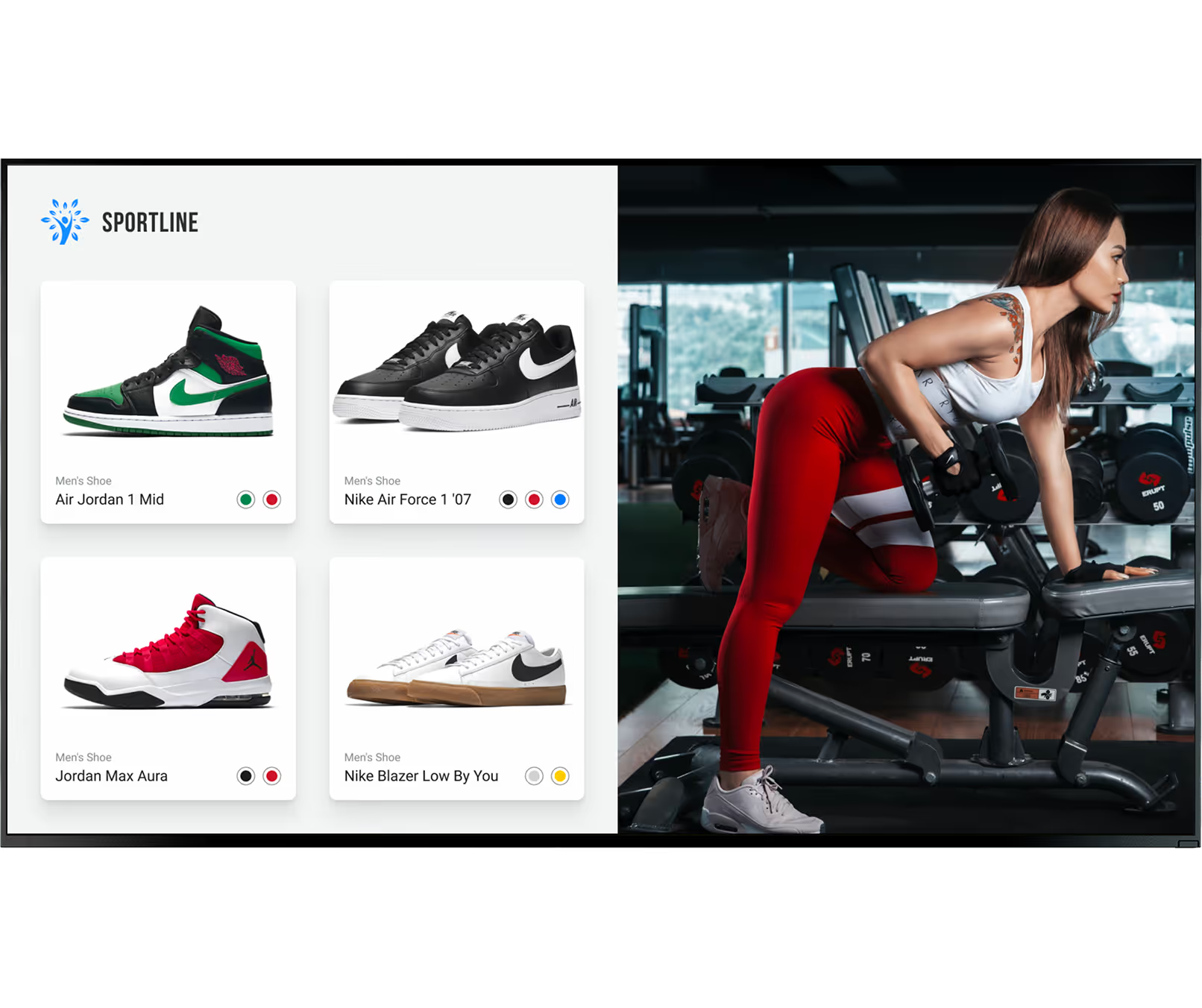
Run dynamic, time-sensitive promotions on endcap screens and digital menu boards. With touch capabilities, screens become interactive catalogs — shoppers explore inventory or scan QR codes for mobile checkout.
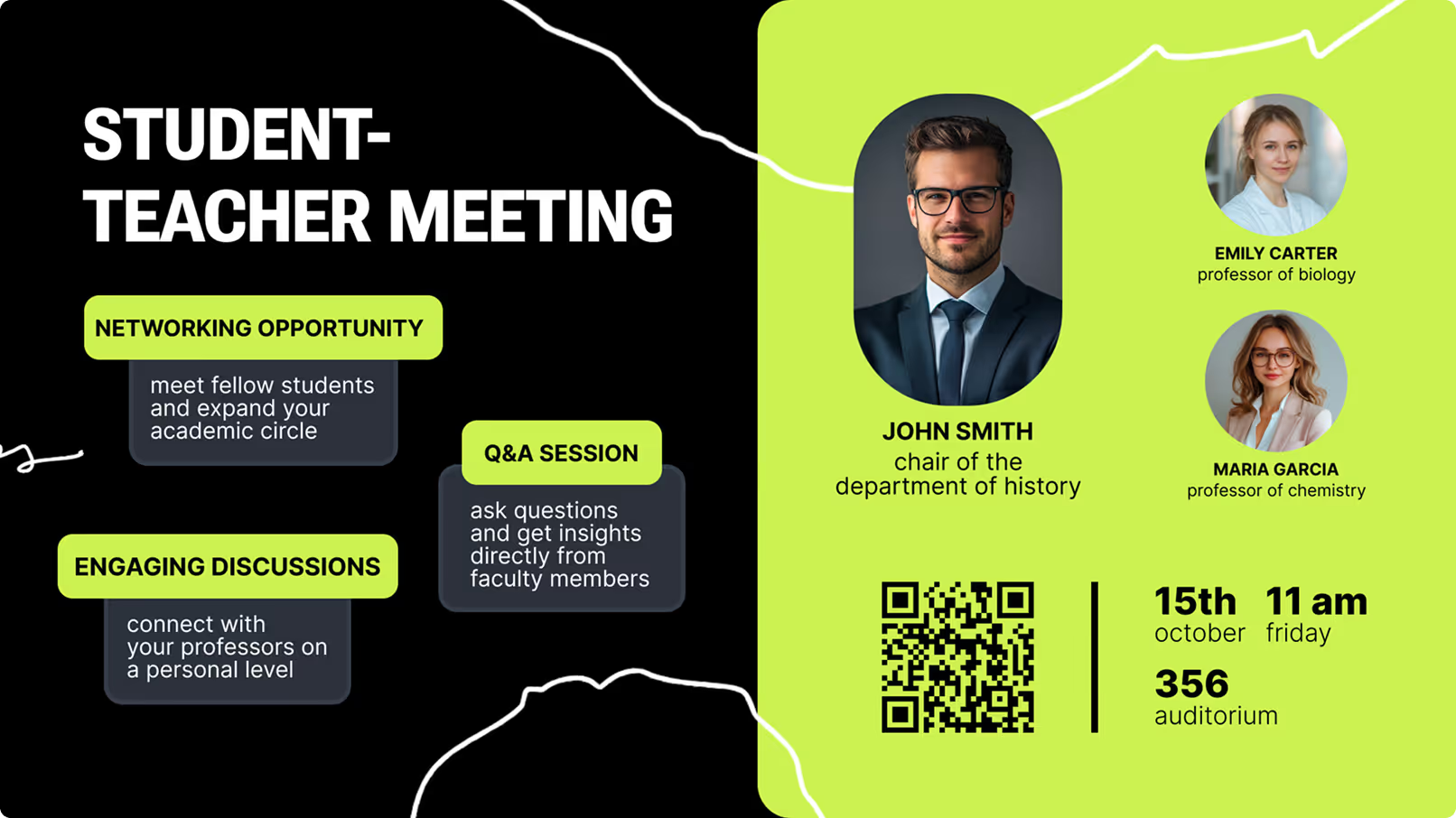
Schools and universities share event schedules, wayfinding, and cafeteria menus without printing flyers. In emergencies, the entire network instantly switches to broadcast crucial safety alerts across every campus screen.
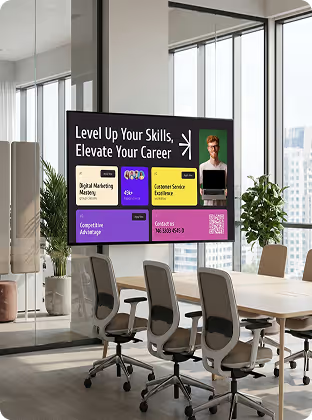
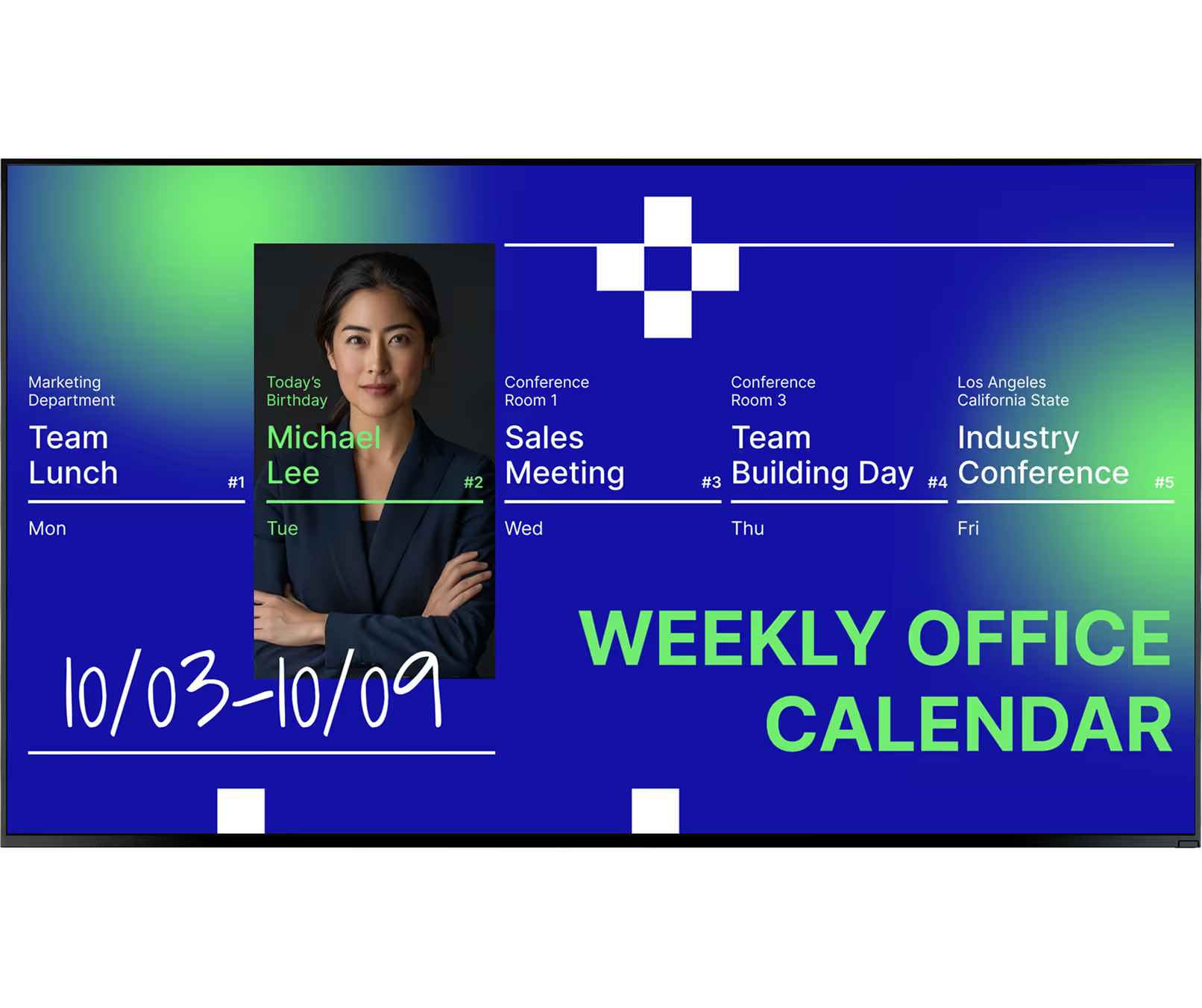
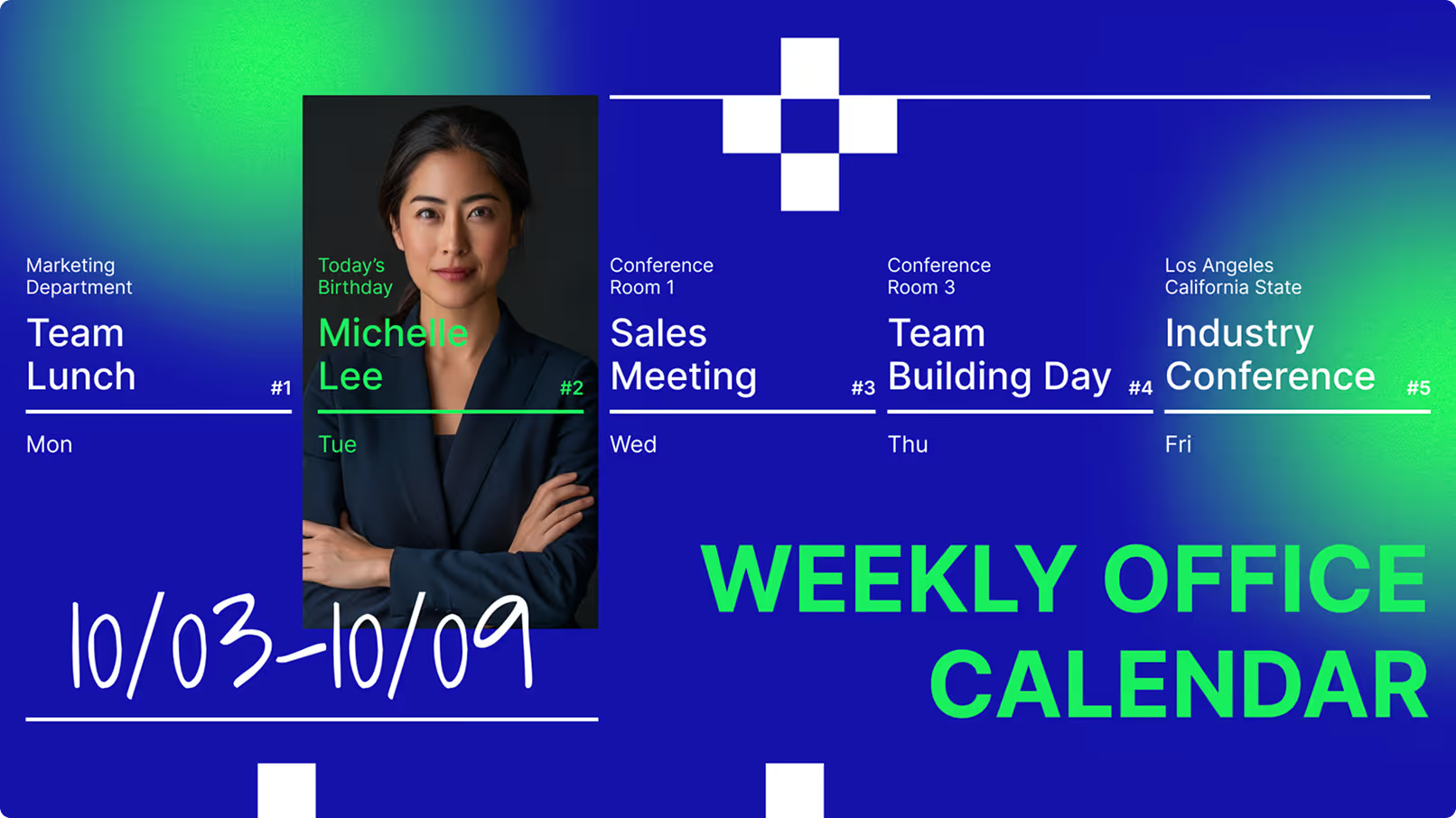
Welcome visitors and reinforce company culture. Displays outside meeting rooms sync with calendar systems to show availability. In breakrooms, they share KPIs, HR updates, and team recognition.
Screens in waiting rooms display queue information, health tips, and clinic policies, reducing perceived wait times. Wayfinding displays at entrances guide patients efficiently to designated departments.
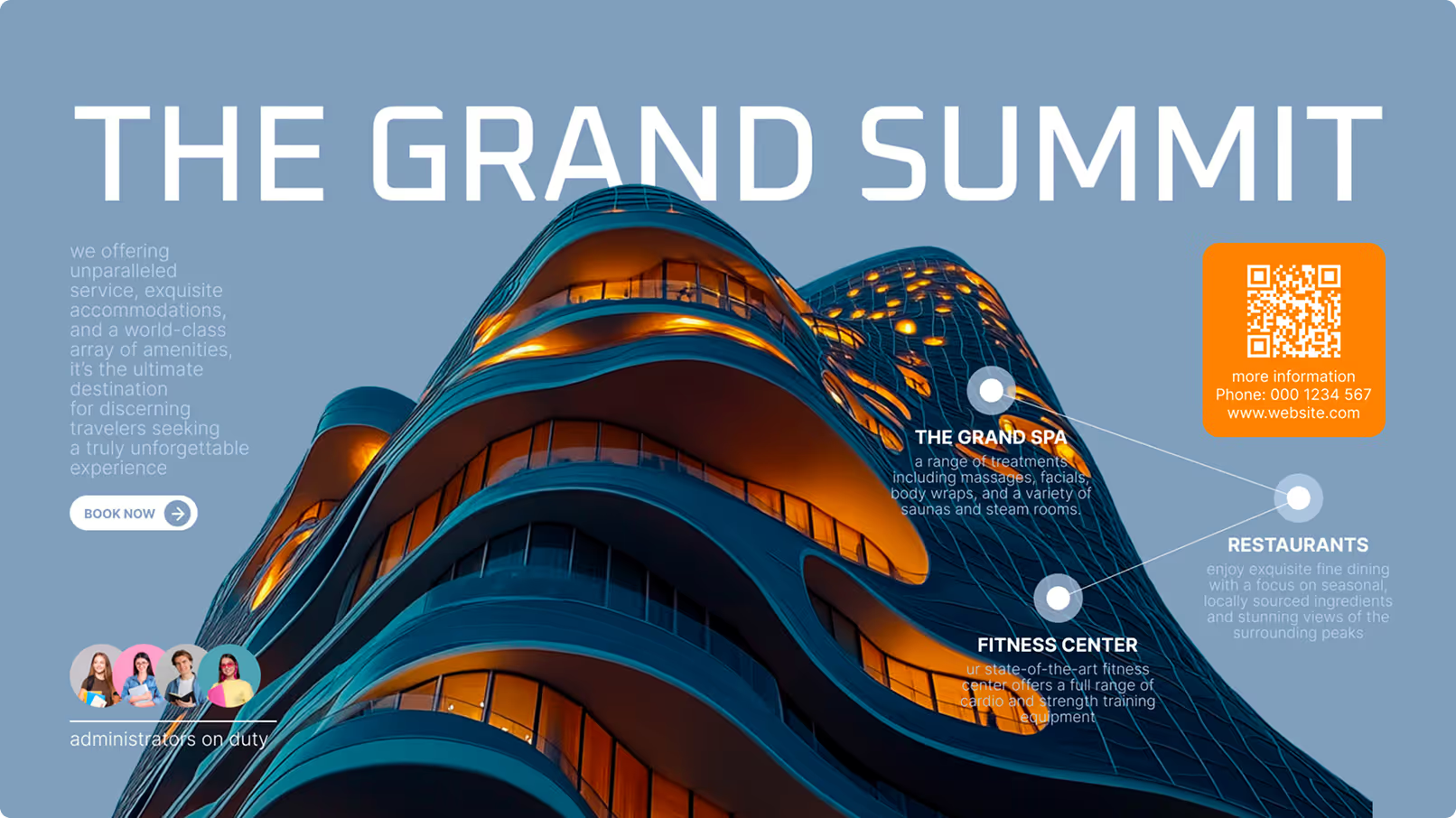
Hotels and resorts keep guests informed with high-resolution lobby displays showing event schedules, weather, and dining promotions. Interactive touchscreens help guests navigate large resort properties.
The UH5J and UH5N series at 500 nits are built for round-the-clock reliability in transport hubs, control rooms, and public-facing environments that never close.
Placement Scenarios



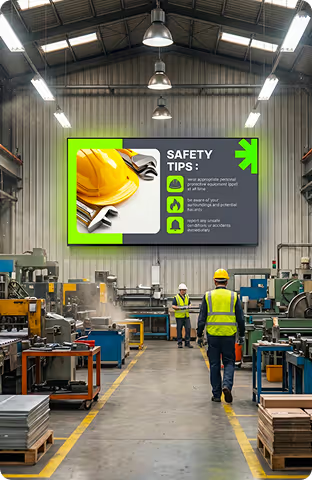
Setup

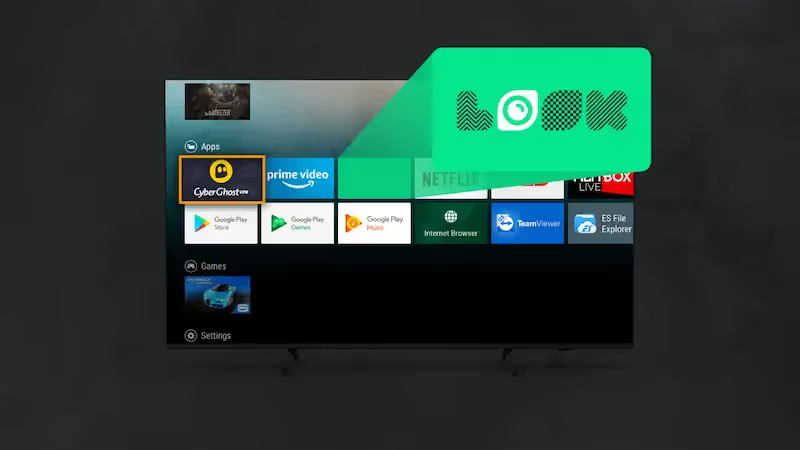
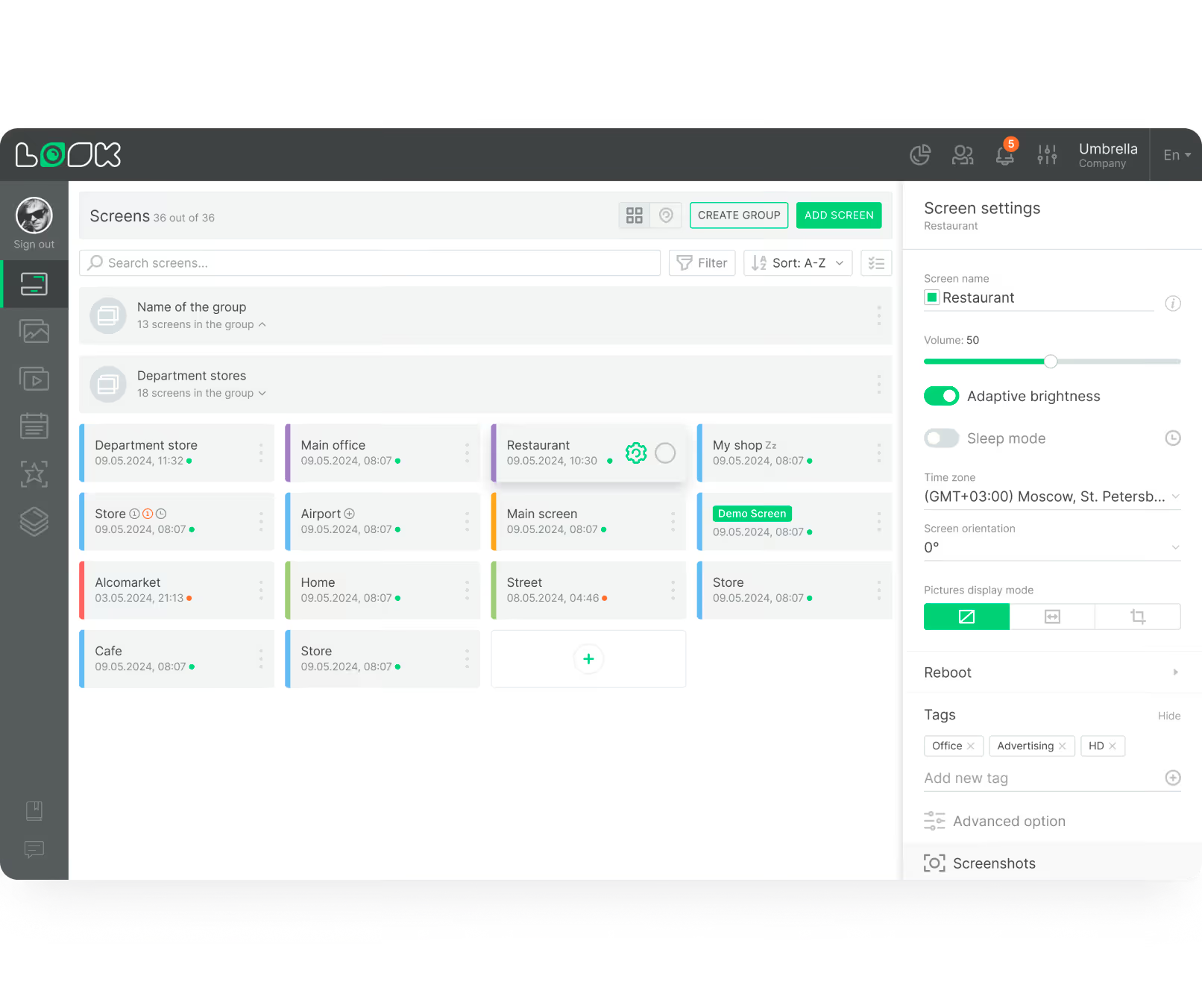
Install the free Look App directly onto your LG commercial webOS display. No external hardware required — the built-in SoC handles everything. Connect to Wi-Fi or Ethernet, install the IPK app, and publish your first playlist.
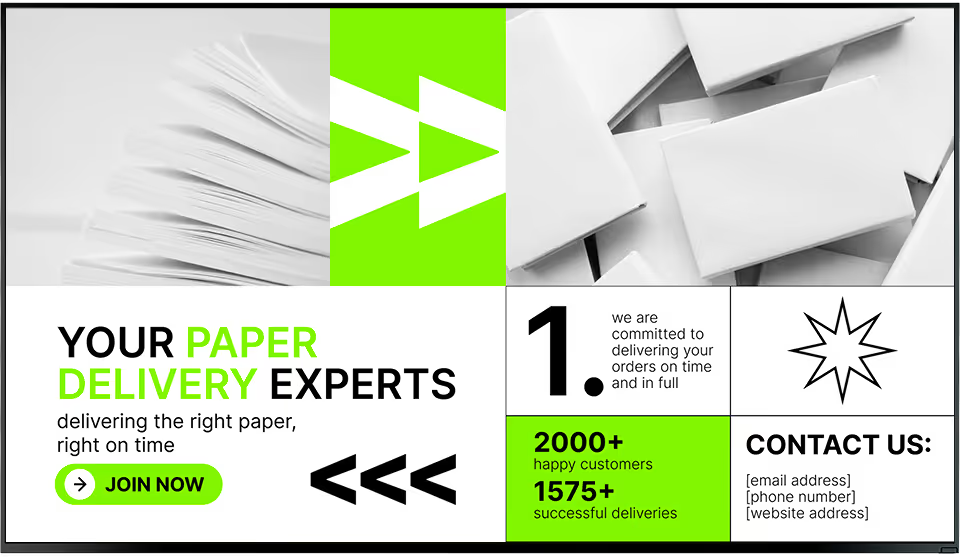
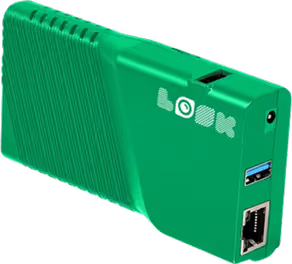
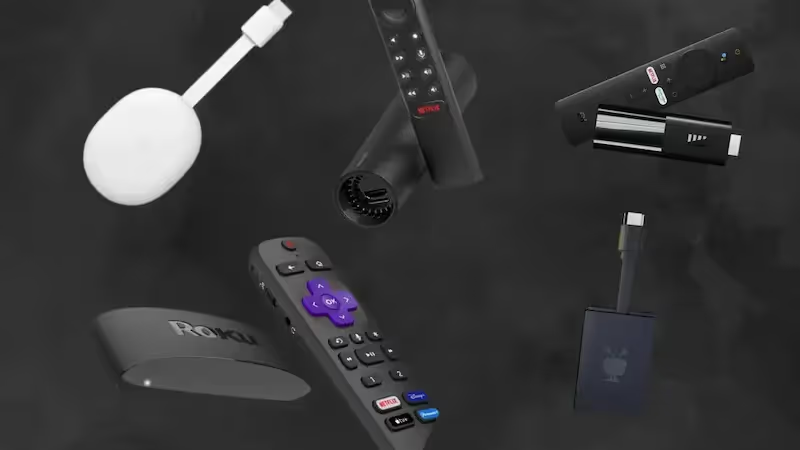
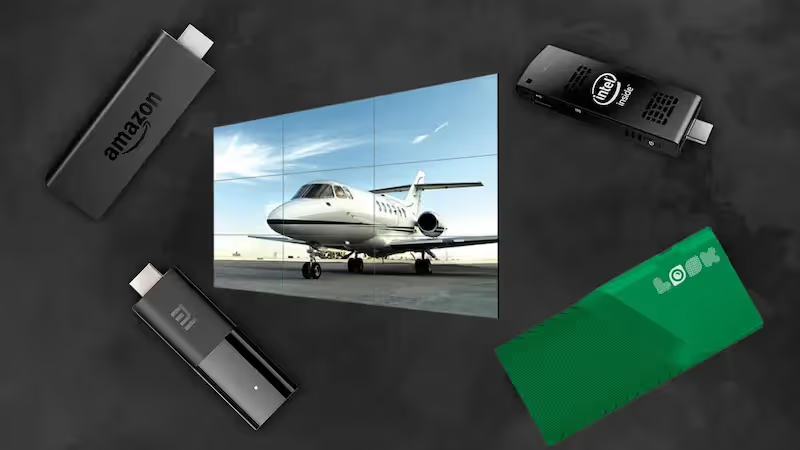
Plug the compact Look HDMI Player into any display's HDMI port for instant connectivity. Ideal for non-LG screens or mixed-hardware fleets — manage everything alongside your webOS screens from one unified Look DS dashboard.
webOS hardware guidance:
For window-facing installations, select LG's high-bright commercial models engineered to combat glare under direct sunlight. For interactive kiosk scenarios — wayfinding, self-service, product catalogs — the LG TNF touchscreen series (e.g. 43TNF5J) is purpose-built. For transport hubs, control rooms, and any public-facing environment that never closes, the 24/7-rated UH5J and UH5N models at 500 nits are the right choice.
Getting Started


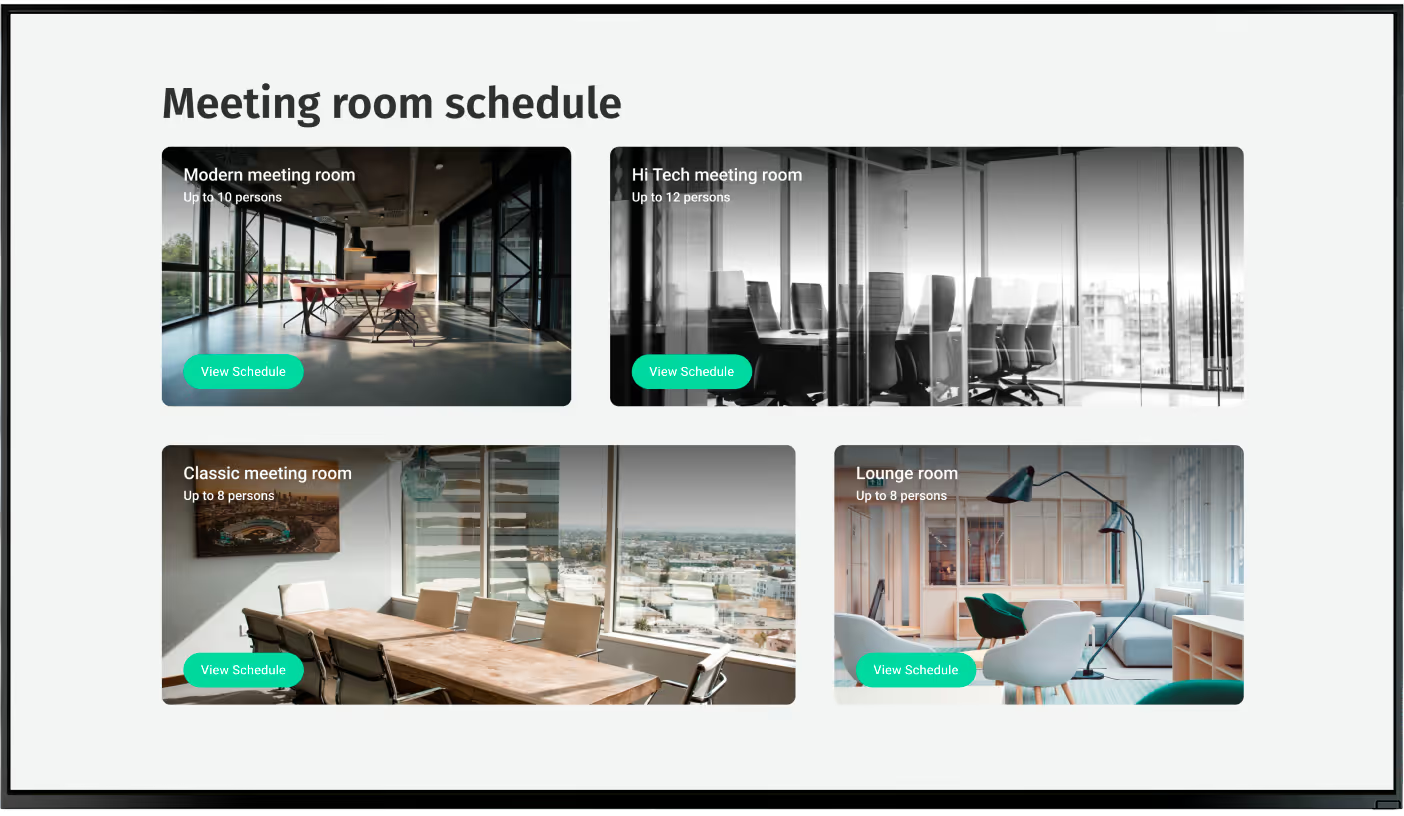
Platform Capabilities










Best Practices
01
Navigate to EZ SETTING > SI Server Setting on the LG remote. Set Fully Qualified Domain Name to "On," enter the Look App URL, set Application Type to IPK, and Local Application Upgrade to Remote for a clean network install.
02
Go to Settings > General > Time and Date and configure accurately before installing the Look App. Incorrect time settings break the security certificates required to sync with cloud servers, causing displays to show as offline.
03
Go to Settings > General > Power and disable "No IR Power Off." Without this step, the display shuts down after detecting no remote activity — causing screens to go blank unexpectedly during business hours.
04
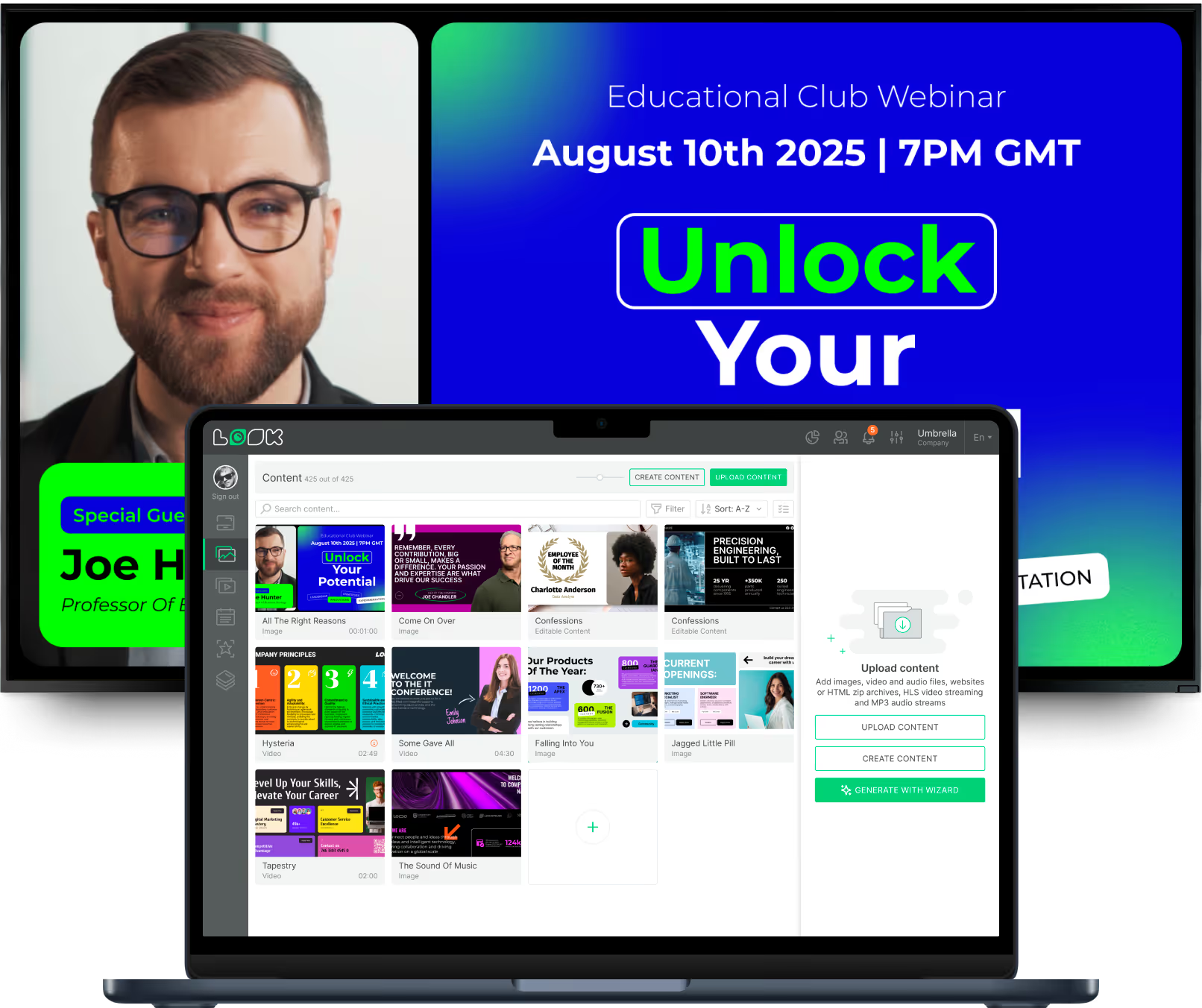
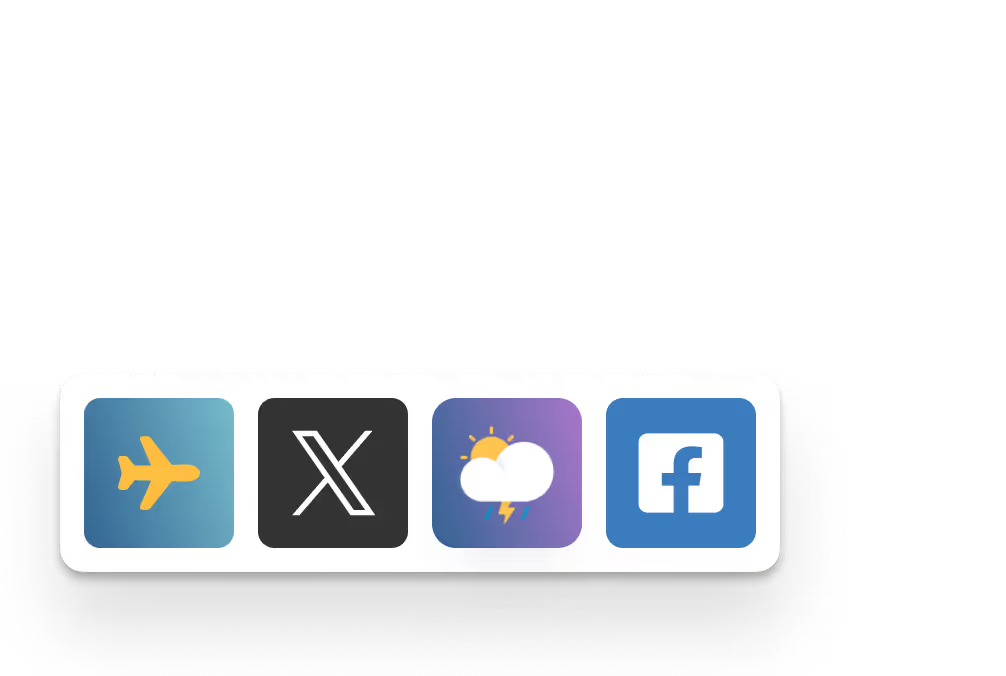
When displaying multiple content types simultaneously — a video alongside a weather widget and a news ticker — use Screen Layouts in the Look CMS to build a customised, multi-zone canvas without any coding.
05
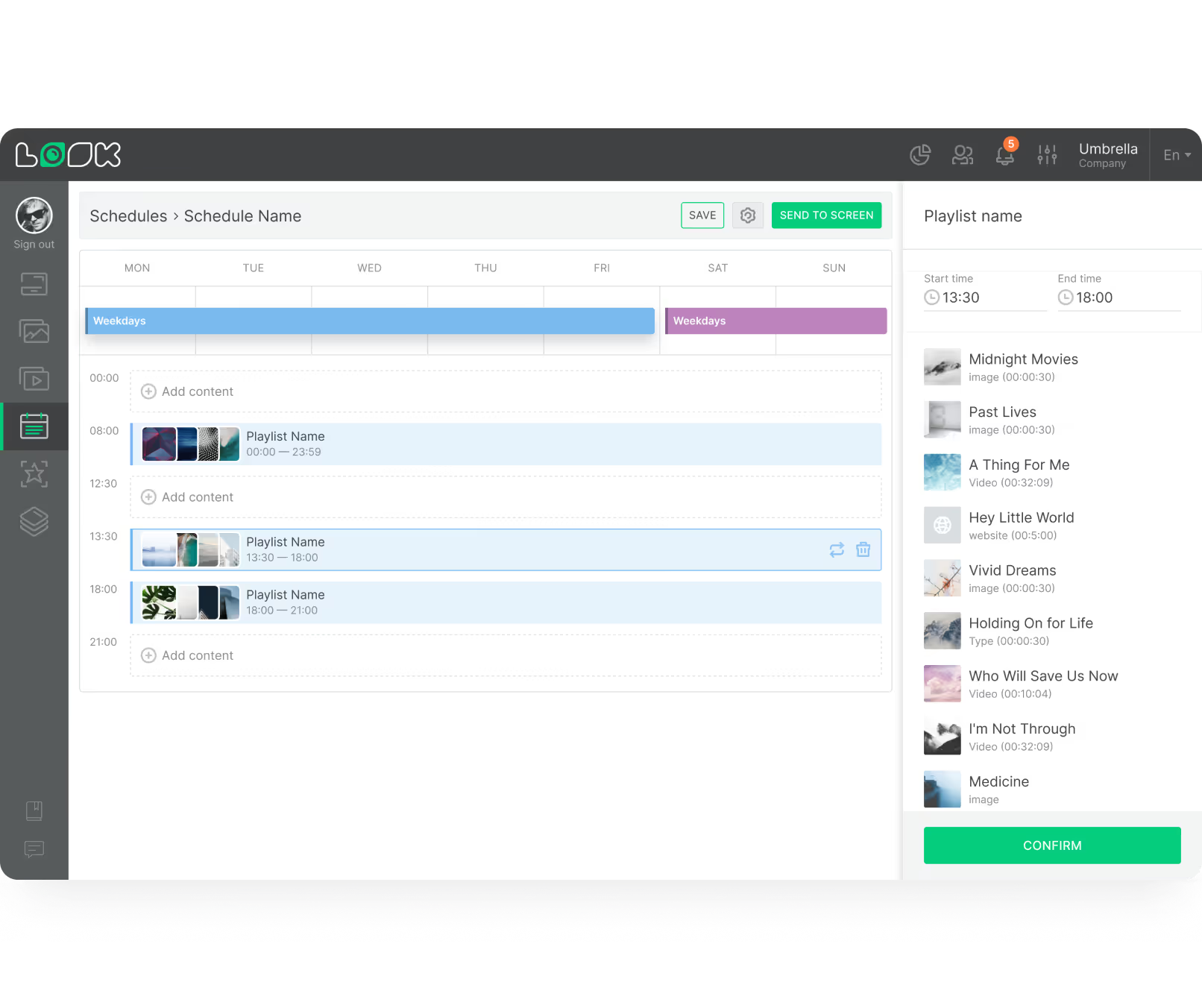
Use Smart Scheduling within Look CMS to automate content changes by time of day. Schedule morning content to swap to afternoon specials automatically — "set and forget" functionality that drastically reduces manual updates.
06
If heavy video playlists exceed the display's internal storage, format a USB drive to FAT32, plug it into the display, and configure your signage app to utilise external USB storage for media downloads.
Common mistakes
Fix: Verify you are using the LG Signage product line — not the Consumer or Hospitality lines. Look for model numbers from the UL3J, UH5J, UH5N, or UM5N series.
Fix: After mounting each screen, go to Settings > General > Time and Date and configure the correct timezone before installing the Look App.

Fix: Disable this before deployment via Settings > General > Power > "No IR Power Off" to ensure uninterrupted playback.
Fix: Connect external devices specifically to the HDMI1 port and ensure your CMS layout has the HDMI plugin configured correctly within the screen zone.
Customer Stories
In terms of using the system, the other options that I found were a little clunky and Look was not only affordable but really easy for us to deploy and get up and running.


Look is well-priced, it’s a very user-friendly software cloud-based service, where you can update your screens from wherever you are. We can definitely recommend to others!
Our experience with Look was simply excellent. We were able to offer our clients a new feature-rich solution that can meet their various requirements in terms of digital signage, with a relatively affordable monthly cost.






FAQ
Our team can walk you through a full demo tailored to your setup — from single-screen pilots to multi-location rollouts.
Templates



No credit card required

100% of features, no trial limitations

Fast human support 24/7