How to set up Samsung Tizen OS Signage displays with Look DS
Look Digital Signage allows you to show your digital signage content on Samsung Tizen displays versions SSSP 6 on Tizen 4, SSSP 10 on Tizen 6.5, and TEP on Tizen 7.0.
If you are setting up a Samsung Tizen display for the first time, please complete the initial configuration steps below before proceeding with the Look DS Samsung Tizen Signage player setup. Examples below reference setups on Tizen 4.0 and Tizen 6.5; the same general process also applies to TEP on Tizen 7.0.
Samsung Tizen display basic setup
- Power on the display
Turn on the Tizen display using the remote control or power button. - Select language
Choose your preferred language and press OK or Next to continue. - Set display orientation
Select the display orientation. The recommended setting is Landscape unless your installation requires otherwise. - Disable Auto Power Off
Turn off the Auto Power Off feature to prevent unintended shutdowns during operation. - Configure network access
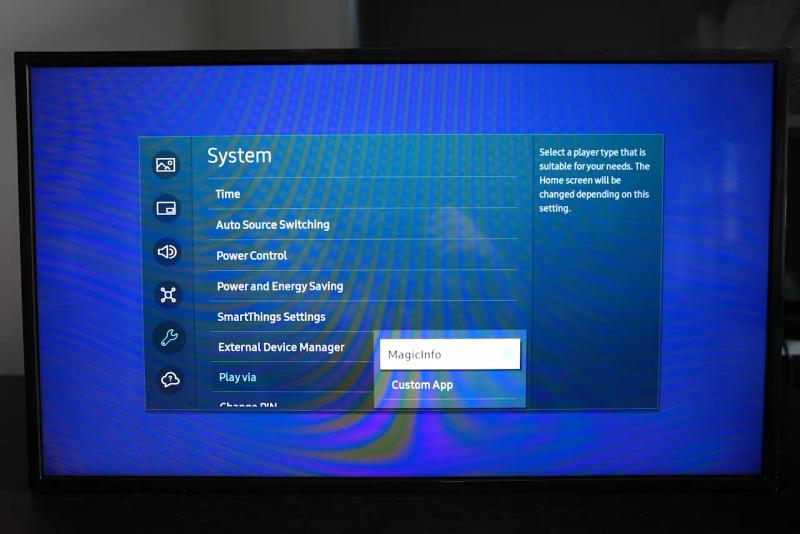
Confirm an existing network connection or configure a wired or wireless (Wi-Fi) network. - Configure Play Via setting
Set Play Via to URL Launcher. - RM Server setup
When prompted for RM Server configuration, select Skip or Set for Now. - Set date and time
Configure the correct local date and time settings. - Update to latest version
Check and install latest firmware update.
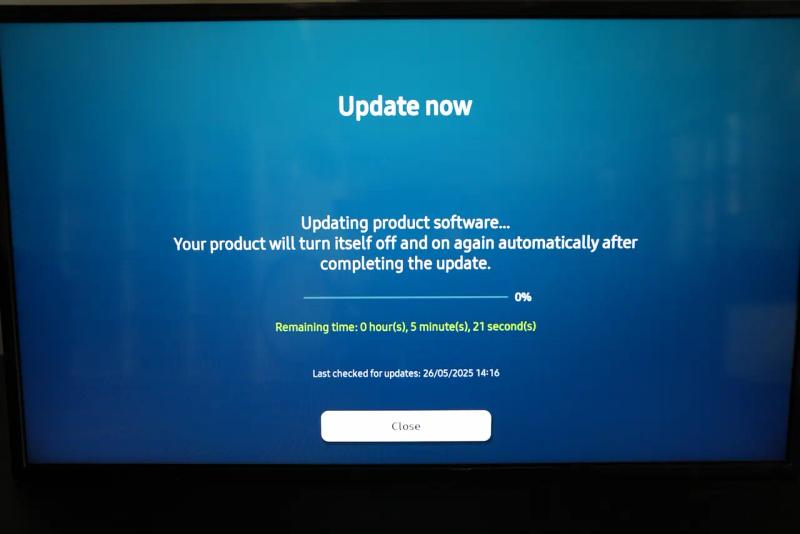
Use the default PIN 000000 everytime system asked
Installing Look App Player with URL
Check that your Samsung display has an active internet connection. You can install Look App Player using the provided URL with the following steps:
- Switch Play Via Setting to Custom App
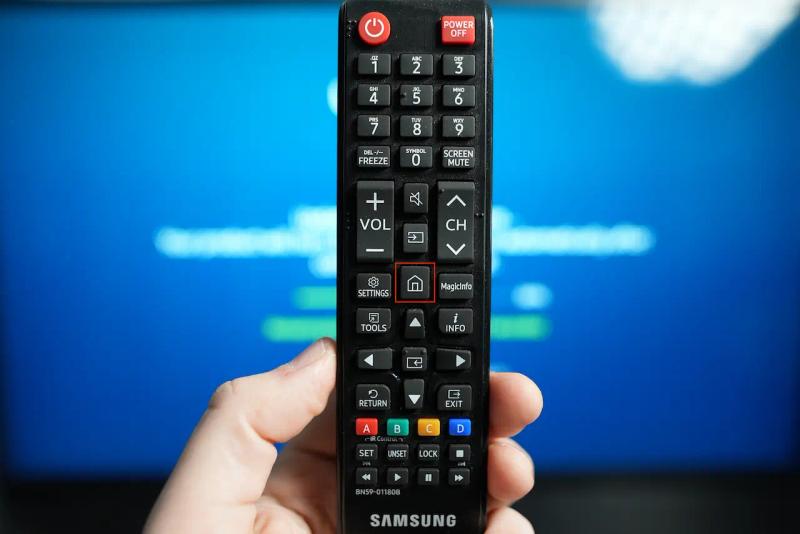
- Push the Home button on the remote
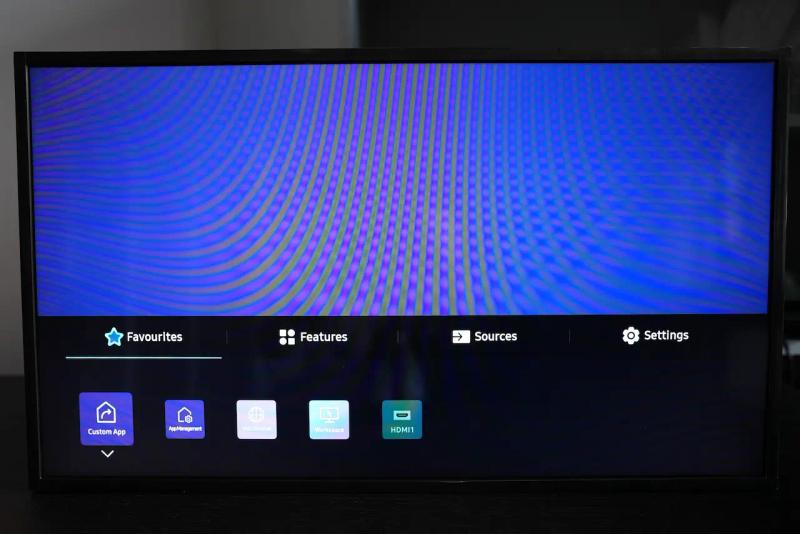
- On the menu on your display, select Custom App
- Select Install Web App and type in the URL (https://storage.lookit.hk/downloads/tizen), which leads you to the Look Tizen Player app
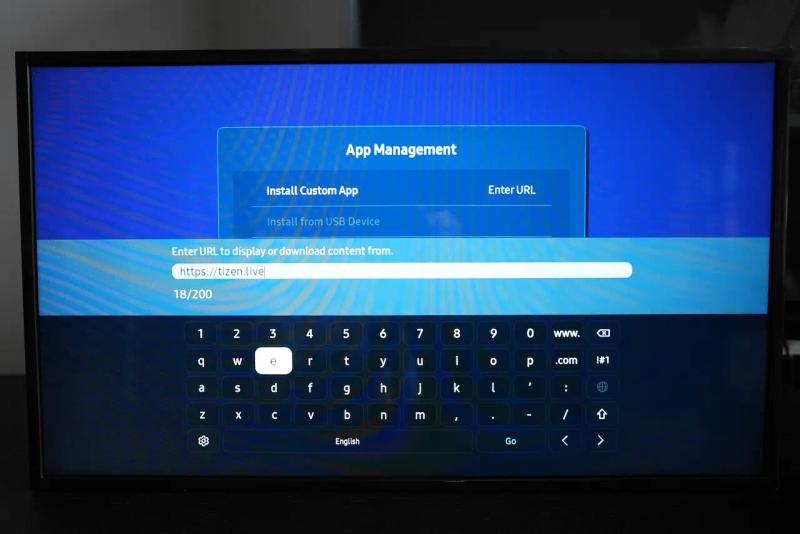
- The Look Tizen Player will install, and then boot-up automatically
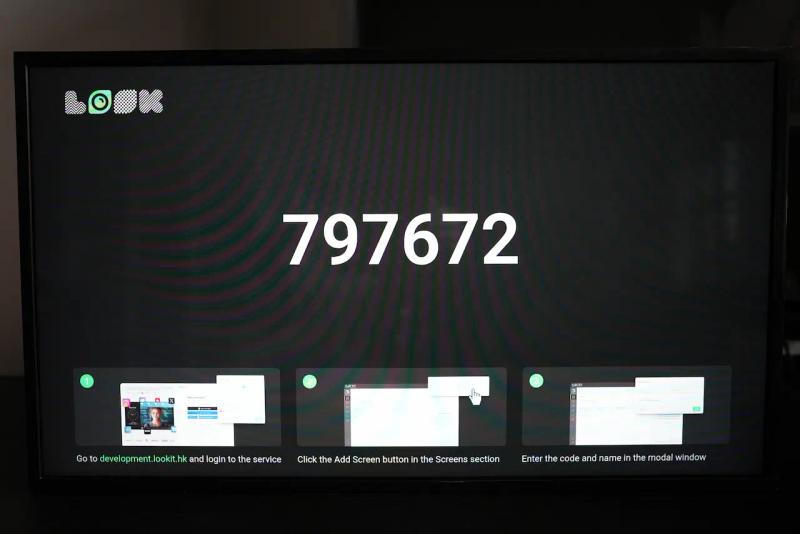
Pairing Samsung Tizen display with Look CMS account
You will see on the TV the 6-digit-pairing code specific to your setup. Use this code to connect your Samsung display with your Look CMS account.
If you don’t have a Look CMS account, sign up here for free.
In Look CMS, click on the New Screen option located in the top right corner. In the modal window that appears, enter the 6-digit code of your device, specify its name and time zone, and click the Add button.