Product
How it works Features Apps Free digital signage templates Digital signage hardware On-premise digital signage
Solutions
Choose your business and find out how to increase efficiency
retail
Retail

Supermarket & shopping mall

Grocery store

Pet store

corporate
Corporate

Meeting & conference room

HR

Lobby

Breakroom

education
Education

School

University

event
Events
Digital signage for government, preview
Government
Hospitality
Hospitality

Resort

Hotel

Night club

Spa

Beauty industry

digital signage for healthcare
Healthcare

Hospital

Medical center

Veterinary

Pharmacy

Dental

Waiting room

Manufacturing Preview
Manufacturing
Modern glass building with illuminated entryway and light trails from passing cars.
Enterprise
menu
Digital menu

Quick service restaurant (QSR)

Cafe

Bar

Drive thru

Pizzeria

Food truck

Digital signage for restaurants, preview
Restaurant, cafe & bar
Digital Signage for Entertainment, amusement parks
Entertainment

Arena and stadium

Cinema

Museum

Amusement park

Casino

fitness
Fitness
banking
Banking
advert
Advertising

Digital out-of-home (DOOH)

Indoor

transportation
Transportation

Airport

Gas station

Bus station

Train station

Parking

Car Dealership
Car dealership
real estate preview
Real estate
Digital signage for church, Preview
Сhurch
Resources
Use cases FAQ Knowledge base Blog Downloads
Company
About us Reseller program White label Contacts
Pricing
AI Wizard
new
Log in Try for free
English language
English
English
Italiano
Español
Português
Português (BR)
Français
Deutsch
Русский
中文
Try for free

14 days • No credit card • Cancel anytime

  • Home
  • Knowledge base
  • Hardware
  • How to set up MacOS devices with Look

How to set up MacOS devices with Look

With Look Digital Signage, you can launch your screens’ content using supported MacOS devices like the Apple Mac Mini.

The initial setup procedure will be similar from device to device. We recommend you set the additional configurations if you are going to use your MacOS-based device only as a digital signage media player. Follow the steps below to learn how to set the Look Player for your MacOS.

1. Disable all notifications: Click on the Apple logo at the top left corner of your screen. Select System Preferences, select Notifications, and turn off notifications for each app. By that, the chances of an interruption during your digital signage use will be reduced.
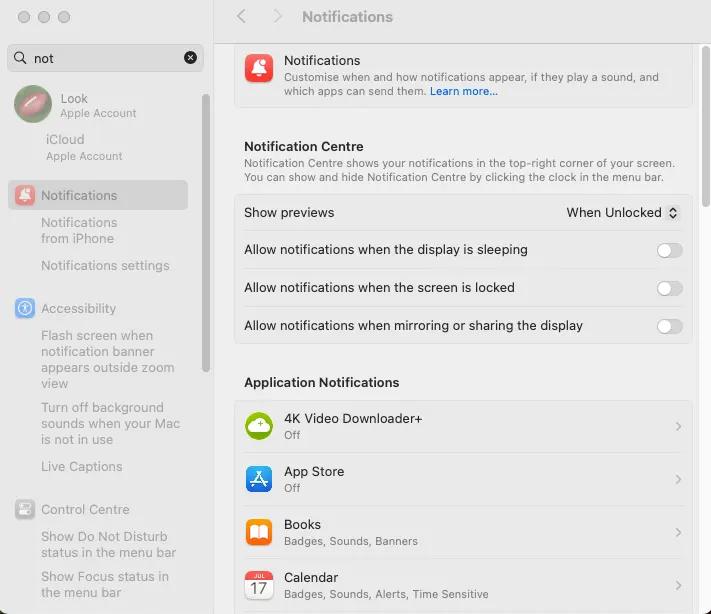
MacOS interface noifiations

2. To prevent your device from going into sleep mode during operation hours, go back into your System Preferences, choose Energy Saver, then select Power Adapter, and move the slider option to Never.
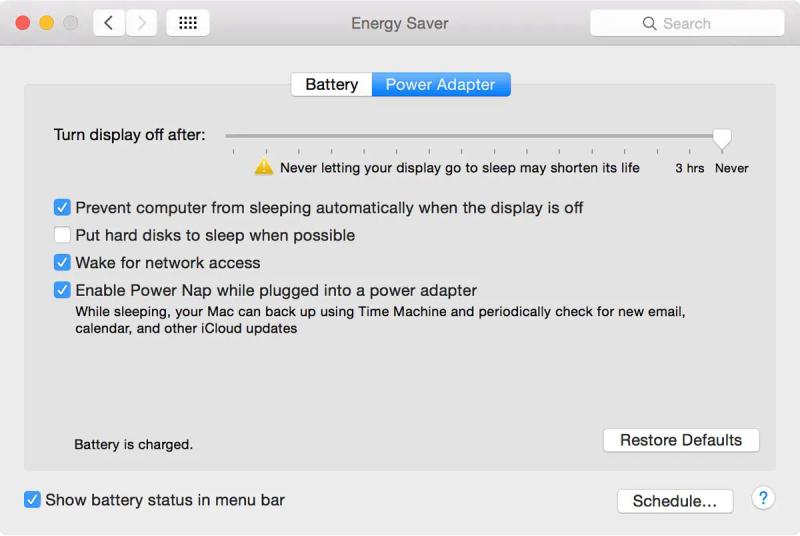
Preventing sleep mode on MacOS

3. Download the Look Player App on your Mac device here. Select the correct version for your device — Apple Silicon or Intel. Once downloaded, move the app to your Applications folder.
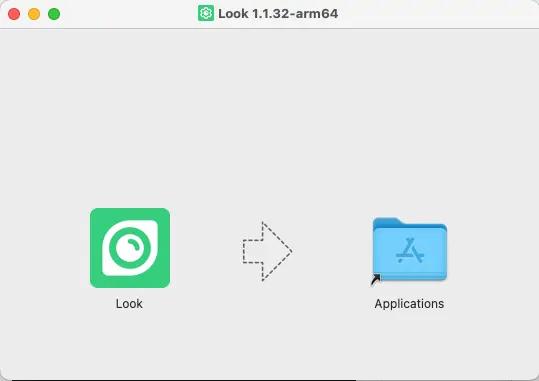
Moving Look to Applications on MacOS

4. Open Applications and run the Look Player app. On the first launch, MacOS may show a security warning — just click Open to proceed.
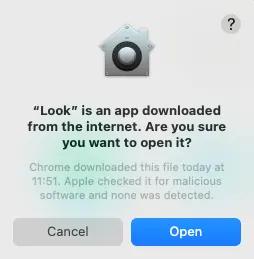
MacOS interface "open Look"

Pairing Media Device with Look CMS Account

You will see the 6-digit pairing code specific to your setup on your device. Use this code to connect your device with your Look CMS account.

If you don’t have a Look CMS account, sign up here for free.

In Look CMS, click on the New Screen option located in the top right corner. In the modal window that appears, enter the 6-digit code, specify its name and time zone, and click the Add button.

Other Look App Player settings

To uninstall the Look Player, go to Applications, choose the Look Player with the right mouse button and the Move to bin option.
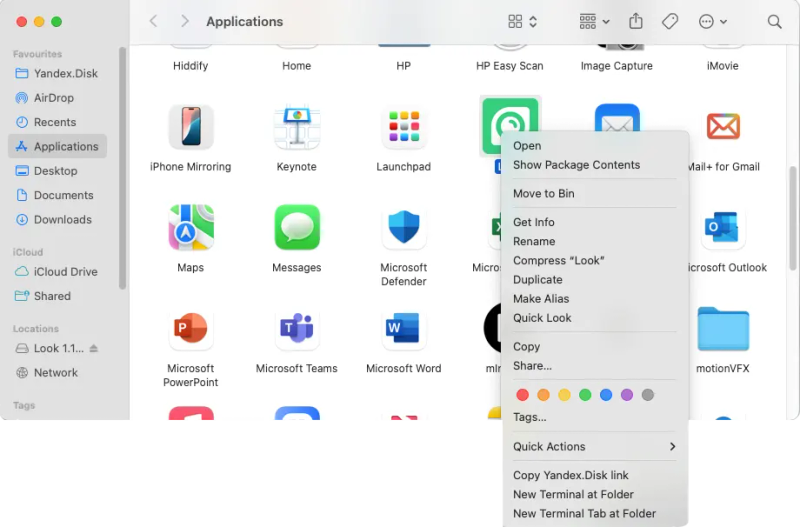
Uninstall Look Player
Can't find your answer?
Contact Support

Hardware

How to set up a Raspberry Pi with Look
How to set up Amazon Signage Stick with Look
How to set up Android-based devices with Look
How to set up Fire OS devices with Look
How to set up LG webOS Signage displays with Look DS
How to set up Linux OS devices with Look
How to set up MacOS devices with Look
How to set up Samsung Tizen OS Signage displays with Look DS
How to set up Windows-based devices with Look
Permissions settings for Android TV or Google TV
Permissions settings for Fire OS 8

Categories

Getting started
Screens
Actions
Company
Content
Playlist
Schedules
Screen Layouts
Apps
Billing
Hardware
Product
How it works Features AI Wizard Apps Free digital signage templates Digital signage hardware On-premise digital signage Pricing
Company
About us Reseller program White Label Contacts
Solutions
Retail Hospitality Banking Corporate Healthcare Fitness Advertising Education Transportation Events Real estate Manufacturing Restaurants, cafes & bars Entertainment Car dealership Government Church Digital signage solutions Enterprise
Resourses
FAQ Use cases Knowledge base Look academy Blog What is digital signage Downloads Alternatives Troubleshooting RSS Best digital signage software Supported operating systems
Instagram link Facebook link X icon LinkedIn link YouTube Icon
Look DS LLC. Address: 1201 N Orange Street Suite #7003, Wilmington, DE 19801, United States
info@lookdigitalsignage.com
capterra-best-valueSoftware Sugest Awardsoftware-advice-customer-supportget-app-category-leaderG2-spring-2025-HighPerformer-Small-Businesscapterra-short-list-2025
Look Digital Signage Software Logo Footer
Privacy Policy
Terms of Service
Service Level Agreement
©2026 LOOK DS LLC