Product
How it works Features Apps Free digital signage templates Digital signage hardware On-premise digital signage
Solutions
Choose your business and find out how to increase efficiency
retail
Retail

Supermarket & shopping mall

Grocery store

Pet store

corporate
Corporate

Meeting & conference room

HR

Lobby

Breakroom

education
Education

School

University

event
Events
Digital signage for government, preview
Government
Hospitality
Hospitality

Resort

Hotel

Night club

Spa

Beauty industry

digital signage for healthcare
Healthcare

Hospital

Medical center

Veterinary

Pharmacy

Dental

Waiting room

Manufacturing Preview
Manufacturing
Modern glass building with illuminated entryway and light trails from passing cars.
Enterprise
menu
Digital menu

Quick service restaurant (QSR)

Cafe

Bar

Drive thru

Pizzeria

Food truck

Digital signage for restaurants, preview
Restaurant, cafe & bar
Digital Signage for Entertainment, amusement parks
Entertainment

Arena and stadium

Cinema

Museum

Amusement park

Casino

fitness
Fitness
banking
Banking
advert
Advertising

Digital out-of-home (DOOH)

Indoor

transportation
Transportation

Airport

Gas station

Bus station

Train station

Parking

Car Dealership
Car dealership
real estate preview
Real estate
Digital signage for church, Preview
Сhurch
Resources
Use cases FAQ Knowledge base Blog Downloads
Company
About us Reseller program White label Contacts
Pricing
AI Wizard
new
Log in Try for free
English language
English
English
Italiano
Español
Português
Português (BR)
Français
Deutsch
Русский
中文
Try for free

14 days • No credit card • Cancel anytime

  • Home
  • Knowledge base
  • Company
  • Single Sign-on (SAML 2.0)

Single Sign-on (SAML 2.0)

SSO integration is considered using the example of OKTA.

1. Register with OKTA and log in to your account. Go to the admin panel by clicking on Admin button.

2. Select the Applications and Applications submenu on the left sidebar. Click the Create App Integration button. In the window that opens, select SAML 2.0 and click Next.
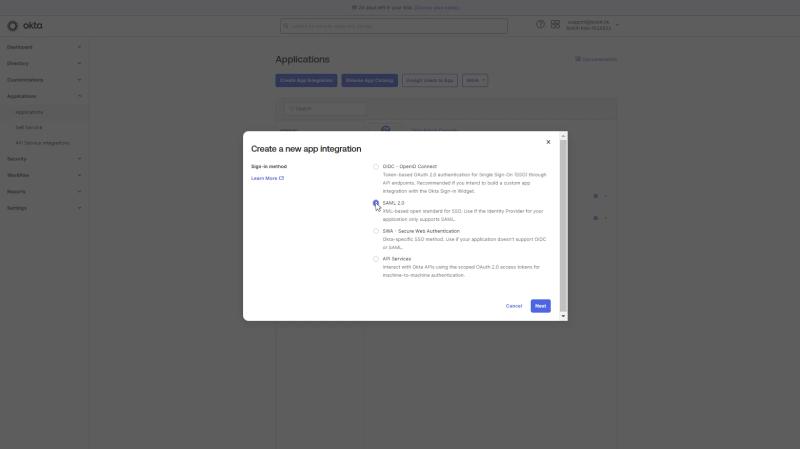
Create Saml integration in OKTA

3. In Create SAML integration window, fill in the first step General settings. At this step, you need to write App name Look and upload App logo (optional), and click Next.
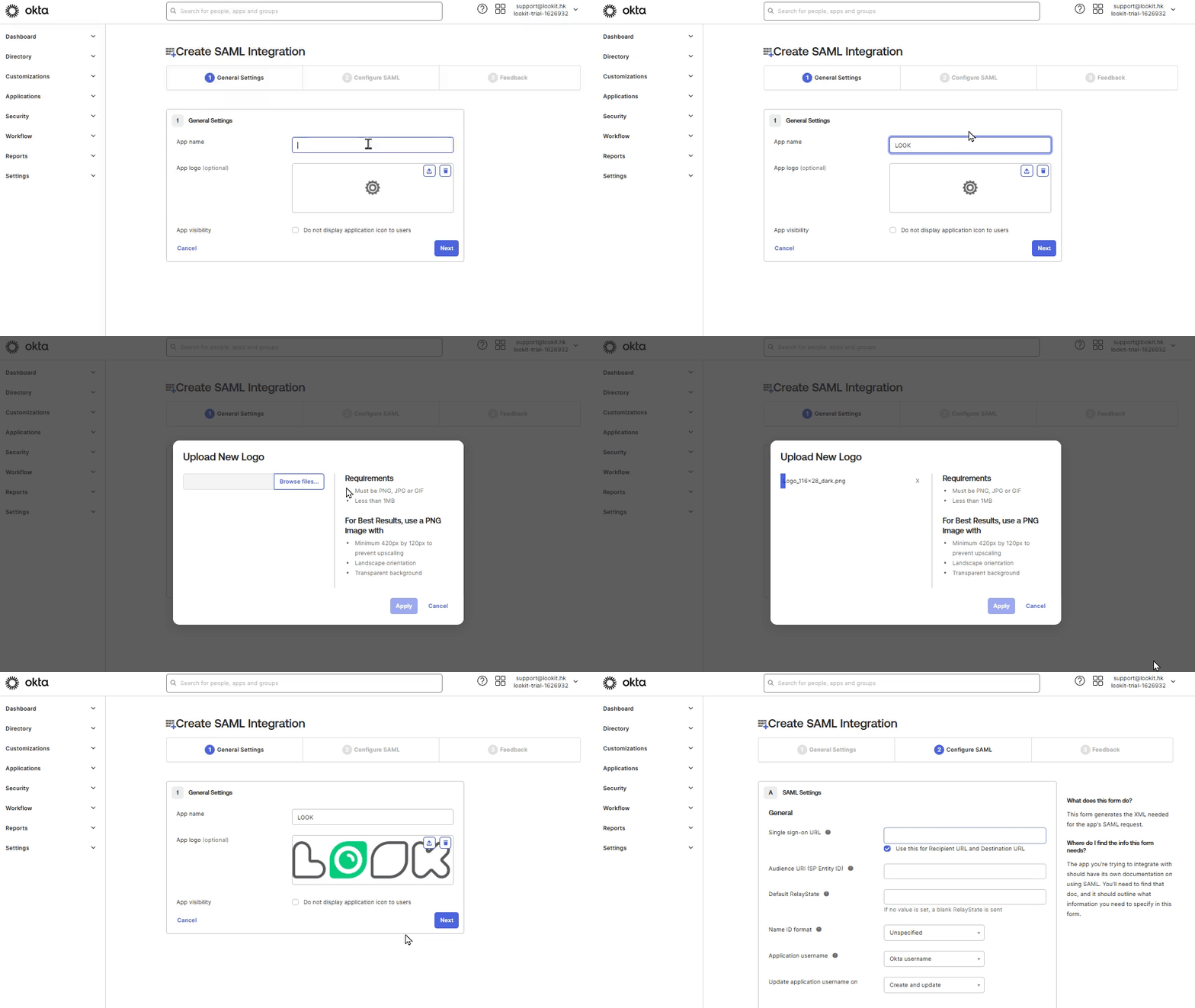
add app name and logo in OKTA

4. In the second step Configure SAML, open Personal settings in your Look account, click on Single Sign On tab, and activate Enable SSO (SAML 2.0) trigger.

Copy SSO URL (Assertion Consumer Service) link, go back to OKTA, and paste it to Single sign-on URL field.

From Look account copy Audience URI (SP Entity ID) link, and in OKTA paste it to Audience URL field. Select Email Address in the NAME ID format list and click Next.
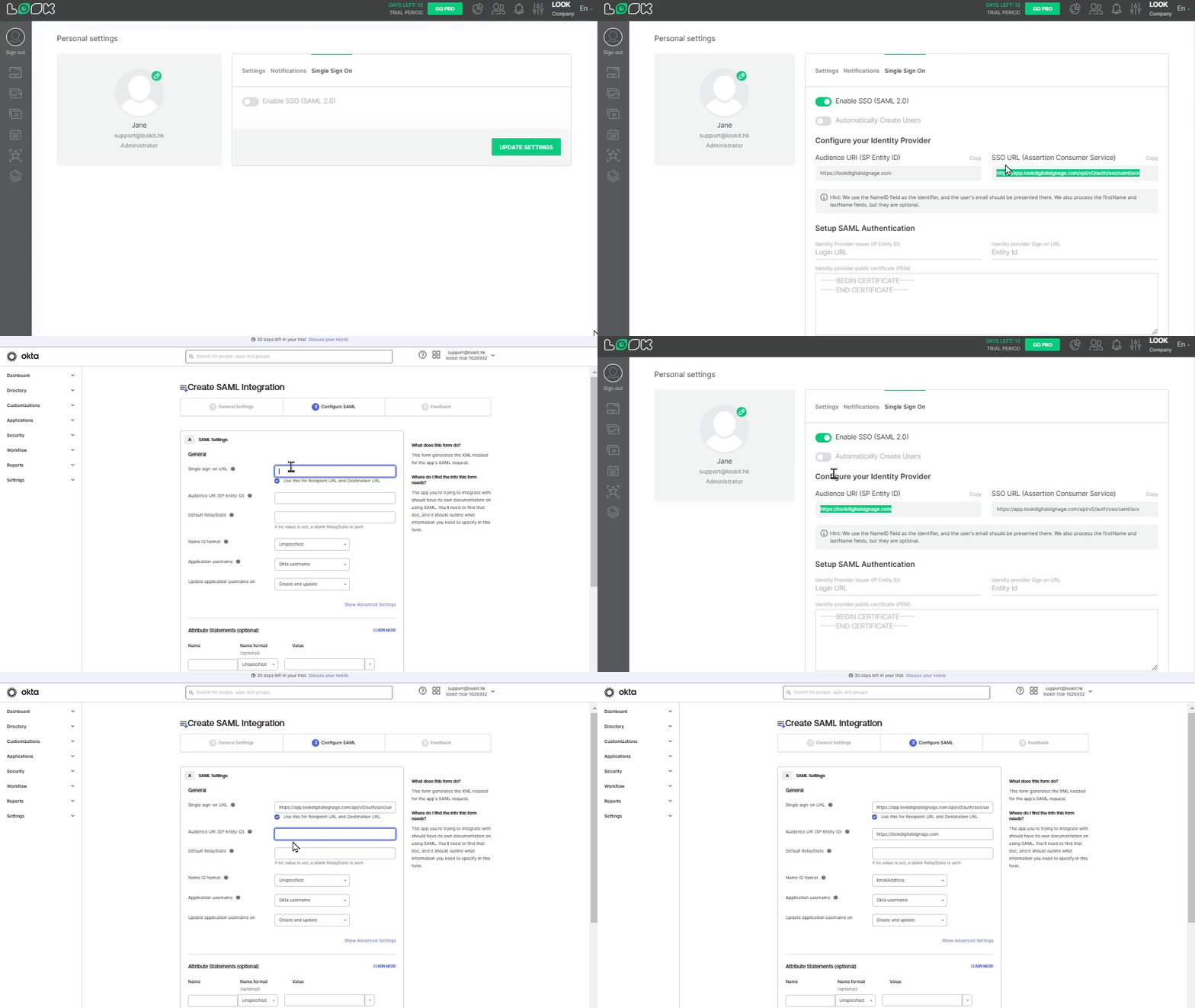
Enable SSO in Look CMS

5. In the third step Feedback, in the App type select This is an internal app that we have created and click Finish.
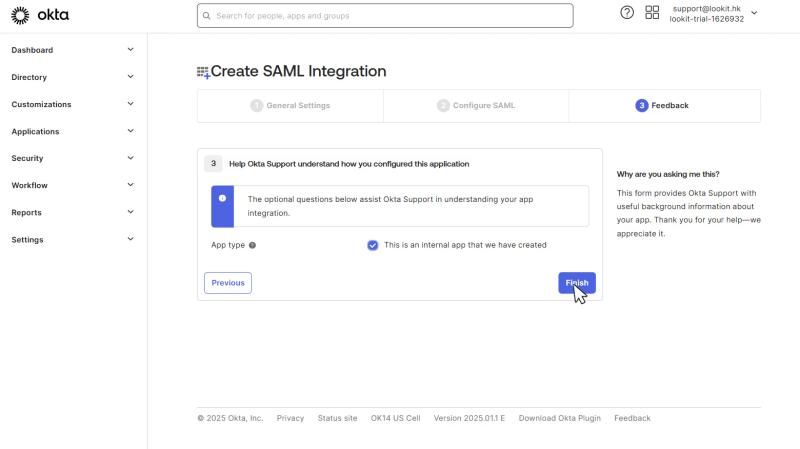
Finish SAML integration

6. In Settings that opens, click More Details.

Copy Sign on URL, go back to Look account, and paste it into Identity provider Sign-on URL field in Personal settings.

In OKTA copy the Issuer, and in Look paste it into Identity provider issuer (IP Entity ID) field.

Copy Signing certificate, and in Look paste it into Identity provider public certificate field.
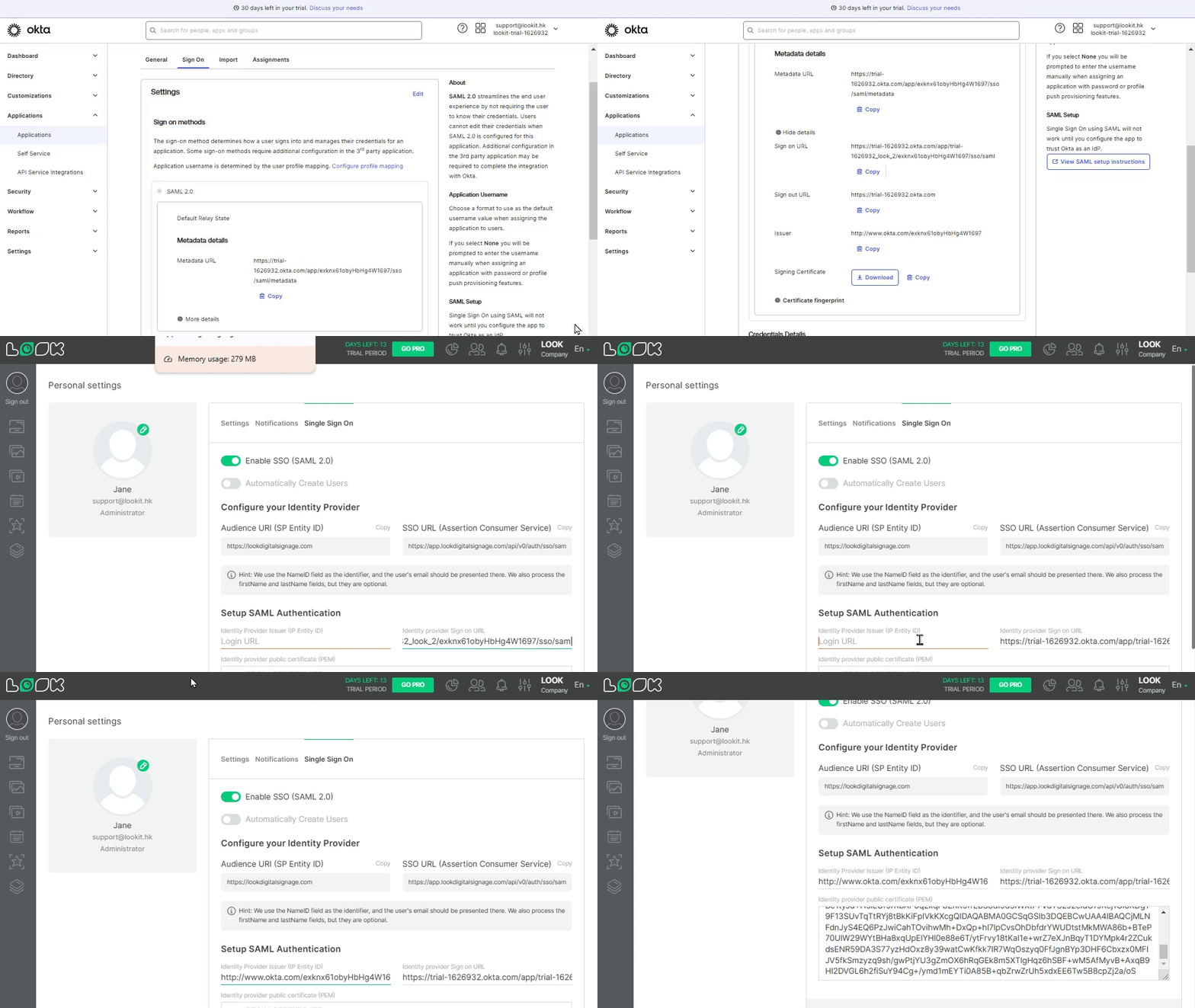
More details link

Also, you can download the certificate, open it with text readers, copy the text, and paste it to the Identity provider public certificate field in the Look personal settings tab.

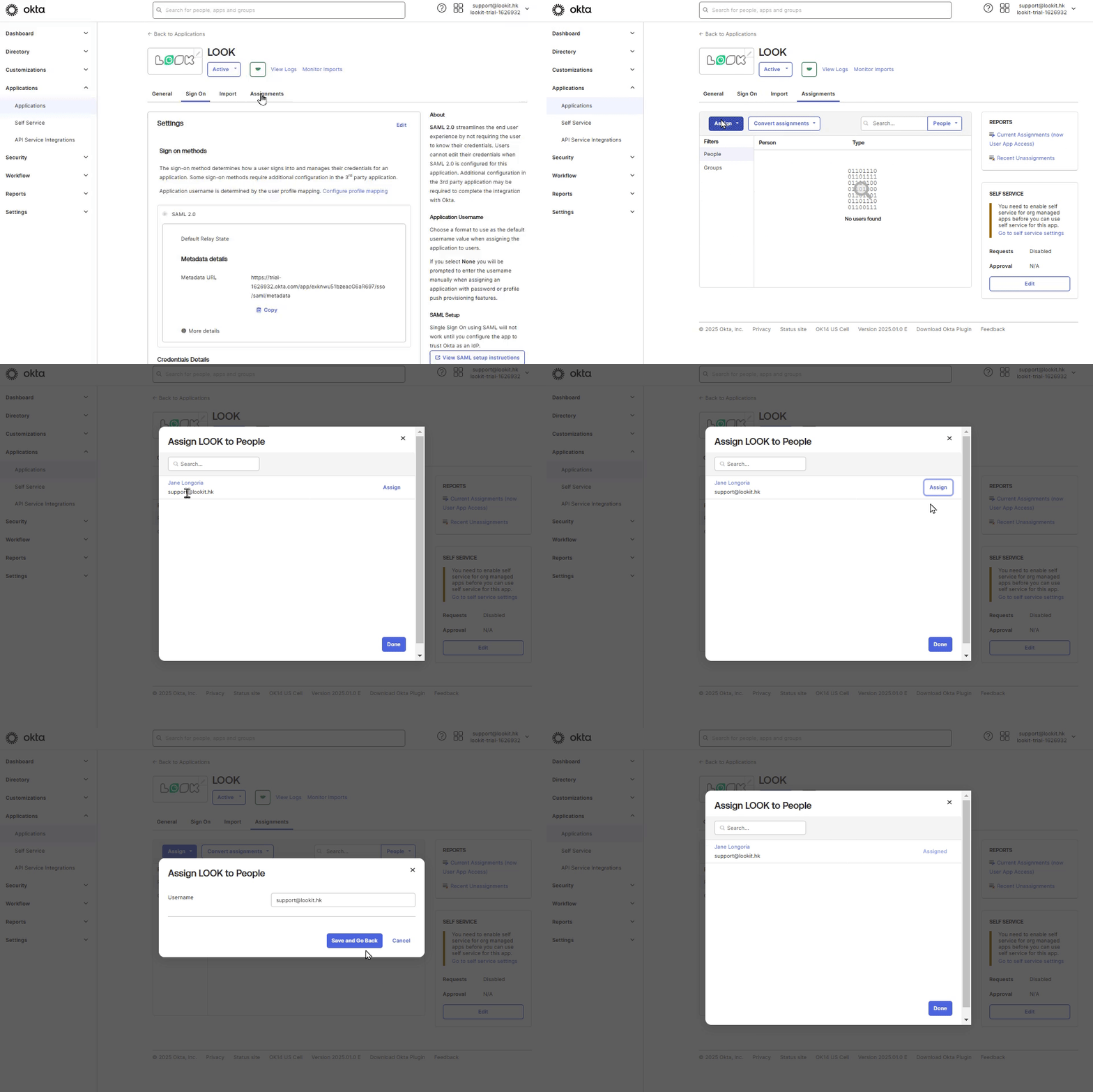
7. In OKTA in Assignments tab, click Assign button, and select Assign to People. Select an email from list of users and click Assign, Save and Go Back.

‍ Note: user must have Look account.
Asign users

Go back to Look account, click Sign out, and on sign-in page, click Sign in with SSO, enter the email address assigned to OKTA, and click Sign in with Single Sign On.

Can't find your answer?
Contact Support

Company

Company settings
Multiuser access
Personal settings & notifications
Restore password
Single Sign-on (SAML 2.0)
Statistics

Categories

Getting started
Screens
Actions
Company
Content
Playlist
Schedules
Screen Layouts
Apps
Billing
Hardware
Product
How it works Features AI Wizard Apps Free digital signage templates Digital signage hardware On-premise digital signage Pricing
Company
About us Reseller program White Label Contacts
Solutions
Retail Hospitality Banking Corporate Healthcare Fitness Advertising Education Transportation Events Real estate Manufacturing Restaurants, cafes & bars Entertainment Car dealership Government Church Digital signage solutions Enterprise
Resourses
FAQ Use cases Knowledge base Look academy Blog What is digital signage Downloads Alternatives Troubleshooting RSS Best digital signage software Supported operating systems
Instagram link Facebook link X icon LinkedIn link YouTube Icon
Look DS LLC. Address: 1201 N Orange Street Suite #7003, Wilmington, DE 19801, United States
info@lookdigitalsignage.com
capterra-best-valueSoftware Sugest Awardsoftware-advice-customer-supportget-app-category-leaderG2-spring-2025-HighPerformer-Small-Businesscapterra-short-list-2025
Look Digital Signage Software Logo Footer
Privacy Policy
Terms of Service
Service Level Agreement
©2026 LOOK DS LLC