Hardware
Digital Signage Hardware Selection: The Ultimate Buyer’s Guide 2026
July 15, 2026
June 27, 2024
by
Denis Podozhnikov


🌍 120+ countries



70%+
of commercial digital signage deployments now run on Android hardware globally
Source: IHS Markit Digital Signage Report
80%
lower hardware cost versus legacy PC-based or proprietary commercial signage players
Source: Look DS customer analysis
< 30 min
average time to install the Look App, pair a screen, and publish your first playlist
Source: Look DS onboarding data
1 → ∞
screens manageable from one cloud dashboard — start with a tablet, scale to thousands
Look DS platform capability
What is Android digital signage?
Digital signage for Android uses the open Android ecosystem to build reliable networks of commercial displays. Android has become a leading choice for physical spaces because the hardware continues to improve in performance while remaining highly affordable — making it much easier for businesses of any size to launch and scale a screen network.
The standard setup is straightforward.
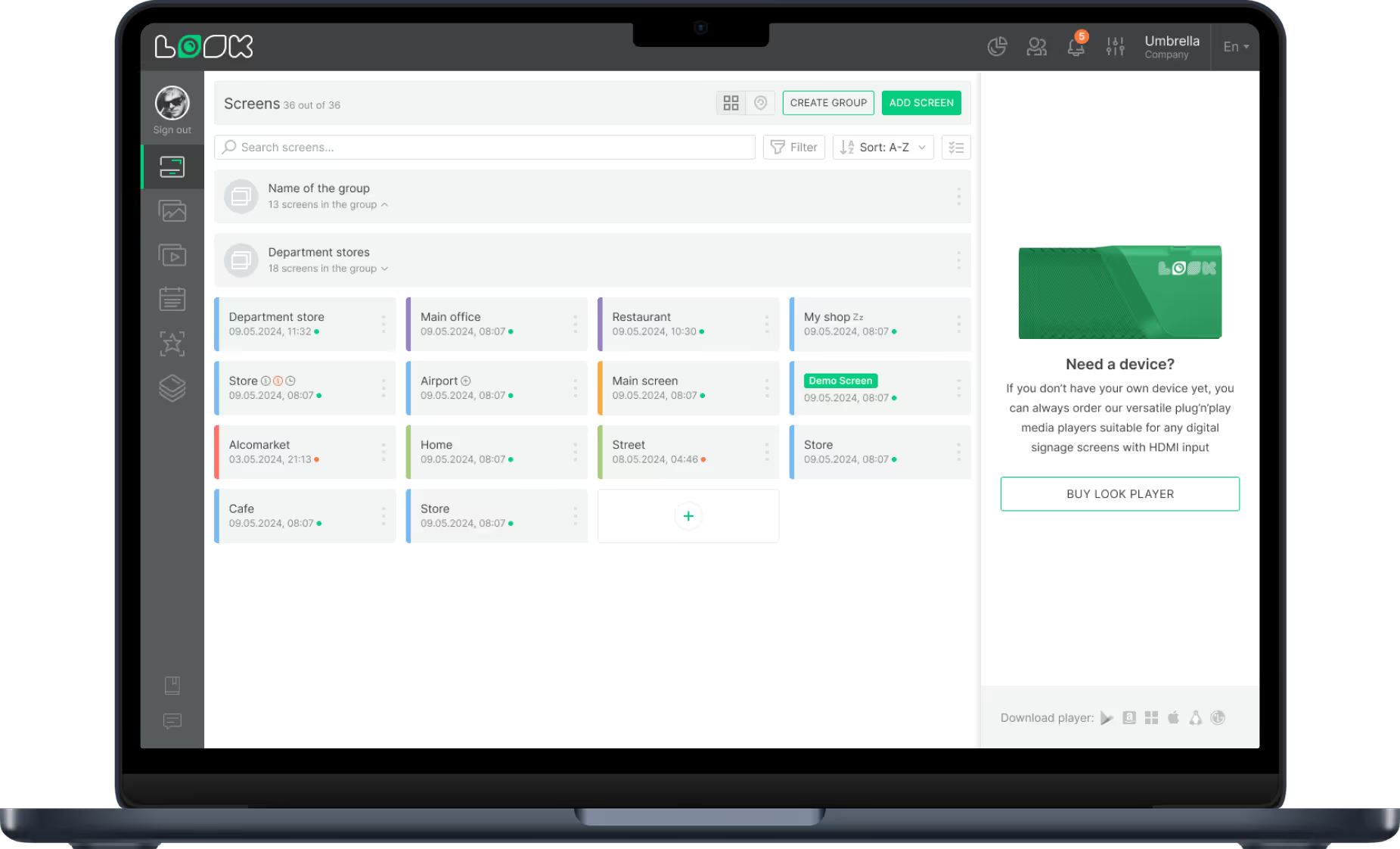
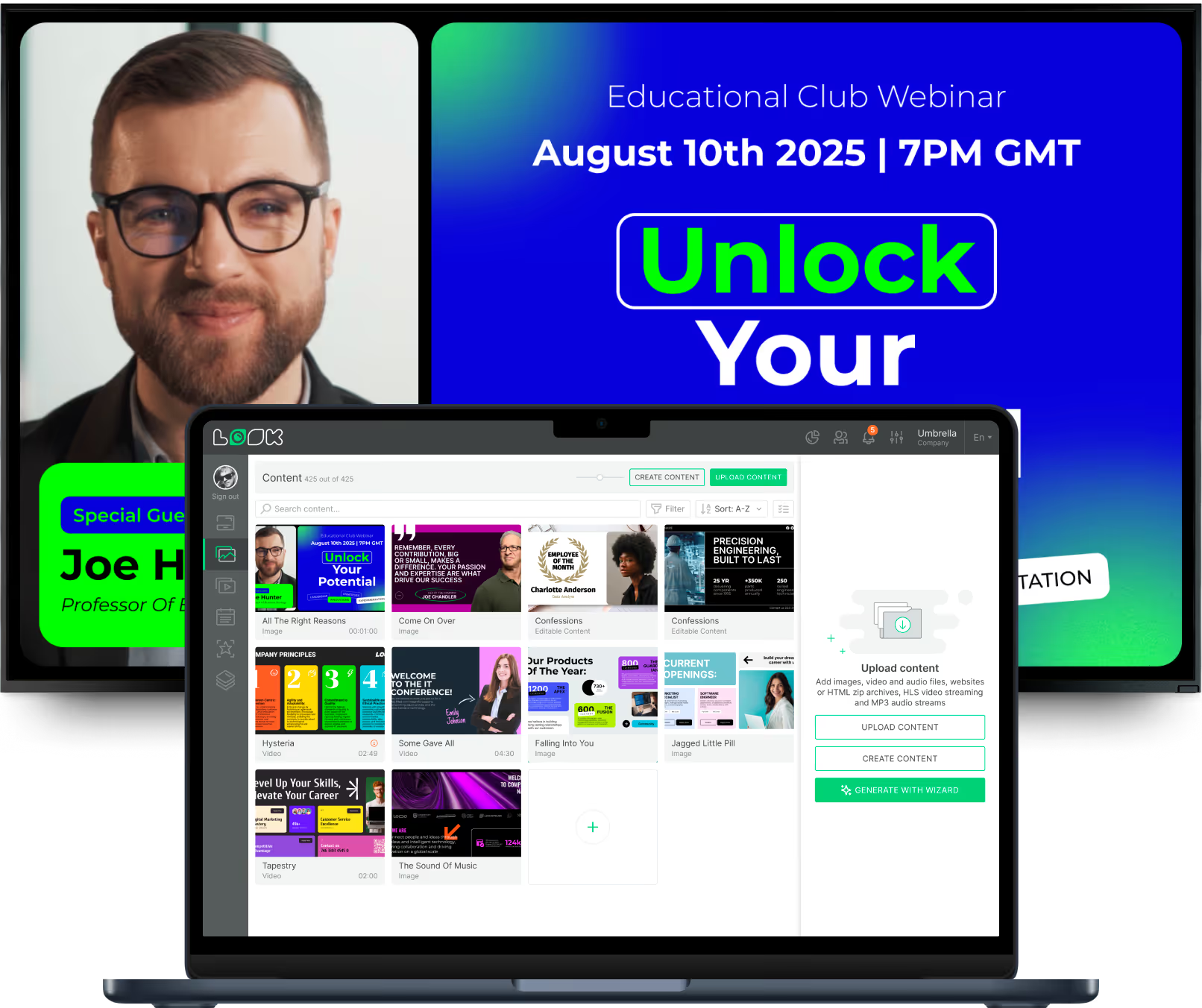
Your Android device runs a player app, which connects to a cloud-based CMS like Look CMS. Inside the dashboard, you create content, build a playlist, and set a schedule. The Android device downloads those instructions and plays the media exactly as planned, turning an ordinary TV into a remote-controlled digital sign.

Expensive proprietary hardware
On-site USB drive updates
Single static content zone
High printing & labour costs
Blank screen on network failure

Affordable Android hardware
Remote cloud updates instantly
Multi-zone dynamic layouts
Zero printing costs, ever
Offline caching keeps screens live
3 core components
1
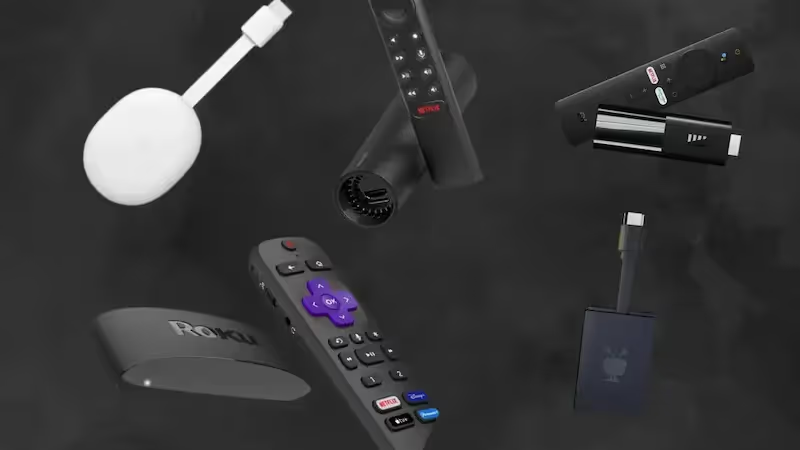
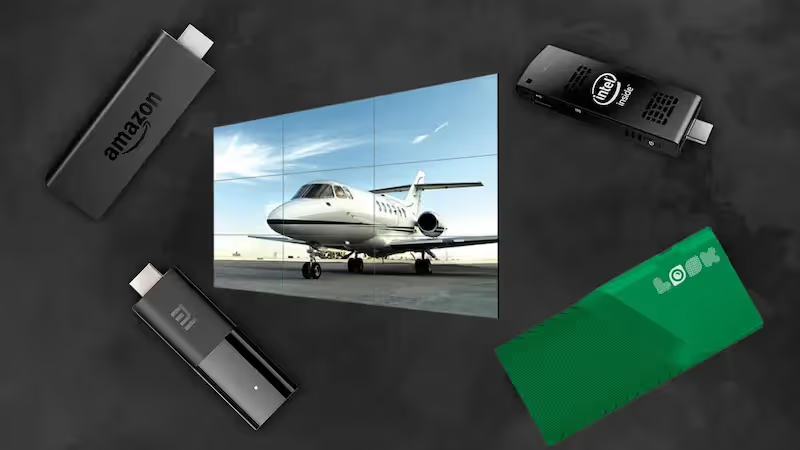
Smart TVs, tablets, Android TV boxes, or dedicated commercial media players. Use hardware you already own or choose from a range of purpose-built commercial players.
2
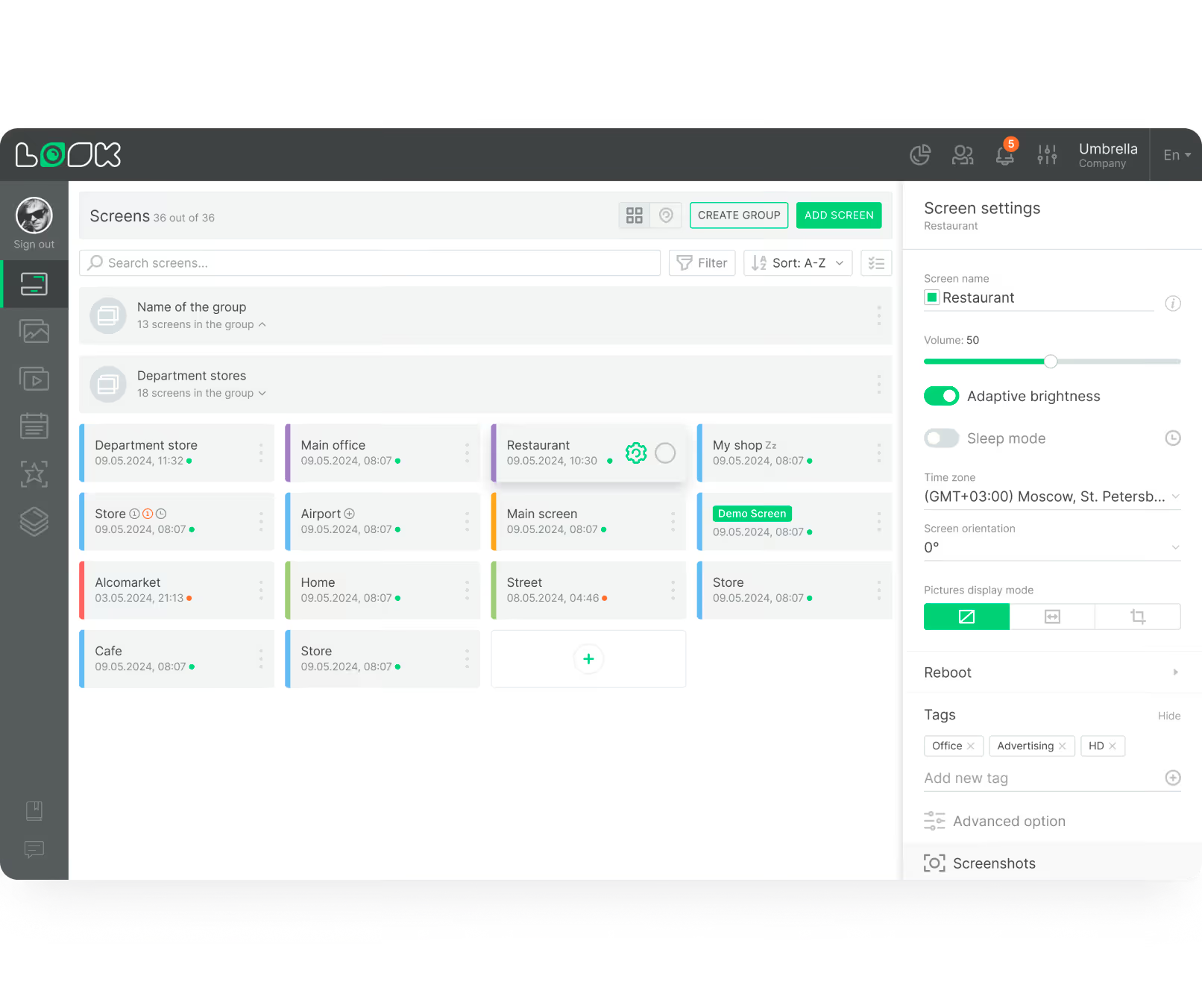
The Look CMS is your control centre. Upload content, build playlists, configure multi-zone layouts, and schedule exactly what plays on each screen from any web browser.
3
The Look App runs on your Android device, connects to the CMS via a unique pairing code, and caches content locally so playback continues even when the internet drops.
Why it works








Every organization covered
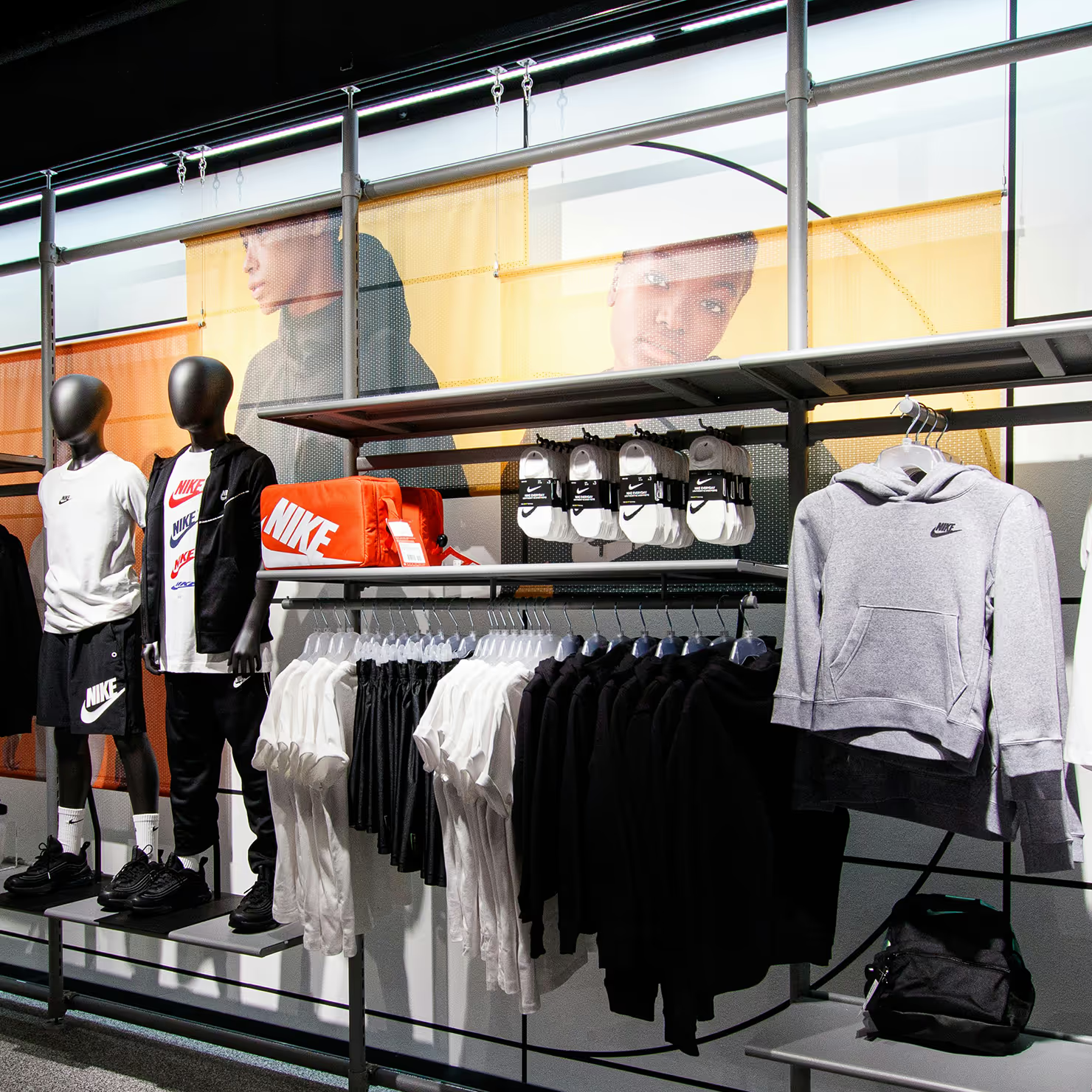
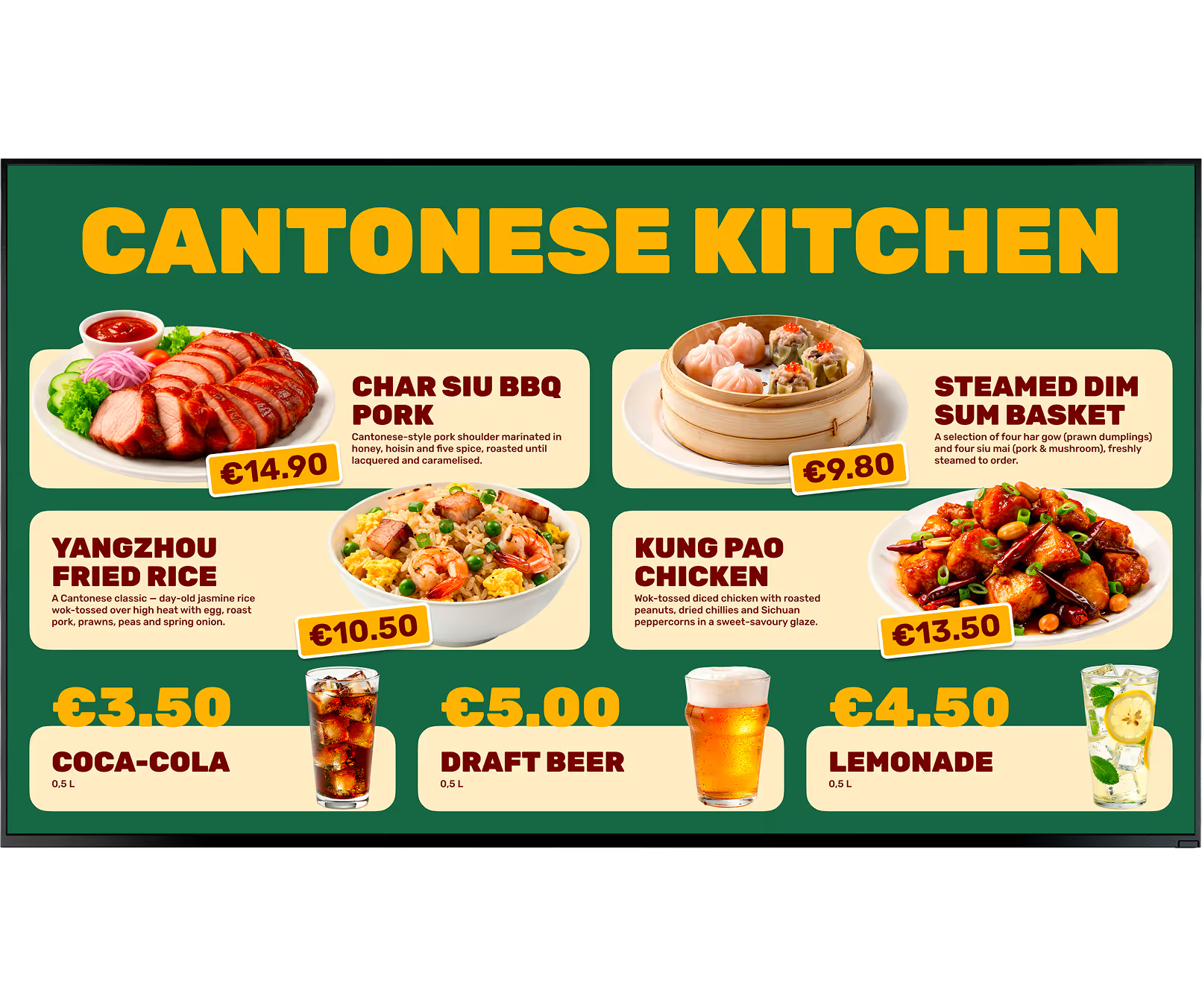
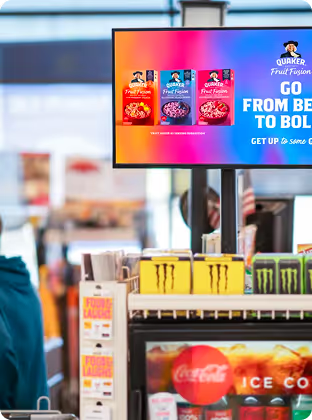
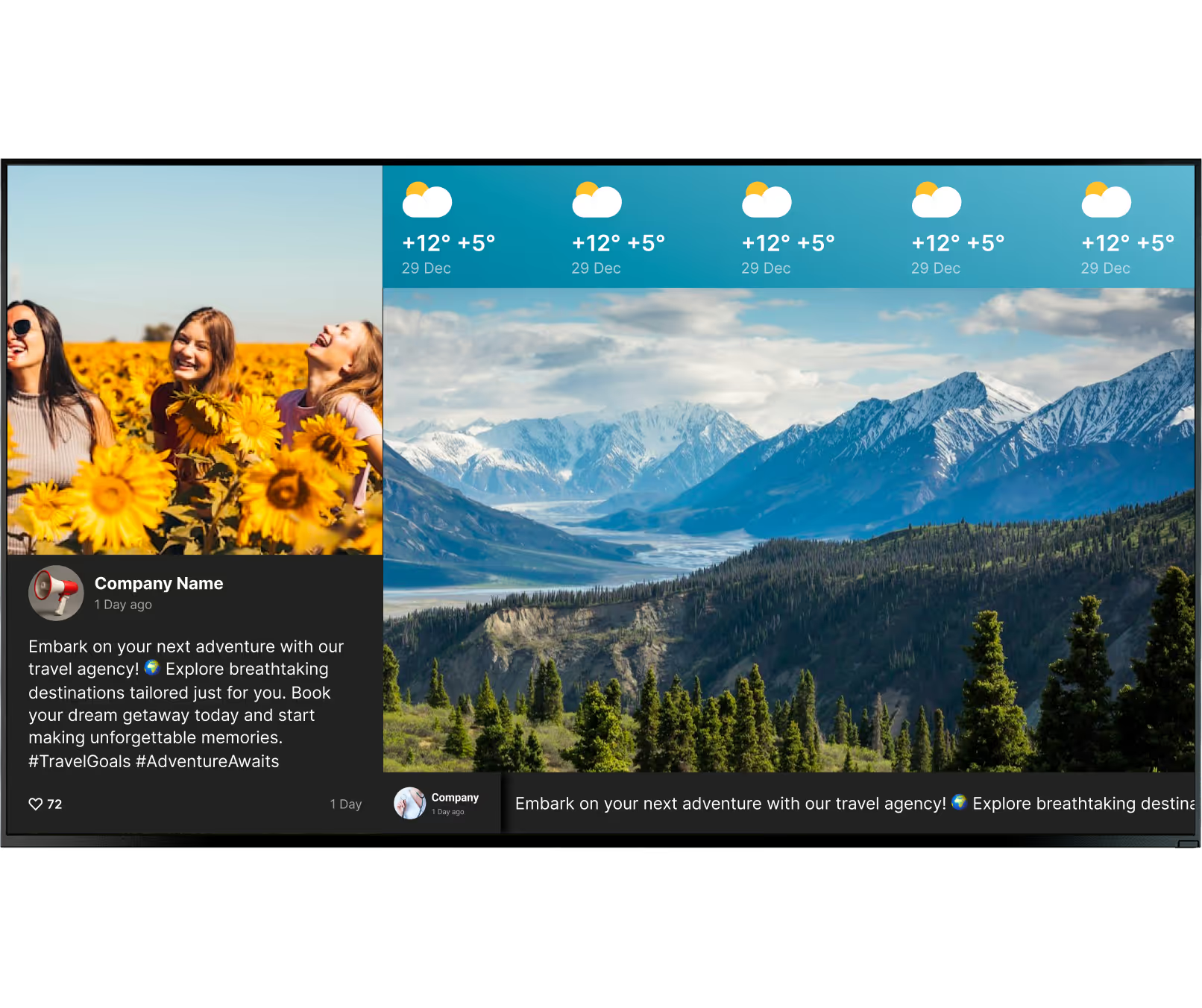
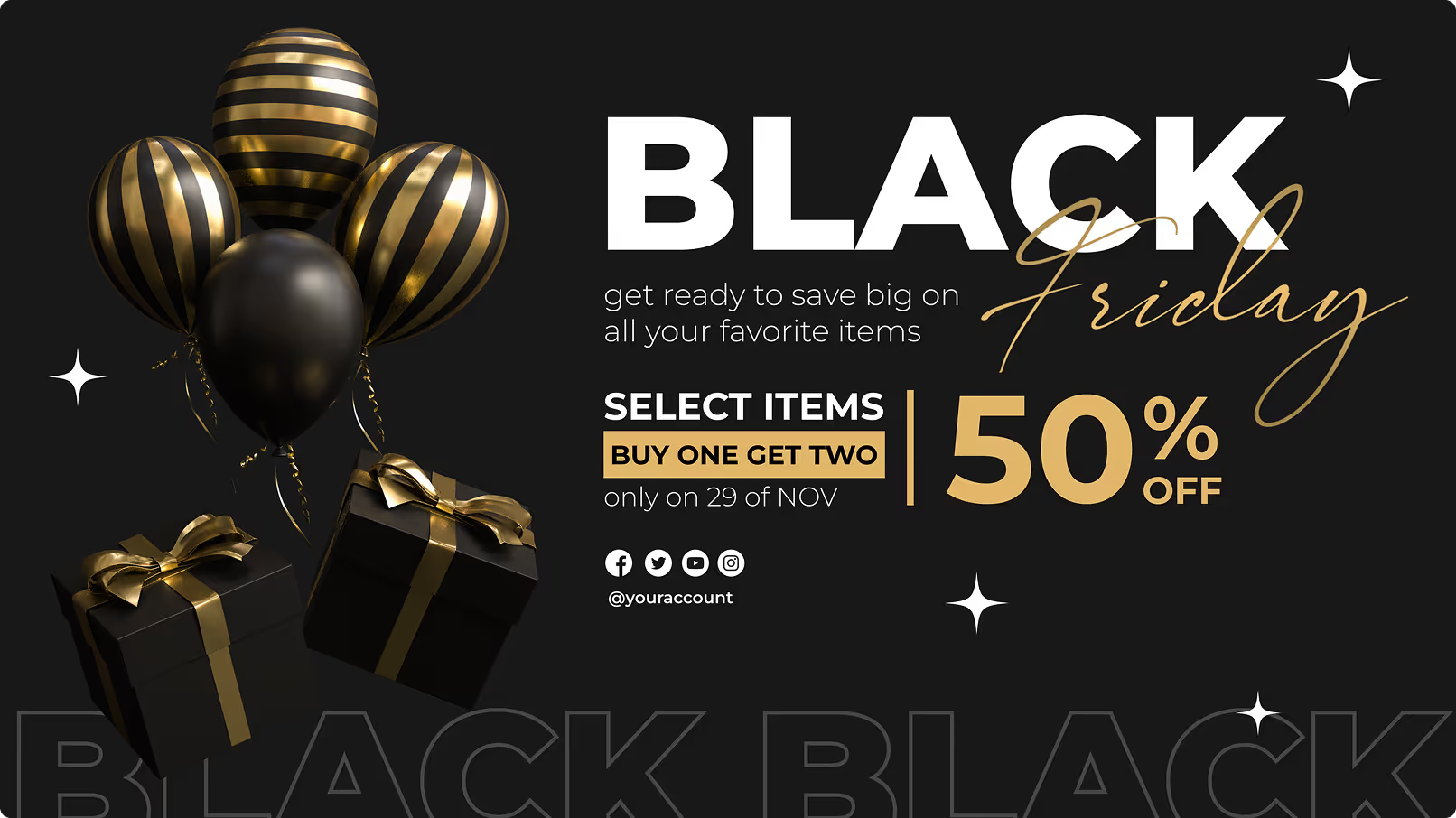
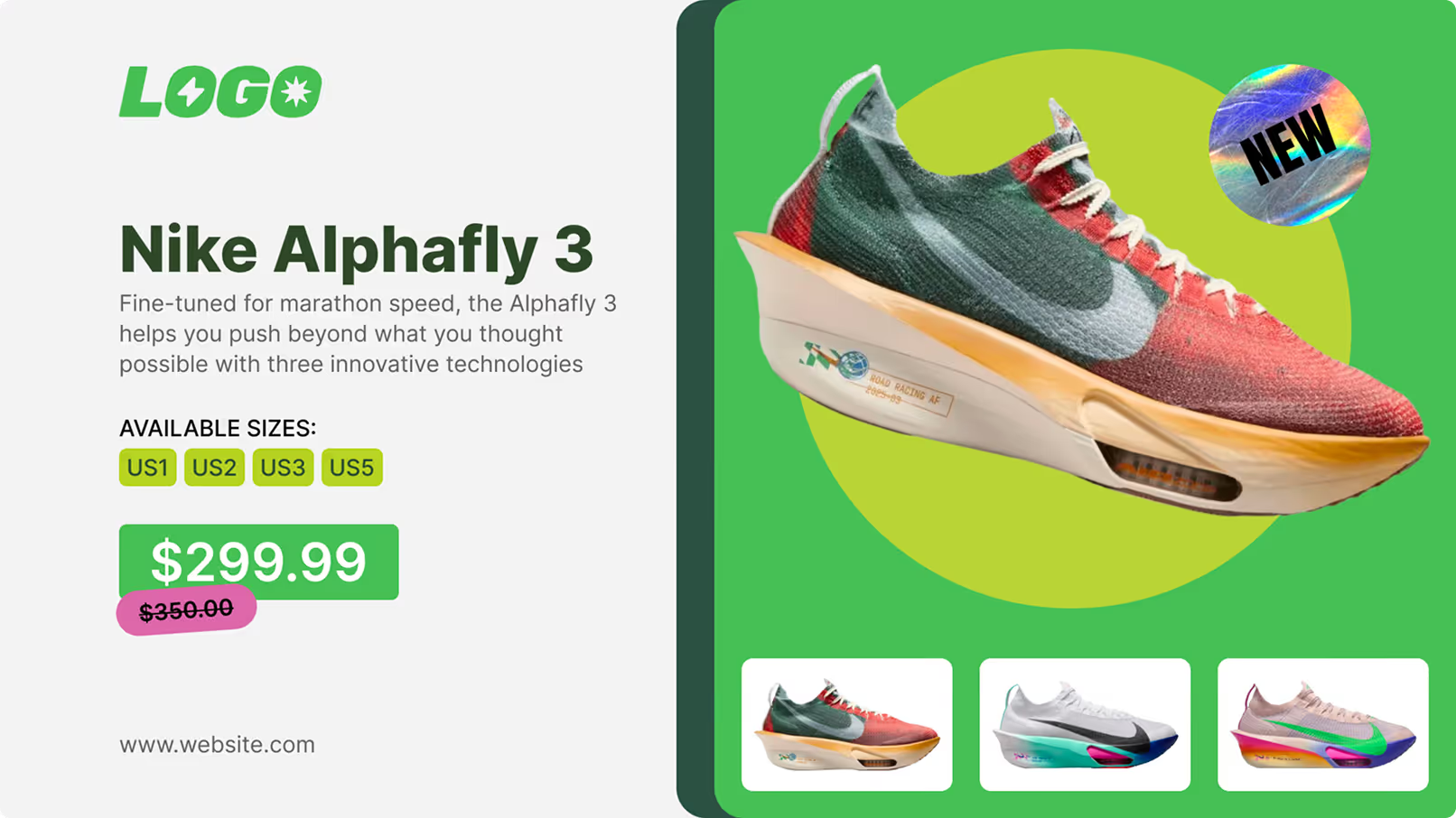
Retailers and cafes rely on Android signage for digital menu boards and point-of-sale promotions. Update pricing across all franchises simultaneously, eliminating printing delays. A QSR can program breakfast menus at 6 AM, transition to lunch pricing at 11 AM, and switch to dinner promotions in the evening — automatically.
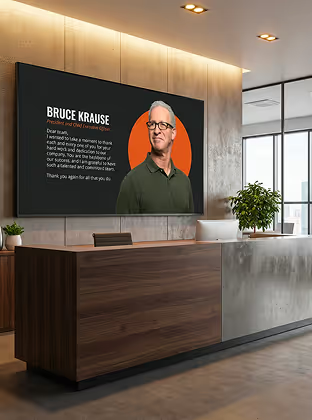
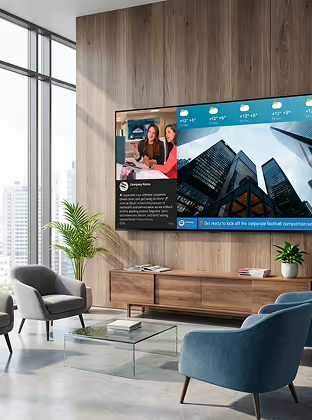
In corporate spaces, screens replace cluttered noticeboards. Lobbies display welcome messages and company directories, while breakrooms show KPI dashboards, HR announcements, and safety protocols — keeping staff informed without email overload.
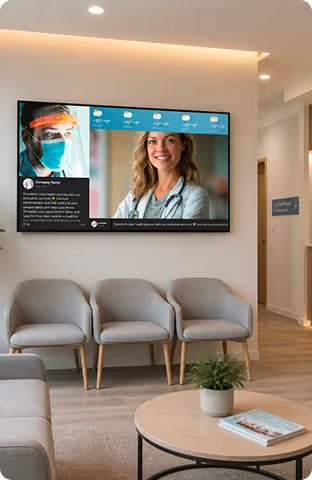
Clinics use waiting room screens to manage queue expectations and share wellness tips, which helps reduce patient anxiety. For highly regulated environments, on-premise deployment options ensure total control over data and network security.
Schools and university campuses deploy networks of screens to share timetables, event promotions, and critical emergency alerts instantly across all buildings. Platforms suited for this environment excel in multi-location management with instant override capability.
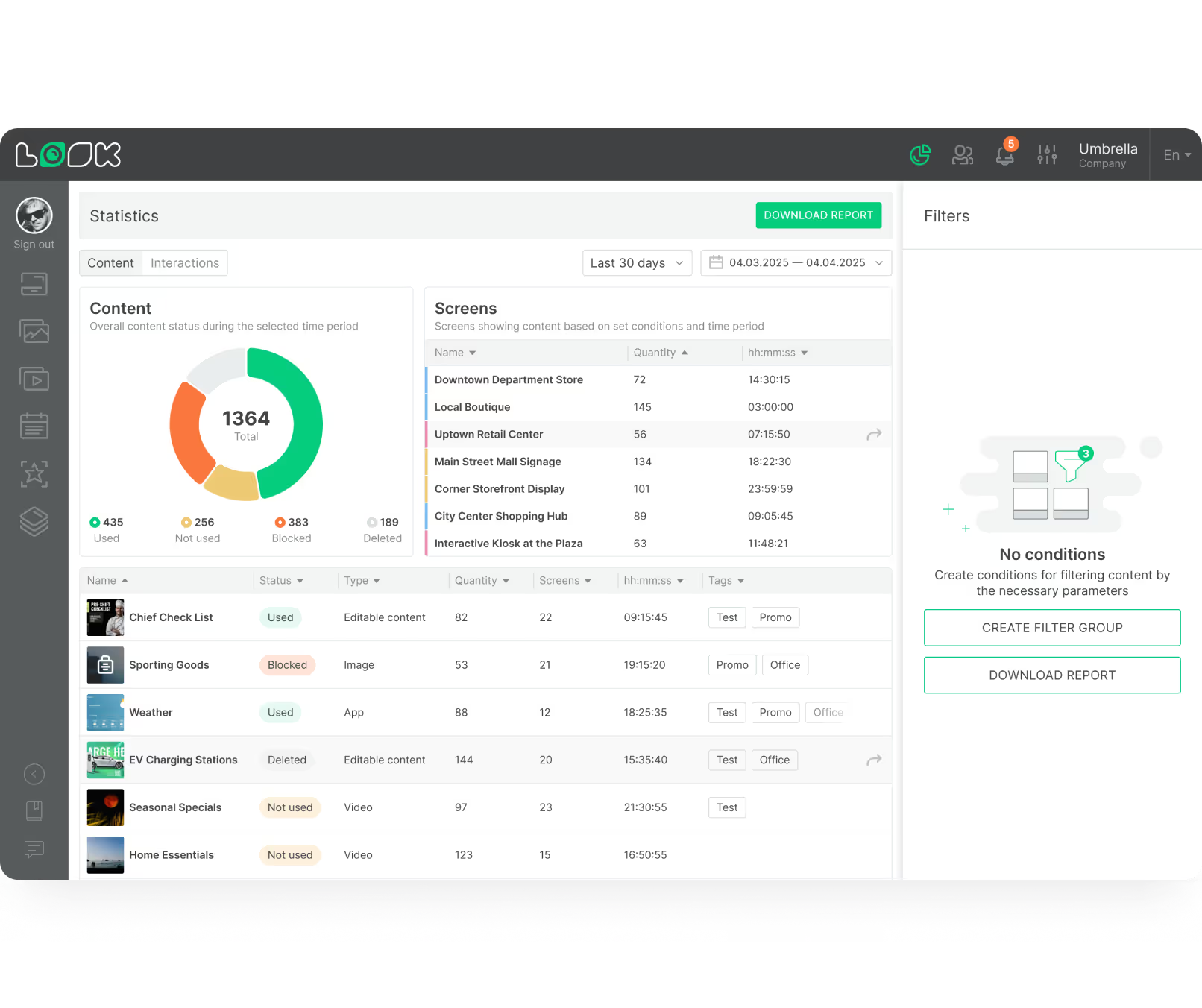
Airports, bus stations, and transit hubs depend on high-uptime Android networks to broadcast live departure schedules and gate changes. Software built for these demanding spaces focuses on offline playback, proof-of-play reporting, and remote monitoring alerts.
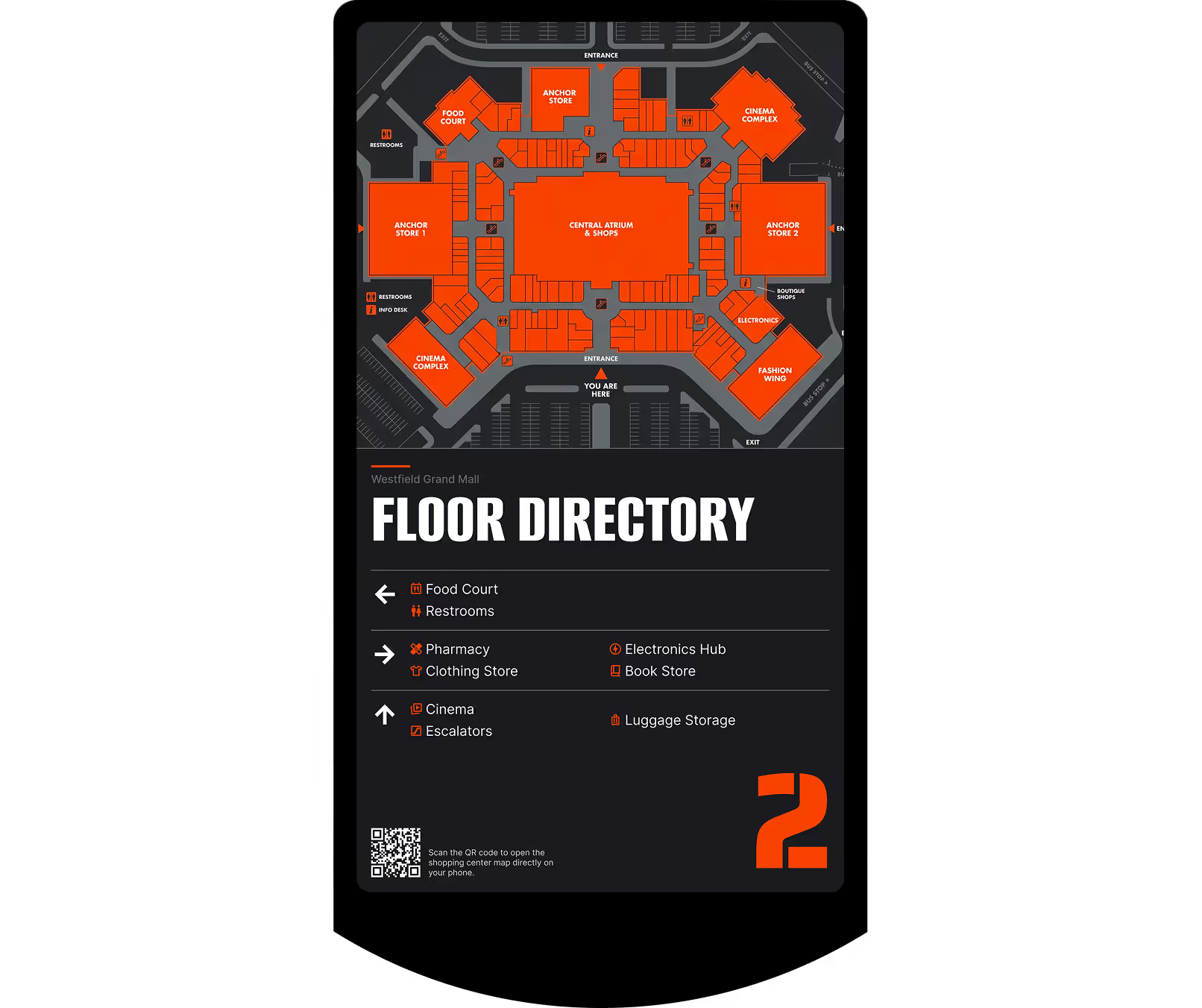
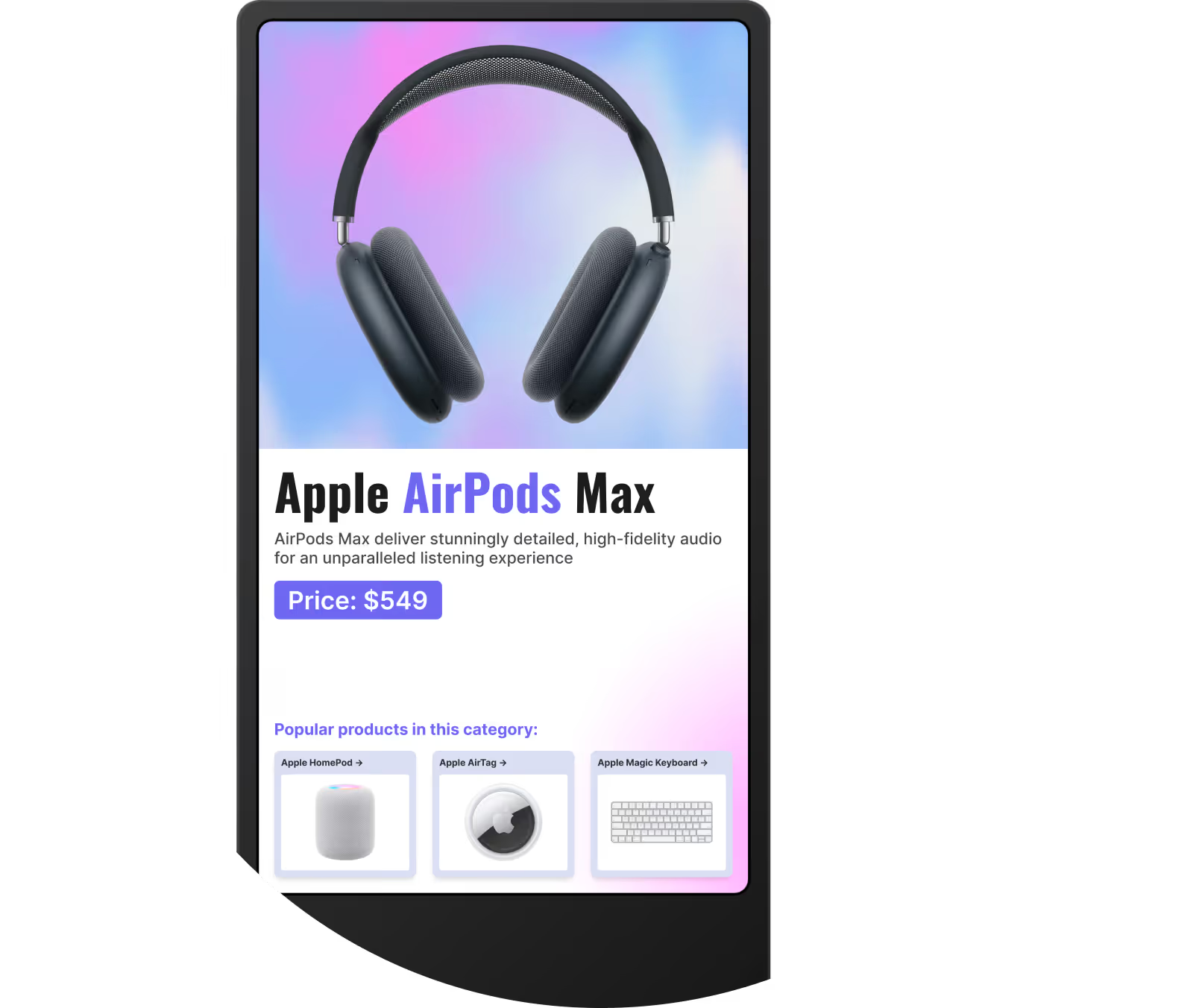
Instead of a looping video, present a touchable product catalog, a wayfinding map, or a customer feedback survey. Using built-in CMS tools, you can build these scenes using buttons and triggers — no custom code required.
Where you'll deploy it


Setup

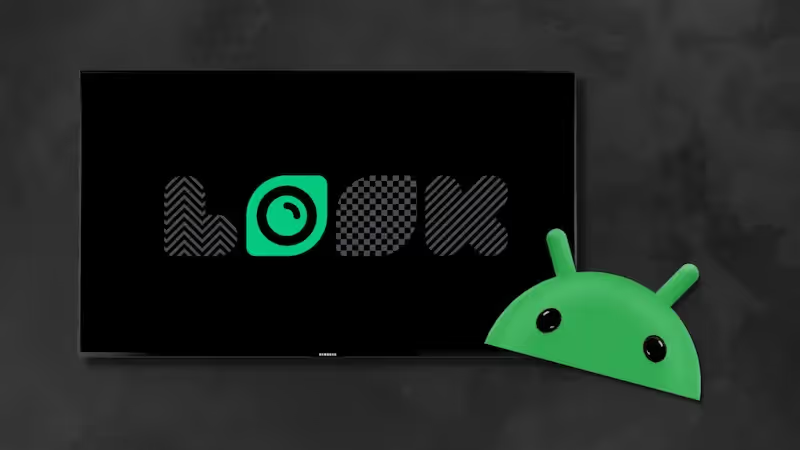
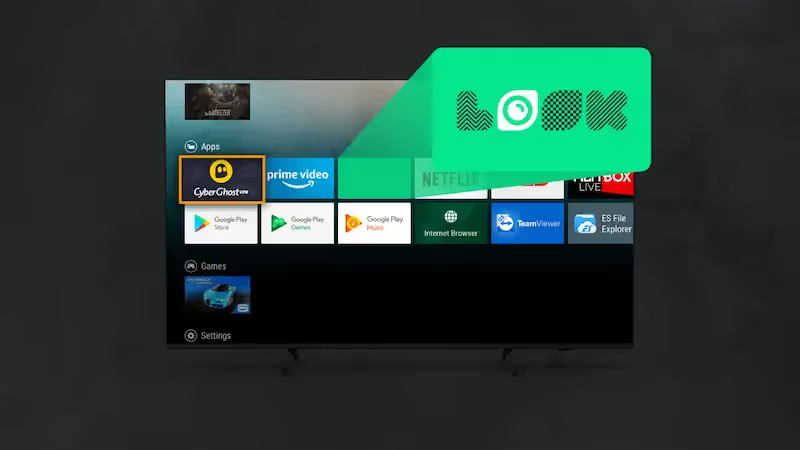
Install the Look App directly from the Google Play Store on any compatible Android TV, smart TV, or tablet. Ideal for launching your first screens with hardware you already own — zero new hardware investment required to run a pilot.
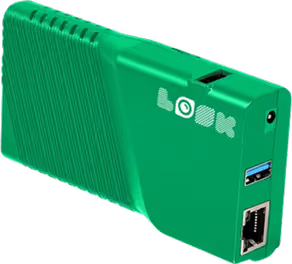
The plug-and-play Look HDMI Player delivers professional stability at a fraction of the cost of legacy enterprise hardware. Engineered for screens that run 12 to 24 hours a day — with fanless cooling and auto-reboot for reliable, unattended operation at any scale.
Android hardware guidance:
For environments requiring 24/7 operation — retail floors, transit hubs, healthcare waiting rooms — always choose a dedicated commercial Android player with an Ethernet port and fanless cooling design. Consumer-grade sticks and smart TV apps are well-suited for office lobbies and lower-demand deployments where screens run for standard business hours. Always check recommended specifications to ensure fluid 4K and multi-zone playback before deploying at scale.
How it works


Key features










Content best practices
01
Treat your screens like high-impact billboards. Keep text brief, use large fonts, and rely on high-quality visuals. Viewers typically see the screen for only a few seconds — every word must earn its place and every graphic must be instantly readable from across the room.
02
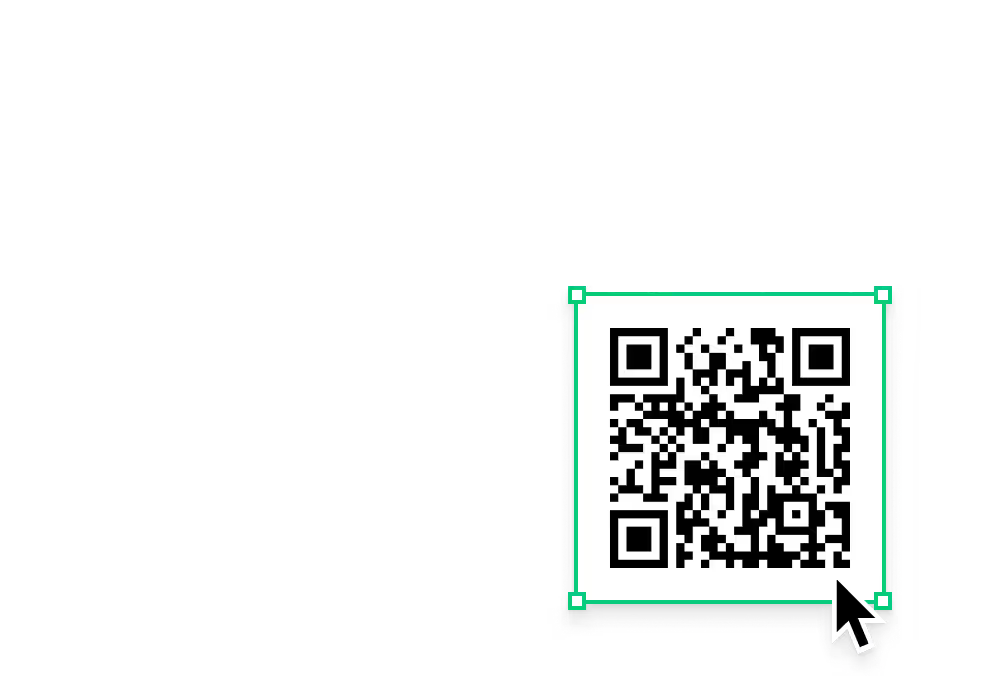
If you want the audience to take action, include a clear next step — like a QR code they can scan to view a full menu, download an app, or access a loyalty programme. A passive screen without a call to action misses every conversion opportunity it creates.
03
Use scheduling to keep the content loop relevant — nobody wants to see a breakfast promotion at 3:00 PM. Use dayparting and expiry dates so every message is contextually appropriate when it appears. Set it up once and let the system run automatically.
04
Refresh your content regularly so regular visitors don't tune the screens out. Establish a content calendar — even minor updates like new statistics or seasonal offers maintain viewer attention and signal an active, current brand across every location.
05
While Wi-Fi is convenient, having a physical Ethernet port is highly recommended for permanent installations to ensure the most stable connection. Size also matters — compact players can be mounted flush behind a display, keeping cables out of sight for a clean finish.
06
If you plan to run multi-zone screen layouts, 4K video, or live data feeds, you need hardware with adequate processing power and RAM. Underpowered devices cause videos to stutter or transitions to lag — always check your software provider's recommended specifications to ensure fluid playback.
Common mistakes
Fix: Always check your software provider's recommended device specifications before purchasing. Test multi-zone and 4K playback during the free trial period before deploying at scale across locations.
Fix: Use Ethernet for permanent installations wherever possible. For Wi-Fi-only setups, ensure your player app has local offline caching so content continues playing through any network interruption automatically.

Fix: For commercial deployments, use dedicated players like the Look HDMI Player — engineered with fanless cooling and auto-reboot for continuous, unattended operation at any scale.
Fix: Use dayparting and content expiry dates from day one. Set up your weekly schedule in advance so the right message always appears at the right time without any manual daily intervention.

What customers say
In terms of using the system, the other options that I found were a little clunky and Look was not only affordable but really easy for us to deploy and get up and running.


Look is well-priced, it’s a very user-friendly software cloud-based service, where you can update your screens from wherever you are. We can definitely recommend to others!
Our experience with Look was simply excellent. We were able to offer our clients a new feature-rich solution that can meet their various requirements in terms of digital signage, with a relatively affordable monthly cost.




FAQ
Our team can walk you through a full demo tailored to your setup — from single-screen pilots to multi-location rollouts.
Templates



No credit card required

100% of features, no trial limitations

Fast human support 24/7