Table of Content
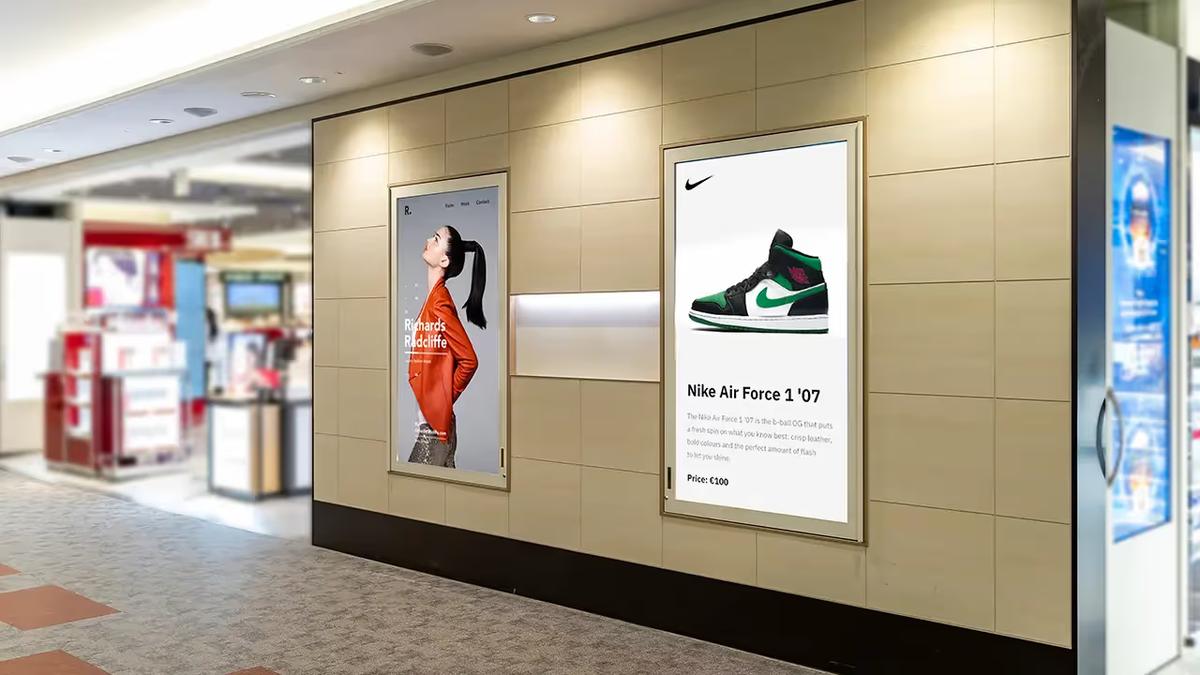
Have you ever noticed that screens in major airports, upscale retail stores, or corporate lobbies are mostly standing tall in portrait orientation instead of the traditional horizontal layout we're used to?
This is strategic, and it caters to how people consume content today. Smartphones have trained us to scan information top-to-bottom, and portrait displays tap into this habit to deliver content in a format that feels more intuitive.
If you're evaluating digital signage for retail, restaurants, corporate spaces, or healthcare facilities, understanding when and how to use vertical displays can significantly impact engagement and ROI.
In this guide, you'll learn:
- When portrait orientation works better than landscape (and when it doesn't)
- Technical specifications: aspect ratios, resolutions, and brightness requirements
- Industry-specific applications for retail, restaurants, corporate, healthcare, and transportation
- How to use Look CMS to deploy and manage portrait displays remotely
- Content design best practices for vertical formats
- Set up steps for converting existing displays to portrait orientation
What is Vertical Digital Signage?
Vertical digital signage refers to displays mounted in portrait orientation, creating a tall, narrow viewing area rather than the wide landscape format. The standard aspect ratio flips from 16:9 (landscape) to 9:16 (portrait).
In practical terms, you're designing content for resolutions such as 1080×1920 pixels for HD displays or 2160×3840 pixels for 4K screens. The format works well for presenting list-based information, like menus, directories, schedules, and social media feeds, where items naturally stack vertically.
Most professional-grade commercial displays support portrait orientation natively and are designed for continuous operation in vertical mounting. Although consumer TVs are physically rotatable, they come with their own challenges for vertical commercial deployment since portrait operation may void warranties, reduce service life due to improper ventilation, and require specialized VESA mounting brackets not designed for long-term vertical loads.
For commercial deployments, invest in professional-grade displays rated for portrait use. If you must use an existing display without native portrait support, Look's HD-2222 Lite media player adds portrait capability through software-based content rotation.
Check Look hardware shop
Types of Vertical Display Solutions
| Type | Details |
|---|---|
| Portrait Screens | Standard displays rotated 90° and mounted vertically. Range from 32-inch units for kiosks to 75-inch displays for high-impact retail. Ideal where wall width is limited but vertical clearance allows taller formats. |
| Vertical Video Walls | Multiple portrait screens tiled together into dramatic floor-to-ceiling installations. A 2-wide × 3-high layout of 55-inch displays forms a 10-foot vertical canvas—ideal for flagships or atriums. |
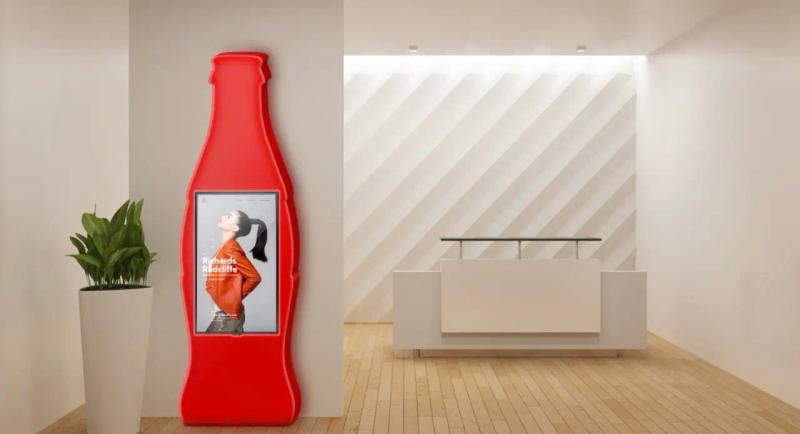
| Digital Kiosks & Totems | Freestanding enclosures with vertical displays, typically 32–55 inches. Place anywhere with foot traffic for wayfinding, check-in, or product browsing—no wall mount required. |
| Outdoor LEDs | Outdoor-rated vertical LED panels built for portrait orientation. Brightness 3,000–5,000 nits for sunlit storefronts or outdoor ads where LCDs wash out. |
When Should You Use Portrait Instead of Landscape?
Portrait displays work well for content that naturally stacks from top to bottom. Restaurant menus listing appetizers through desserts scan more intuitively in a vertical format. Directory information showing floor-by-floor listings works better when viewers can scan downward rather than side to side.
Architectural constraints often make the choice obvious. Narrow corridors, building columns, and tight wall spaces can't accommodate wide horizontal displays. A 43-inch portrait screen fits in a 24-inch-wide space where a landscape equivalent would require 40 inches of horizontal clearance.
Portrait digital signage also feels natural because people look at their phones in portrait mode dozens of times a day. When they see a vertical display, they're already wired to scan that way without requiring any mental adjustment.
Landscape Works Better for Dashboards, Presentations, and Wide Content
Wide-format content like data dashboards, video presentations, and panoramic imagery is more suitable for horizontal screens. Conference rooms showing spreadsheets and presentations function better with 16:9 displays that match standard content formats.
Viewing distance plays a role here. Landscape orientation produces better message recall when viewers are further than 10 feet from the screen. The horizontal format fits more naturally within our peripheral vision cone at a distance.
Best Practices for Portrait Display Content
Design Content for Readability and Compliance
The design process for a portrait is different from landscape. Your safe zones, the area where critical text and logos won't get cropped, should maintain 5-10% margins from all edges. On a 1080×1920 display, you need to keep important elements at least 54 pixels from the sides and 96 pixels from the top and bottom.
Font sizing: for 10-foot viewing distances, set your minimum text at 60-80 points for body copy and 120-150 points for headlines. At 20 feet, bump those numbers to 150+ points for readability.
You can’t afford to ignore contrast as well. The ADA Standards for Accessible Design require a minimum contrast ratio of 3:1 for large text (18pt or larger) and 4.5:1 for standard body text on digital signage. Dark text on light backgrounds typically outperforms reversed color schemes for legibility, especially in high-traffic environments where quick readability is essential.
Add Interactivity to Increase Engagement and Conversions
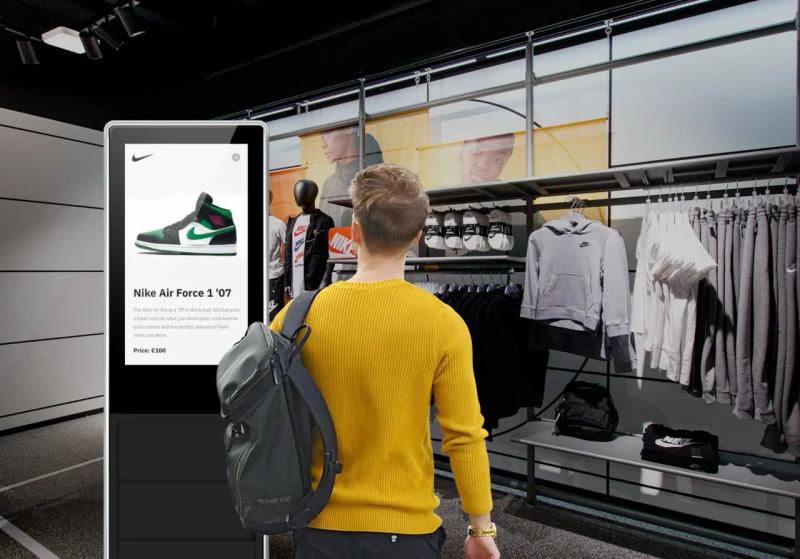
Whenever you can, make your displays interactive to increase engagement and track how people respond to your content. There are several ways to do this using touch screens, proximity sensors, and QR codes.
Proximity sensors trigger content when someone approaches the display. QR codes let viewers save offers or access more information on their phones after they walk away.
Whether to use touch or non-touch displays depends on the environment. Touch works for wayfinding kiosks and directories where people need to search and navigate. In high-traffic retail spaces, non-touch displays work better since you can avoid fingerprint smudges and constant cleaning while cycling through promotions automatically.
You can also set displays to respond to real-world conditions. A restaurant display promotes hot soup when temperatures drop or cold drinks during heat waves. Retail displays can feature umbrellas when rain is forecasted or highlight products based on current inventory levels.
Balance Personalization with Privacy Protection
Use brand-safe personalization (location/time/context) without collecting PII – You can tailor content based on store location, time of day, or local events without tracking individual customers.
Offer GDPR-friendly opt-ins via QR codes when you want to connect digital signage to personal devices. Let customers scan to receive promotions or additional information; they control what data they share.
Never display customer names, purchase history, or identifying information on public screens. Even anonymized data aggregation should follow privacy regulations in your jurisdiction.
How to Optimize Content for Different Dwell Times
Dwell time, how long viewers spend near your screen, influences your content strategy more than any other factor.
High-Traffic Pass-Through Areas (4-15 seconds)
Retail corridors, building entrances, and transportation hubs see glances. Industry research shows viewers give screens 4.6 seconds of focused attention in these environments. You need bold headlines (minimum 150-point fonts), high-contrast color schemes, and a single-message focus. Cycle your content every 6-8 seconds to allow repeat exposure as people pass.
Medium-Dwell Environments (30 seconds - 2 minutes)
Reception areas, elevator lobbies, and coffee shops permit slightly deeper engagement. Multi-zone layouts come in handy because you can split your portrait screen into 2-3 content zones to show complementary information. Put your primary messaging in the top zone, secondary details in the middle, and calls-to-action or QR codes at the bottom.
Extended-Viewing Locations (2-30 minutes)
Waiting rooms, employee break areas, and restaurant dining spaces allow comprehensive content. You can deploy longer playlists (15-30 minutes) mixing information, entertainment, and promotional content without viewer fatigue.
How Look Software Handles Portrait Displays
Look digital signage software handles orientation flexibility as a core feature.
Adaptive Content Design: The built-in Content Creator lets you design layouts that automatically adjust for different aspect ratios and orientations. You create once, then deploy to both portrait and landscape screens without rebuilding from scratch.
Portrait Template Gallery: Ready-made templates optimized for 9:16 displays cover common use cases such as restaurant menus, retail directories, corporate wayfinding, social media feeds, and event schedules. Each template maintains proper safe zones and font scaling for immediate deployment.
Multi-Zone Layouts: You can split portrait screens into independent content zones using a drag-and-drop interface. Stack a header zone for branding, middle zones for primary content, and footer zones for persistent information like time, date, or weather. Individual elements within each zone, such as images or videos, can be scheduled independently to display at specific times.
Remote Management at Scale: Manage vertical displays across multiple locations from a single dashboard. Update a promotion once and push it to 50 portrait screens simultaneously. Monitor screen health, confirm content playback, and troubleshoot issues without site visits.
Platform Flexibility: Look supports major operating systems, including Android, Windows, Linux, webOS, Fire OS, and more. Most commercial-grade TVs have native support for portrait orientation, but if your existing display doesn't, Look's affordable HD-2222 Lite media player adds this capability to any screen with HDMI input.
Proof-of-Play and Analytics: Track exactly what content played, when, and for how long across your screen network. Verify compliance for advertising commitments and identify your most effective content through engagement metrics.
Try Look CMS for free
Industry Applications Where Vertical Displays Deliver Results
Retail Environments
Fashion and apparel stores use floor-to-ceiling portrait displays to showcase life-sized model imagery in changing areas and near product displays. The 9:16 format matches how shoppers view full-body images naturally. Window displays leverage portrait screens as digital posters that update automatically.
Restaurant and QSR Operations
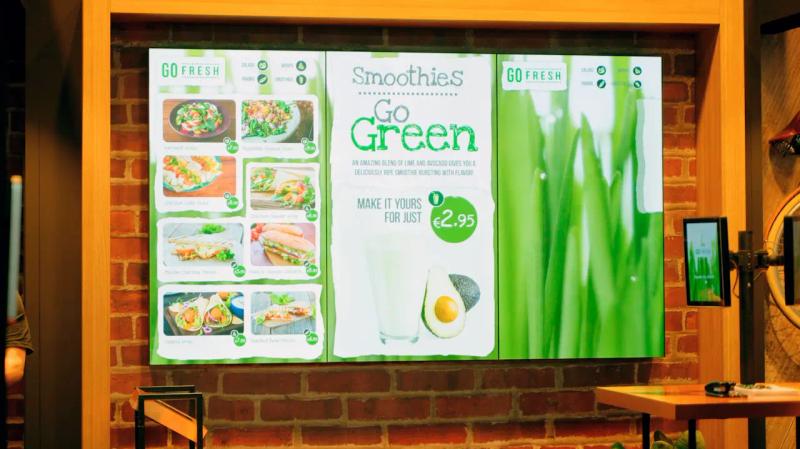
Vertical menu boards stack categories intuitively with appetizers at eye level, mains in the center, and desserts and beverages below. Portrait format accommodates longer menu item descriptions without the horizontal scrolling that landscape requires.
Smart Scheduling
With Look CMS smart scheduling, automate your content changes based on time of day. Schedule breakfast, lunch, and dinner menus – all without manual intervention.
Create digital menu with Look
Corporate and Office Spaces
Lobby visitor management streamlines check-in by displaying directories, meeting schedules, and check-in QR codes on vertical kiosks. This replaces paper-based processes while projecting a modern, technology-forward image.
Internal communications deploy portrait displays in elevator lobbies, break rooms, and hallway corridors for company announcements, HR updates, safety messaging, and recognition programs. The narrow format fits spaces where landscape displays would block sightlines or architectural features.
Transportation Hubs
Airports and train stations stack departure information vertically, showing 15-20 rows of flight or track data per screen. Real-time updates push gate changes and delays instantly across all displays.
Wayfinding displays in narrow corridors guide passengers using vertically-stacked directions and maps that don't require the horizontal space landscape equivalents demand.
Healthcare Facilities
Directories mounted on building columns help visitors navigate complex medical campuses without consuming valuable wall space. Interactive touchscreen versions let users search by physician name, department, or service.
Patient education displays in waiting areas present health information in easily scannable vertical formats that maintain HIPAA compliance and improve patient engagement.
Hotels and Hospitality
Concierge displays in lobbies present event schedules, local attractions, dining options, and hotel amenities in scrolling vertical formats that accommodate detailed information without overwhelming viewers.
Events, Trade Shows, Museums, and Galleries
Conference centers deploy portrait screens to showcase real-time schedules, speaker bios, and session changes that update instantly. A vertical display acts as a space-efficient wayfinding tool in crowded expo halls where horizontal screens would obstruct foot traffic.
Museums and galleries use vertical interactive displays and digital posters to provide deeper, context-rich information next to exhibits. Touch-enabled portrait kiosks let visitors explore artist backgrounds, historical context, and multimedia content without crowding around small plaques. The tall format matches the scale of artwork and artifacts better than wide screens.
Want to build interactive kiosks without coding? Look's Scenes feature lets you create clickable buttons that link to different screens, so visitors can tap through exhibit details, artist bios, and videos in a layered experience you design right in the CMS.
Technical Specifications and Installation Considerations
Brightness Requirements by Environment
Indoor, Controlled Lighting (200-400 nits)- Standard LCDs handle offices, retail backrooms, and indoor dining areas with overhead lighting control.
Indoor, High Ambient Light (400-700 nits) - Lobbies with floor-to-ceiling windows, bright retail floors, and naturally lit spaces need commercial-grade displays rated 500-700 nits for visibility.
Semi-Outdoor/Window Displays (1,000-2,500 nits) - Storefronts and covered outdoor areas require high-brightness commercial displays to combat sunlight. Window-facing installations need a minimum of 1,500 nits.
Outdoor (2,500-5,000+ nits) - Direct sunlight exposure demands LED technology with 3,000+ nits. Standard LCD technology fails in these conditions.
Mounting and Ventilation
Rotating a commercial display 90 degrees changes how heat escapes. Internal components designed for landscape might not ventilate properly when turned vertical. Check that the manufacturer approves portrait installation or you're looking at overheating and a shorter lifespan.
Your wall mounts need portrait certification since portrait mounting shifts where the weight sits and requires different attachment points to stay secure.
Ventilation clearances also change in portrait mode. Leave the manufacturer's specified clearance on all sides for airflow. This is typically 4-6 inches. Enclosed kiosks need active cooling with temperature monitoring to prevent heat buildup.
ADA Compliance for Interactive Kiosks
For interactive kiosks, follow ADA accessibility guidelines to ensure your displays serve all customers:
- Interactive touchscreens positioned at a maximum of 49 inches from the floor
- Maximum 10-inch forward reach for all controls
- Knee clearance with kiosks angled at 15 to 20-degree upward slope for wheelchair access
- Ground space around the screen measuring at least 30 by 48 inches
- Controls that don't require tight grasping, pinching, or twisting of the wrist
If you're deploying kiosks in airports or transportation hubs, check the Department of Transportation's airport kiosk regulations for additional requirements specific to those environments.
Network Connectivity
Wired Ethernet gives you the most stable connection, especially if you're running 4K video or updating content frequently. Gigabit Ethernet prevents buffering and keeps everything running smoothly.
Wi-Fi can work for static content and lighter use, but stick with 5GHz networks. The 2.4GHz band gets crowded fast in buildings with multiple tenants, and you'll deal with dropped connections and slow updates.
Content Resolution and File Formats
HD Portrait Displays (1080×1920)
- Image files: 1080×1920 pixels, JPG or PNG, 72-150 DPI
- Video files: 1080×1920, H.264 codec, 30fps minimum
- Maximum file size: 20MB per image, 100MB per video for smooth playback
4K Portrait Displays (2160×3840)
- Image files: 2160×3840 pixels, JPG or PNG, 150-300 DPI
- Video files: 2160×3840, H.265 codec for better compression, 30-60fps
- Maximum file size: 50MB per image, 250MB per video
Pixel Pitch and Viewing Distance
Choose pixel pitch based on viewing distance. Pixel pitch measures the distance between LED pixels, where smaller numbers mean higher resolution and clearer images up close.
For close viewing (3-6 feet), use 2-3mm pixel pitch. Reception kiosks and interactive displays need this clarity. For medium distance (6-15 feet), 4-6mm works well for retail corridors and lobbies. Beyond 15 feet, 8-10mm pixel pitch suffices for outdoor billboards and large venue displays.
Common Implementation Mistakes to Avoid
Using Landscape Content on Portrait Displays – Simply rotating horizontal content 90 degrees creates awkward layouts with unreadable text. Always design specifically for your target orientation.
Ignoring Safe Zones – TV bezels and mounting frames can crop screen edges. Keep your critical content 5-10% inside borders to prevent cutoffs.
Overcomplicated Layouts – Portrait format has limited horizontal space. Avoid cramming multiple content elements side-by-side. Stack your elements vertically instead.
Static Content in High-Traffic Areas – Viewers passing quickly need fresh content on each pass. Your loop length should match or be shorter than the average dwell time for repeat exposure.
Mismatched Brightness – Installing 300-nit indoor displays in window-facing locations guarantees invisibility during daytime. Match your brightness to the environment.
Ready to Get Started? Here is Your Quick-Start Checklist
Here is a quick-start checklist for your first vertical display deployment:
- Assess your space: Measure wall width, viewing distances, and ambient light levels
- Choose display specs: Select screen size, brightness (nits), and resolution based on the environment
- Select mounting solution: Verify portrait certification and ventilation requirements
- Choose media player: Confirm your display supports native rotation or add Look's HD-2222 Lite
- Sign up for Look CMS: Start your 14-day free trial to set up your account and add your screens
- Design content: Use Look's portrait template gallery optimized for 9:16 aspect ratios
- Plan network connectivity: Prefer wired Ethernet for 4K; use 5GHz Wi-Fi minimum for HD
- Schedule deployment: Factor installation time, testing, and staff training
Not sure where to start with design? Browse Look's portrait template gallery to see proven designs for your industry. Each template is optimized for 9:16 displays and ready to customize without design experience.
Deploy Vertical Digital Signage with Look DS Today
Portrait displays work when they match your content type and physical space. If you're showing menus, directories, schedules, or social feeds in narrow spaces, vertical orientation makes sense. If you're displaying dashboards, presentations, or wide-format content with viewers 10+ feet away, landscape still wins.
The format decision affects everything downstream. Your content design, font sizing, brightness requirements, mounting hardware, and even ventilation all change based on orientation. Getting this right up front saves you from expensive fixes later.
Look DS offers a 14-day free trial with full feature access. Test portrait templates, schedule content changes, and configure orientation settings without committing to hardware. The platform includes demo screens you can view in your browser to see how your content actually looks before installation.
Start your free Look DS trial today
Frequently Asked Questions
Can I rotate my existing TV to portrait mode?
Most commercial displays support portrait rotation, but consumer TVs typically don't. Check your manufacturer's specifications before attempting rotation. If your display lacks native support, Look's HD-2222 Lite media player adds portrait capability to any screen with HDMI input.
What aspect ratio is portrait orientation?
Portrait flips the standard 16:9 landscape ratio to 9:16. Common portrait resolutions are 1080×1920 (HD) and 2160×3840 (4K).
Do I need a separate media player for portrait displays?
Only if your display doesn't support portrait orientation natively. Look CMS is compatible with Android, Windows, Linux, webOS, Amazon Fire OS, and can control orientation through software when hardware supports it.
How bright should my portrait screen be?
200-400 nits for controlled indoor lighting, 400-700 nits for bright retail or windowed spaces, 1,500+ nits for window displays, and 2,500-5,000+ nits for outdoor installations using LED technology.
What's the difference between indoor and outdoor portrait displays?
Outdoor displays require weatherproof enclosures, LED technology for high brightness (3,000+ nits), and wider operating temperature ranges. Indoor displays use LCD technology with lower brightness specs and don't need environmental protection.