Table of Content
What is an information kiosk, and why do so many places use them? An information kiosk is a public-use screen (often touch-enabled) that helps people find info or finish simple tasks fast-like checking in, finding directions, or printing a ticket-without waiting for staff.
For many teams, kiosks are a practical way to keep info consistent, reduce repeat questions, and offer help all day. And with modern digital signage software, you can update content from anywhere, in minutes, instead of changing each kiosk by hand.

What is an Information Kiosk?
Main functions of information kiosks
The main job of an information kiosk is to share information without staff help. Unlike a normal computer, a kiosk usually runs in a limited “kiosk mode,” so people can only use approved options. The goal is speed-flight details, store hours, product info, or directions to a specific office. With a simple screen layout and a clear menu, most users can get what they need in a few taps.
Many kiosks also support actions, not just browsing. They can print tickets, scan barcodes for loyalty programs, and take payments. That turns the kiosk into a “digital helper” for routine tasks that often slow down service desks. The interface is usually designed for first-time users, with big buttons, clear steps, and simple feedback.
Key components: hardware and software explained
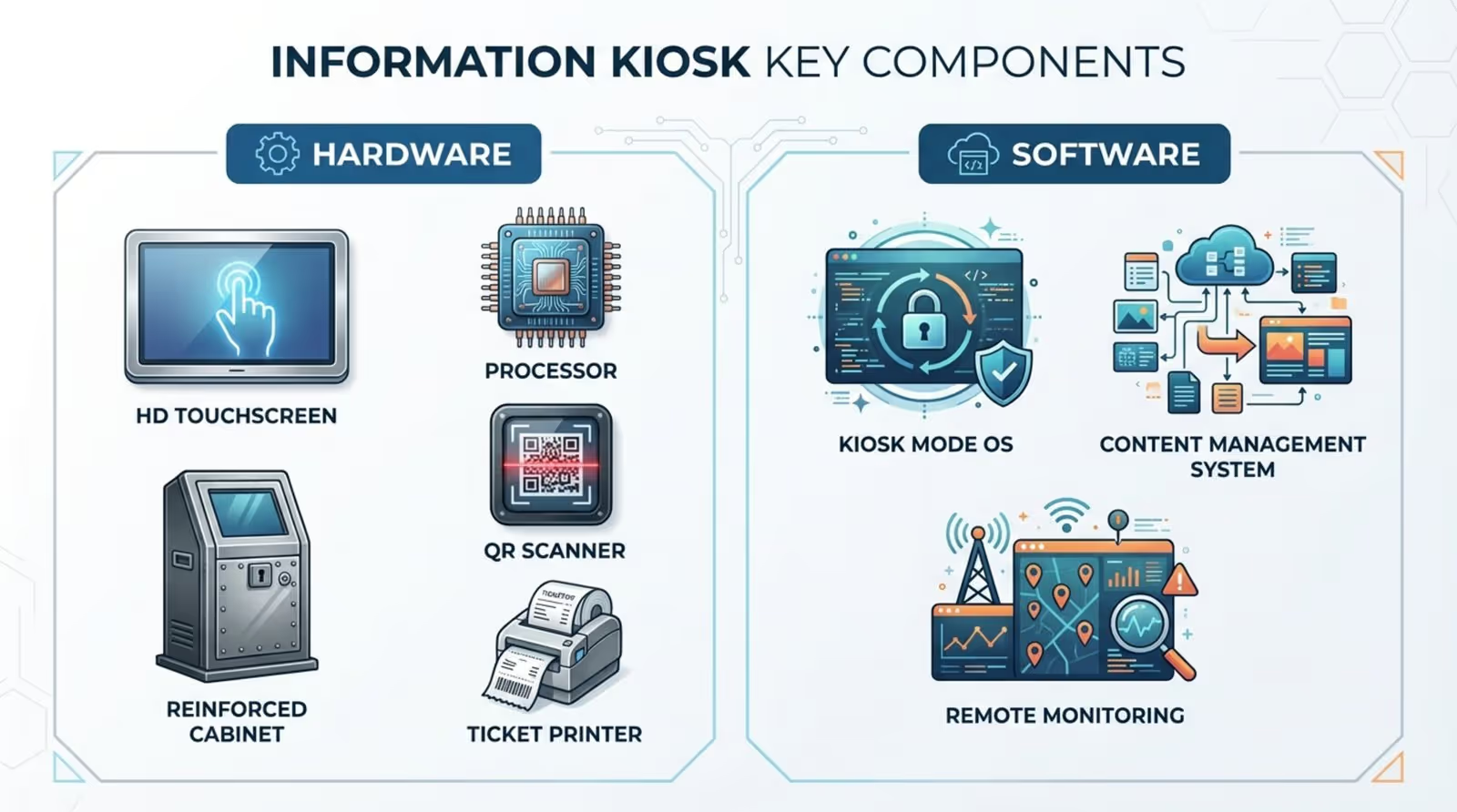
The hardware of an information kiosk is made for public spaces and heavy use. Most have a strong cabinet (metal or reinforced plastic) to protect parts from damage and tampering. The main visible piece is a high-definition touchscreen. Inside, you’ll find a processor-ranging from low-power boards for simple screens to stronger CPUs for advanced 3D maps-plus add-ons like thermal printers, QR code scanners, and card readers.
The software is the control center. It usually includes a “shell” on top of an operating system (like Windows, Android, or Linux) that limits what users can do. It also often includes a Content Management System (CMS) so your team can update content remotely. Strong kiosk software keeps the experience simple: large text, clear buttons, short flows, and obvious “success” or “error” messages.
What Types of Information Kiosks Exist?
Indoor and outdoor kiosks
Indoor kiosks are the most common. You’ll see them in malls, banks, and office buildings. They often have slimmer designs because they don’t need weather protection. Since they live indoors, the focus is usually on a clean look that fits the space.
Outdoor kiosks are built for tougher conditions. They typically include weatherproof seals, extra-bright screens that stay readable in sun, and internal heating or cooling for hot and cold days. They’re common at parks, city centers, bus stops, and outdoor venues, where they need reliable playback day and night.
Free-standing vs. tablet-style kiosks
Free-standing kiosks are larger floor units that are easy to spot. They work well in lobbies and main corridors where visibility matters. Their size also makes room for extra devices, like full-size printers, payment units, or cash hardware. Many businesses also use them as clear “help points” so visitors know where to go.
Tablet-style kiosks use a tablet mounted on a stand or wall. They fit well in tight spaces like reception desks, small shops, or restaurant counters. These setups are common for quick tasks such as check-in, sign-in, and viewing a menu. They’re often easier to install, which can make them a good option for small and mid-size teams.

Self-service kiosks
Self-service kiosks let people complete a full process on their own. A typical flow is: choose a service, enter details, pay, then get a receipt or ticket. You’ll see them in fast-food, grocery, cinemas, and parking, where they can help reduce long lines during peak hours.
For customers, the big win is control. They can move at their own pace, check details, and customize orders. For businesses, this often means fewer simple mistakes, faster service, and better use of staff time.
Wayfinding and directory kiosks
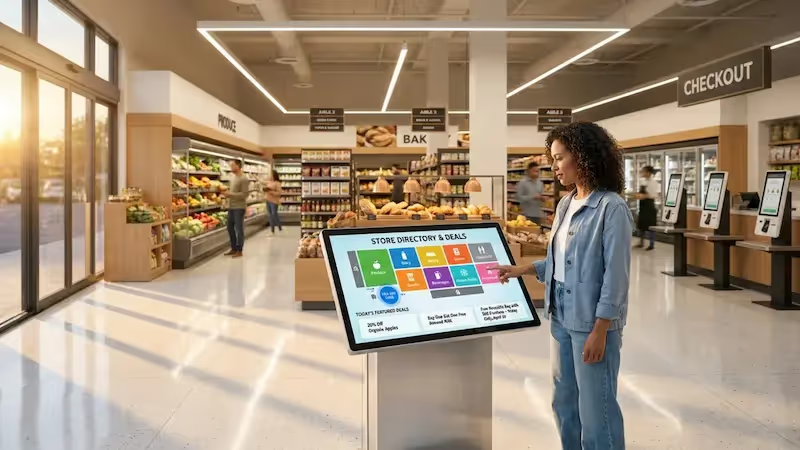
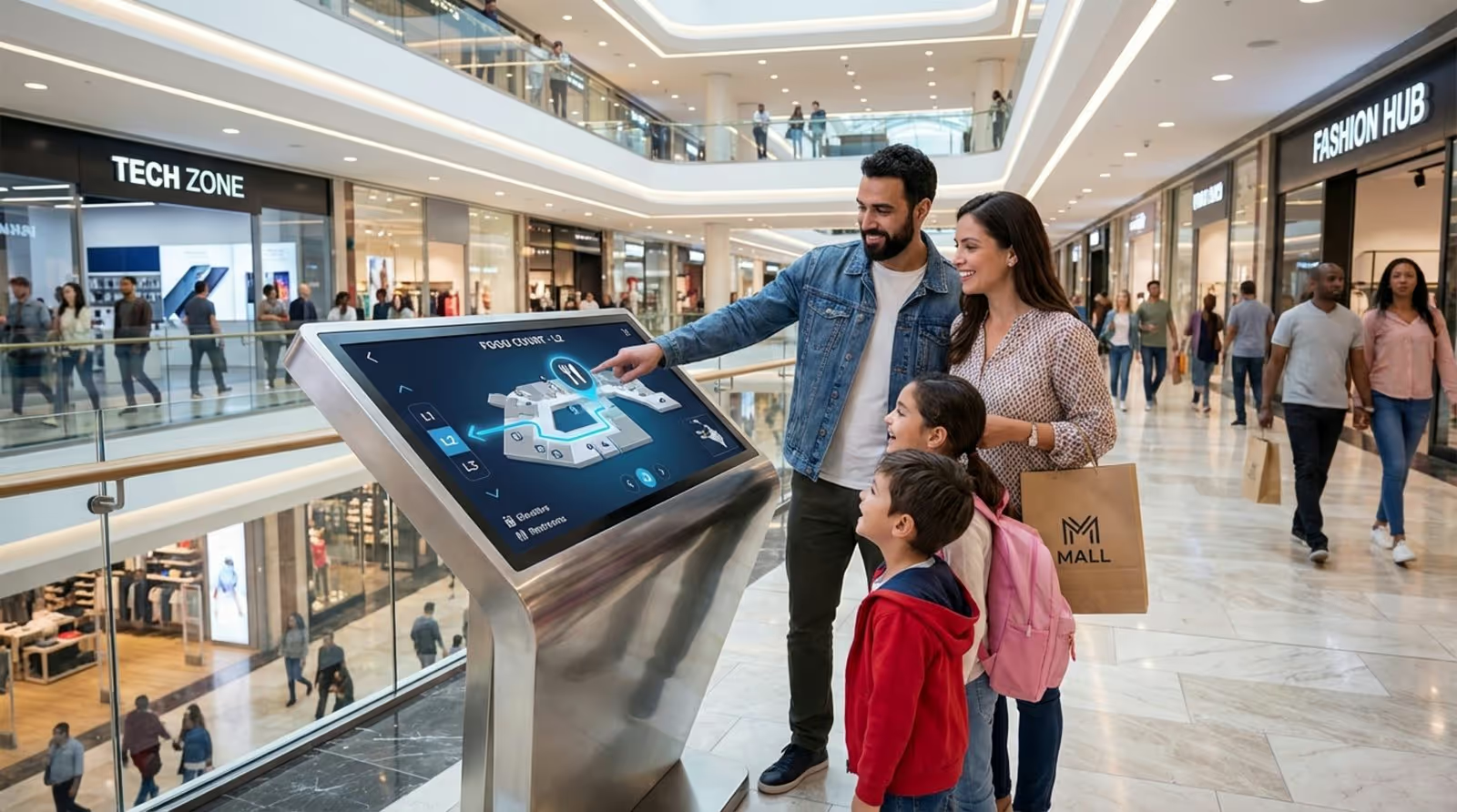
Wayfinding kiosks help people navigate large spaces like hospitals, universities, airports, and big malls. They show interactive maps, routes, and search tools for departments, stores, or services. Some also offer QR codes so a visitor can open directions on their phone and keep moving.
Clear wayfinding reduces confusion and crowding. It helps people get where they need to go on time, with less stress. Many modern systems also support accessible routes, like elevator-only paths for wheelchairs and strollers.
Digital signage kiosks
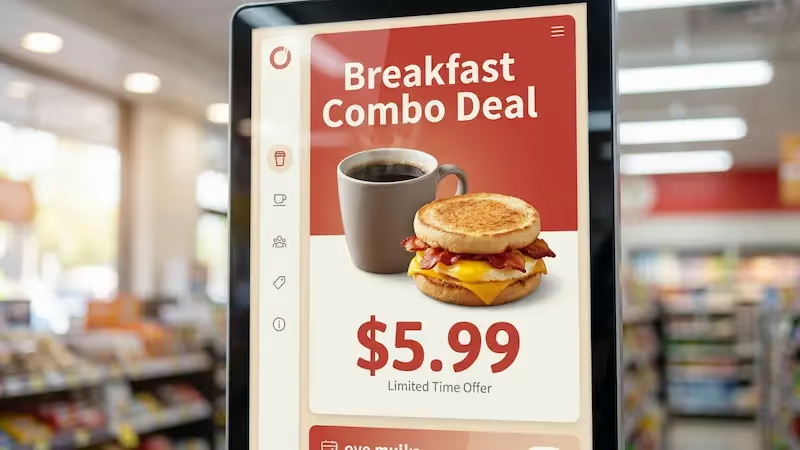
Digital signage kiosks focus more on display than deep interaction. When nobody is using the screen, they work like digital posters or notice boards. They can run videos, rotating ads, event schedules, menus, news updates, and urgent alerts.
The key benefit is flexible content. You can change messages fast based on time of day, active campaigns, or new notices-without reprinting anything. This is especially useful in places where updates happen often, like transit hubs, campuses, and retail stores.
Feedback and survey kiosks
Feedback kiosks collect opinions right after a visit. They’re often placed near exits, checkouts, and waiting areas. Users respond with smiley faces, star ratings, or quick multiple-choice questions. Since it’s fast and usually anonymous, response rates are often higher than email surveys sent later.
Results come in quickly, so teams can react faster. If ratings drop, managers can investigate and fix issues sooner-for example, adding support at a busy counter or addressing a cleanliness problem. Over time, these kiosks turn daily feedback into a steady stream of service data you can track in reports.
How Do Information Kiosks Work?
Centralized control and remote management
Most kiosks connect to a central system over the internet using Wi-Fi, Ethernet, or mobile networks. This lets one team manage many kiosks across locations. From one dashboard, you can update content, change screen layouts, publish new apps, and check device status.
Remote management also supports security and stability. If a kiosk has an error, loses connection, or shows signs of tampering, it can trigger alerts. Central control keeps your kiosks consistent, too. For example, a retailer can launch the same promo everywhere at once instead of updating each location by hand.
Steps in the kiosk user experience
Most kiosk interactions follow three main stages: Attraction, Interaction, and Completion.
- Attraction: When idle, the screen runs an “attract loop” with motion, short messages, or offers to catch attention.
- Interaction: When someone touches the screen, a clear menu appears with simple options or search, based on common needs.
- Completion: The user gets the result-like a ticket, receipt, on-screen confirmation, text message, or a map link/QR code.

If someone walks away mid-task, a timeout clears the screen and returns to the attract loop. This helps protect personal data and gives the next person a clean start.
What Are the Benefits of Using Information Kiosks?
Improves efficiency and reduces costs
Information kiosks can help teams handle more visitors without adding more front-desk staff. They don’t take breaks, they follow the same flow every time, and they can answer routine questions all day. This frees staff for higher-value work and can reduce pressure during peak hours.
Kiosks can also reduce printing and updates. Instead of reprinting brochures, maps, and paper forms that go out of date fast, you can update digital content in minutes. That can cut material costs and reduce paper waste.
Makes customer experience smoother
Most visitors want speed and clarity. Kiosks let people get help without waiting in line for basic info. A quick check-in, a clear map, or a self-service order can lower stress in busy places.
Kiosks can also offer more privacy for sensitive searches. For example, in pharmacies or clinics, some people prefer looking up information on-screen instead of asking out loud. Multi-language support can also help visitors who don’t speak the main local language.
Supports privacy and data security
When designed well, kiosks can reduce common privacy issues found with paper forms or overheard conversations. For example, a check-in kiosk can help reduce the need to say personal details at a crowded desk. Information entered can be encrypted and sent directly to back-end systems, which lowers the risk of lost paperwork.
Many kiosks also use privacy filters so only the person in front can read the screen. Session timeouts and automatic resets help make sure no personal details are left behind for the next user.
Expands access and reach
Kiosks can extend services into places where staffing isn’t practical. They can support small communities, transit stops, campuses, and remote sites. This helps organizations reach more people without opening full service counters everywhere.
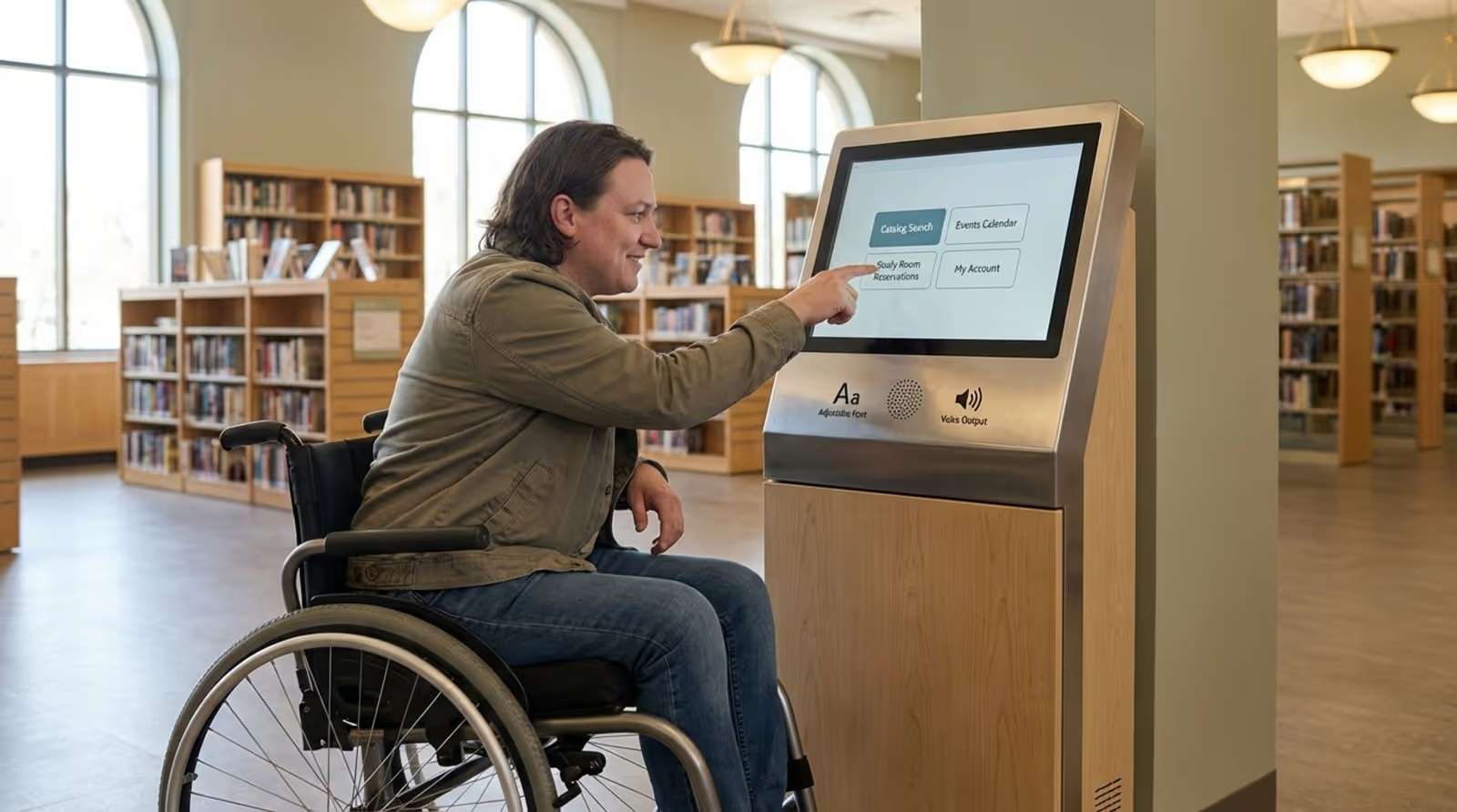
They can also support different accessibility needs. Large text, high-contrast design, audio support (where available), and simple layouts can help people use services independently. Multi-language options and clear steps can help users with limited literacy or language skills.
Reduces repetitive workload for staff
Front-line teams often answer the same questions all day: “Where do I go?”, “What are your hours?”, “How do I check in?” That work adds up and can lead to burnout.
By moving repeat questions and routine steps to kiosks, staff can spend more time on complex issues and human support. In many cases, that improves service quality for both visitors and employees.
Where Are Information Kiosks Used?
Healthcare facilities
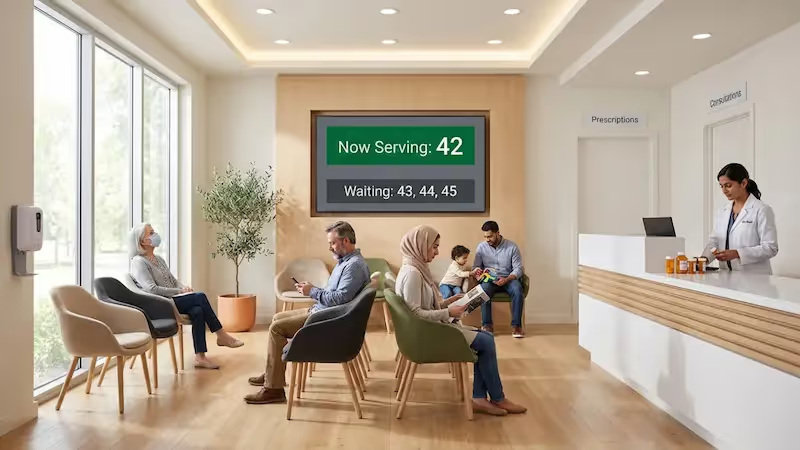
In hospitals, clinics, and medical centers, kiosks often support check-in, contact detail updates, and payment steps. This can reduce lines at reception during busy periods and free staff for patient support tasks.

Retail stores and shopping malls
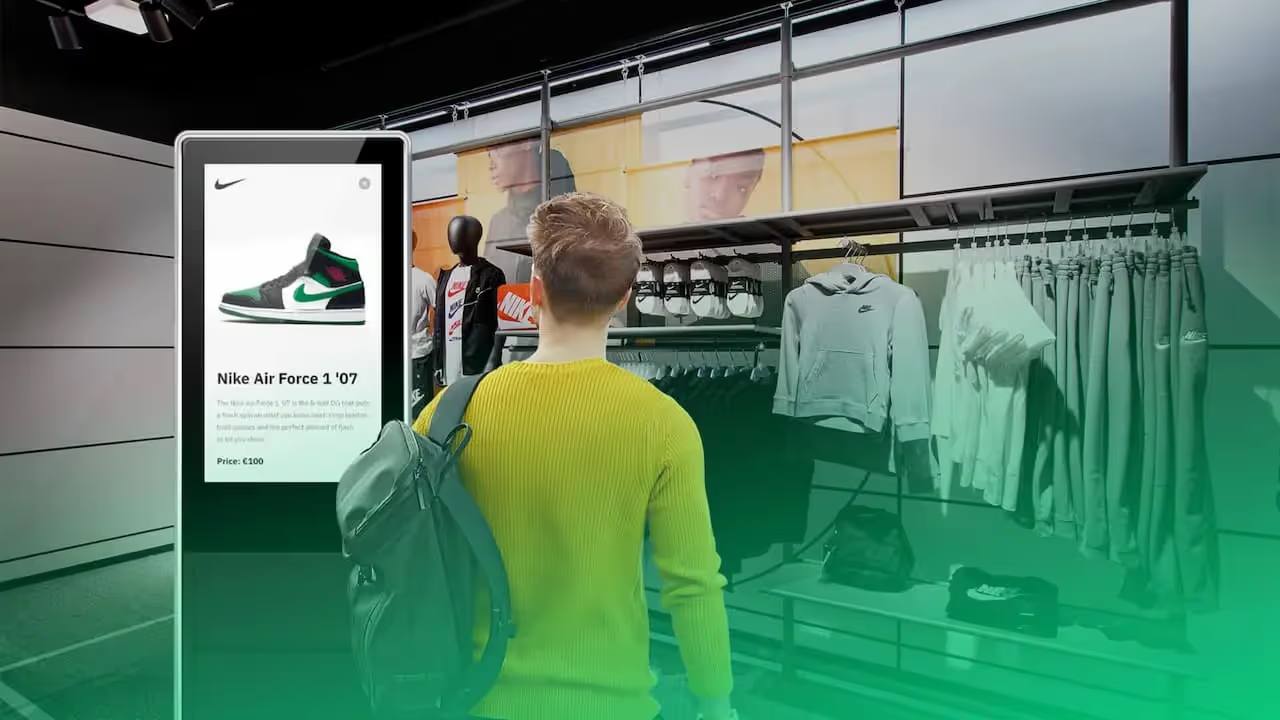
Retailers use kiosks to connect in-store and online shopping. “Endless aisle” kiosks let customers order items that aren’t in stock at that location. In malls, directory kiosks help shoppers find stores, promotions, restrooms, exits, and other key services.
Transportation hubs (airports, stations)
Airports were early users of kiosk technology. Travelers use kiosks for check-in, seat selection, and boarding pass printing. Many also show flight info, wayfinding, and security reminders. Bus and train stations use kiosks for ticket sales, schedules, and service updates.
Educational institutions
Schools and universities use kiosks for campus maps, events, student services, and access to digital forms. They’re often placed in libraries, student centers, and admin buildings. Some campuses also use kiosk screens to display safety instructions during emergencies.
Government and social services
Government offices use kiosks for tasks like renewals, applications, payments, and form submissions. People can fill out forms, scan documents, and submit requests without waiting in long lines. This helps reduce paperwork and lowers the load on front-desk staff.
Hospitality and entertainment venues
Hotels may use lobby kiosks for check-in and check-out to reduce wait times. Museums, cinemas, stadiums, and theme parks use kiosks for tickets, pickups, food and drink ordering, and site maps. Visitors can find showtimes, seating sections, and nearby facilities faster.
Corporate environments and office buildings
In offices, kiosks can support visitor management and security. Guests can sign in, scan a QR code, or enter a reference number. The kiosk can then print a badge and notify the host. This replaces paper logbooks and creates a clearer record of who visited and when.
What Factors Should You Think About Before Deploying an Information Kiosk?
Location and user needs
Placement matters. Choose spots where people naturally pause or feel uncertain-entrances, lobbies, hallway junctions, ticket lines, or near elevators. A kiosk hidden in a corner won’t get used, no matter how good the screen is.
Also think about who will use it. Are they stressed travelers, patients, students, or shoppers? Will there be older adults, children, or people with mobility challenges? These answers affect screen height, font size, number of steps, and how much guidance you need on each screen.
Choosing the right hardware and software
Cheap hardware can cost more later. Screens that freeze, printers that jam, and cabinets that break create frustration and hurt trust. For heavy traffic areas, hardware built for long operation and repeated touch is usually the safer bet.
On the software side, choose a platform that fits your workflows and can connect to your tools through an API where needed. Reporting also matters. If you can’t see what people tap, where they drop off, and which screens are used most, it’s hard to improve the experience over time.
If you want a practical starting point, Look Digital Signage is a strong fit for kiosk and screen networks because you can manage content from one web dashboard with Look CMS, build and publish playlists with Smart Scheduling, design clear multi-zone screens using Screen Layouts, and keep an eye on device health and playback using Proof-of-Play and Monitoring. That combination helps you roll out updates from anywhere and keep screens running with less manual work.
Costs and return on investment
Kiosk projects often need upfront budget. Plan for hardware, software licenses, installation, mounting, network setup, and training. Then plan for ongoing costs like support, updates, part replacement, and cleaning.
When you measure ROI, include both direct and indirect value. Direct value may include faster service, lower printing costs, and fewer routine tasks for staff. Indirect value can include shorter lines, better visitor satisfaction, stronger brand experience, and usage data that helps you optimize what’s on screen.
Durability and accessibility in design
Kiosks in public spaces get constant use. They need strong casings, stable mounting, and screens built for frequent touch. If the kiosk feels unreliable, people stop trusting it and go back to the desk.
Accessibility is just as important. Follow ADA guidelines or local equivalents. This can include reachable heights for wheelchair users, space for wheelchairs and strollers, tactile markers, and clear on-screen design. Visual design also matters: colors, branding, and layout should match the space and stay easy to read.
What Challenges and Limitations Affect Information Kiosks?
Upfront and ongoing investment
The biggest barrier is often the initial purchase and installation cost. High-quality kiosks use durable materials and specialized components, which adds to budget. There are also ongoing costs like electricity, connectivity, software updates, and repairs.
Maintenance is not optional. Screens get dirty, printers need paper, and software needs updates over time. Assign owners for cleaning, restocking, troubleshooting, and repairs so kiosks stay helpful instead of becoming ignored fixtures.
Employee and user adaptation
Kiosks can worry some employees if they think jobs are at risk. It helps to explain the real goal: reduce repetitive tasks so staff can focus on support that needs a human touch. Training staff to guide visitors during early rollout also helps.
Some users may be unsure at first, especially if they don’t use touch screens often. Many organizations use a “greeter” approach during launch to show people the steps. Once users try it once or twice, most can repeat the task without help.
Potential for technical disruptions
Any digital system can go offline at times. Power cuts, weak networks, or hardware failures can stop a kiosk. If a key kiosk fails in a busy area, lines grow fast.
To limit impact, plan fallback paths, like a basic info screen, a printed backup map, or clear instructions to a staffed desk. Regular checks, remote monitoring, and scheduled maintenance can also help you catch problems early.
Key Takeaways for Adopting Information Kiosks
Information kiosks are moving from simple touch screens to smarter, more helpful systems. Voice-based interfaces are one example: people can ask questions out loud instead of typing. In busy locations, that can feel faster and can reduce friction for users with limited reading skills.
Some kiosk setups also explore biometric options in controlled, high-security environments, such as fingerprint or palm-based checks. These approaches can speed up access steps, but they also require careful privacy-first design, clear user notice, and strong data handling. The big picture is simple: if you adopt kiosks now-and manage them well with remote management, scheduling, and monitoring-you build a foundation for smoother service and more connected spaces over time.